
UnityEQ Blockout Lab
Quick Start
EQBlockoutLab is a standalone blockout planning tool for Unity. It lives under
Assets/EQBlockoutLab and opens from:
Tools/EQLabs/EQ Blockout Lab/Open EditorTools/EQLabs/EQ Blockout Lab/Activate Scene Tool
Create a layout
Section titled “Create a layout”- Choose
Create/EQ Blockout Lab/Blockout Layout. - Select the created layout asset.
- Open
Tools/EQLabs/EQ Blockout Lab/Open Editor. - Use the Floors section to name floors, set base elevation, and choose the active floor.
- Set layout width, depth, grid size, snapping mode, and visible bounds in the layout settings.
Trace a reference image
Section titled “Trace a reference image”- Use
Import Refin the toolbar orImport Imagein the Reference section. - Adjust opacity, center, and size until the image matches the layout scale.
- Use
Fit Layoutto resize the image to the current layout bounds while preserving the image aspect ratio. - Draw elements over the 2D canvas. The reference image stays behind the grid and authored elements and is not exported to the scene.
Draw elements
Section titled “Draw elements”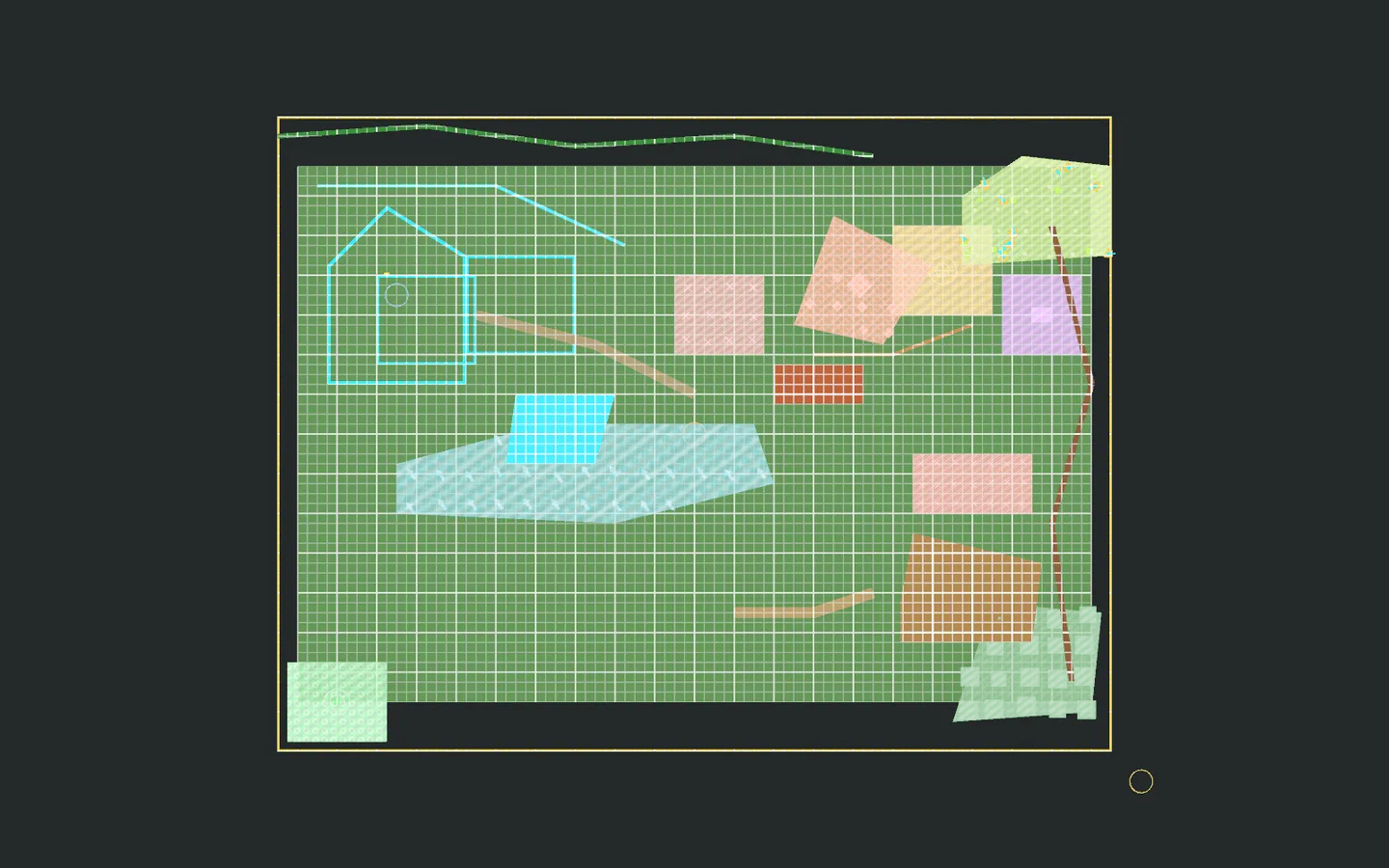
- Click
Drawin the toolbar or Elements section. - In the Elements section, choose a category.
- Choose an element type.
- Draw on the 2D layout canvas.
- Stay in
Drawto continue creating the same element type, or switch toSelectto inspect and edit existing elements.
Available categories include:
- Structure: Wall, Room, Opening, Stairs
- Terrain: Ground Zone, Slope, Cliff
- Water: Water Body, River
- Navigation: Path, Bridge
- Cover: Obstacle, Tree Line
- Zone: Keep Clear Zone, Circulation Zone, Vegetation Zone, Boundary
- Gameplay: Spawn Point, Spawn Zone, Objective Zone, Trigger Zone, Encounter Zone, Hazard Zone, Scatter Zone
- Annotation: POI Marker, Sightline, Route Flow, Cover Line
Select and edit
Section titled “Select and edit”- Use Select mode to click an element in the 2D layout.
- Click
Drawagain when you want to resume the current drawing tool. - Drag selected elements to move them.
- Drag point handles to reshape polygons, walls, paths, and zones.
- Hold Shift over an edge to preview and insert a new point.
- Use Delete to remove a selected point or selected element.
- Change the element color, height, floor, pivot, and zone settings in the Selection panel.
- Use snapping to align to the grid, layout border, element points, pivots, or nearby edges.
Openings
Section titled “Openings”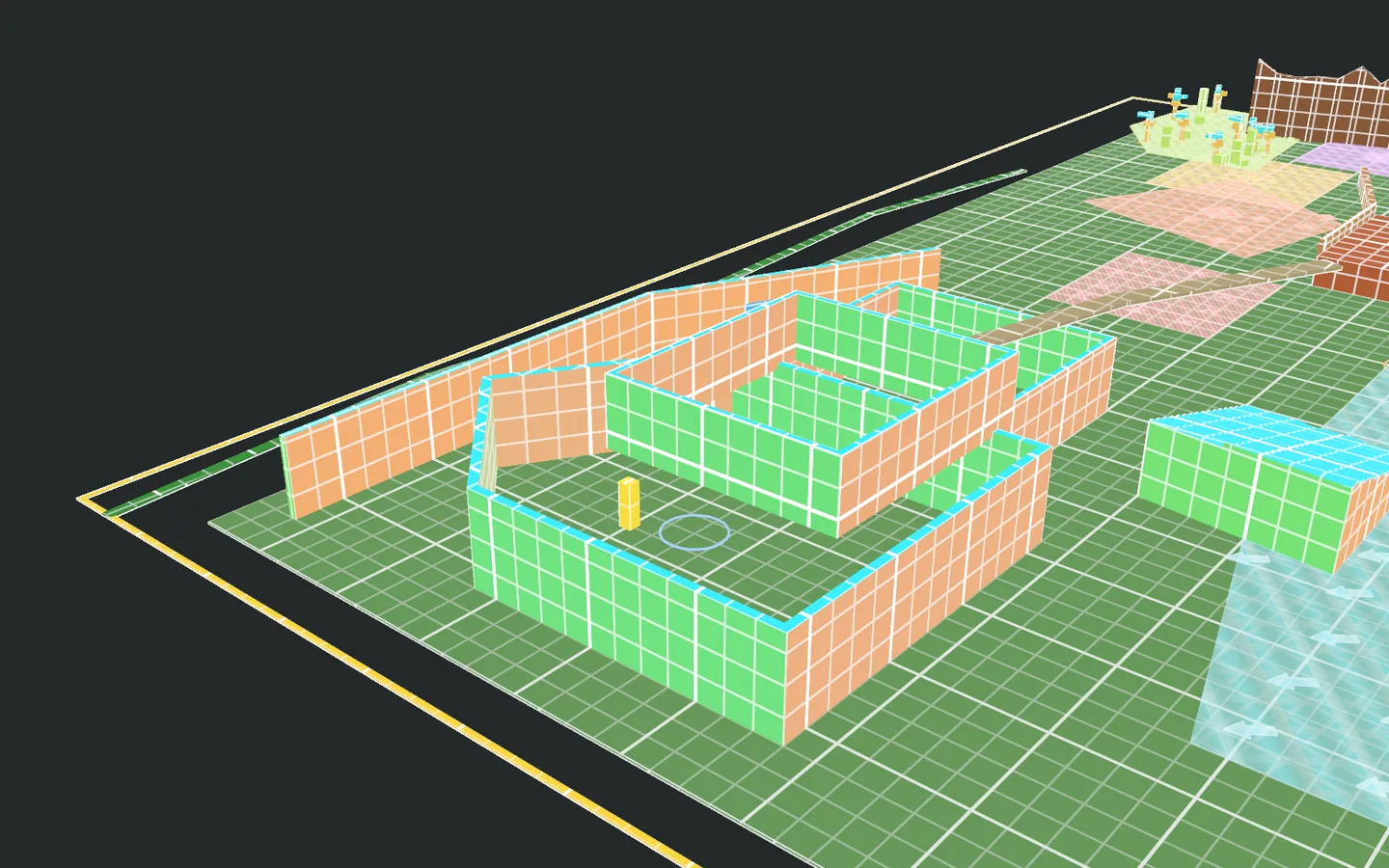
- Select a Wall element.
- Add a Door or Window from the wall opening controls.
- Adjust opening position, width, bottom, and height.
- Exported wall meshes include the opening cutouts.
Scatter zones
Section titled “Scatter zones”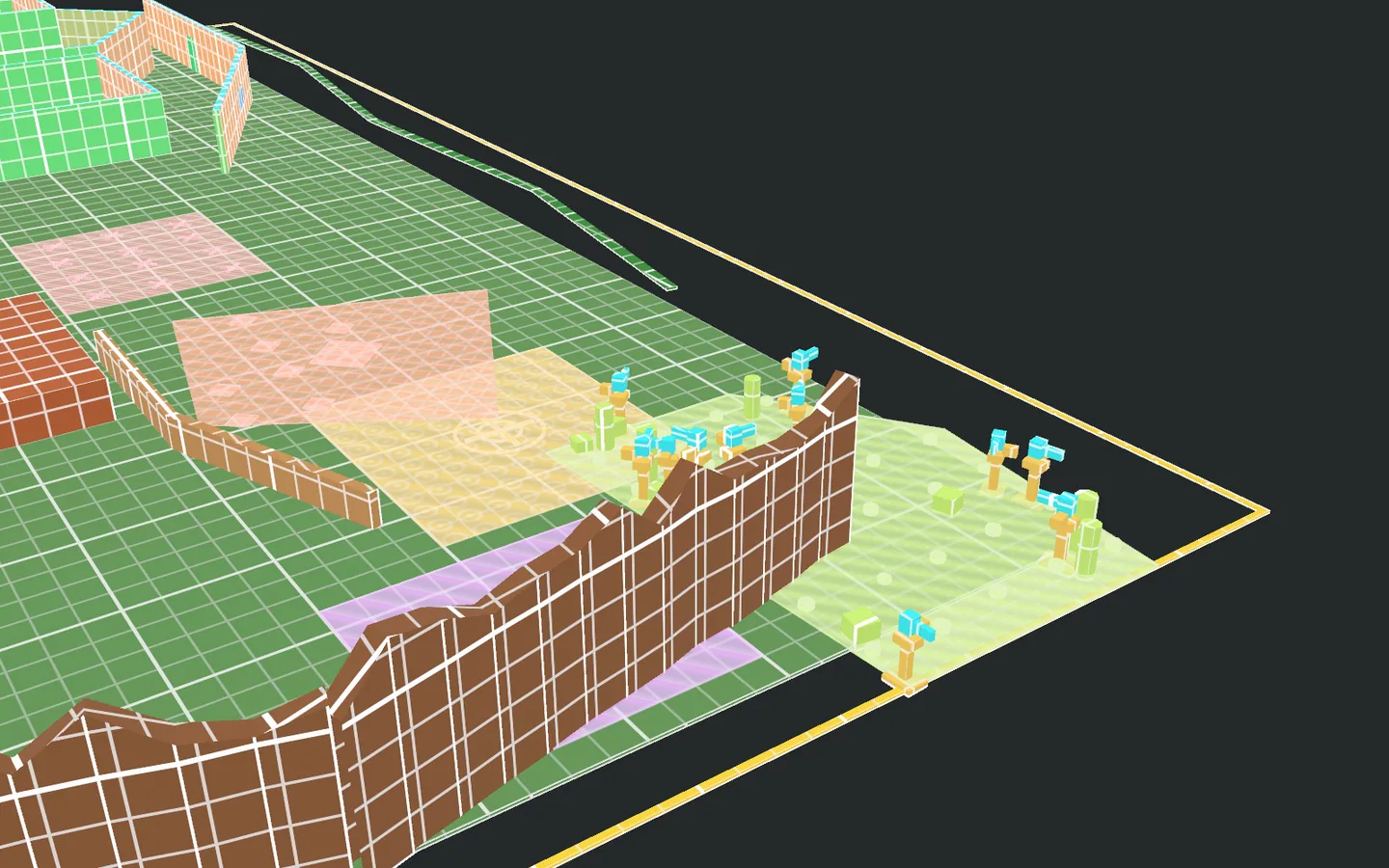
- Create a Scatter Zone under Gameplay.
- Tune count, pattern, density, ring, or cluster settings.
- Generate scatter markers.
- Optionally create a
Blockout Asset SetfromCreate/EQ Blockout Lab/Blockout Asset Set. - Assign the asset set to the Scatter Zone to export generated points as weighted prefab or mesh instances.
Scene Tool
Section titled “Scene Tool”Use Tools/EQLabs/EQ Blockout Lab/Activate Scene Tool to work directly in the
Scene view. The scene overlay shows the active asset, floor, element type, and
current edit mode. You can create, select, move, reshape, and edit openings
without leaving the Scene view.
Preview and export
Section titled “Preview and export”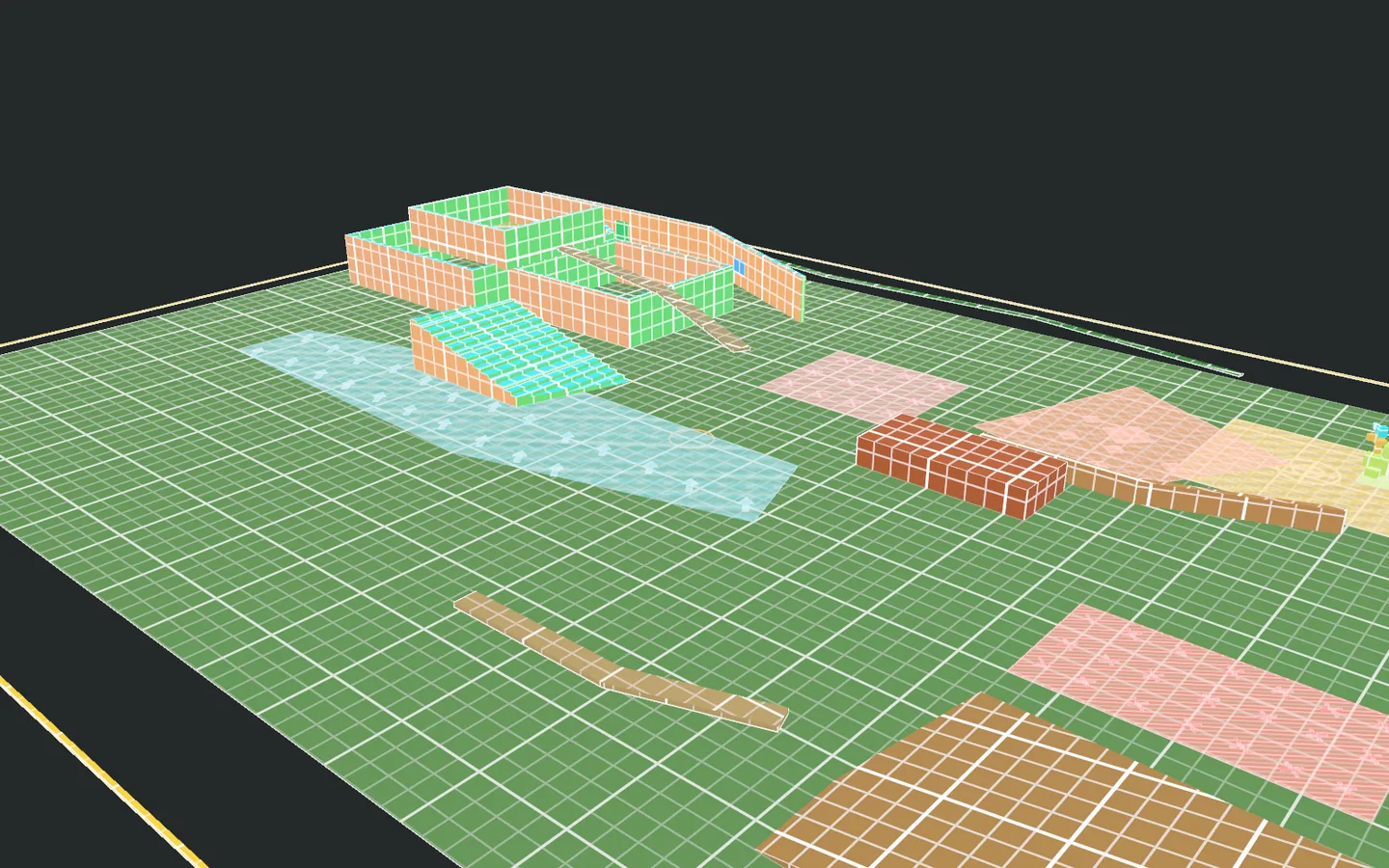
- Right mouse drag orbits the 3D preview.
- Middle mouse drag pans the 3D preview.
- Mouse wheel zooms the 3D preview.
Frame Layoutrecenters the canvas and preview.Export to Scenecreates or updates scene geometry with generated meshes, materials, colliders, export tags, wall cutouts, and scatter groups.
Standalone package notes
Section titled “Standalone package notes”- EQBlockoutLab does not require another EQLabs package.
- The package has no dependency on a separate EQLabs asset folder.
- Built-in shaders are included for projected-grid blockout surfaces and gameplay-style zone visuals.
- Preview floor planes are editor-only references and are not exported.
- Generated scene assets are stored under the package-local generated output folder configured in the layout asset.
Report an issue with this tool
Opens our feedback form in a new tab with the tool name pre-filled.