
UnityEQ Pivot Painter Lab
User Manual
Version 1.0.0. For a five-minute first bake, start with the Guide. For material properties, see the Shader reference. For fixes, see Troubleshooting.
1. Concepts
Section titled “1. Concepts”Five ideas explain everything else.
Element. A part of the mesh that moves as one piece — a branch, a leaf card, a clump. Every element owns a set of source triangles by triangle index, so ownership stays stable even when elements share vertex positions.
Hierarchy. Which element hangs from which. One element is the root (usually the trunk); everything else has a parent. Children inherit their parents’ motion before adding their own — that inheritance is what makes a tree read as a tree rather than a flag.
Pivot, axis, extent. Per element: the point it rotates about, the direction it points, and how far it reaches. Extent is a real distance in metres — the physical swing arm — so a long branch swings further than a short one.
Hierarchy level vs wind bucket. These are two different things and confusing them causes most tuning frustration:
- Hierarchy level is structural chain depth. It drives the solve and the shader’s parent-replay budget.
- Wind bucket is the semantic wind tier — the thing
Level 1–4in the material actually reads.
They are usually aligned but independent. You can have a structurally deep element that should still flutter like a leaf, and the wind bucket is how you say so. Painting a bucket by hand sets an override that survives re-detection.
The bake. Solving writes the answer into a mesh (with lookup UVs) plus two data textures. The shader reads them per vertex and replays the cascade on the GPU. Nothing animates on the CPU.
2. The three ways in
Section titled “2. The three ways in”The Wizard — recommended for your first asset
Section titled “The Wizard — recommended for your first asset”Tools ▸ EQLabs ▸ EQ Pivot Painter Lab ▸ Wizard (Guided Setup)
Five steps: pick a source, let it analyse, accept the recommended modes, and generate. It creates its own preset (always PP2 Textures), bakes, and builds a foliage prefab. When it finds no texture slots to resolve, it skips the texture step — so the numbering can jump from 3 to 5.
The workbench — full control
Section titled “The workbench — full control”Tools ▸ EQLabs ▸ EQ Pivot Painter Lab ▸ Open Editor
Everything the wizard does, plus review, authoring and repair. Described in detail below.
The asset inspector — quick actions
Section titled “The asset inspector — quick actions”Select any Pivot Painter asset. The inspector carries Open in EQ Pivot Painter Lab, Detect, Solve Preview and Bake, the material-slot audit, the preview toggles, and read-only fields for every generated output.
3. The workbench
Section titled “3. The workbench”Toolbar
Section titled “Toolbar”New Asset · Open Selected · the asset field · Detect · Solve Preview ·
Bake · Ping. A status banner under the toolbar echoes the last result.
Open Selected adopts a selected Pivot Painter asset, or creates one from a selected GameObject or Mesh.
Left sidebar
Section titled “Left sidebar”Source — assign a Source Object (FBX or prefab root) and/or a Source
Mesh. Assigning the object usually resolves the mesh for you. Audit Slots
inspects the material slots and reports renderer, submesh, material and
collision-helper counts, and lets you override the material family per slot.
A recommended mode card appears once the source is analysed: it names a
detection and hierarchy mode with a reason, and Apply Recommended Modes sets
them on your preset. It needs a preset assigned.
Preset — the preset object field plus a read-only mirror of its settings. Editing happens in the preset’s own inspector; this panel is for confirming what is in effect.
Preview Review — debug mode, scene overlay, and the pivots / parent links /
dense lines / bounds / labels toggles, with Foliage Review, Hierarchy and
Axis quick presets.
Generated Outputs — read-only references to everything a bake produced, plus the impostor and source-LOD toggles, hero material creation, prefab creation, and the texture resolver panel.
Viewport
Section titled “Viewport”Modes: Shaded · Foliage Review · Hierarchy · Static · Links · Pivots
· Problems · Element Color, plus Fit.
Navigation: left-click selects, left-drag box-selects, right-drag or Alt+left
orbits, middle-drag pans, scroll zooms, F frames. Shift and Ctrl modify the
selection.
Brush. Pick a brush mode and left-drag to paint: selection, family, static/dynamic, visibility, or wind buckets. Radius is adjustable (8–180).
The brush picks by screen distance to an element’s bounds centre, pivot or bounds corners — it is not a true surface brush, so it can catch elements behind others. Hidden elements are never painted.
Right pane
Section titled “Right pane”Manual Repair, Branch Workbench, Selected Element Review, Hierarchy Tree and Report, each collapsible. Fold state is remembered per user and never dirties the asset.
The Hierarchy Tree is the workhorse for selection: filter by family, level
and state; Select Similar; and geometry candidate filters (Tiny,
Flat Cards, Large, Tall, Canopy, Trunk Cards) for finding classes of
element quickly on a dense asset.
4. Detection modes
Section titled “4. Detection modes”| Mode | What it does | Use when |
|---|---|---|
| Single Element | One element owning every triangle | Small props and grass tufts — whole-object sway, no hierarchy |
| Submesh Sections (default) | One element per submesh | The mesh is already split one submesh per logical part |
| Islands | One element per welded-connected component | Branch and leaf pieces are already physically separate |
| SmartCut | Splits on dihedral angle above the SmartCut angle, weighted by concavity | One welded mesh with sharp creases where limbs join |
| Skeleton First (RGS-PA) | Builds a support skeleton from welded patches plus spatial bridges, then attaches terminals | Dense one-mesh foliage with no useful submesh or material split |
| Material Guided | The same solver as Skeleton First, with material slots supplying triangle roles | Your materials already separate bark from leaves — usually the best choice when they do |
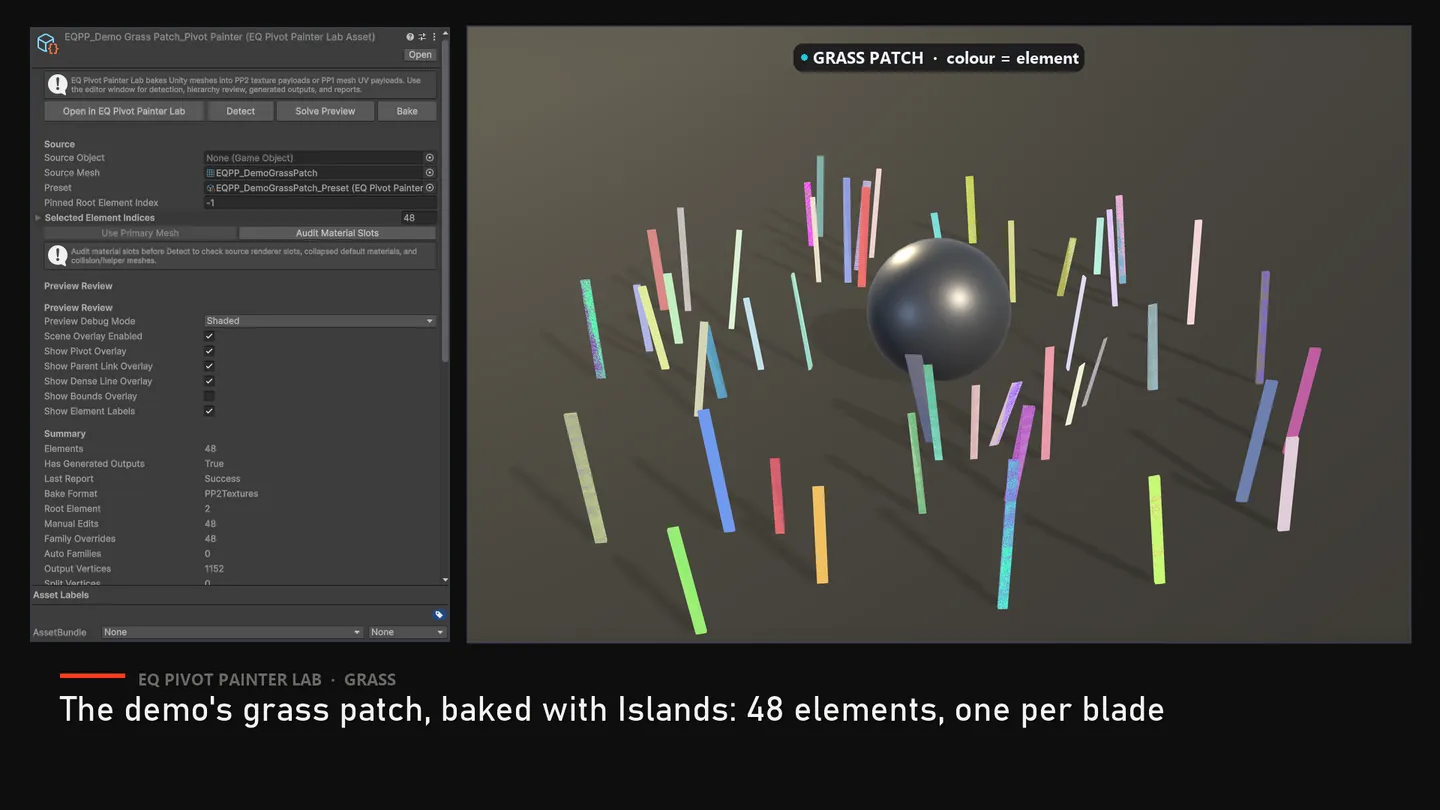
Material Guided and Skeleton First run the same solver. The difference is that Material Guided feeds it role information from your material slots: structural slots become the skeleton, leaf and attachment slots stay terminal.
Tuning detection
Section titled “Tuning detection”- Weld Tolerance (default
0.001) — how close vertices must be to count as joined. Raise it for meshes with tiny gaps at the joins. - SmartCut Angle (default
55) — creases sharper than this split. - SmartCut Concavity Weight (default
0.5) — makes concave folds (a real branch join) cut more eagerly than convex curvature (a smooth bend). - Min Element Triangles (default
2) — anything smaller folds into its strongest neighbour. This is what stops SmartCut producing confetti. Set to1to disable.
5. Reviewing a solve
Section titled “5. Reviewing a solve”Always run Solve Preview before Bake on a new asset. It performs the full solve and shows you the result without writing final data.
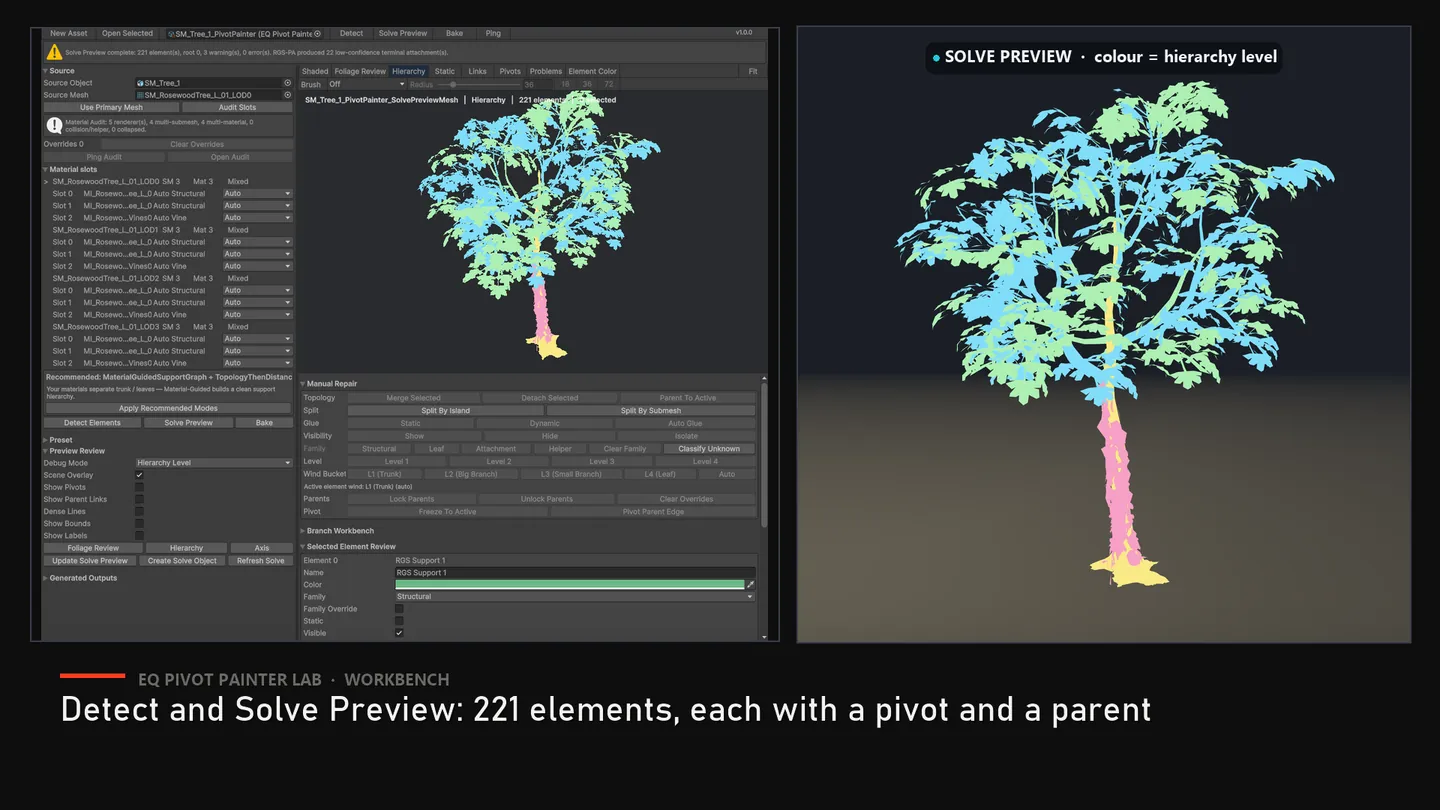
What to look at, in order:
- Hierarchy view. Do the colour bands look like a tree — trunk, then branches, then leaves? If almost everything is one colour, the hierarchy did not form and no amount of wind tuning will fix it.
- Pivots. Are they on the geometry, at the joins? A pivot floating in air causes swimming and stretching.
- Axis view. Do axes point outward along limbs? Downward-pointing axes on
upright foliage are a red flag — see
Correct Downward Foliage Axes. - Static view. Is moss, bark and fixed dressing marked static?
- Problems view. Highlights likely solve issues directly.
The Report panel gives the same information numerically: element counts, level distribution, coverage, family breakdown, and every message the solve emitted.
On dense foliage, labels and full parent-link overlays get noisy.
Dense Lineskeeps parent and axis lines readable at high element counts; turn it off to emphasise only root, selected, static, locked and manually edited elements.
6. Authoring and repair
Section titled “6. Authoring and repair”All operations act on the current selection, are undoable, and live in Manual Repair.
Topology
Section titled “Topology”- Merge Selected — needs two or more selected; merges into the lowest index.
- Detach Selected — makes elements roots, and locks the parent so re-detection does not undo it.
- Parent To Active — re-parents the selection to the active element and locks it.
- Split By Island / Split By Submesh — act on the active element only, and need a readable source mesh.
Glue (static behaviour)
Section titled “Glue (static behaviour)”- Static — force-glue: the element rides its parent and adds no motion of its own. Correct for moss, bark, fixed dressing.
- Dynamic — force-free.
- Auto Glue — hand it back to the automatic detector.
All three survive re-baking.
Family
Section titled “Family”Structural, Leaf, Attachment, Helper, Clear Family, and
Classify Unknown (which runs the classifier over unknown elements and accepts
only confident answers — ambiguous elements deliberately stay unknown).
Painting Attachment also marks the element static. Painting Helper marks it static and hidden.
Level and wind bucket
Section titled “Level and wind bucket”- Level 1–4 sets hierarchy level and mirrors it into the wind bucket, which is what most people mean when they say “make this behave like a leaf”.
- Wind Bucket L1–L4 / Auto sets only the wind tier and marks it as your intent, so the solver’s automatic pass leaves it alone on re-detection.
Pivots and axes
Section titled “Pivots and axes”- Pivot Parent Edge — moves the pivot to where this element meets its parent. This is the fix for swimming leaf cards.
- Pivot Center / Pivot Base / Extent Bounds — explicit overrides.
- Axis X / Y / Z — force a forward axis.
- Freeze To Active — with several selected, re-parents them all to the active element and marks them static. With one selected, just static and locked.
Parents and overrides
Section titled “Parents and overrides”Lock Parents protects manual structure from re-detection — and softens some gate failures to warnings, because you have told the tool you meant it. Clear Overrides resets parent lock, family override, and pivot/axis/extent overrides in one go.
Turn off Auto Detect On Bake in the preset once you start hand-authoring, so a bake does not re-run detection over your work. Locked parents and painted buckets survive either way.
7. Branch groups
Section titled “7. Branch groups”For editing whole limbs instead of individual elements.
- Build From Hierarchy scaffolds groups from the current solve, or New From Selection creates one by hand.
- Set the group’s colour, level, static state, parent group, or pivot override.
- Apply Group To Elements pushes those settings onto its members.
Groups are locked by default, so their settings survive baking — which is what
makes Level 1–4 in the material target trunk, big branches, small branches and
leaves predictably.
8. Baking
Section titled “8. Baking”Choose a bake format in the preset:
- PP2 Textures (default) — pivot/parent and axis/extent data textures plus a lookup UV channel on the mesh. Required for the hero foliage shaders.
- PP1 Mesh Data — payloads written directly into mesh UV channels. Texture free, but hero materials cannot be created from it.
What a bake produces
Section titled “What a bake produces”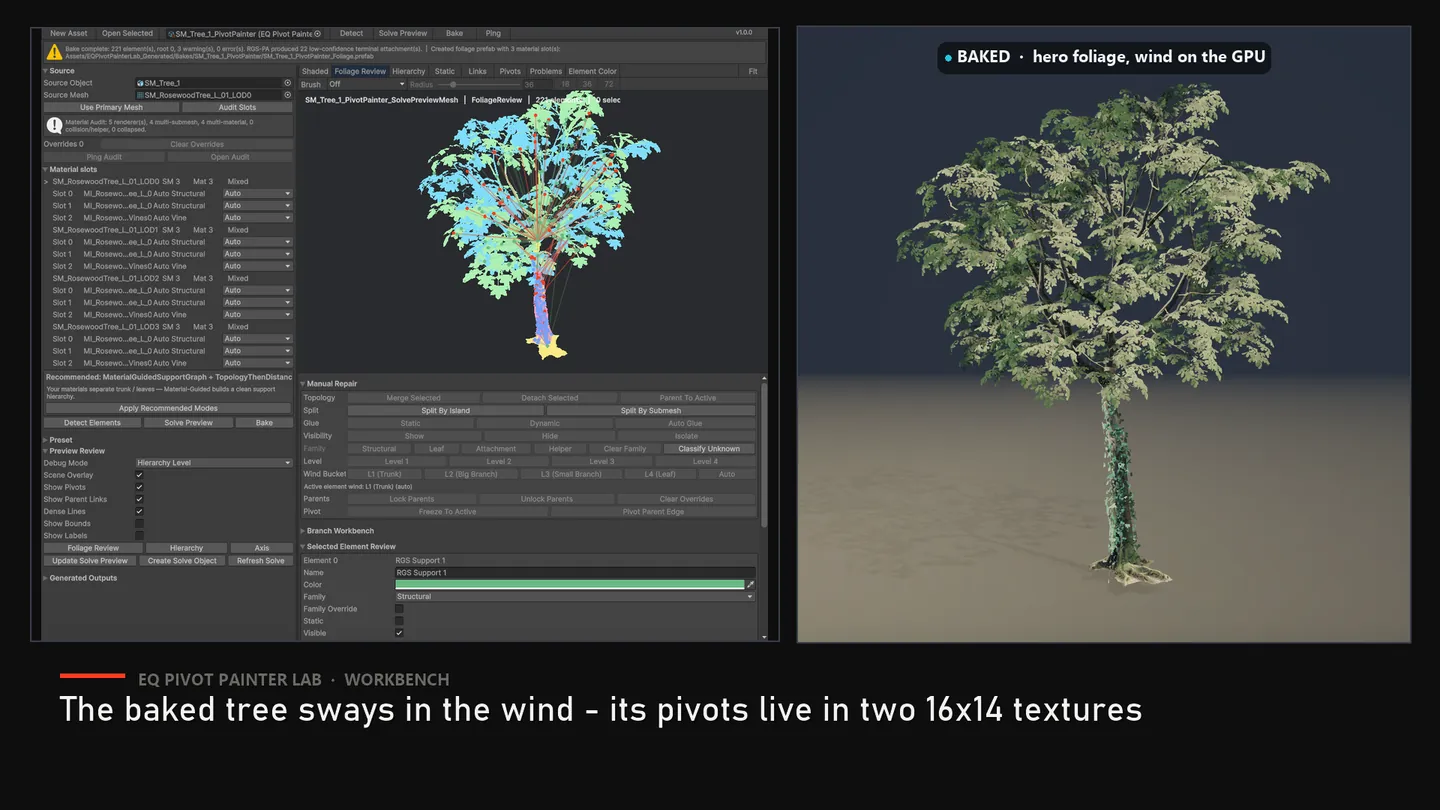
Under Assets/EQPivotPainterLab_Generated/Bakes/<AssetName>/:
| File | What it is |
|---|---|
<name>_BakedMesh.asset | The output mesh with lookup UVs. Vertices are split where element boundaries need distinct payloads. |
<name>_PivotParent.asset | (PP2) Pivot position and packed parent/bucket/static data. |
<name>_AxisExtent.asset | (PP2) Forward axis and normalised swing-arm extent. |
<name>_PreviewWind.mat | Debug/review material. |
<name>_HeroFoliage*.mat | The production material — one per submesh, so multi-material trees are not collapsed into one slot. |
<name>_Foliage.prefab | Ready to drop in a scene: baked mesh, hero materials, and per-renderer wind variation already attached. |
A JSON report lands under Reports/. Re-baking replaces files at the same
deterministic paths — nothing accumulates.
Your source mesh is never modified. Baked meshes use vertex colour alpha to carry the element’s material family, so source vertex colours are not preserved.
Determinism
Section titled “Determinism”The same mesh and settings produce byte-identical output every time. If a re-bake produces different files, something changed — compare the two JSON reports.
9. Bake Doctor
Section titled “9. Bake Doctor”Tools ▸ EQLabs ▸ EQ Pivot Painter Lab ▸ Bake Doctor
Runs exactly the same checks as the hard pre-bake gate, so its verdict can never disagree with what a bake will do. It performs the full solve but writes nothing.
Eight checks:
| Check | Fails when |
|---|---|
| Elements detected | Zero elements |
| Element budget | More than 30,000 elements |
| Triangle uniqueness | A triangle is owned by more than one element |
| Triangle coverage | Below 98%. Between 98% and 100% is a warning — those triangles carry no wind payload |
| Parent pointers | Self-parenting or out-of-range parents |
| Cycles | A parent chain that never reaches the root |
| Depth integrity | A child not below its parent, or a wind bucket out of range |
| Replay budget | A chain deeper than the shader’s 3 hops |
Plus a warning when a moving element is parented to a static one — it will inherit nothing from that link. Sometimes that is what you want; usually it is not.
Select in Scene selects the offending elements and turns on the overlay so
you can see them. Log indices dumps the full list to the Console.
Locking an element demotes some structural failures to warnings, because a lock is you telling the tool the structure is deliberate.
10. Materials and textures
Section titled “10. Materials and textures”Automatic texture resolution
Section titled “Automatic texture resolution”Albedo, normal and packed maps are classified by filename token and bound for
you, with a per-slot review panel showing confidence. Override any slot it gets
wrong. Conventional suffixes (_D, _N, _ORM) make it right first time.
Packed masks
Section titled “Packed masks”Set Packed Mask Layout to match your texture rather than repacking it:
| Layout | Channels |
|---|---|
| Unity MaskMap (0) | R metallic, G AO, A smoothness |
| ORM (1) | R AO, G roughness, B metallic |
| ORT (2) | R AO, G roughness, B transmission |
| AO/Rough/Height (3) | R AO, G roughness, B height — SpeedTree’s default |
If you only have separate AO, roughness and metallic maps, the ORM packer builds a packed map for you.
Hero materials
Section titled “Hero materials”Create/Update Hero Materials builds one material per submesh on the hero shader
for your active pipeline. It requires a PP2 bake — PP1 has no data textures for
the shader to read.
11. The wind system in a scene
Section titled “11. The wind system in a scene”Three components, none of which need wiring to each other — they communicate through global shader values.
Wind Controller
Section titled “Wind Controller”Add Component ▸ EQ Labs ▸ EQ Pivot Painter Wind Controller
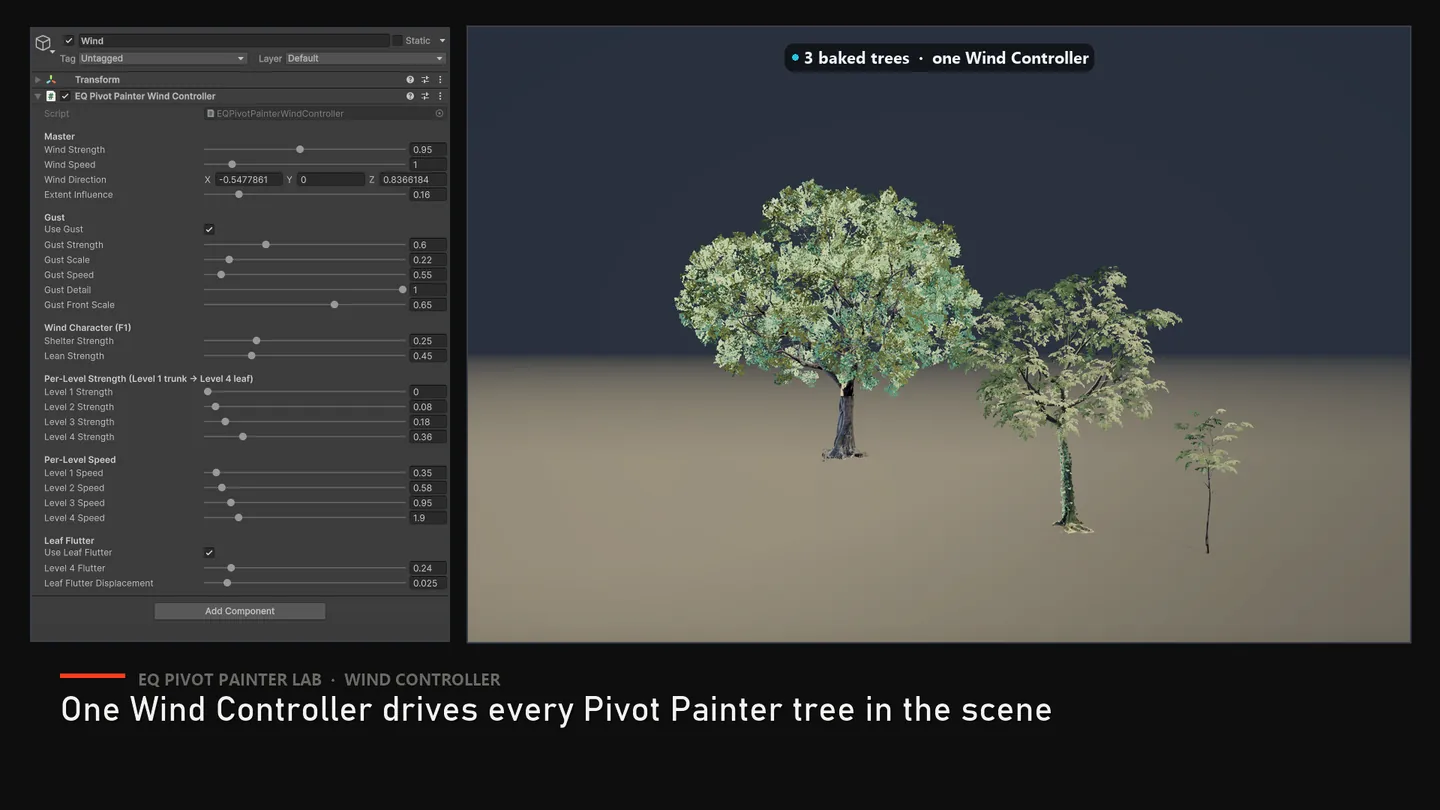
One per scene. Drives every EQ foliage material at once: master strength, speed and direction; gust strength, scale, speed, detail and front scale; leeward shelter and downwind lean; and per-level strength and speed for all four tiers.
While it is enabled it overrides each material’s own wind settings. Disable it and control returns to the materials.
Its defaults are deliberately calmer than the per-material defaults, so adding a controller to an existing scene visibly settles the foliage. That is expected — tune from there.
Gust Front Scale is the setting that stops a forest pulsing in unison: at 0
every tree gusts together; raise it and gusts travel across the world.
Wind Variation
Section titled “Wind Variation”Add Component ▸ EQ Labs ▸ EQ Pivot Painter Wind Variation
Per-renderer phase offset and strength multiplier, so two copies of the same tree
do not move identically. Already attached to generated foliage prefabs. Leave
Seed at 0 to derive a stable seed from world position.
This uses a MaterialPropertyBlock, which takes that renderer out of SRP batching. Other renderers sharing the material keep batching normally.
Interactor
Section titled “Interactor”Add Component ▸ EQ Labs ▸ EQ Pivot Painter Interactor
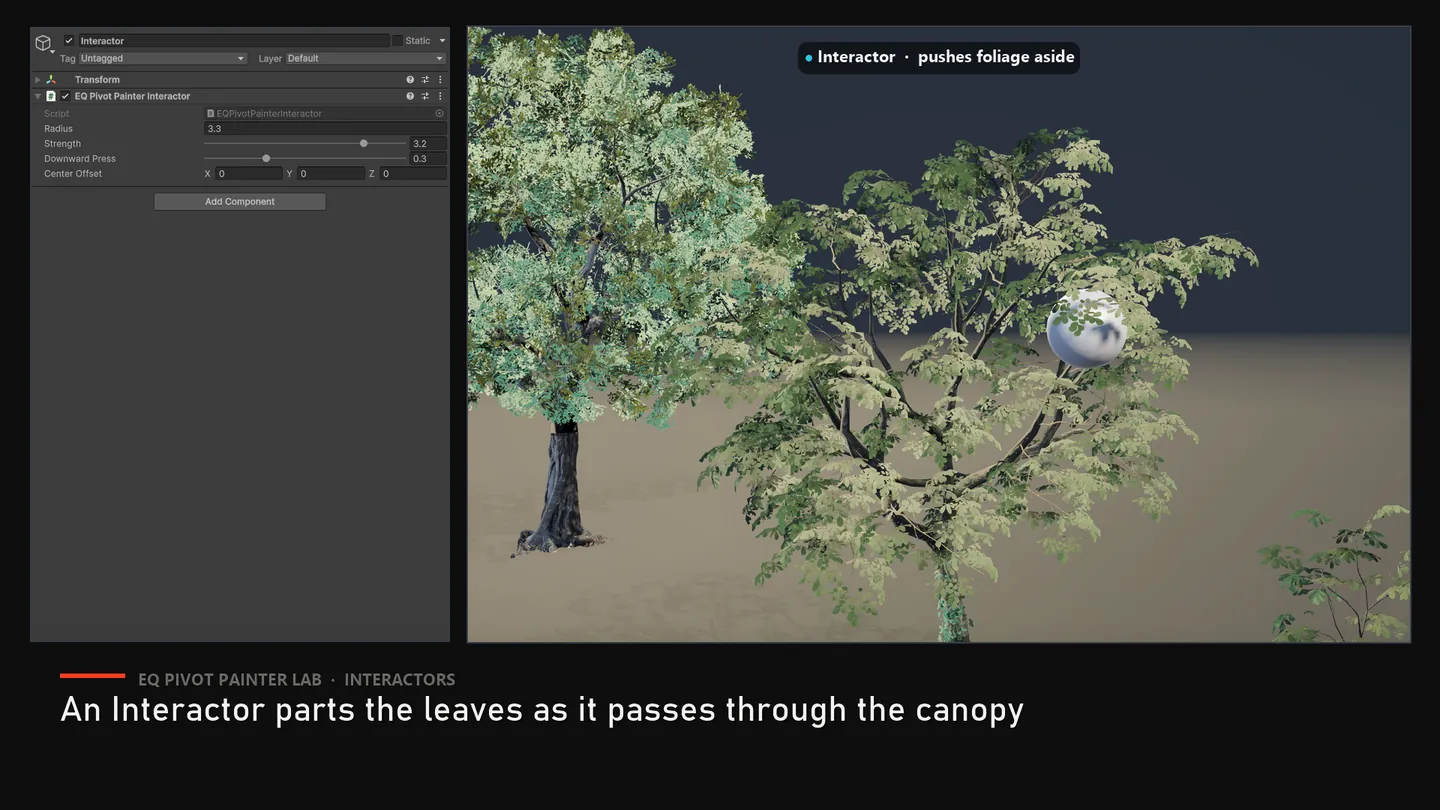
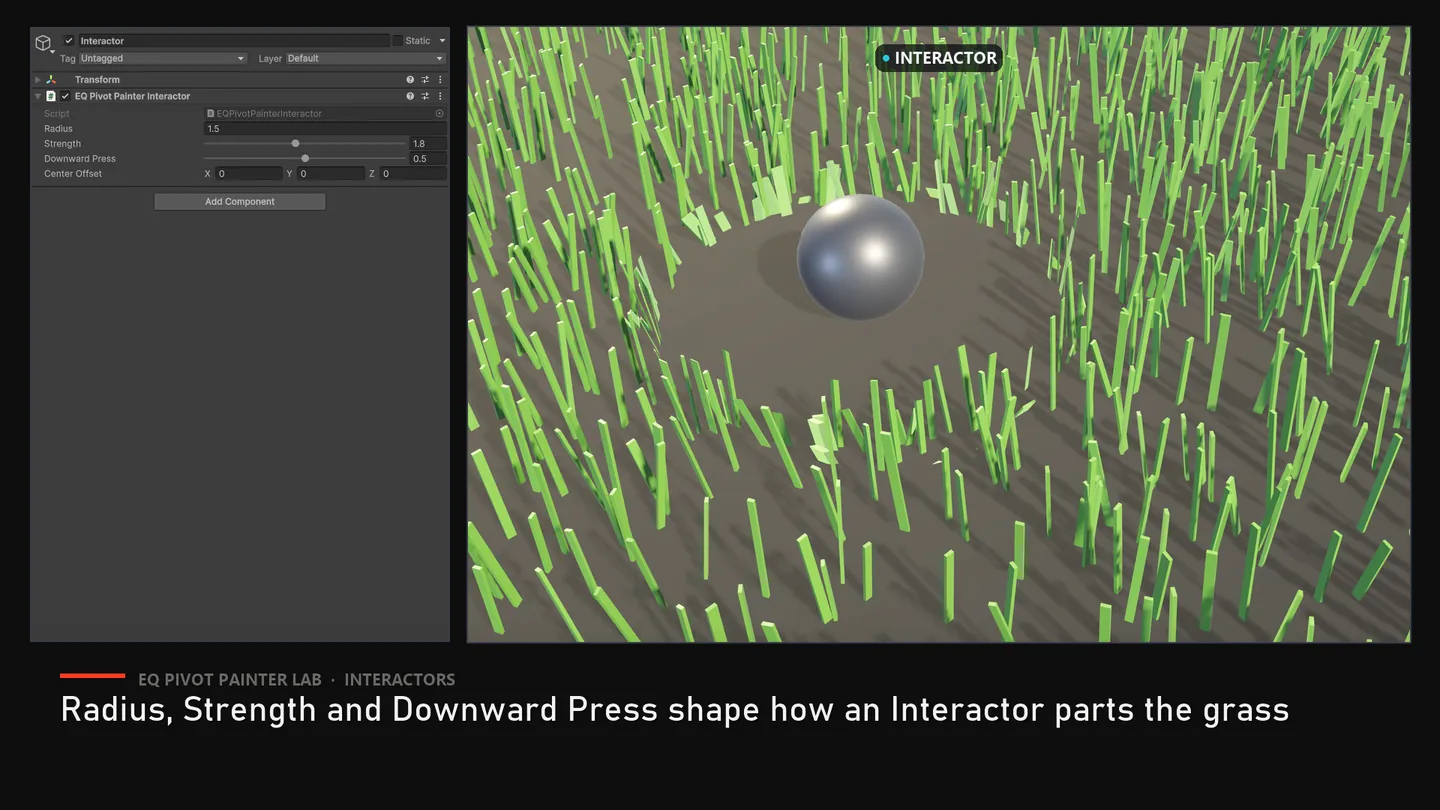
Put it on a character, vehicle or prop to push foliage aside. Radius, strength, downward press and a centre offset (drop it to foot height for a walking character). No per-material setup.
Eight interactors are active at once. Beyond that, the ones nearest the rendering camera win and the rest drop out silently rather than popping.
12. Impostors and LODs
Section titled “12. Impostors and LODs”Captures an octahedral impostor atlas of the baked tree and assembles a LODGroup so distant trees become a single billboard card.
- Bake with PP2 Textures — capture needs the baked mesh.
- In Generated Outputs, tick Include impostor LOD, and optionally Include source mesh LODs.
- Click Create Foliage Prefab — or just Bake, which does it automatically using the same toggles.
With source LODs included, the tool reads your FBX’s own LODGroup, skips its LOD0 (the wind hero replaces it) and any trailing billboard (the impostor replaces it), and slots the remaining reduced meshes in as static, non-windy LODs — reusing your original transition heights.
Capture happens through a command buffer rather than a scene camera, so it behaves identically in all three pipelines. If capture fails, the prefab is still created without the LODGroup and the message says so.
13. Batch and import automation
Section titled “13. Batch and import automation”Batch ▸ Bake Selected Pivot Painter Assets — bakes every selected asset and writes a batch report.
Batch ▸ Create Assets From Selected Meshes — creates one Pivot Painter asset per selected mesh.
Import Automation ▸ Create Or Ping Default Profile — creates an opt-in profile that bakes matching meshes automatically on import. It is off by default. Set an include folder, an output folder, a preset, and the file extensions to watch.
Only the profile at the default path is honoured. Creating a second profile asset elsewhere has no effect.
14. Settings reference
Section titled “14. Settings reference”Detection
Section titled “Detection”| Setting | Default | Notes |
|---|---|---|
| Detection Mode | Submesh Sections | See section 4 |
| Weld Tolerance | 0.001 | Vertex-weld distance for island and adjacency detection |
| SmartCut Angle | 55 | Dihedral angle above which SmartCut splits |
Hierarchy
Section titled “Hierarchy”| Setting | Default | Notes |
|---|---|---|
| Root Policy | Lowest Largest | How the root is chosen when none is pinned. Also: Largest Element, First Element |
| Hierarchy Mode | Topology Then Distance | Or Star Root — everything parents to the root, one flat level |
| Max Hierarchy Depth | 4 | Hard ceiling: the shader replays 3 parent hops |
Pivots
Section titled “Pivots”| Setting | Default | Notes |
|---|---|---|
| Root Pivot Policy | Bounds Base | Bounds Center for hanging or floating assets |
| Forward Axis Policy | Pivot To Farthest Vertex | Or Bounds Longest Axis (steadier on noisy geometry), Mesh Local Up, Mesh Local Forward |
| Static Extent Ratio | 0.25 | Extent fraction below which an element is treated as static-ish |
| Correct Downward Foliage Axes | true | Turn OFF for weeping or hanging growth — willows, vines — so they keep genuine downward axes |
| Min Element Triangles | 2 | Below this, elements fold into a neighbour. 1 disables |
| SmartCut Concavity Weight | 0.5 | Makes concave folds cut more eagerly than convex curvature |
| Setting | Default | Notes |
|---|---|---|
| Bake Format | PP2 Textures | PP1 Mesh Data is texture-free but cannot drive hero materials |
| Lookup UV Channel | UV3 | Avoids UV0 albedo and UV1/UV2 lightmap conventions |
| PP1 Pivot / Axis UV | UV4 / UV5 | Must differ from each other |
| Texture Size Mode | Auto | Auto rounds up to the next power of two from the element count |
| Fixed Texture Resolution | 256 | Only used when size mode is Fixed. Range 4–4096 |
| Auto Detect On Bake | true | Turn off once you hand-author |
Asset fields
Section titled “Asset fields”| Field | Notes |
|---|---|
| Source Object | FBX or prefab root. Used for the slot audit and source LODs |
| Source Mesh | The mesh actually solved. Must be readable |
| Preset | All solve and bake settings. Defaults apply when empty |
| Pinned Root Element Index | -1 = automatic |
15. Render pipelines
Section titled “15. Render pipelines”One bake works in all three. Surface shading differs where the pipelines do.
Built-In — Standard surface lighting.
URP — full main and additional light handling, received shadows, and a DepthNormals pass, so foliage participates in SSAO (in Depth Normals mode) and decal normal blending.
HDRP — lit by the scene’s main directional light (direction, colour, intensity, and its cascade shadow) plus spherical-harmonics environment from sky and light probes.
HDRP limitations, stated plainly. Additional punctual and area lights do not reach the HDRP hero shader, and it writes no motion vectors, so wind motion is not represented to TAA — moving objects are unaffected. If you need a richer light rig on hero foliage in HDRP, wrap
EQPivotPainterDeformFoliagein a Shader Graph and shade with HDRP’s Lit master node. The deformation is a plain HLSL include and is designed to be reused that way.
Performance
Section titled “Performance”The biggest lever is Parent Chain Depth on the material: how many parent hops
the shader replays. 3 is full quality; 1 is much cheaper and appropriate for
mid-distance trees; the Mid Distance and Background material presets set it
for you. Turning off gust and translucency on distant foliage also helps.
Opens our feedback form in a new tab with the tool name pre-filled.