
UnityCelShaderFX
User Manual
Complete Guide to Non-Photorealistic Rendering
Section titled “Complete Guide to Non-Photorealistic Rendering”Introduction
Section titled “Introduction”CelShaderFX is a comprehensive non-photorealistic rendering (NPR) post-processing system for Unity. It transforms your 3D scenes into stylized artwork with effects ranging from anime cel shading to oil paintings.
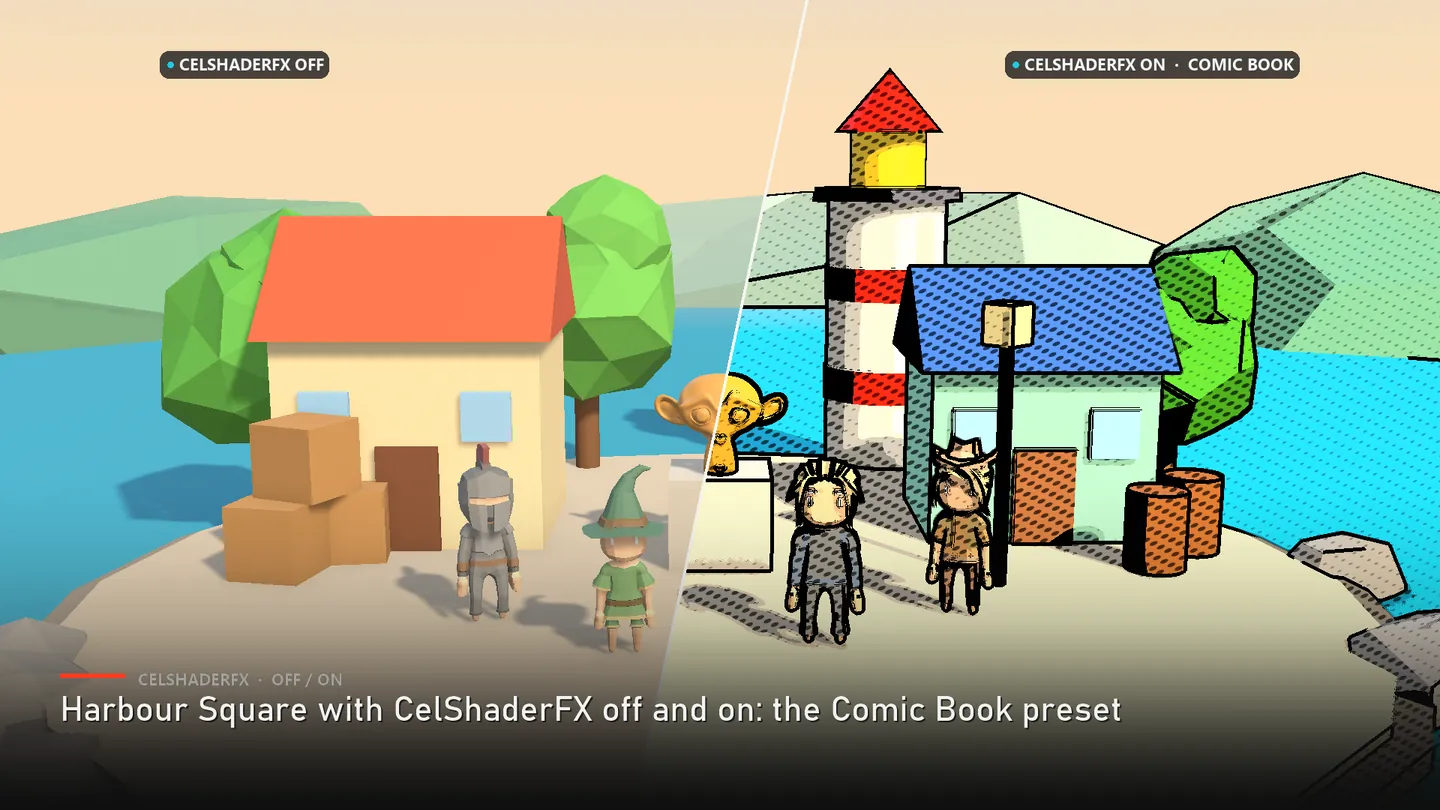
Key Features
Section titled “Key Features”- 8 Post-Process Modules: Cel Shading, Outlines (5 methods), Kuwahara, Hatching, Dithering, Halftone, Watercolor, Painterly
- Object Cel Shading: Per-object shader with toon lighting, hatching, rim, matcap, specular, face SDF, and foliage animation
- Cross-Pipeline: Works with Built-In, URP, and HDRP
- 37 Artistic Presets: Anime, Manga, Comic, Painting, Drawing, Retro and Experimental looks, from Anime Classic to Sin City
- Modular Design: Enable only what you need
- Runtime Control: Full scripting API
- Performance Options: Quality presets from Mobile to Ultra
Supported Unity Versions
Section titled “Supported Unity Versions”- Unity 2021.3 LTS and later
- Unity 2022.x
- Unity 2023.x
System Architecture
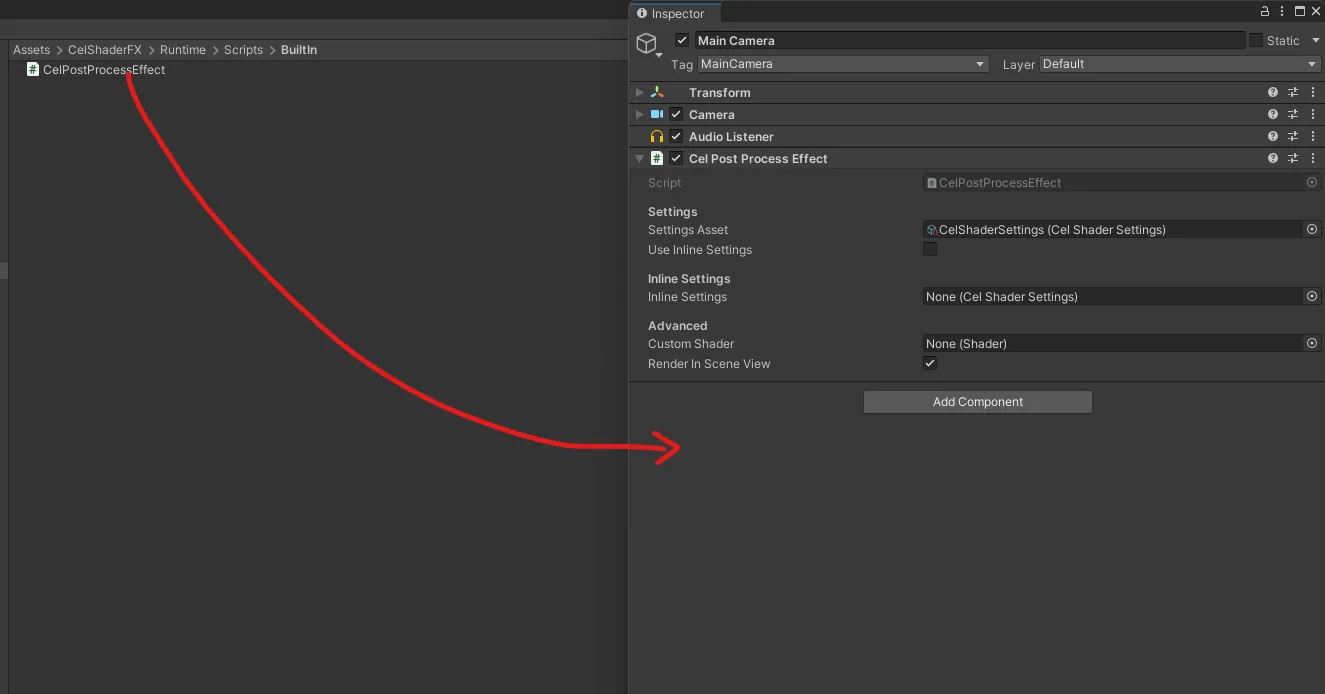
Section titled “System Architecture”CelShaderFX provides two ways to use the effects:
Simple Mode (Recommended for Most Users)
Section titled “Simple Mode (Recommended for Most Users)”Uses a single settings asset with all effects in one place.
CelShaderSettings (ScriptableObject) └── All effect parameters └── Applied via CelPostProcessEffect / VolumeBest for:
- Quick setup
- Static effect configurations
- Artists who prefer a unified interface
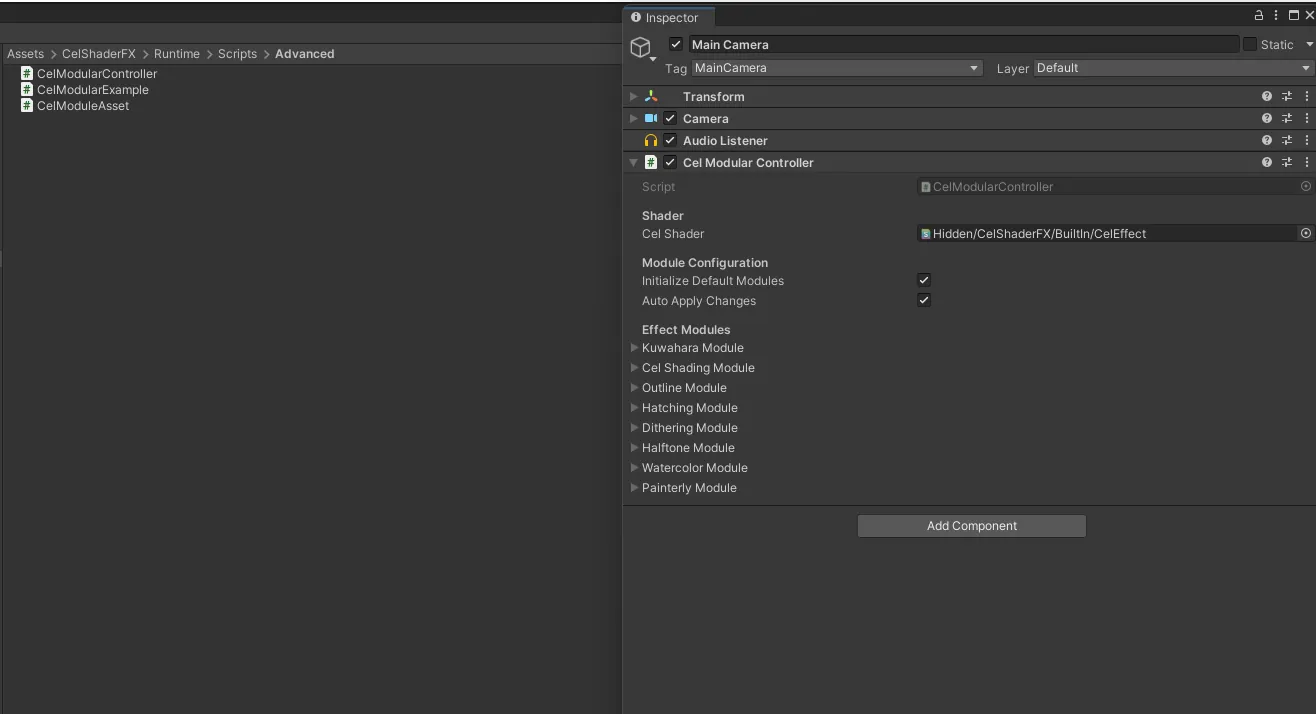
Advanced Modular Mode
Section titled “Advanced Modular Mode”Uses individual modules with a controller for runtime manipulation.
CelModularController (MonoBehaviour) ├── KuwaharaModule ├── CelShadingModule ├── OutlineModule ├── HatchingModule ├── DitheringModule ├── HalftoneModule ├── WatercolorModule └── PainterlyModuleBest for:
- Runtime effect switching
- Programmatic control
- Complex effect layering
Effects Reference
Section titled “Effects Reference”Cel Shading
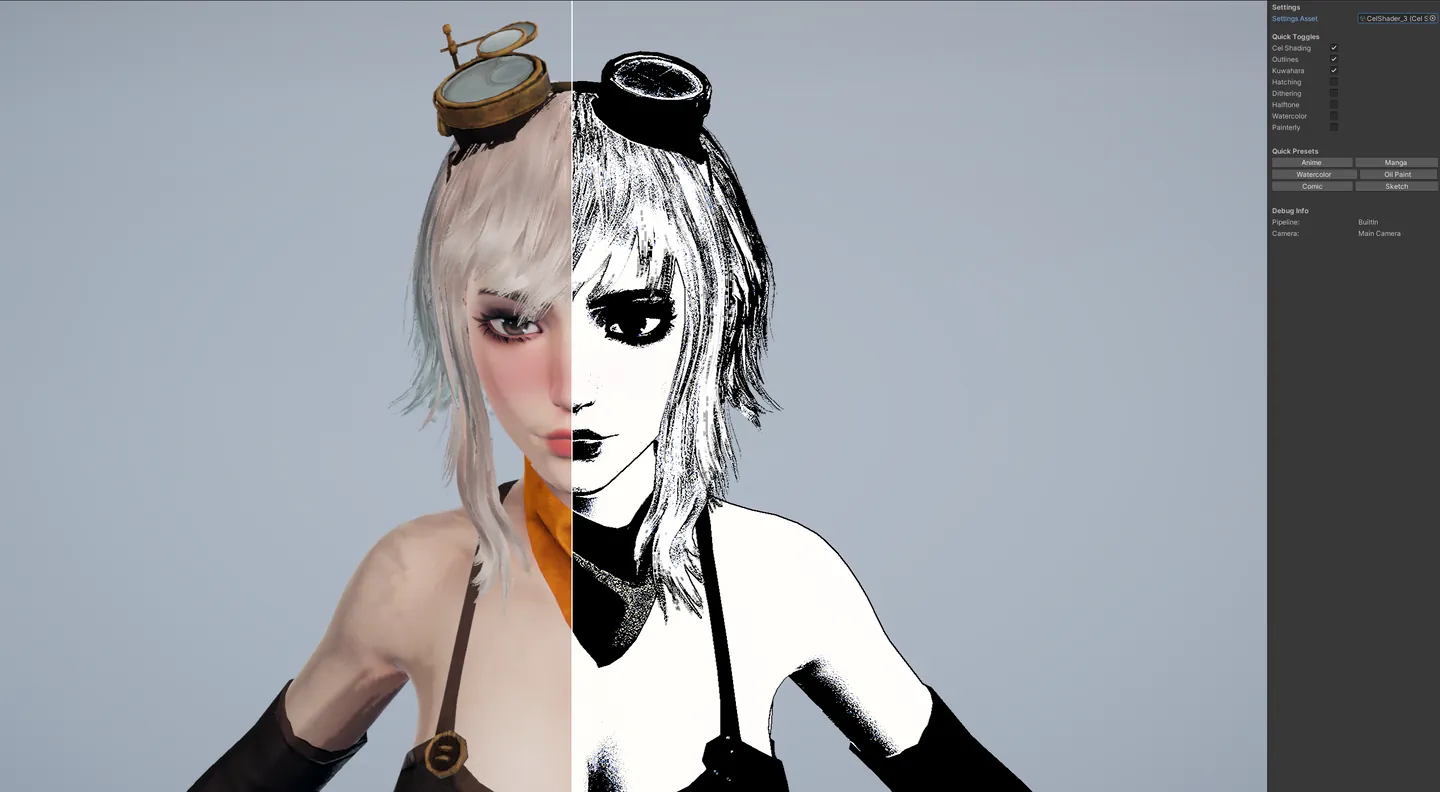
Section titled “Cel Shading”Cel shading (also called toon shading) quantizes smooth color gradients into discrete bands, creating a flat, cartoon-like appearance.
Parameters
| Parameter | Range | Default | Description |
|---|---|---|---|
| Enable Cel Shading | bool | false | Master toggle for cel shading |
| Band Count | 2-16 | 4 | Number of color bands. Lower = more stylized |
| Softness | 0-1 | 0.05 | Transition softness between bands |
| Saturation | 0-2 | 1.0 | Color saturation adjustment |
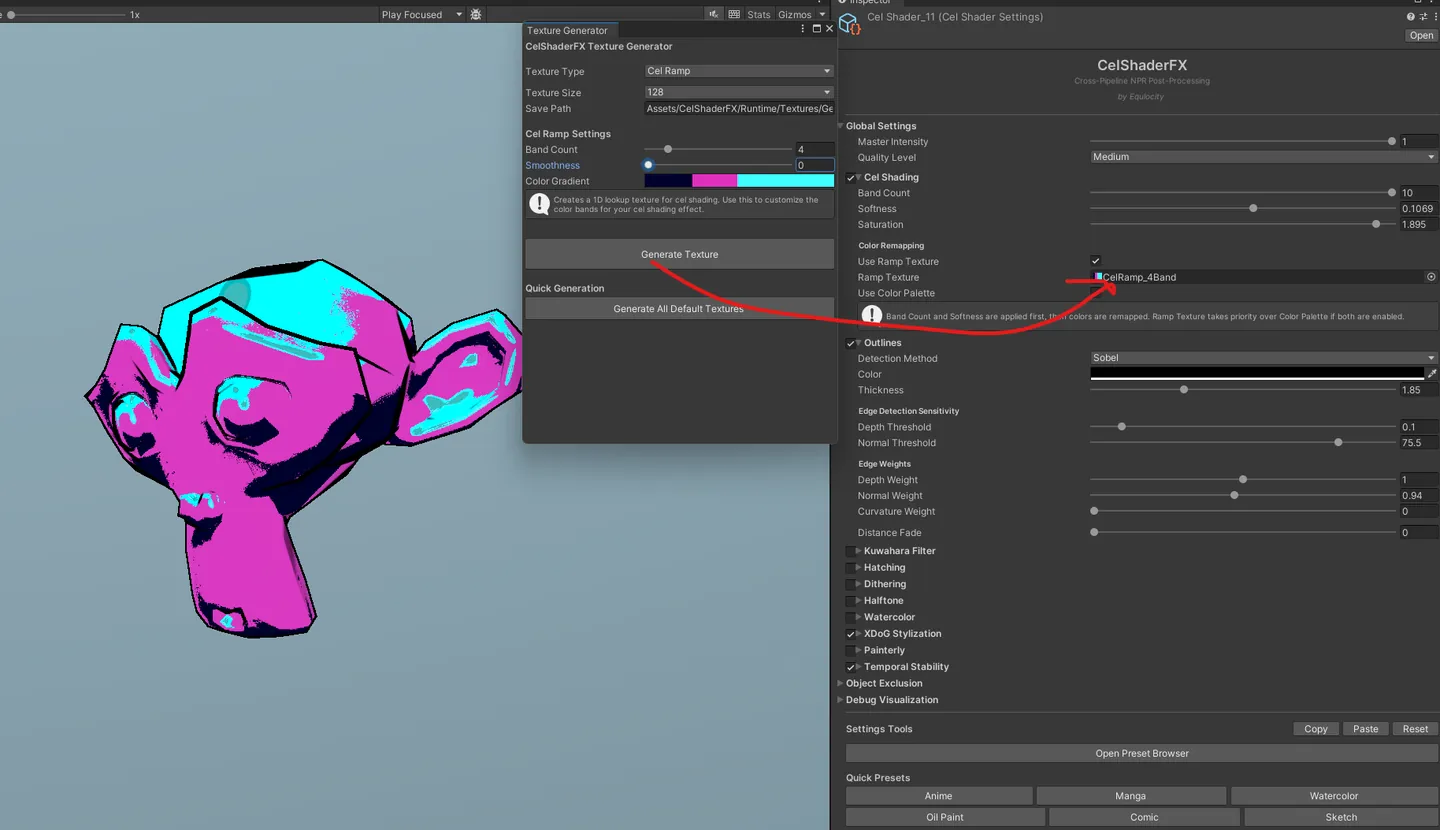
Ramp Texture
For custom shading gradients, use a ramp texture:
| Parameter | Description |
|---|---|
| Use Ramp Texture | Enable custom gradient lookup |
| Ramp Texture | Horizontal gradient texture (left=dark, right=bright) |
Color Palette
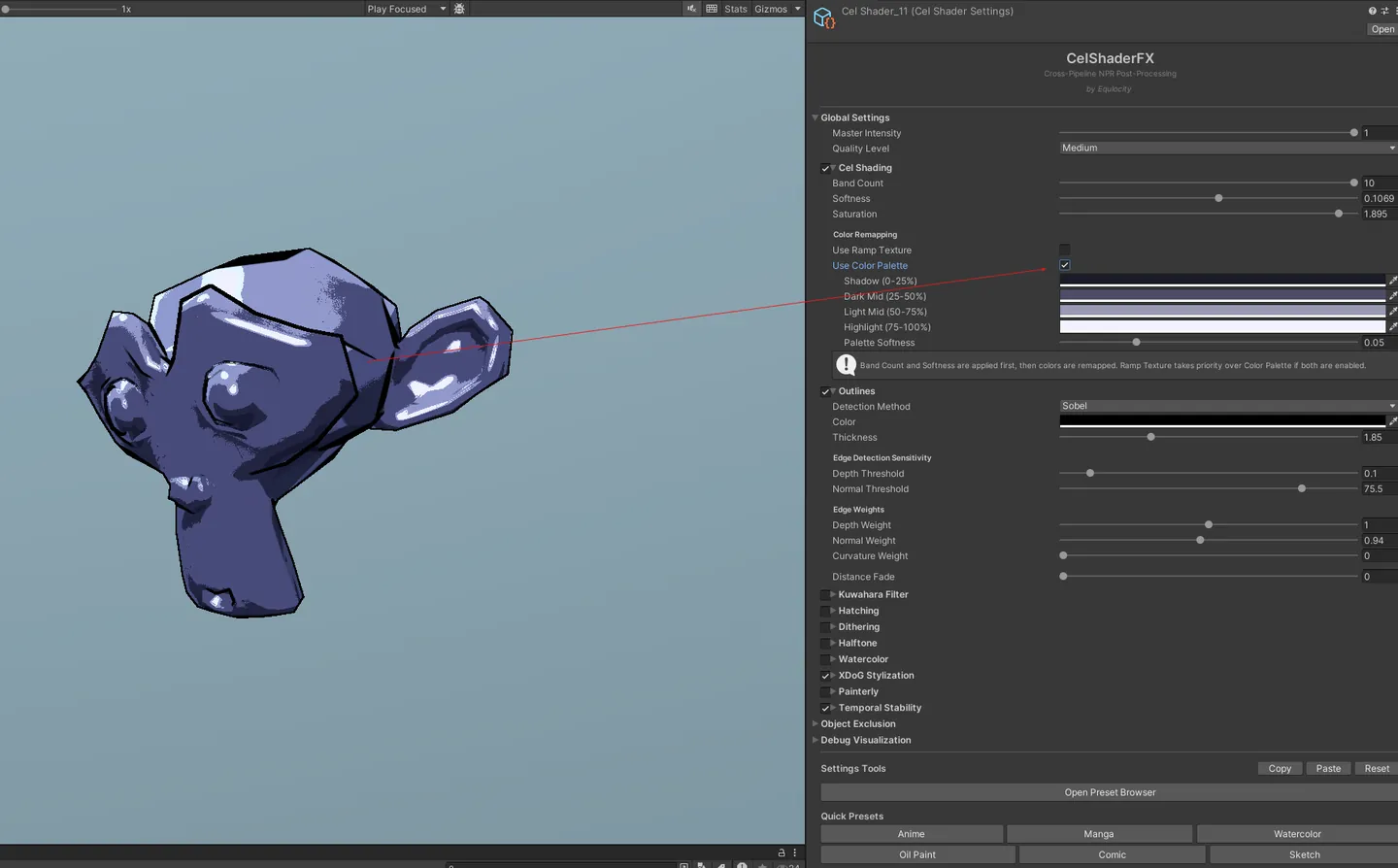
Force colors to match a specific palette:
| Parameter | Description |
|---|---|
| Use Color Palette | Enable palette quantization |
| Palette Colors 1-4 | Up to 4 colors in the palette |
| Palette Softness | Blending between palette colors |
Tips
- Anime Style: 3-4 bands, low softness, high saturation
- Soft Toon: 5-6 bands, higher softness
- Graphic Novel: 2-3 bands, custom palette
Outlines
Section titled “Outlines”Edge detection based outlines that emphasize object silhouettes and surface details.
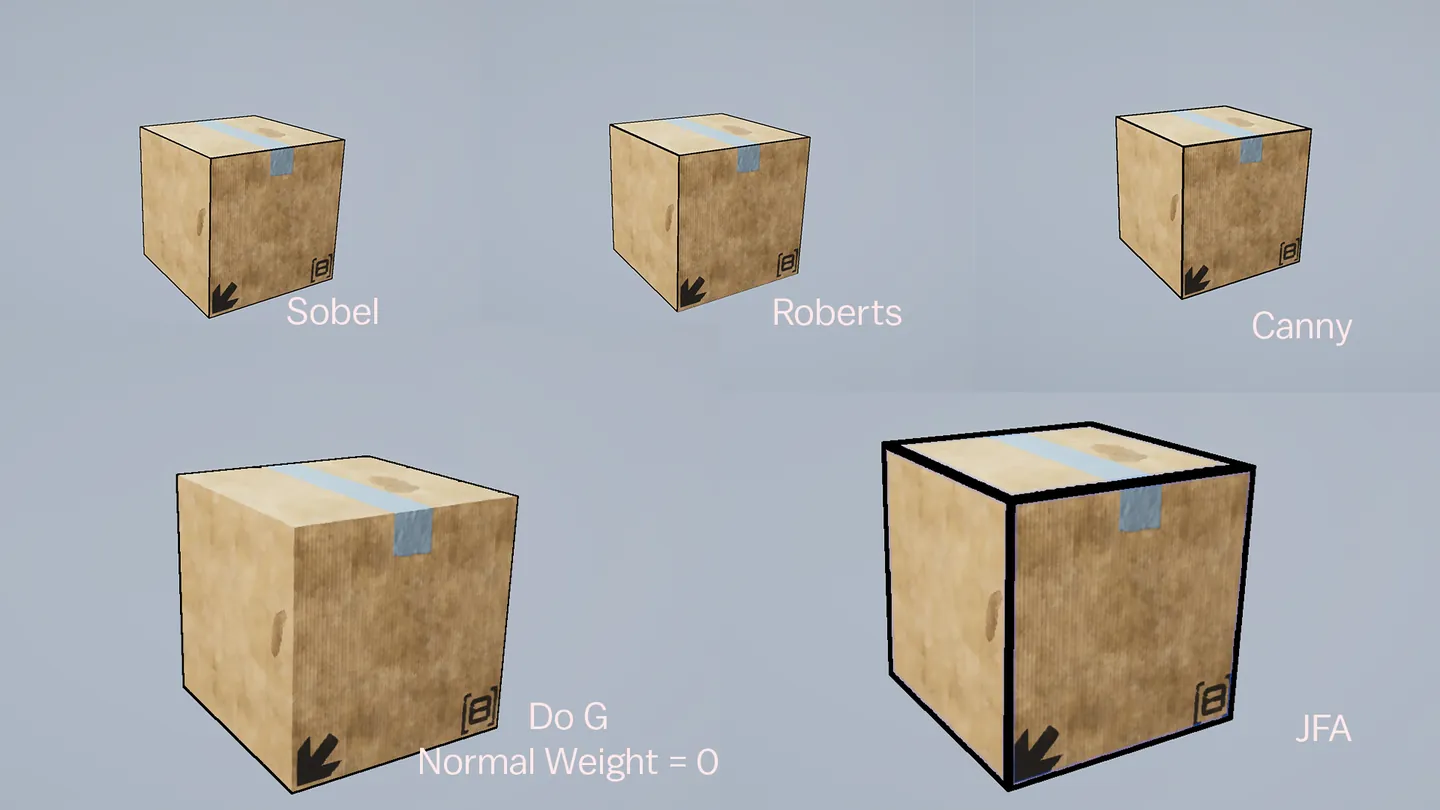
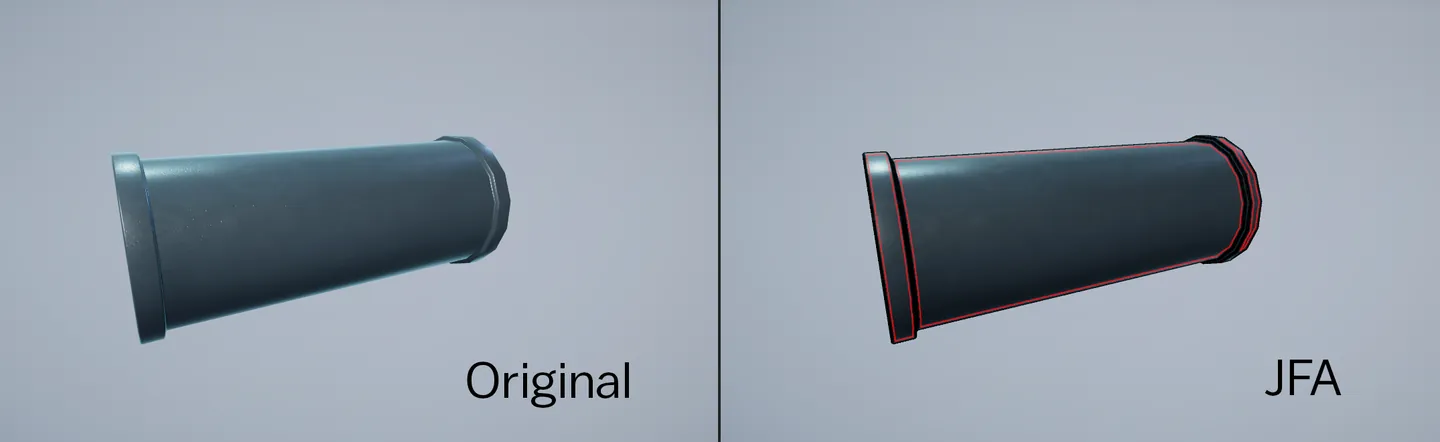
Detection Methods
| Method | Description | Best For |
|---|---|---|
| Sobel | Classic edge detection, balanced | General use |
| Roberts | Sharper, thinner lines | Fine details |
| Canny | Multi-stage, cleaner edges | Clean artwork |
| DoG | Difference of Gaussians, artistic | Sketch effects |
Parameters
| Parameter | Range | Default | Description |
|---|---|---|---|
| Enable Outline | bool | true | Master toggle |
| Method | enum | Sobel | Edge detection algorithm |
| Thickness | 0.5-5 | 1.0 | Line width in pixels |
| Color | Color | Black | Outline color |
Edge Detection Tuning
| Parameter | Range | Default | Description |
|---|---|---|---|
| Depth Threshold | 0.01-1 | 0.1 | Sensitivity to depth discontinuities |
| Normal Threshold | 10-90 | 45 | Sensitivity to surface angle changes (degrees) |
| Depth Weight | 0-2 | 1.0 | Contribution of depth edges |
| Normal Weight | 0-2 | 1.0 | Contribution of normal edges |
| Curvature Weight | 0-2 | 0 | Contribution of surface curvature |
Distance Fade
| Parameter | Range | Description |
|---|---|---|
| Distance Fade | 0-0.1 | Fade outlines with camera distance (0 = no fade) |
Tips
- Bold Comics: Thickness 2-3, pure black, high depth weight
- Subtle Enhancement: Thickness 0.5-1, gray color, distance fade
- Sketch Look: DoG method, with hatching enabled
Kuwahara Filter
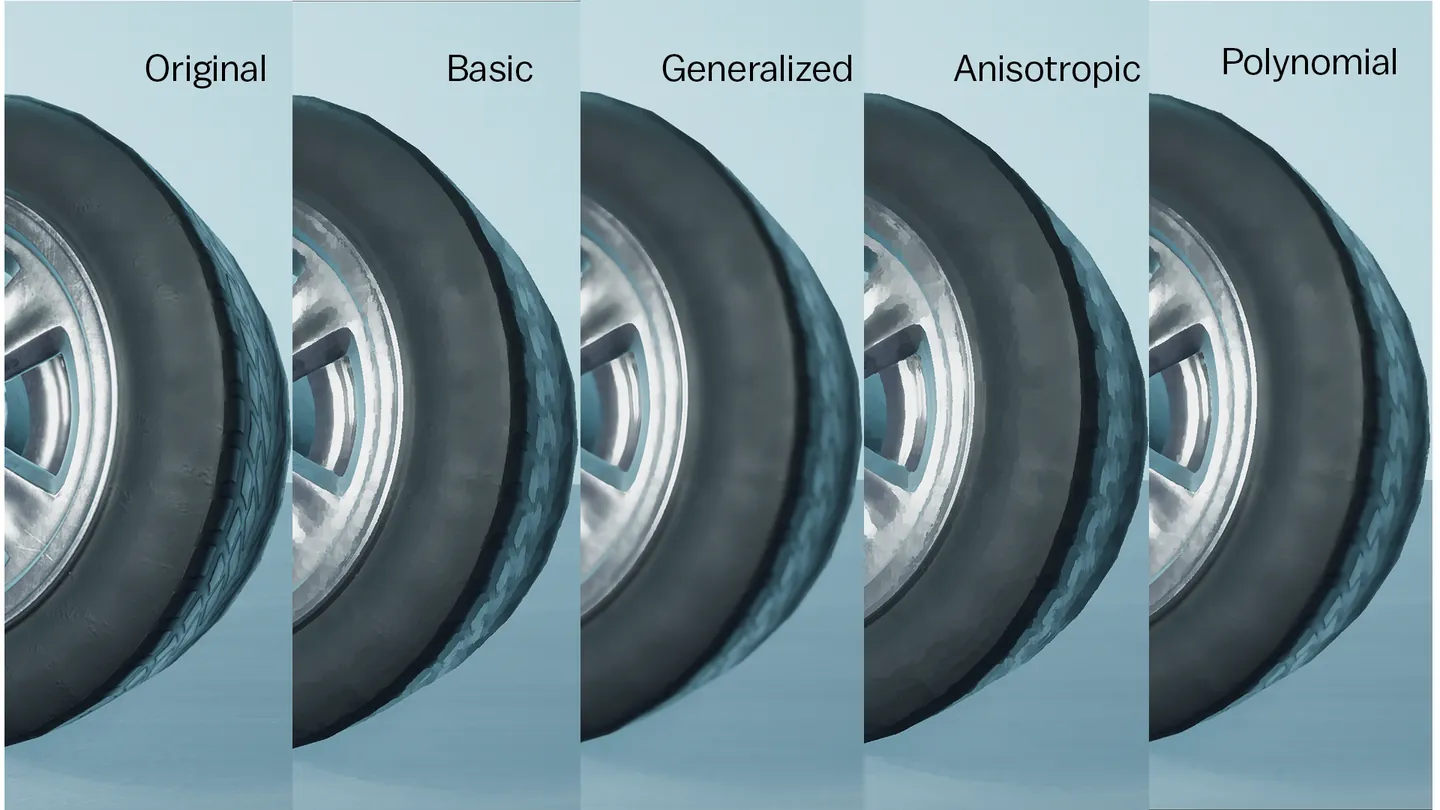
Section titled “Kuwahara Filter”An edge-preserving smoothing filter that creates a painterly look by averaging colors in local regions while maintaining sharp edges.
Variants
| Variant | Description | Performance |
|---|---|---|
| Basic | Classic 4-sector averaging | Fast |
| Generalized | 8-sector with overlap | Medium |
| Anisotropic/Polynomial | Flow-aligned, follows edges | Slow |
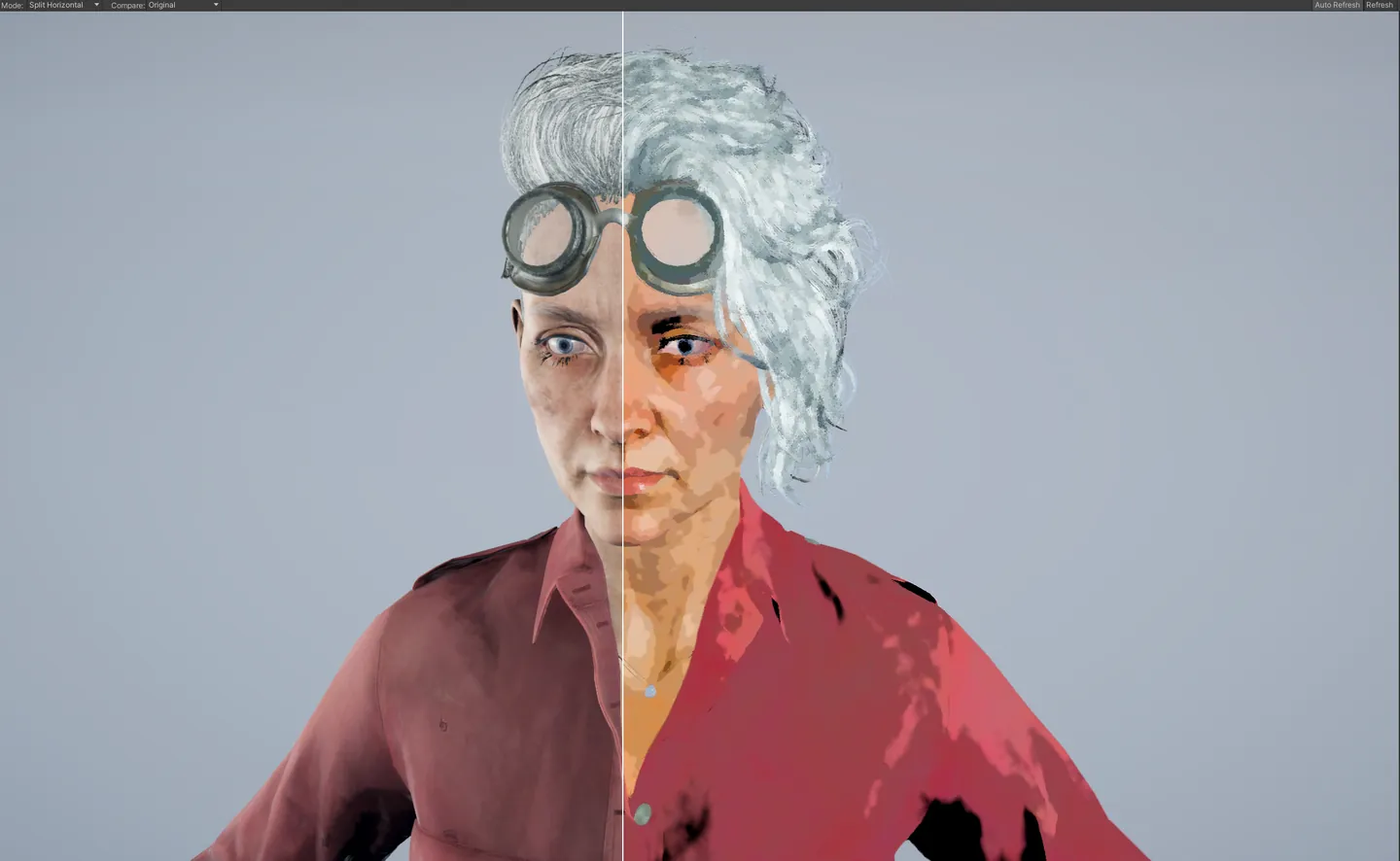
Parameters
| Parameter | Range | Default | Description |
|---|---|---|---|
| Enable Kuwahara | bool | false | Master toggle |
| Variant | enum | Basic | Filter algorithm |
| Radius | 2-8 | 4 | Kernel size (higher = more blur) |
| Sharpness | 0.5-16 | 8 | Edge preservation strength |
| Anisotropy/Polynomial | 0-1 | 1 | Flow alignment (Anisotropic only) |
Performance Note
Kuwahara is computationally expensive. Keep radius ≤5 for real-time performance on mid-range hardware.
| Radius | Relative Cost |
|---|---|
| 2 | 1x (baseline) |
| 4 | 4x |
| 6 | 9x |
| 8 | 16x |
Tips
- Subtle Smoothing: Radius 2-3, Basic variant
- Oil Painting: Radius 4-5, Anisotropic variant, combine with Painterly
- Anime Skin: Radius 3, high sharpness
Hatching
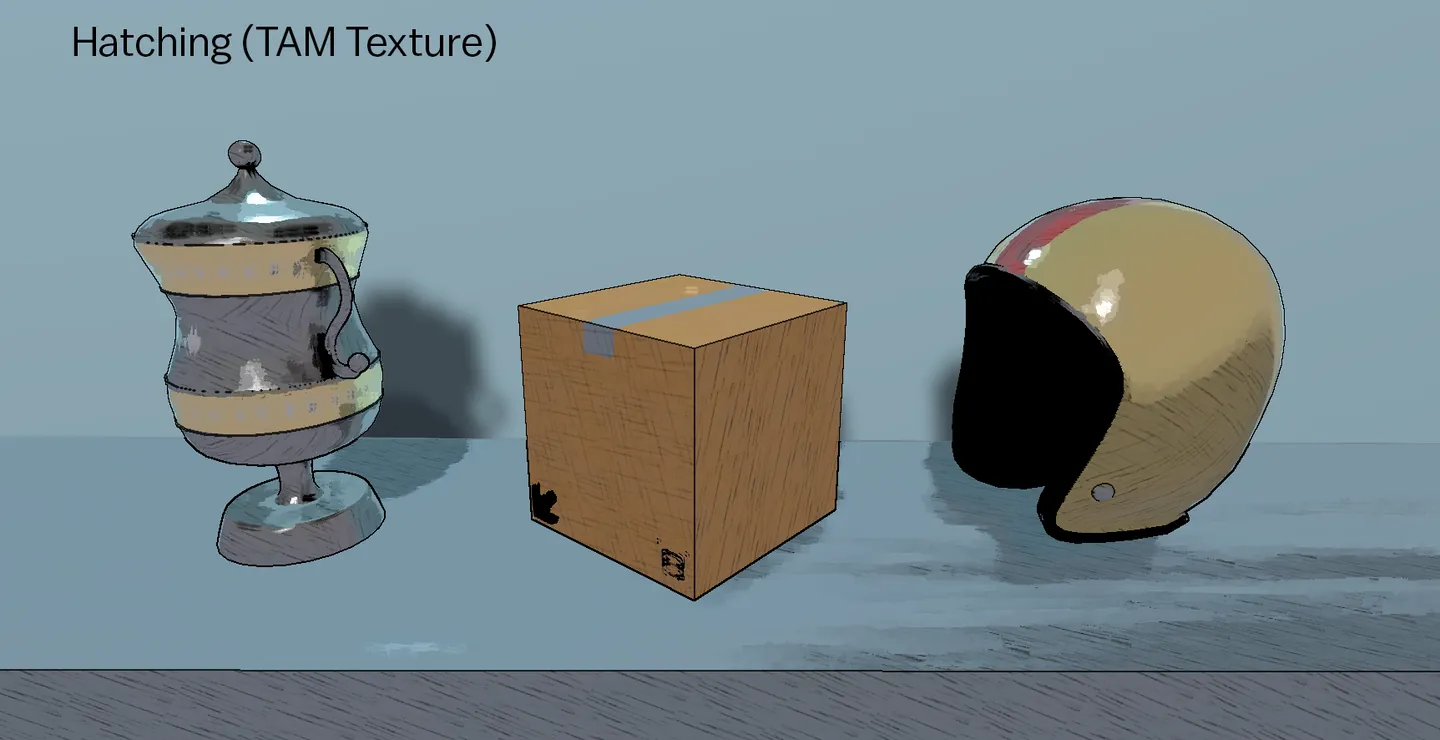
Section titled “Hatching”Cross-hatching and line-based shading that simulates traditional pen/pencil techniques.
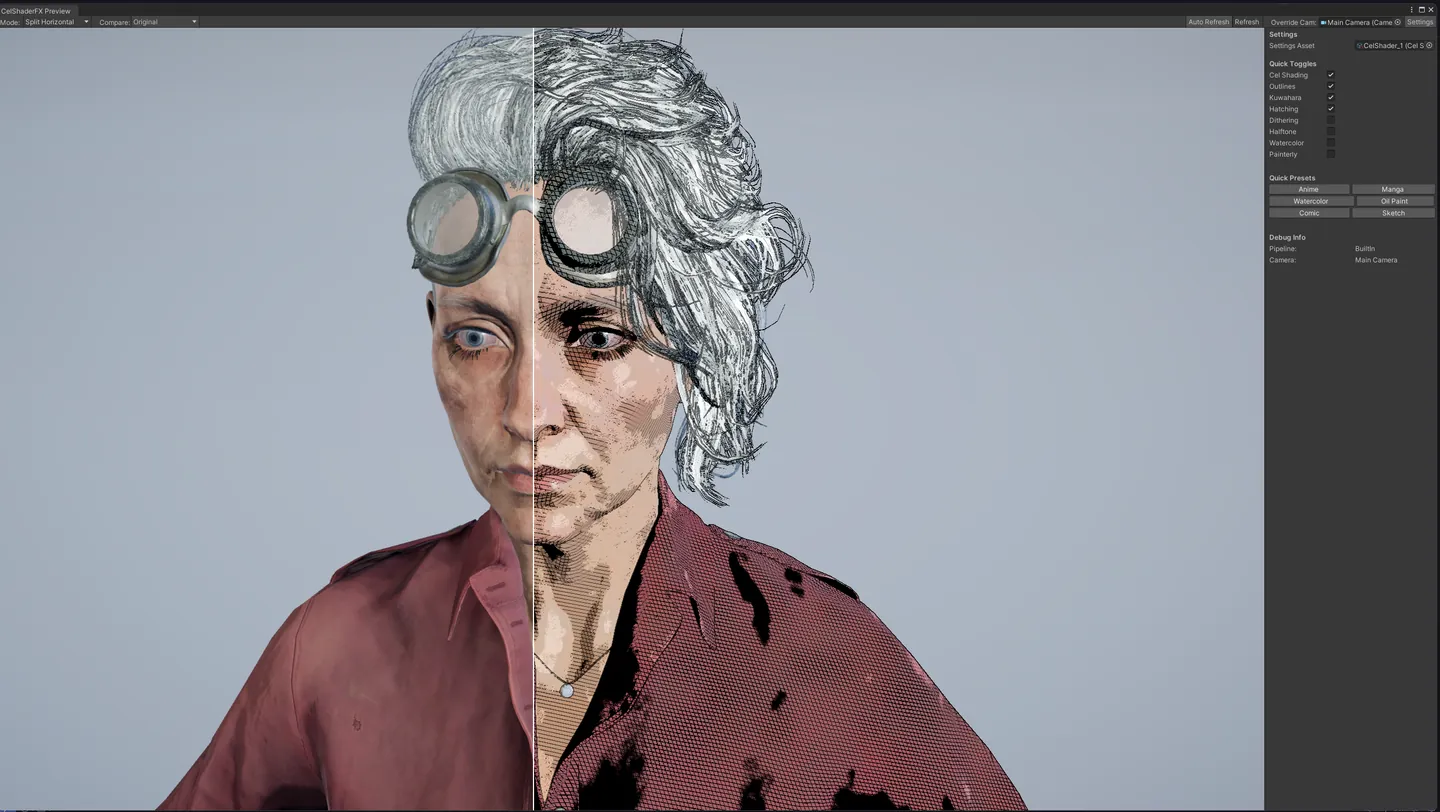
Coordinate Modes
| Mode | Description | Best For |
|---|---|---|
| Screen Space | Lines aligned to screen | UI, 2D games |
| World Space | Lines aligned to world | Architecture, stable objects |
| Blended | Mix of all spaces | General use, reduces swimming |
Generation Types
| Type | Description |
|---|---|
| Procedural | Generated mathematically, fully adjustable |
| Texture | Uses TAM (Tonal Art Map) textures |
| Hybrid | Combines both approaches |
Pattern Parameters
| Parameter | Range | Default | Description |
|---|---|---|---|
| Density | 1-50 | 10 | Line frequency |
| Rotation | -90 to 90 | 45 | Primary line angle (degrees) |
| Secondary Angle | 30-90 | 90 | Cross-hatch angle offset |
| Layers | 1-4 | 3 | Number of hatching layers |
Line Appearance
| Parameter | Range | Default | Description |
|---|---|---|---|
| Line Thickness | 0.1-1 | 0.4 | Line width |
| Line Spacing | 0.5-3 | 1.0 | Space between lines |
| Line Wobble | 0-1 | 0.3 | Organic irregularity |
| Line Taper | 0-1 | 0.2 | Taper at line ends |
Intensity Mapping
Controls how scene brightness maps to hatching density:
| Parameter | Range | Description |
|---|---|---|
| Intensity Min | 0-1 | Luminance for maximum hatching |
| Intensity Max | 0-1 | Luminance for no hatching |
| Shadow Threshold | 0-0.5 | Exclude deep shadows from hatching |
Space Weights (Blended Mode)
| Parameter | Description |
|---|---|
| World Space Weight | Stability for static geometry |
| View Space Weight | Balance between world and screen |
| Screen Space Weight | Consistent screen density |
TAM Texture Support
For texture-based hatching:
| Parameter | Description |
|---|---|
| Pattern Texture | TAM atlas (horizontal strip, light to dark) |
| Cross Hatch Texture | Optional secondary pattern |
| Tone Count | Number of tones in TAM (2-8) |
| Invert Texture | Toggle if texture has black lines on white |
Tips
- Manga: High density, 2 layers, screen space
- Sketch: Lower density, 3 layers, line wobble, blended space
- Engraving: Very high density, no wobble, world space
Dithering
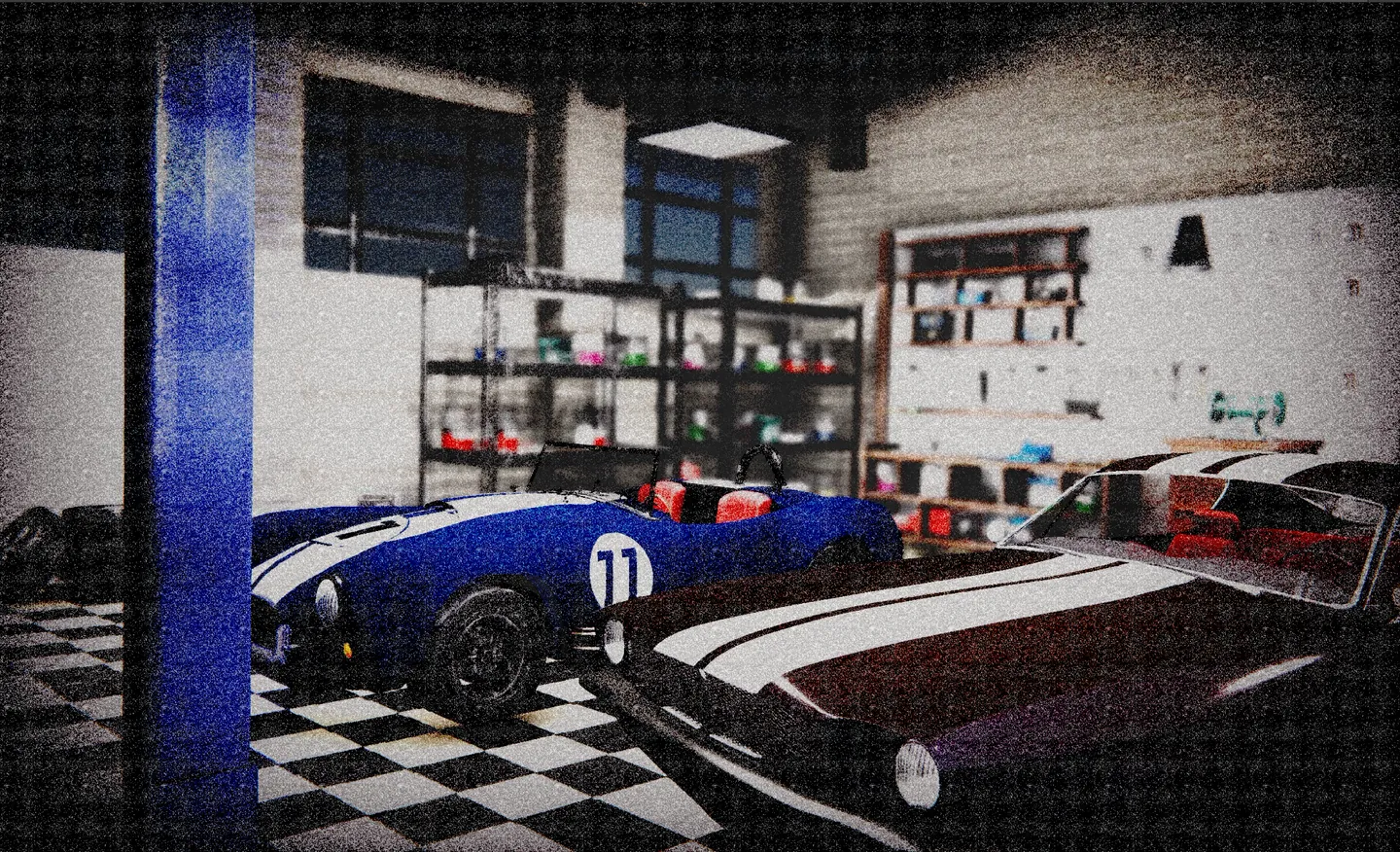
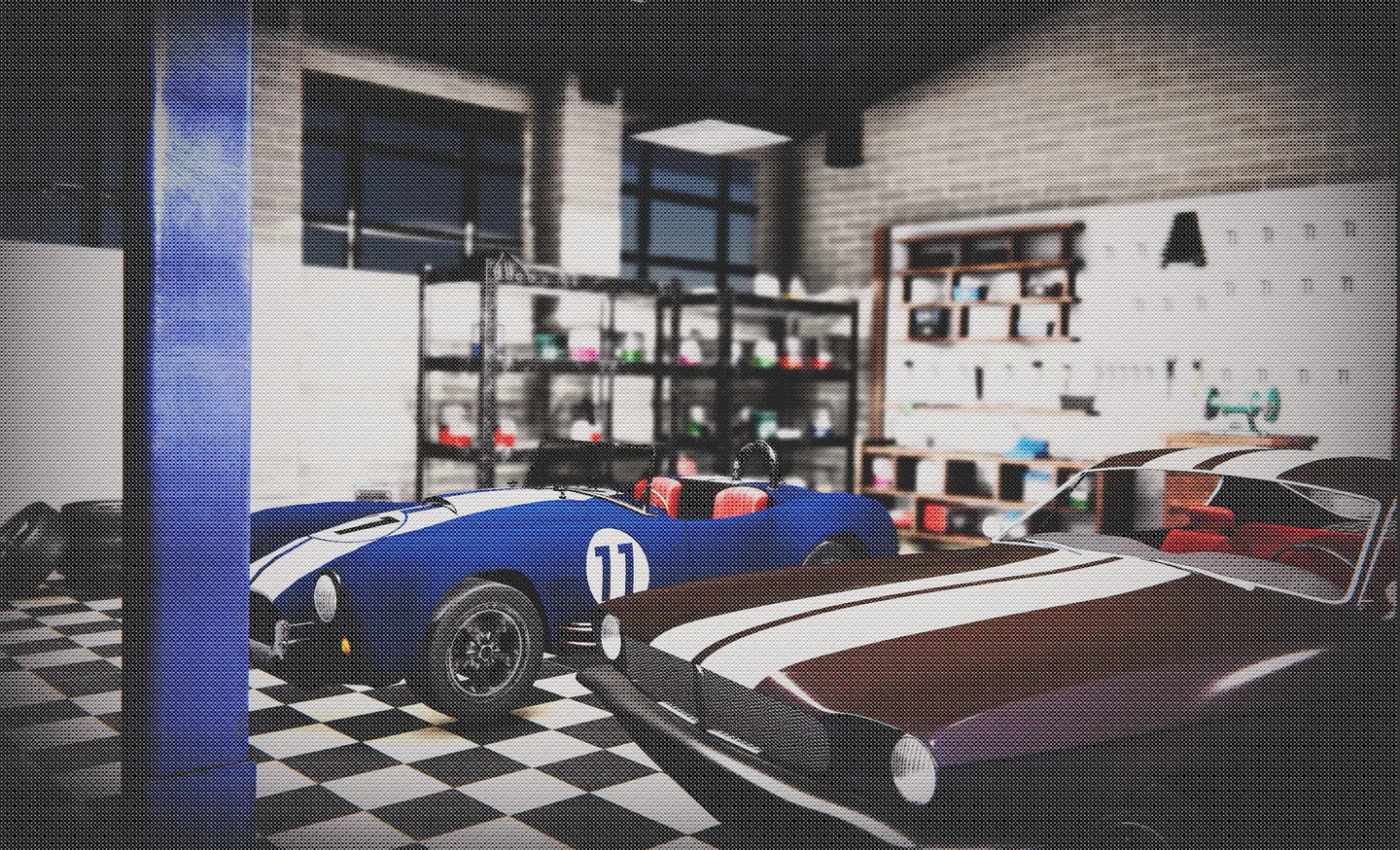
Section titled “Dithering”Ordered dithering patterns that reduce color banding and create retro pixel art aesthetics.
Blue Noise / STBN
Bayer
Modes
| Mode | Description |
|---|---|
| Bayer 2x2 | Smallest pattern, very pixelated |
| Bayer 4x4 | Classic retro game dithering |
| Bayer 8x8 | Smoother gradient approximation |
| Blue Noise | Organic, film grain-like |
| STBN | Retro or print feel |
Parameters
| Parameter | Range | Default | Description |
|---|---|---|---|
| Enable Dithering | bool | false | Master toggle |
| Mode | enum | Bayer | Dithering algorithm |
| Color Levels | 2-32 | 8 | Output color depth |
| Strength | 0-1 | 1.0 | Dithering intensity |
| Scale | 1-4 | 1 | Pattern scale multiplier |
Tips
- Retro Game: Bayer 4x4, 4-8 color levels
- Subtle Film Grain: Blue Noise, high color levels, low strength
- 1-bit Art: Bayer, 2 color levels
Halftone
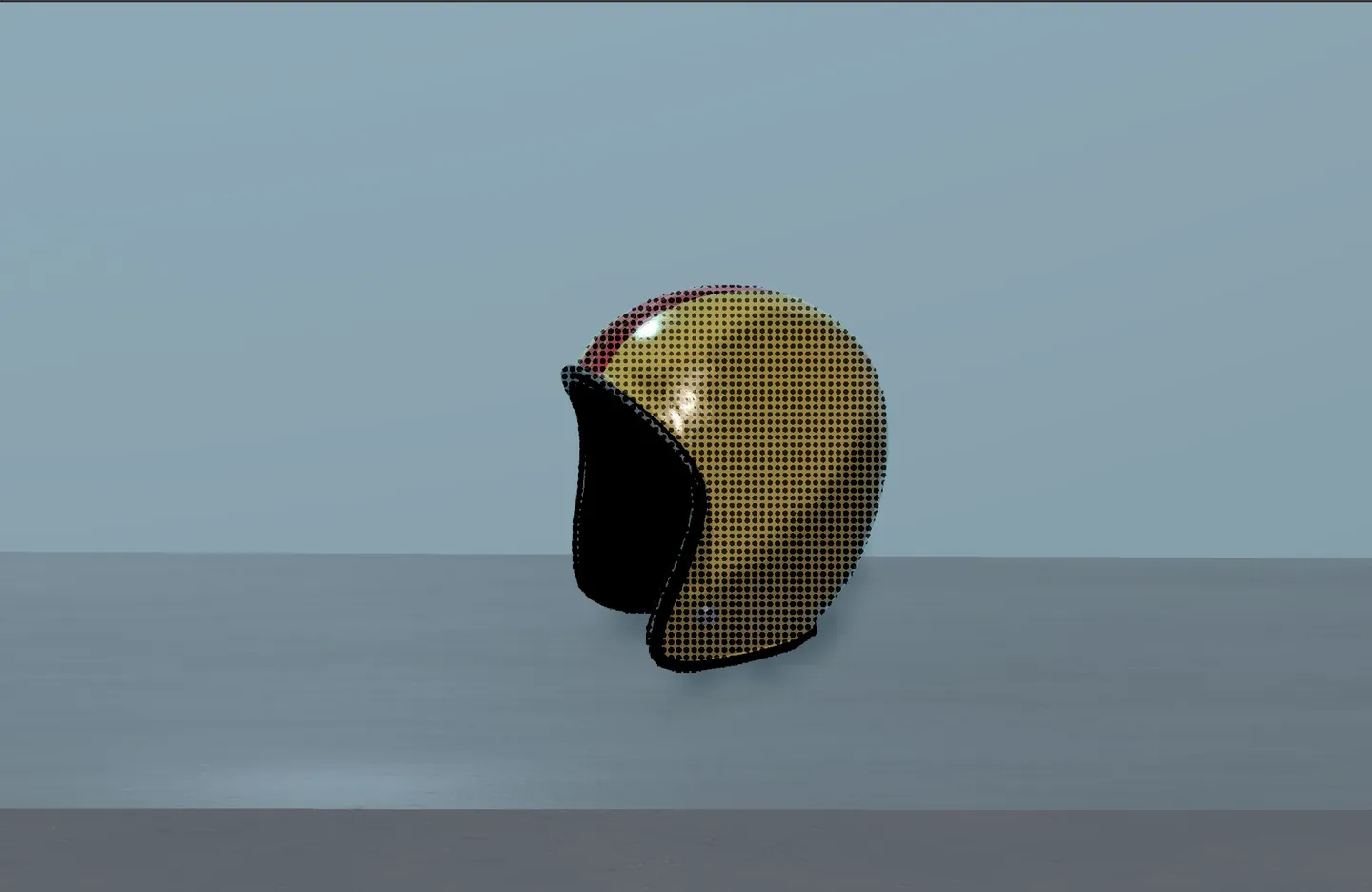
Section titled “Halftone”Ben-Day dots and print-style patterns commonly seen in comics and pop art.
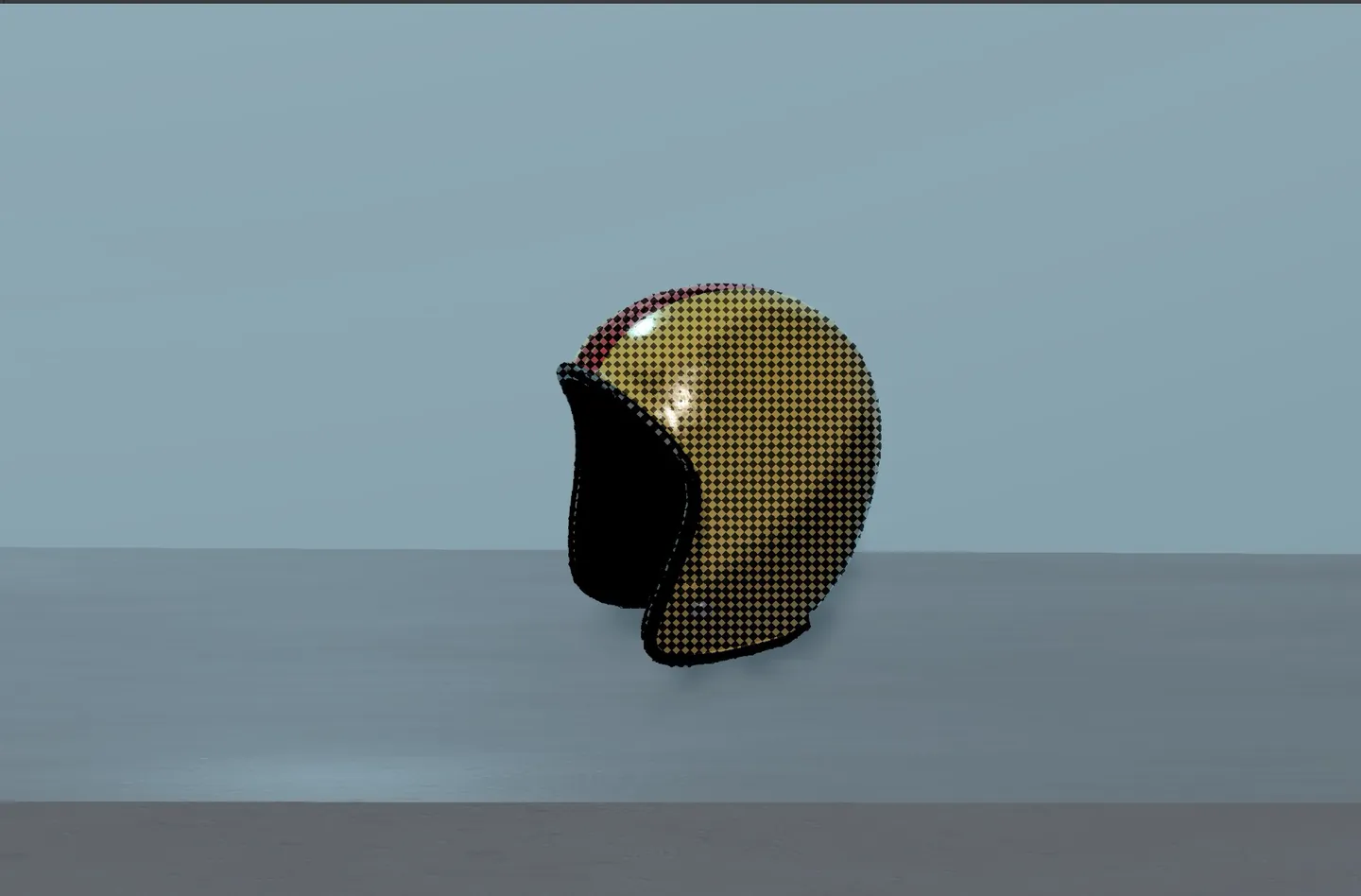
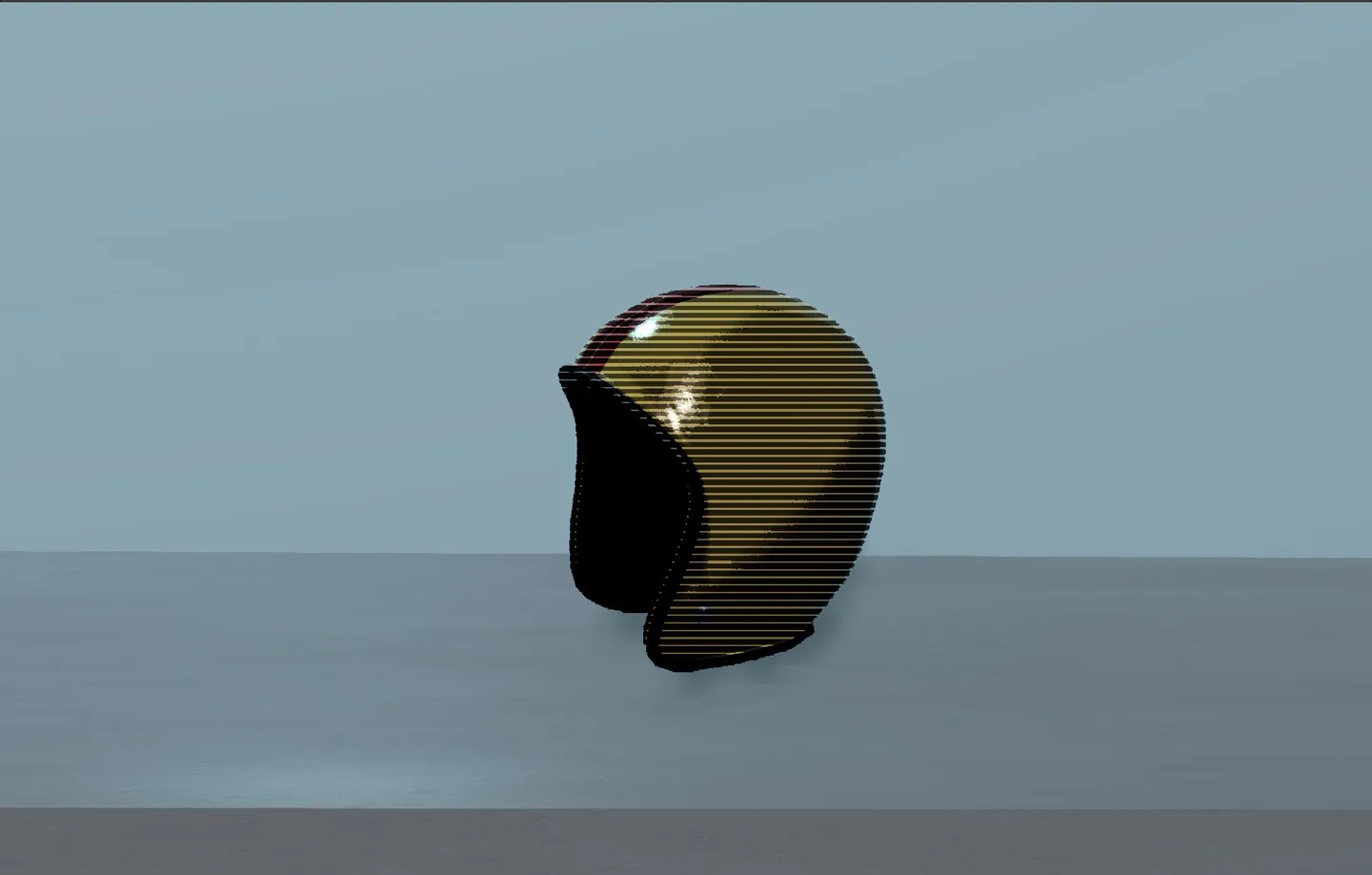
Shapes
| Shape | Description |
|---|---|
| Dots | Classic circular dots |
| Lines | Parallel lines |
| Diamonds | Diamond/square pattern |
| Crosshatch | Crossed line pattern(soon) |
Parameters
| Parameter | Range | Default | Description |
|---|---|---|---|
| Enable Halftone | bool | false | Master toggle |
| Shape | enum | Dots | Pattern shape |
| Scale | 1-20 | 4 | Dot/pattern size |
| Angle | 0-90 | 0 | Pattern rotation |
| Softness | 0-1 | 0.5 | Edge softness |
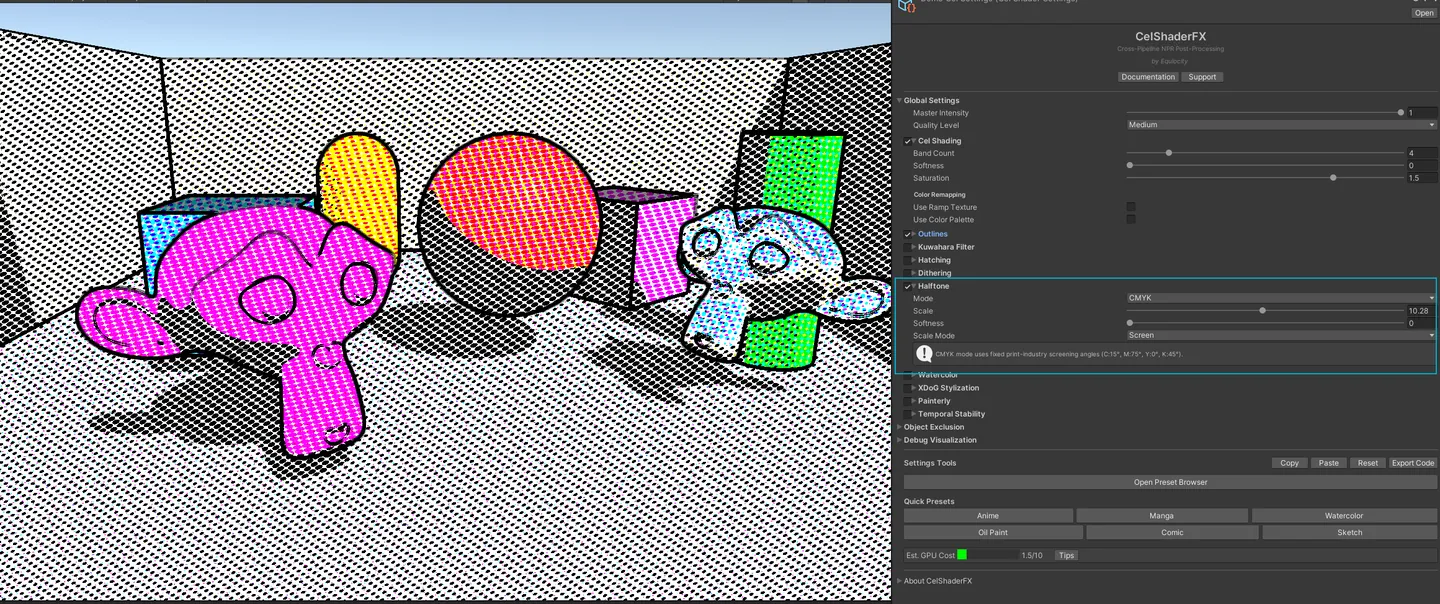
CMYK Mode ( Will be available in the next update)
Enable multi-color halftone with separate screen angles:
| Parameter | Default | Description |
|---|---|---|
| Enable CMYK | false | Four-color separation |
| Cyan Angle | 15° | Cyan screen angle |
| Magenta Angle | 75° | Magenta screen angle |
| Yellow Angle | 0° | Yellow screen angle |
| Black Angle | 45° | Black (key) screen angle |
Tips
- Pop Art: Large dots, high contrast
- Newspaper: Small dots, subtle, with outlines
- Vintage Print: CMYK mode with slight misregistration
Watercolor
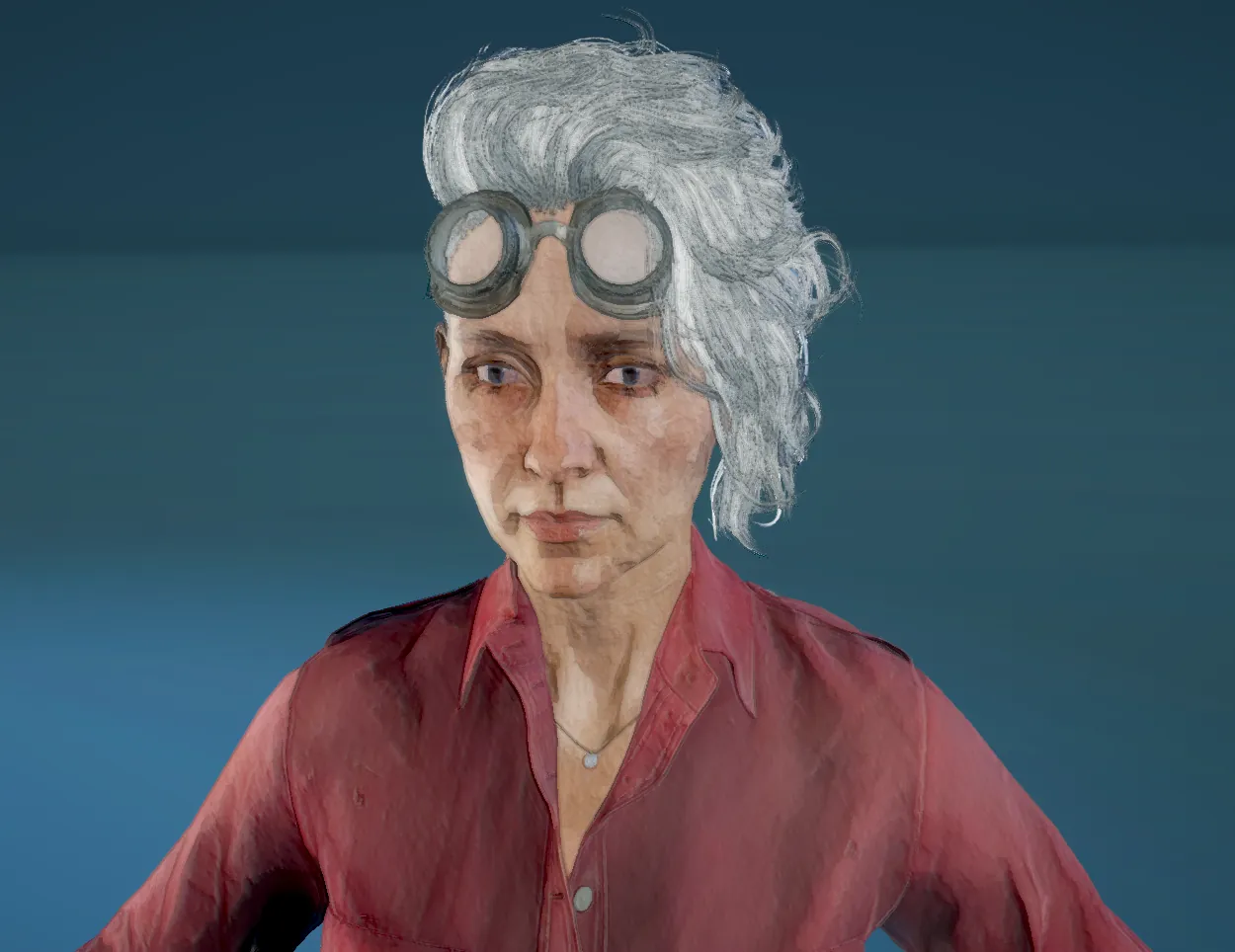
Section titled “Watercolor”Simulates watercolor painting with edge darkening, pigment granulation, and paper texture.
Parameters
| Parameter | Range | Default | Description |
|---|---|---|---|
| Enable Watercolor | bool | false | Master toggle |
| Edge Darkening | 0-1 | 0.5 | Wet-in-wet edge accumulation |
| Granulation | 0-1 | 0.3 | Pigment particle settling |
| Paper Strength | 0-1 | 0.2 | Paper texture visibility |
World Space Projection
| Parameter | Description |
|---|---|
| World Space | Use world coordinates for stable noise |
| Noise Scale | Scale of noise texture |
Paper Texture
| Parameter | Description |
|---|---|
| Paper Texture | Custom paper grain texture |
Tips
- Loose Watercolor: High edge darkening, high granulation
- Tight Watercolor: Low granulation, more paper texture
- Chinese Brush: High edge darkening, minimal granulation
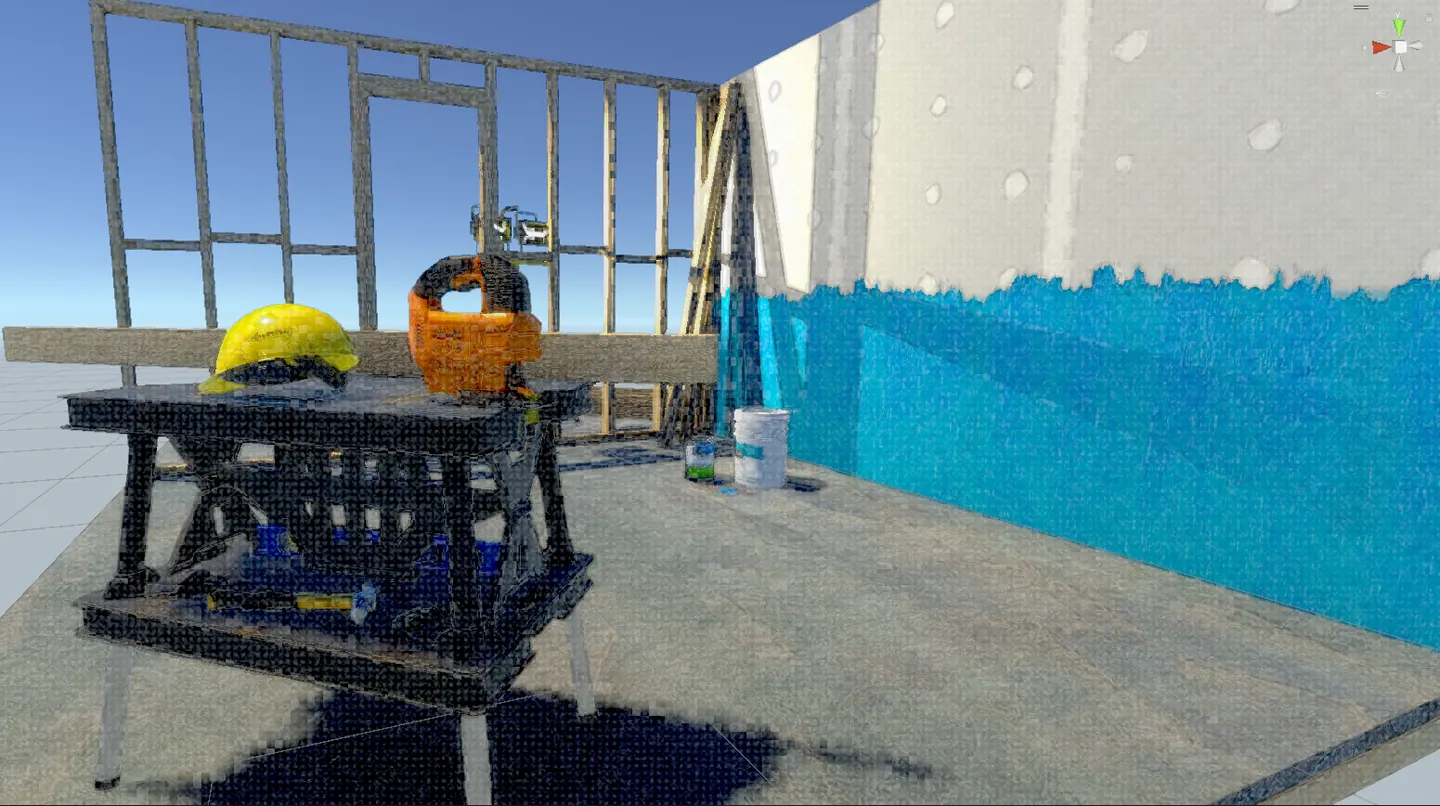
Painterly
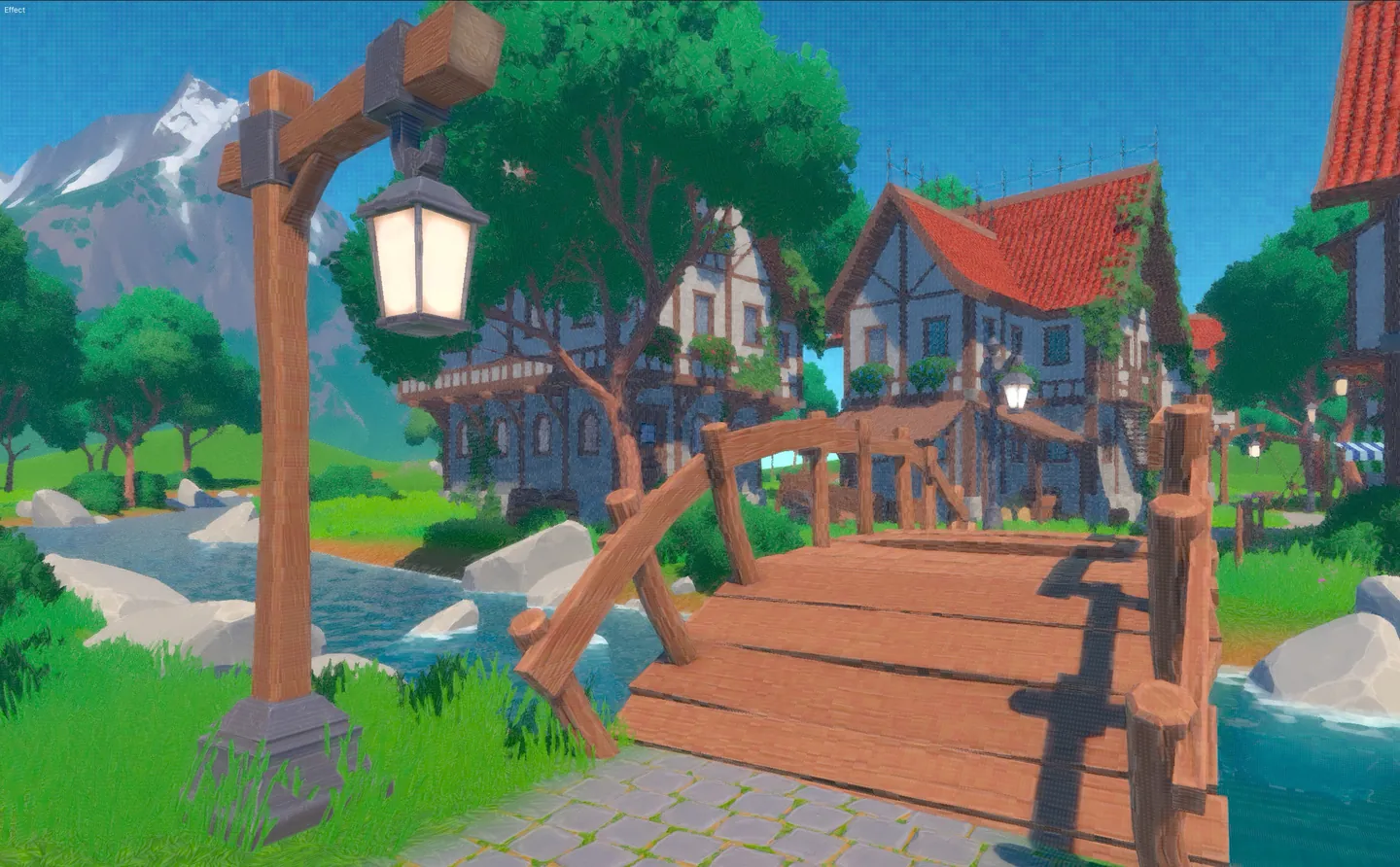
Section titled “Painterly”Oil painting and artistic brush stroke effects.
Stroke Modes
| Mode | Description |
|---|---|
| Auto | Automatic stroke direction from image gradients |
| Directional | User-defined stroke direction |
| Radial | Strokes radiate from center |
Parameters
| Parameter | Range | Default | Description |
|---|---|---|---|
| Enable Painterly | bool | false | Master toggle |
| Stroke Mode | enum | Auto | Stroke direction method |
| Brush Size | 1-20 | 6 | Stroke width |
| Brush Strength | 0-1 | 0.6 | Effect intensity |
| Color Variation | 0-1 | 0.2 | Random color shifts |
Textures
| Parameter | Description |
|---|---|
| Brush Texture | Custom brush stroke texture |
| Canvas Texture | Canvas weave overlay |
| Canvas Strength | Canvas texture intensity |
Tips
- Oil Painting: Combine with Kuwahara Anisotropic, medium brush size
- Impressionist: Smaller brush, higher color variation
- Palette Knife: Large brush, directional mode
Object Cel Shading
Section titled “Object Cel Shading”Object Cel Shading is a per-object material-replacement shader that applies cel shading, hatching, outlines, and stylized lighting directly to individual meshes. Unlike the post-process effects which operate on the full screen, Object Cel Shading uses the object’s own UVs and geometry, producing stable hatching lines that stick to surfaces without swimming.
Works on all three pipelines: Built-In, URP, and HDRP.
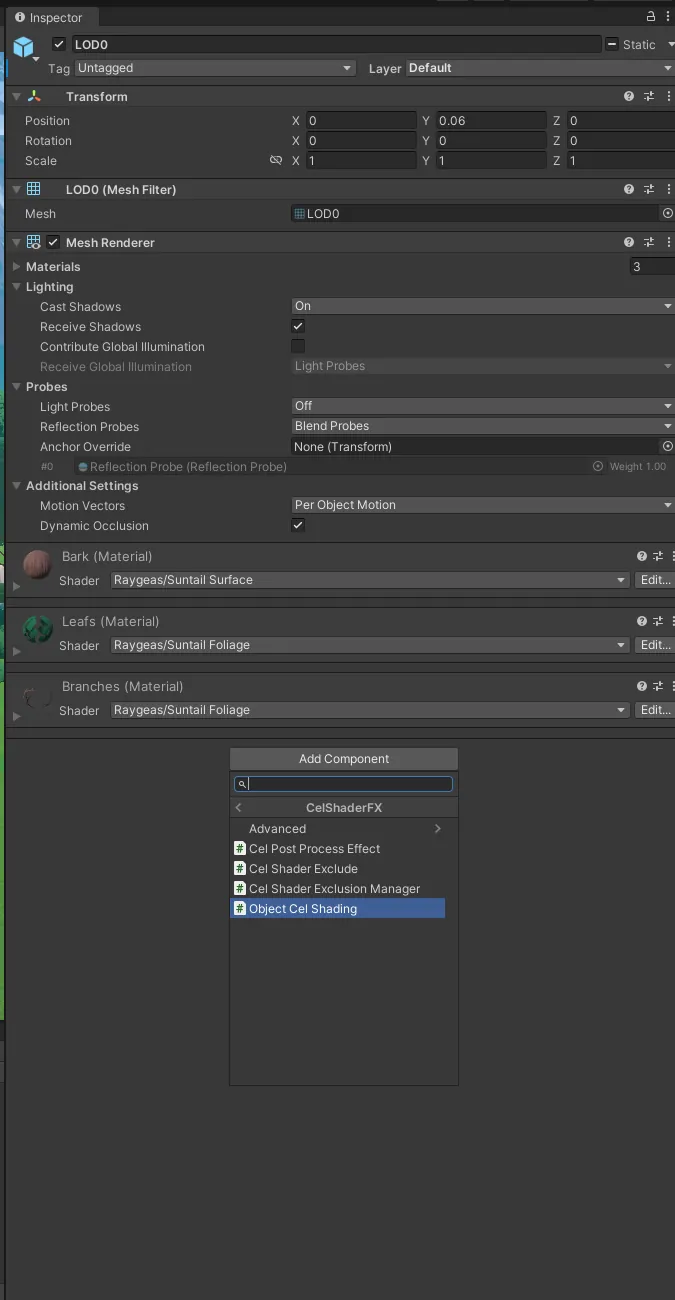
- Select a GameObject with a Renderer (MeshRenderer, SkinnedMeshRenderer)
- Add Component > CelShaderFX > Object Cel Shading
- The component automatically replaces the object’s material with the cel shading shader
The component uses MaterialPropertyBlock for per-instance GPU instancing, so multiple objects can share the same shader with different settings at no extra draw call cost.
Post-Process Exclusion
Section titled “Post-Process Exclusion”When using Object Cel Shading alongside the post-process effects, enable Exclude From Post Process (on by default) to prevent double outlines and double cel shading on the same object.
Hatching
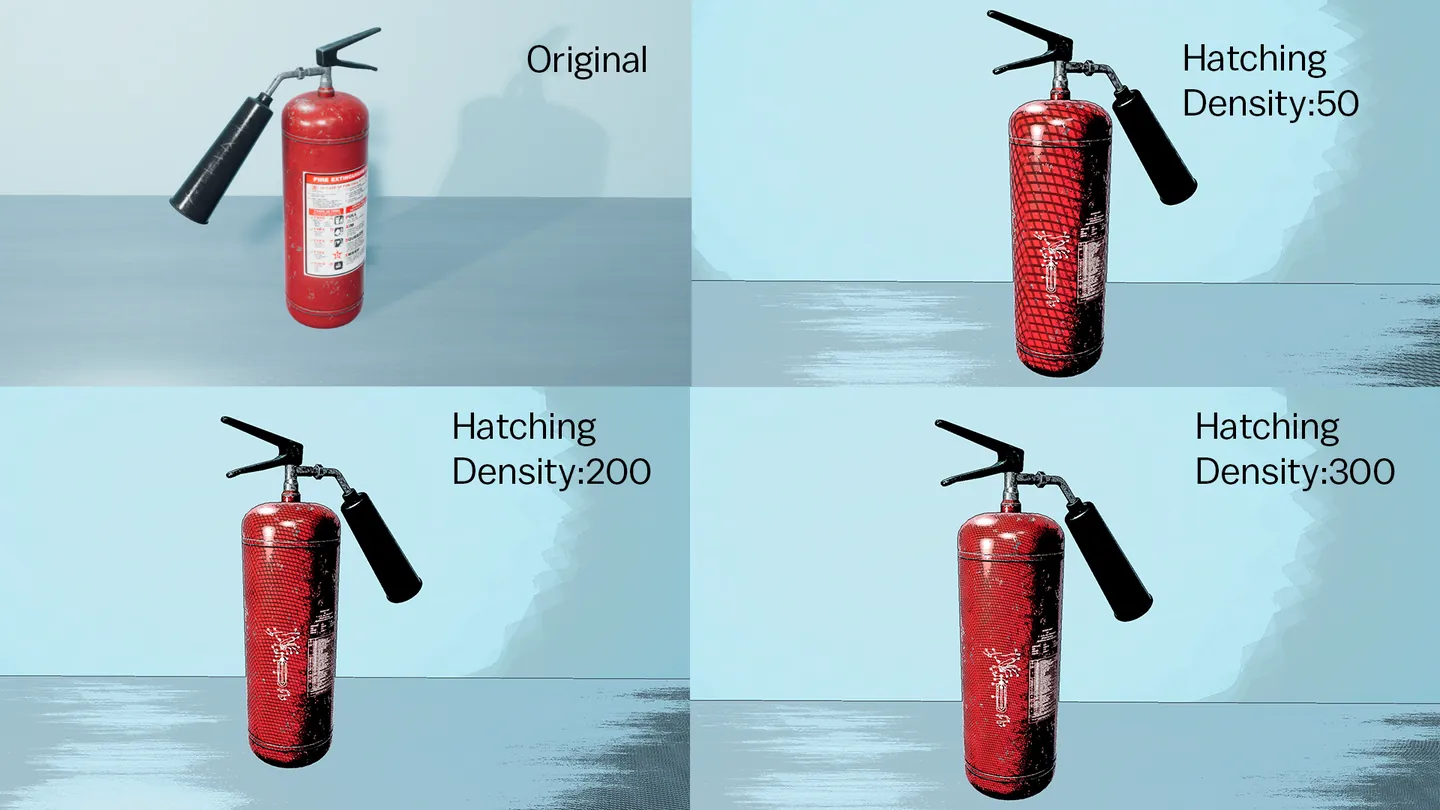
Section titled “Hatching”Object-space hatching lines that follow the mesh surface.
| Parameter | Range | Default | Description |
|---|---|---|---|
| Use Hatching | bool | true | Enable hatching overlay |
| Density | 1-400 | 20 | Line frequency |
| Rotation | -PI to PI | 0.785 | Primary line angle (radians) |
| Secondary Angle | 0.52-1.57 | 1.57 | Cross-hatch angle offset |
| Layers | 1-4 | 3 | Number of hatching layers |
| Hatching Mode | enum | Combined | Screen, Object, or Combined space |
Line Appearance
| Parameter | Range | Default | Description |
|---|---|---|---|
| Line Thickness | 0.1-1 | 0.4 | Line width |
| Line Spacing | 0.5-3 | 1.0 | Space between lines |
| Line Wobble | 0-1 | 0.3 | Hand-drawn irregularity |
| Line Taper | 0-1 | 0.2 | Taper at line ends |
| Line Color | Color | Dark gray | Color of hatching lines |
UV Settings
| Mode | Description |
|---|---|
| UV0 | Standard mesh UVs |
| Triplanar | World-space projection for objects without good UVs |
For triplanar mode, adjust Triplanar Scale and Triplanar Sharpness to control the projection.
Toon Lighting
Section titled “Toon Lighting”Controls how light and shadow are rendered on the object.
| Parameter | Range | Default | Description |
|---|---|---|---|
| Ramp Threshold | 0-1 | 0.5 | Light/shadow boundary position |
| Ramp Smoothness | 0.001-1 | 0.01 | Transition sharpness |
| Use Procedural Ramp | bool | false | Generate ramp from 4 corner colors |
| Ramp Texture | Texture2D | none | Custom 1D or 2D ramp lookup |
| Ramp Blend Mode | enum | Multiply | How ramp blends with base color |
| Use Cel Bands | bool | false | Quantize lighting into discrete bands |
| Cel Bands | 0-20 | 0 | Number of bands (0 = smooth) |
Outline
Section titled “Outline”Vertex-extrusion outlines drawn as an inverted-hull pass.
| Parameter | Range | Default | Description |
|---|---|---|---|
| Outline Width | 0-0.05 | 0.02 | Outline thickness |
| Outline Color | Color | Black | Outline color |
| Width Source | enum | Constant | Constant or vertex alpha driven |
| Color Source | enum | Constant | Constant or vertex color driven |
| Noise Scale | 0-100 | 50 | Sketchy outline noise frequency |
| Noise Speed | 0-10 | 0 | Boiling/animated noise speed |
| Noise Strength | 0-0.05 | 0 | Noise distortion amount |
Specular Highlights
Section titled “Specular Highlights”| Style | Description |
|---|---|
| Simple | Basic Blinn-Phong cel specular |
| Anisotropic | Hair/silk-style directional specular |
| Angel Ring | Anime hair highlight ring |
| Cellular | Voronoi-patterned specular |
| Parameter | Range | Default | Description |
|---|---|---|---|
| Specular Color | Color | White | Highlight color |
| Specular Threshold | 0-1 | 0.5 | Highlight cutoff point |
| Specular Smoothness | 0.001-1 | 0.05 | Edge sharpness |
Rim Lighting
Section titled “Rim Lighting”Fresnel-based edge lighting for silhouette emphasis.
| Parameter | Range | Default | Description |
|---|---|---|---|
| Use Rim | bool | true | Enable rim lighting |
| Rim Color | HDR Color | White | Lit-side rim color |
| Rim Color Shadow | HDR Color | White | Shadow-side rim color |
| Rim Power | 0.1-10 | 3.0 | Rim falloff |
| Rim Threshold | 0-1 | 0.5 | Rim visibility cutoff |
| Rim Light Align | 0-1 | 0 | Align rim to light direction |
| Rim Shadow Mask | 0-1 | 0 | Mask rim in shadow areas |
MatCap
Section titled “MatCap”Material Capture textures for environment-independent reflections and stylized shading.
| Parameter | Range | Default | Description |
|---|---|---|---|
| Use MatCap | bool | false | Enable matcap overlay |
| MatCap Texture | Texture2D | none | Matcap sphere texture |
| MatCap Intensity | 0-2 | 1.0 | Overlay strength |
| MatCap Rotation | -180 to 180 | 0 | Rotate the matcap |
| MatCap Blend | enum | Add | Add or Multiply blend |
Use the Matcap Generator (Menu: CelShaderFX > Matcap Generator) to create custom matcap textures.
Face SDF Shadow
Section titled “Face SDF Shadow”Signed Distance Field-based face shadows for anime-style characters. Produces clean, artist-controllable shadow shapes on faces that respond to light direction.
| Parameter | Range | Default | Description |
|---|---|---|---|
| Use Face SDF | bool | false | Enable SDF face shadows |
| Face SDF | Texture2D | none | SDF texture (use SDF Generator) |
| Shadow Threshold | -1 to 1 | 0 | Shadow boundary position |
| Shadow Softness | 0.001-1 | 0.05 | Shadow edge softness |
Use the SDF Generator (Menu: CelShaderFX > SDF Generator) to create face SDF textures from alpha masks.
Foliage Animation
Section titled “Foliage Animation”Built-in vertex animation for stylized vegetation.
| Parameter | Description |
|---|---|
| Main Bending | Global wind sway strength |
| Leaf Bending | Per-leaf flutter amount |
| Flutter Speed | Animation speed |
| Wind Strength/Direction | Wind vector |
| Gust Strength/Frequency | Wind gust variation |
| Interaction Target | Transform that pushes foliage |
| Interaction Radius/Strength | Push-away zone |
Surface Options
Section titled “Surface Options”| Parameter | Description |
|---|---|
| Surface Type | Opaque or Cutout (alpha clip) |
| Alpha Source | Base texture alpha or separate mask |
| Alpha Mask | Separate alpha mask texture |
| Alpha Cutoff | Clip threshold for cutout mode |
- Anime Characters: Enable Face SDF + Rim Lighting + Cel Bands for classic anime look
- Sketchy Objects: Enable Hatching with wobble, use noise on outlines for boiling effect
- Hair: Use Anisotropic specular + Angel Ring style with an aniso map
- Stylized Props: MatCap + simple specular + thick outlines
- Foliage: Enable foliage animation, use Cutout surface type with alpha mask
Advanced Features
Section titled “Advanced Features”Modular Controller
Section titled “Modular Controller”The CelModularController provides programmatic control over individual effect modules.
Setup
- Add CelModularController component to your camera
- Access modules via code:
using CelShaderFX.Advanced;using CelShaderFX.Modules;
public class EffectManager : MonoBehaviour{    private CelModularController controller;
    void Start()    {        controller = GetComponent<CelModularController>();
        // Enable cel shading        controller.CelShading.enabled = true;        controller.CelShading.bands = 4;
        // Enable outlines        controller.Outline.enabled = true;        controller.Outline.thickness = 2f;
        // Apply changes        controller.ApplyAllModules();    }}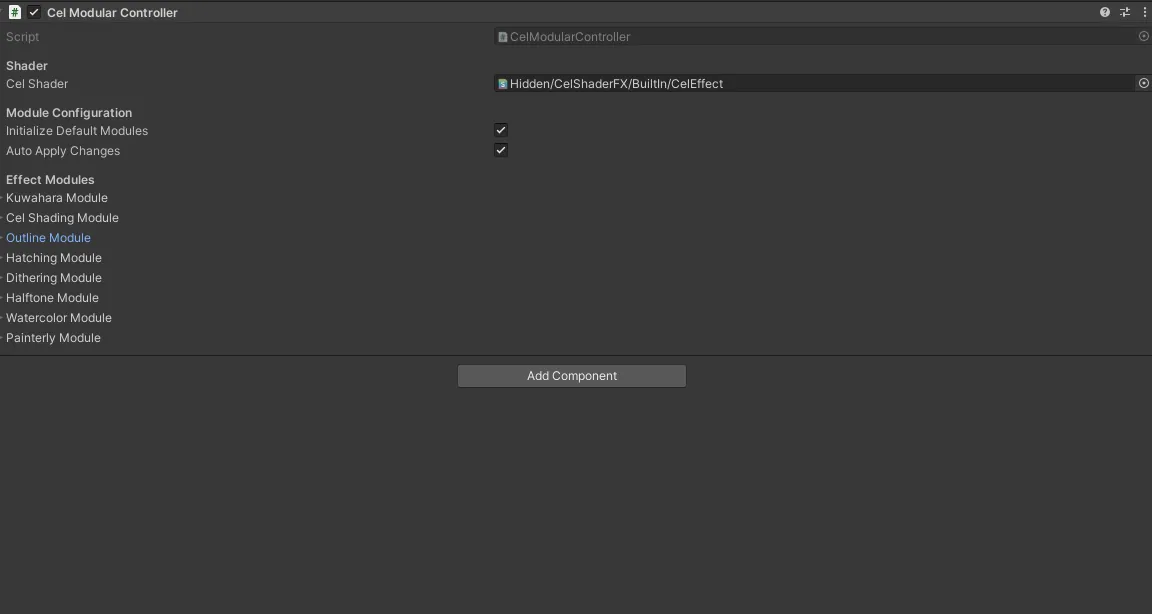
Module Access
| Property | Type | Description |
|---|---|---|
| controller.Kuwahara | KuwaharaModule | Kuwahara filter |
| controller.CelShading | CelShadingModule | Cel shading |
| controller.Outline | OutlineModule | Outlines |
| controller.Hatching | HatchingModule | Hatching |
| controller.Dithering | DitheringModule | Dithering |
| controller.Halftone | HalftoneModule | Halftone |
| controller.Watercolor | WatercolorModule | Watercolor |
| controller.Painterly | PainterlyModule | Painterly |
Quick Presets
// Apply built-in presetscontroller.ApplyAnimePreset();controller.ApplyMangaPreset();controller.ApplyWatercolorPreset();controller.ApplyOilPaintPreset();
// Toggle effectscontroller.EnableEffect("outline");controller.DisableEffect("hatching");controller.ToggleEffect("kuwahara");
Object Exclusion
Section titled “Object Exclusion”Exclude specific objects from receiving post-processing effects.
Method 1: Exclusion Layer
- Create a new Layer (e.g., “NoPostProcess”)
- Assign objects to this layer
- In CelShaderSettings, set Exclusion Layer to your layer
Method 2: Exclusion Component
- Add CelExcludeObject component to any GameObject
- The object (and optionally children) will be excluded
using CelShaderFX;
// Add at runtimegameObject.AddComponent<CelExcludeObject>();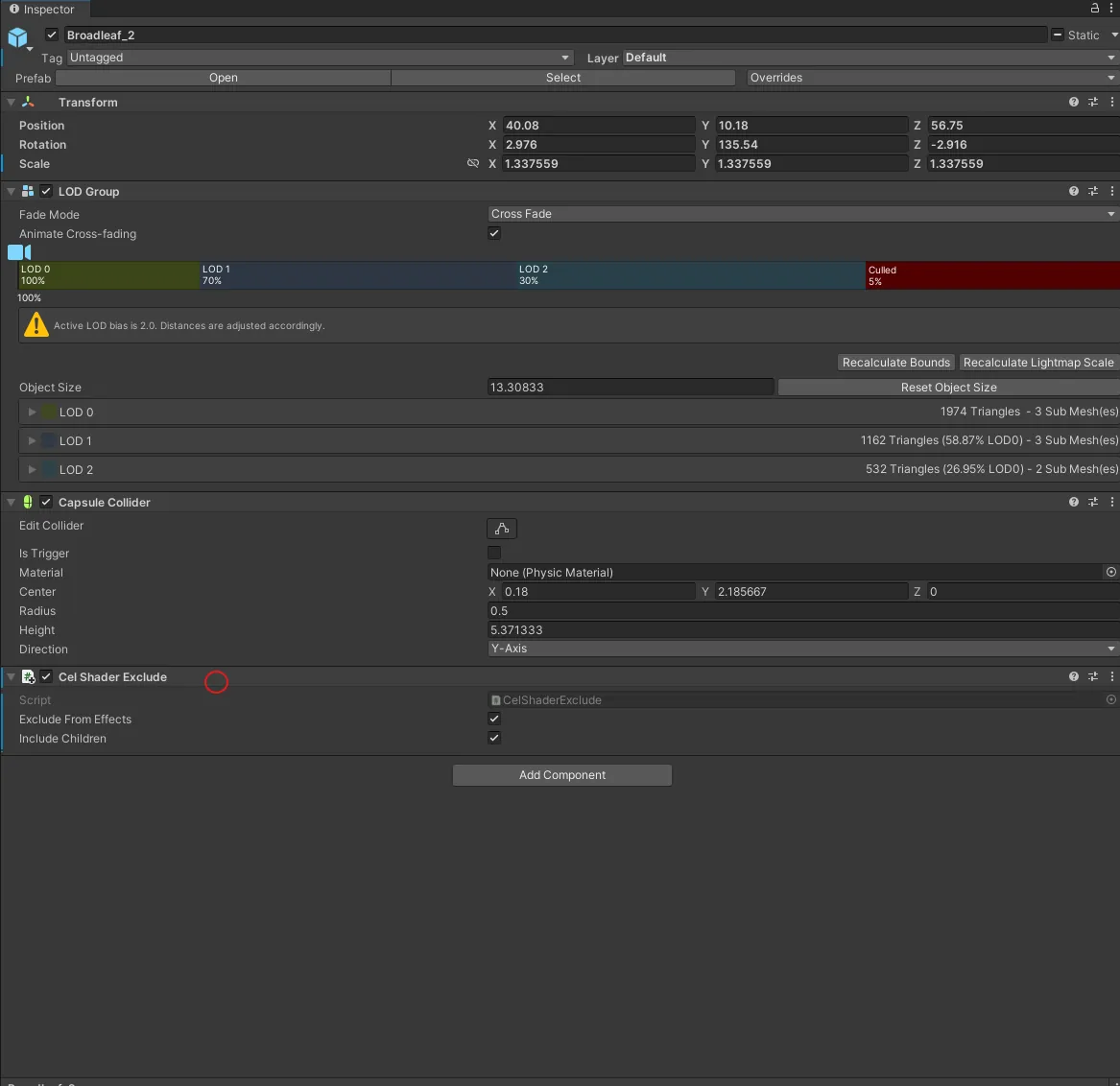
Step 1: Added Exclude component to object
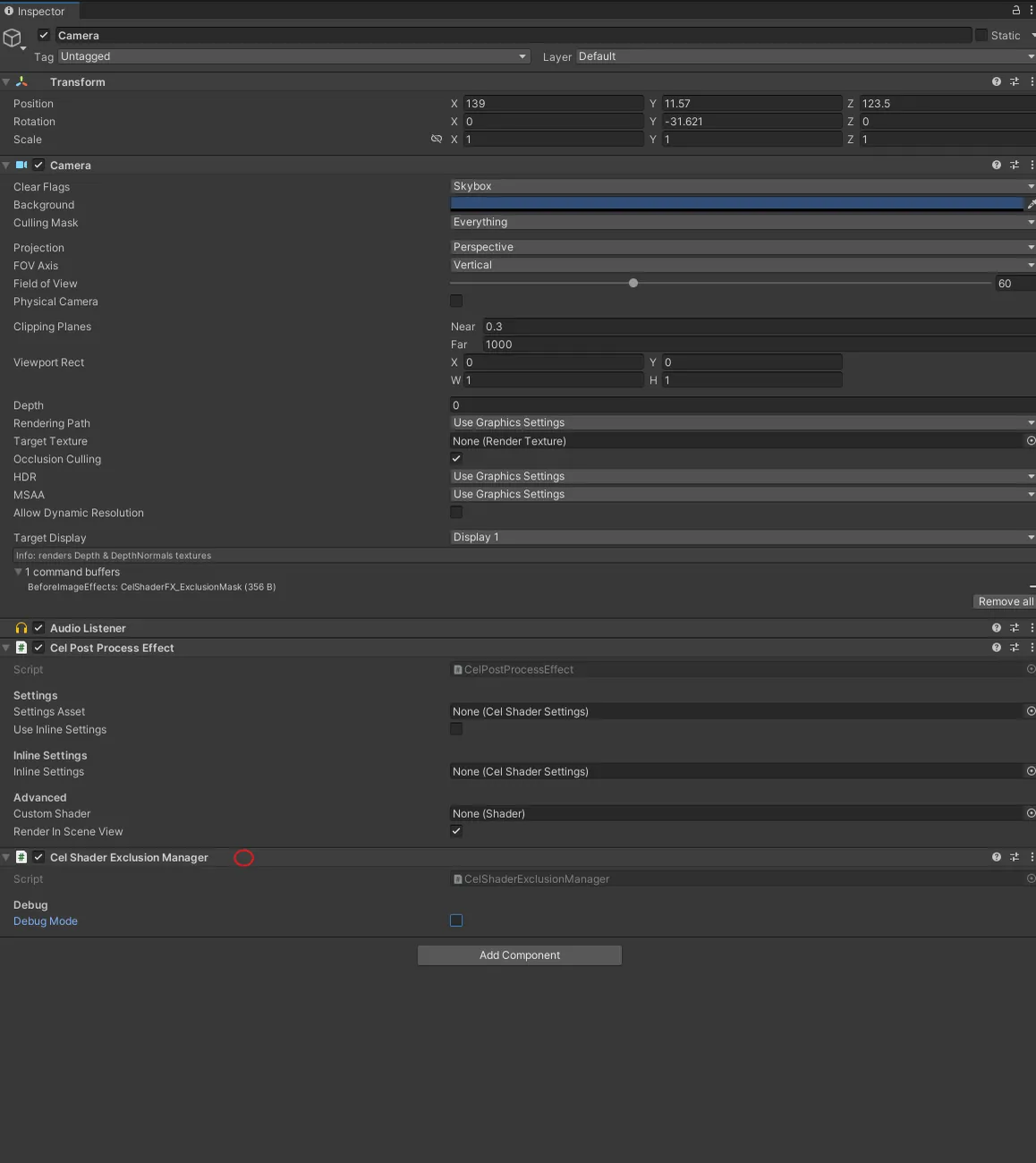
Add the manager to the camera
Method 3: Exclusion Mask Texture
Use a render texture mask for complex exclusion patterns.
Creating Presets
Section titled “Creating Presets”Save and share your effect configurations.
Creating a Preset
- Configure your effects as desired
- Right-click in Project window
- Create > CelShaderFX > Preset
- Name your preset
- Click Capture Current Settings in the Inspector
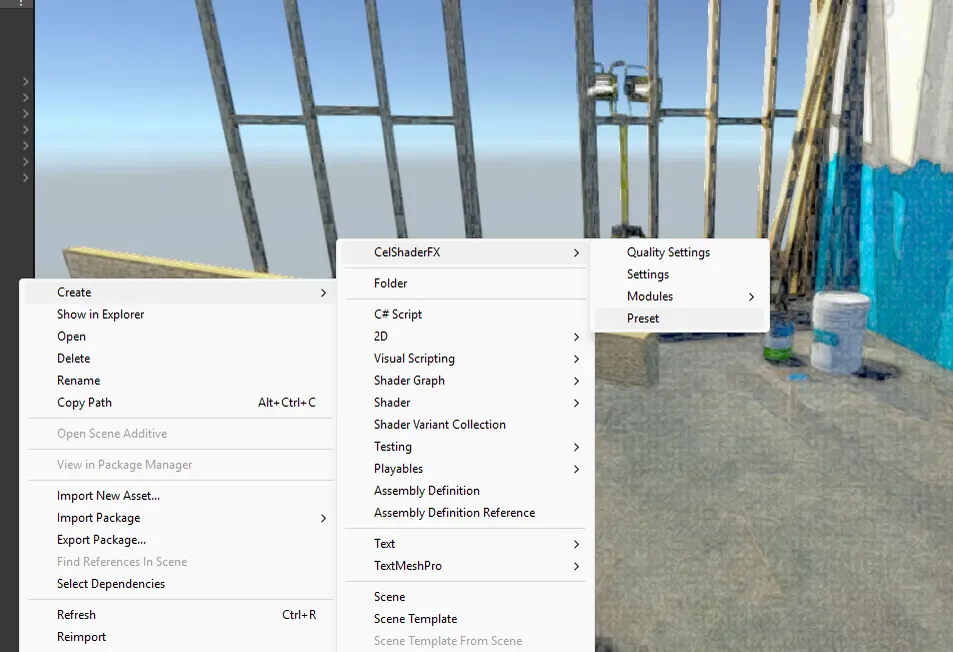
Applying a Preset
using CelShaderFX;
// Load and apply presetvar preset = Resources.Load<CelShaderPreset>("Presets/MyPreset");preset.ApplyTo(settings);
// Or with interpolationpreset.ApplyTo(settings, 0.5f); // 50% blend
Preset Interpolation
Smoothly transition between presets:
IEnumerator TransitionPreset(CelShaderPreset target, float duration){    float elapsed = 0;    var startSettings = CaptureCurrentSettings();
    while (elapsed < duration)    {        elapsed += Time.deltaTime;        float t = elapsed / duration;        target.ApplyTo(settings, t);        yield return null;    }}
Editor Tools
Section titled “Editor Tools”Setup Wizard
Section titled “Setup Wizard”Tools > CelShaderFX > Setup Wizard
Guides you through initial configuration for your render pipeline.
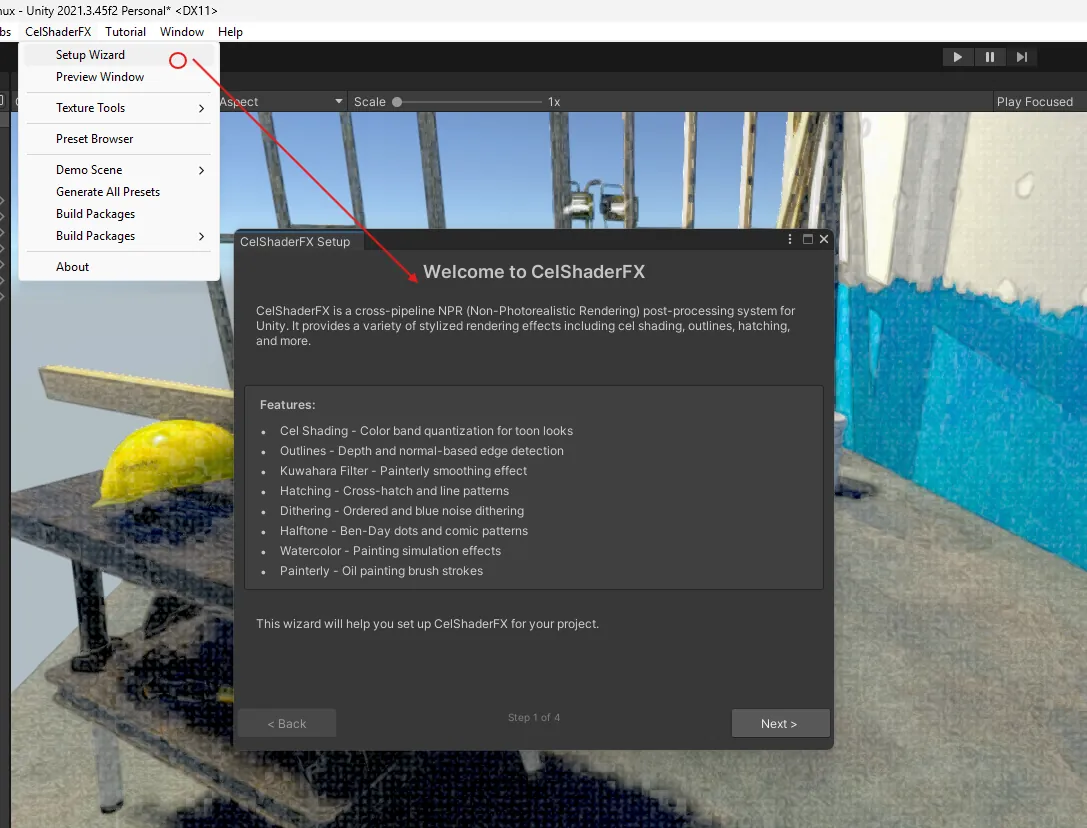
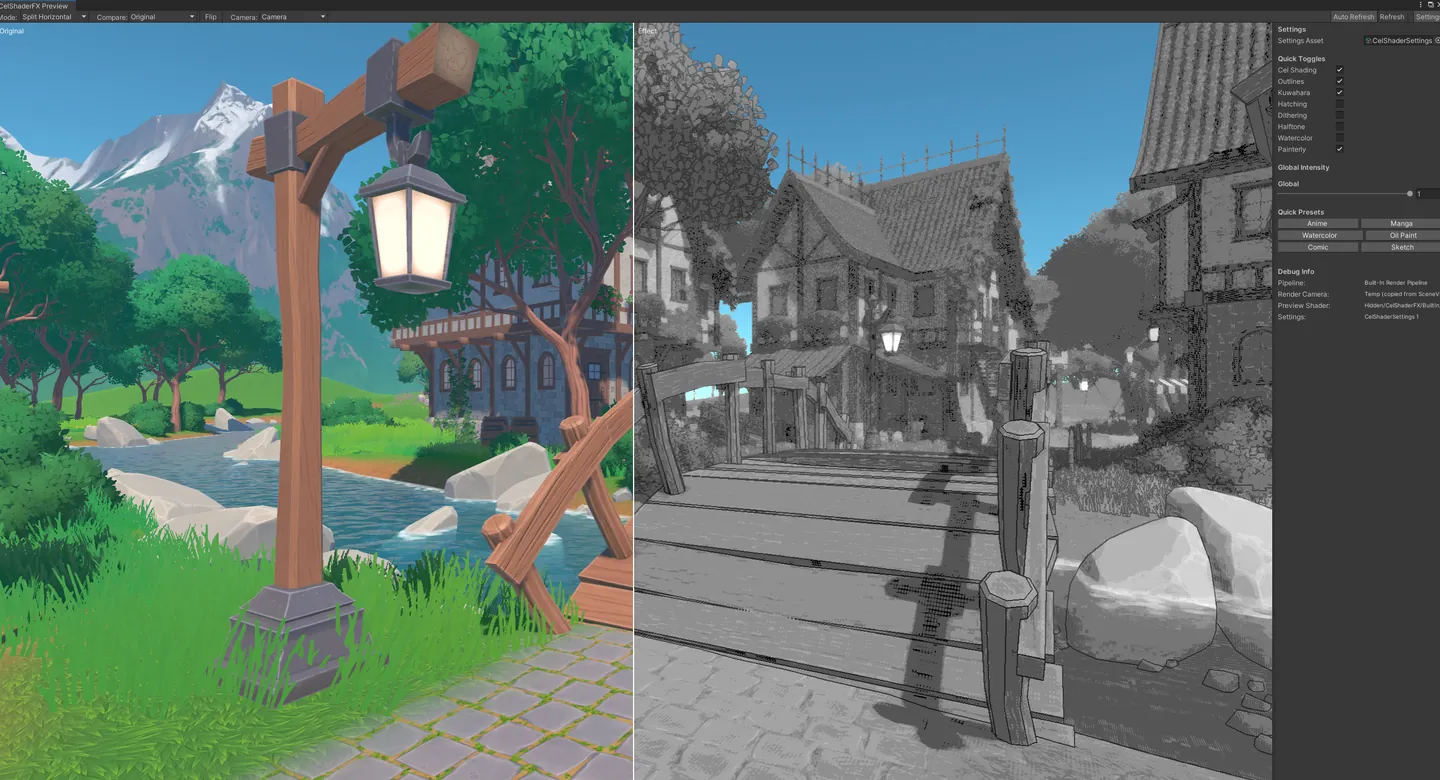
Preview Window
Section titled “Preview Window”Tools > CelShaderFX > Preview Window
Real-time effect preview with comparison modes:
| Mode | Description |
|---|---|
| Full | Complete effect preview |
| Split Horizontal | Left original, right effect |
| Split Vertical | Top original, bottom effect |
| Side by Side | Both views simultaneously |
Preset Browser
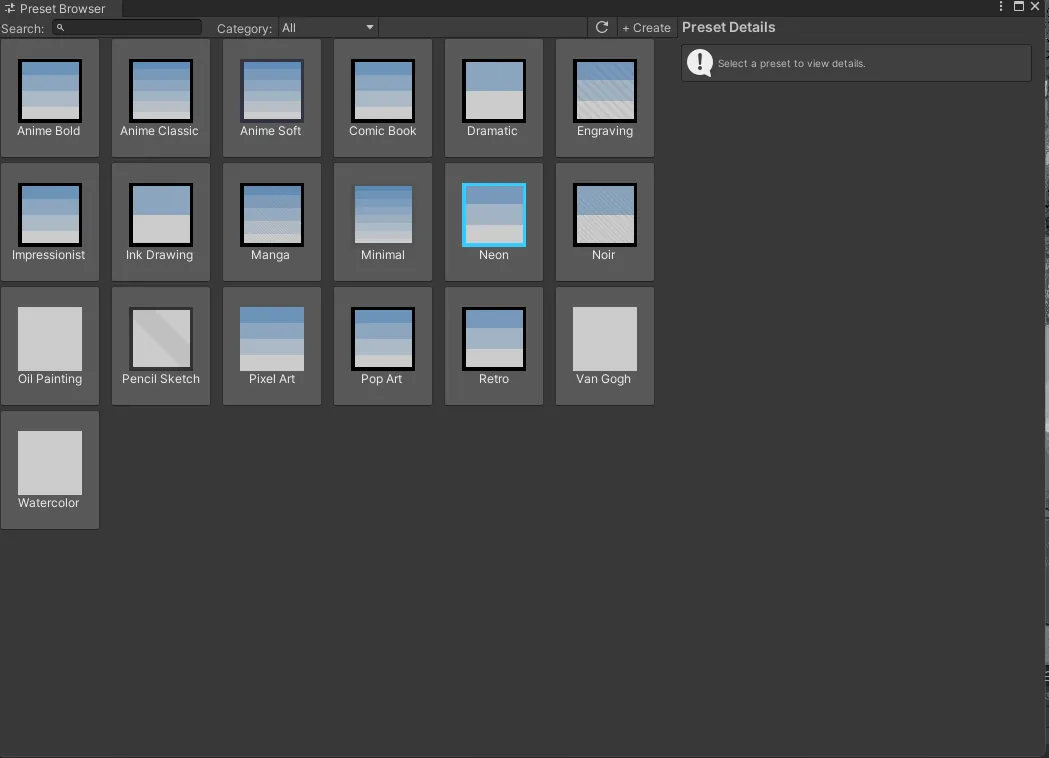
Section titled “Preset Browser”Tools > CelShaderFX > Preset Browser
Visual gallery of all available presets with instant preview.
Texture Generator
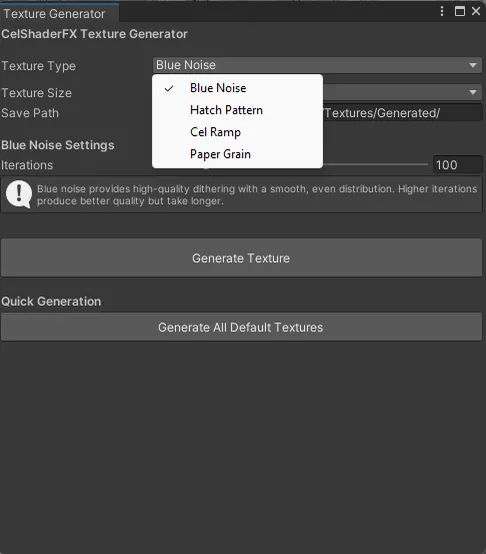
Section titled “Texture Generator”Menu: CelShaderFX > Texture Generator
Generate procedural textures for use with CelShaderFX effects. You can also open this tool directly from the Generate button next to any texture slot in the inspector.
| Texture Type | Used By | Description |
|---|---|---|
| Blue Noise | Dithering | Spatially uniform noise for Blue Noise and STBN dithering modes |
| Hatch Pattern | Hatching | TAM (Tonal Art Map) atlas with multiple tone levels in a horizontal strip |
| Cel Ramp | Cel Shading | Custom gradient lookup texture for band remapping with configurable bands and smoothness |
| Paper Grain | Watercolor | Organic paper texture with configurable roughness and scale |
Settings:
- Texture Size: Resolution of the generated texture (64 to 512)
- Save Path: Where to save the generated texture asset
- Type-specific parameters: Each type has additional configuration options (e.g., hatch line width, ramp bands, paper roughness)
SDF Generator
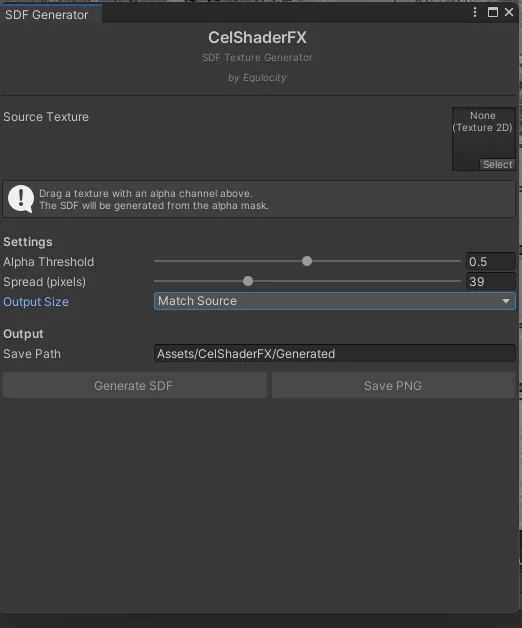
Section titled “SDF Generator”Menu: CelShaderFX > SDF Generator
Converts alpha masks and sprites into Signed Distance Field (SDF) textures using Jump Flooding. SDF textures are used for face shadow masks in Object Cel Shading.
Settings:
- Source Texture: Input alpha mask or sprite
- Alpha Threshold: Cutoff for inside/outside determination
- Spread: Maximum distance field spread in pixels
- Output Size: Match source or specify (64 to 512)
- Live Preview: See the SDF result before saving
Painterly Texture Generator
Section titled “Painterly Texture Generator”Menu: CelShaderFX > Generate Painterly Textures
Generates default brush stroke and canvas textures for the Painterly effect module. The Generate buttons next to the Brush Texture and Canvas Texture slots in the inspector will create these textures individually.
- Brush Texture: Procedural bristle stroke pattern with natural variation
- Canvas Texture: Woven canvas grain pattern for surface overlay
Performance Optimization
Section titled “Performance Optimization”Quality Presets
Section titled “Quality Presets”CelShaderFX includes quality presets for different hardware:
| Preset | Target | Key Settings |
|---|---|---|
| Mobile | Mobile/Low-end | Kuwahara disabled, simplified outlines |
| Low | Integrated GPU | Kuwahara radius 2, basic effects |
| Medium | Mid-range GPU | Kuwahara radius 3, all effects |
| High | Dedicated GPU | Kuwahara radius 4, full quality |
| Ultra | High-end GPU | Kuwahara radius 6+, maximum quality |
Performance Tips
Section titled “Performance Tips”- Kuwahara Radius: Each +1 radius roughly doubles cost
- Disable Unused Effects: Toggle off effects you don’t use
- Hatching Layers: Fewer layers = better performance
- Outline Method: Sobel is fastest, Canny is slowest
- Anisotropic Kuwahara: Most expensive variant
Profiling
Section titled “Profiling”Use Unity’s Profiler to measure CelShaderFX impact:
- Open Window > Analysis > Profiler
- Look for “CelShaderFX” in the GPU section
- Individual effects are labeled for identification
Best Practices
Section titled “Best Practices”Combining Effects
Section titled “Combining Effects”Some effects work well together, others conflict:
| Combination | Result | Recommendation |
|---|---|---|
| Cel + Outline | Classic anime | ✅ Recommended |
| Kuwahara + Painterly | Oil painting | ✅ Recommended |
| Hatching + Dithering | Muddy result | ❌ Avoid |
| Halftone + Dithering | Conflicting patterns | ❌ Avoid |
| Watercolor + Kuwahara | Soft painting | ✅ Recommended |
Effect Order
Section titled “Effect Order”Effects are applied in a specific order for best results:
- Kuwahara (smoothing)
- Cel Shading (color quantization)
- Hatching (pattern overlay)
- Dithering (color reduction)
- Halftone (pattern overlay)
- Watercolor (stylization)
- Painterly (stylization)
- Outline (drawn last, on top)
Common Mistakes
Section titled “Common Mistakes”| Mistake | Solution |
|---|---|
| Effects look different in URP/HDRP | Ensure Volume is set to Global mode |
| Hatching swims during movement | Increase world space weight |
| Outlines too thick on small objects | Enable distance fade |
| Performance issues | Reduce Kuwahara radius first |
| Colors look wrong | Check color space (Linear vs Gamma) |
Appendix
Section titled “Appendix”Shader Keywords
Section titled “Shader Keywords”CelShaderFX uses these shader keywords:
CEL_KUWAHARA_BASICCEL_KUWAHARA_GENERALIZEDCEL_KUWAHARA_ANISOTROPICCEL_OUTLINE_SOBELCEL_OUTLINE_ROBERTSCEL_OUTLINE_CANNYCEL_OUTLINE_DOGCEL_HATCHING_SCREENCEL_HATCHING_WORLDCEL_HATCHING_BLENDEDCEL_DITHERING_BAYERCEL_DITHERING_BLUENOISECEL_HALFTONE_DOTSCEL_HALFTONE_LINESCEL_TEMPORAL_AAFile Locations
Section titled “File Locations”| File Type | Location |
|---|---|
| Scripts | CelShaderFX/Runtime/Scripts/ |
| Shaders | CelShaderFX/Runtime/Shaders/ |
| Editor Tools | CelShaderFX/Editor/ |
| Presets | CelShaderFX/Resources/DefaultPresets/ |
| Textures | CelShaderFX/Runtime/Textures/ |
For API documentation, see API Reference.For common issues, see Troubleshooting.
- 8 Post-Process Modules: Cel Shading, Outlines (5 methods), Kuwahara, Hatching, Dithering, Halftone, Watercolor, Painterly
- Object Cel Shading: Per-object shader with toon lighting, hatching, rim, matcap, specular, face SDF, and foliage animation
- Cross-Pipeline: Works with Built-In, URP, and HDRP
- 37 Artistic Presets: Anime, Manga, Comic, Painting, Drawing, Retro and Experimental looks, from Anime Classic to Sin City
- Modular Design: Enable only what you need
- Runtime Control: Full scripting API
- Performance Options: Quality presets from Mobile to Ultra
Opens our feedback form in a new tab with the tool name pre-filled.