
UnityEQ Painting Lab
Quick Start
Paint colour, mask, flow and direction maps directly in the Unity editor - on a 2D canvas, on your mesh, or both side by side - and export each mode to the format it needs.
Supported Unity baseline: Unity 2022.3 LTS or newer, including Unity 6.
What you can do
Section titled “What you can do”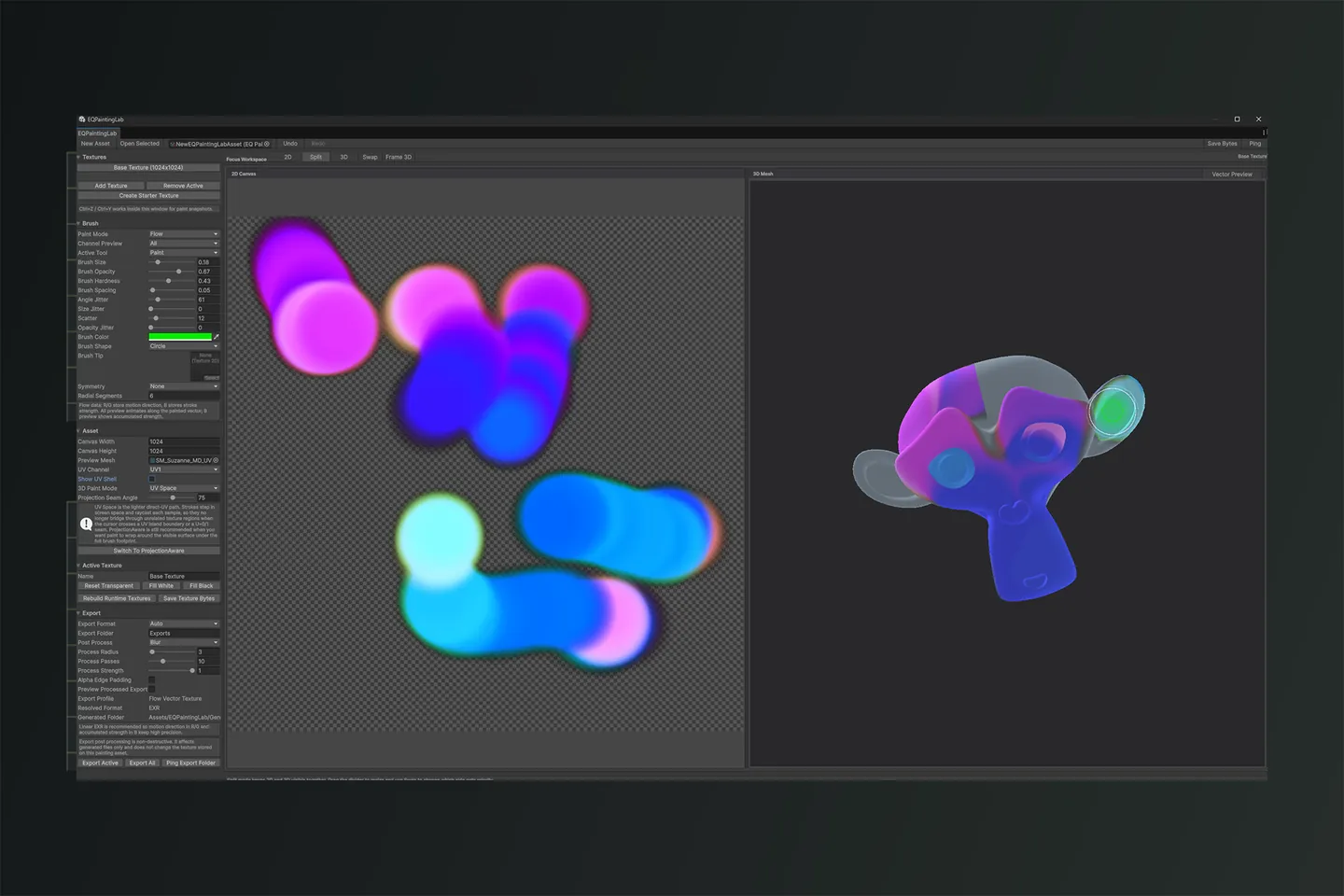
- standalone
EQPaintingLabAsset - standalone editor window
- custom inspector entry point
- texture list management
- persistent texture bytes stored on the asset
- fixed left sidebar for settings and asset controls
- center focus workspace for painting and previewing
- 2D paint canvas
- paint, erase, smooth, fill, and clear tools
- mirror and radial symmetry modes
- custom brush-tip texture masking
- angle, size, scatter, and opacity jitter controls
- channel preview modes
- decoded vector previews when viewing the full packed texture: animated Flow motion and static Direction-field arrows
- viewport legend badges that label the active decoded Flow or Direction preview
- manual undo and redo inside the editor window
- export active texture or all textures into
Assets/EQPaintingLab/Generated - mode-specific export profiles for Color, Mask, Flow, and Direction workflows
- recommended export format warnings when a mode is forced to a less suitable format
- non-destructive export post processing with
Smooth,Blur,Alpha Edge Padding, and viewport preview - first 3D mesh preview using the assigned preview mesh
- direct UV-space painting on the preview mesh
- projection-aware 3D painting that samples the visible mesh under the brush footprint and paints local UV dabs across seams
UV Channelselector for choosing which preview mesh UV set drives 3D painting, texture preview, and shell overlaysShow UV Shelloverlay that draws the selected preview mesh UV shell over both the 2D canvas and 3D preview3D Paint Modecontrol for switching betweenProjectionAwareand the olderUVSpacebehaviorProjection Seam Anglecontrol for deciding how far projection painting can wrap around surface angle changes- viewport modes for
2D,Split, and3D - persisted workspace mode, split divider, swap order, foldouts, scroll, last asset, and 3D camera framing
- live brush cursor ghost-stamp preview with brush-tip masking and jitter bounds
- preview and reset/fill utility actions
How to open
Section titled “How to open”- Create an asset from
Create/EQ Painting Lab/Painting Asset - Select it in the Project window
- Click
Open in EQPaintingLab
You can also open the window from:
Tools/EQLabs/EQ Painting Lab/Open Editor
Workflow
Section titled “Workflow”- create or open an asset
- create a starter texture
- manage texture slots
- paint directly in the active texture canvas or switch to split mode to watch the mesh at the same time
- use mouse wheel over the canvas to resize the brush
- use
Ctrl+ZandCtrl+Y(macOS:Cmd+ZandCmd+Y, orCmd+Shift+Z) in the window for paint snapshots - choose
Mirror X,Mirror Y,Mirror XY, orRadialsymmetry from the Brush section - assign a readable
Brush Tiptexture to shape the stamp - use
Angle Jitter,Size Jitter,Scatter, andOpacity Jitterto break up repeated stamps - preview the active texture or isolate a single channel
- in Flow mode, keep
Channel PreviewonAllto see animated motion bands; switch to R, G, B, or A when you need to inspect packed data directly - in Direction mode, keep
Channel PreviewonAllto see static arrows aligned to the direction field; switch to B to inspect the painted/valid mask - the viewport header badge names the decoded vector preview when Flow or Direction is shown in
All - use the
Vector Previewtoggle in the 3D viewport header to turn the decoded Flow/Direction preview shader on or off - switch the focus workspace between
2D,Split, and3D - drag the split divider and use
Swapto favor canvas-first or mesh-first review - reopen the window or Unity and continue with the last saved workspace layout
- export the active texture or all textures from the Export section
- leave
Export FormatonAutofor the safest mode-specific output: Color and Mask use PNG, while Flow and Direction use EXR - use
Post Processbefore export when a painted mask, color map, flow map, or direction map needs a softer generated output; increaseProcess Radiusfor wider blur andProcess Passesfor more buildup without modifying the saved painting asset - enable
Alpha Edge Paddingfor transparent color textures that need RGB bleed around visible pixels to reduce edge fringes in mips or UV borders - keep
Preview Processed Exportenabled to see the generated result in the 2D and 3D preview panes before writing files - assign a mesh in
Preview Meshto inspect the active texture in 3D - choose
UV Channelto target UV0, UV1, UV2, or UV3 on the preview mesh - enable
Show UV Shellto inspect the selected UV island boundaries while painting on either the canvas or 3D preview - left-click on visible mesh triangles to paint through the selected UV channel
- use
ProjectionAware3D paint mode when painting across visible UV seams or duplicated seam vertices - use
UVSpace3D paint mode when you want the lighter direct UV stamp behavior; strokes now step in screen space and raycast each sample, so they no longer bridge through unrelated texture regions when the cursor crosses a UV island boundary or aU=0/1seam - older assets are migrated to
ProjectionAwarethe next time they are opened so they default to the wider-footprint seam-painting path - save texture bytes back onto the asset
For mesh painting:
- the 3D preview pane is verified rendering under the Built-in Render Pipeline, URP 17.3.0 and HDRP 17.3.0, on Unity 6000.3.14f1. The preview shader is a Built-in CG shader with a single SubShader and no SRP subshaders; it renders in those SRPs via its
Unlit/Texturefallback. Other pipeline versions and other editor versions are not verified. 2D painting and all exported textures work with every pipeline. - the preview mesh must be readable
- the preview mesh must have valid data in the selected UV channel
Show UV Shellis an editor-only guide and does not write into texture pixels or exported files- the 2D overlay draws UV island boundaries and seam edges directly in texture space
- the 3D overlay draws the same shell edges on front-facing preview mesh surfaces so seam placement is visible while orbiting
- right mouse drag orbits and mouse wheel zooms the preview camera
- projection-aware painting raycasts screen-space brush samples against the visible mesh and writes local UV dabs only where the preview surface is actually hit
- lower
Projection Seam Anglevalues keep paint on surfaces facing the hit normal; higher values let paint wrap farther around corners - projection-aware strokes do not interpolate through UV space, which prevents cylinder-style
0/1seams from creating long texture-space bridge strokes - projection-aware primary strokes can cross visible seams, while mirrored symmetry clones still use texture-space stamping
- if
3D Paint ModeshowsUVSpace, the tool exposes a one-click button to switch back toProjectionAwarefor the wider screen-footprint seam-painting behavior
For brush tips:
- the brush-tip texture must have Read/Write enabled in its import settings
- the tip currently acts as a mask on top of the brush falloff
Brush Shapecontrols the footprint independently from the assigned tip:Circlemasks to a round dab, whileSquaresamples the full square tip- enable
Invert Brush Tipwhen the useful stamp shape is dark on a light/white background; the grayscale mask is flipped while alpha is preserved - opaque grayscale brush tips are supported and now shape the stamp correctly
- if a brush tip is unreadable, EQPaintingLab now builds a temporary readable copy automatically
- use
Fix Brush Tip Import Settingsin the Brush section if the assigned tip is not readable - the canvas and mesh cursor now shows a live ghost preview of the current stamp mask before paint is applied
For jitter:
Angle Jitter:0-360degrees of random stamp rotationSize Jitter:0-100%random stamp scale variationScatter:0-100%lateral offset away from the stroke pathOpacity Jitter:0-100%random stamp strength variationSpacingremains the stamp cadence control and already works with the new jitter system- the cursor shows a light outer bound when size jitter or scatter can push stamps outside the main brush footprint
For export:
Color: recommended as sRGB PNG with transparency handlingMask: recommended as linear PNG for grayscale, alpha, or packed mask dataFlow: recommended as linear EXR for motion direction in R/G and accumulated strength in BDirection: recommended as linear EXR for direction-field R/G data and the B painted/valid mask- exported file names include the active paint-mode suffix, such as
_Color,_Mask,_Flow, or_Direction - preview motion, arrows, and colors are editor-only visualization; exported Flow files keep packed R/G direction plus B strength, while Direction files keep packed R/G direction plus the B painted/valid mask
Export hygiene
Section titled “Export hygiene”- generated exports are written under
Assets/EQPaintingLab/Generated - keep exported textures organized by painting asset name
- use
Export Activefor one texture orExport Allfor every texture slot in the current painting asset - imported export textures are configured without mipmaps and with uncompressed import settings
Report an issue with this tool
Opens our feedback form in a new tab with the tool name pre-filled.