Module: Animation · Category: AnimBP · Tool ID: AnimationAuditor
A three-tab audit suite for the heavy lifting of animation QA. Compression profiles every AnimSequence’s compression scheme and flags oversize or uncompressed clips. Curves finds flat/zero/unused curves wasting memory and lets you batch-strip them. Blueprint walks every Animation Blueprint for state-machine complexity, dead states, and transition rule issues.
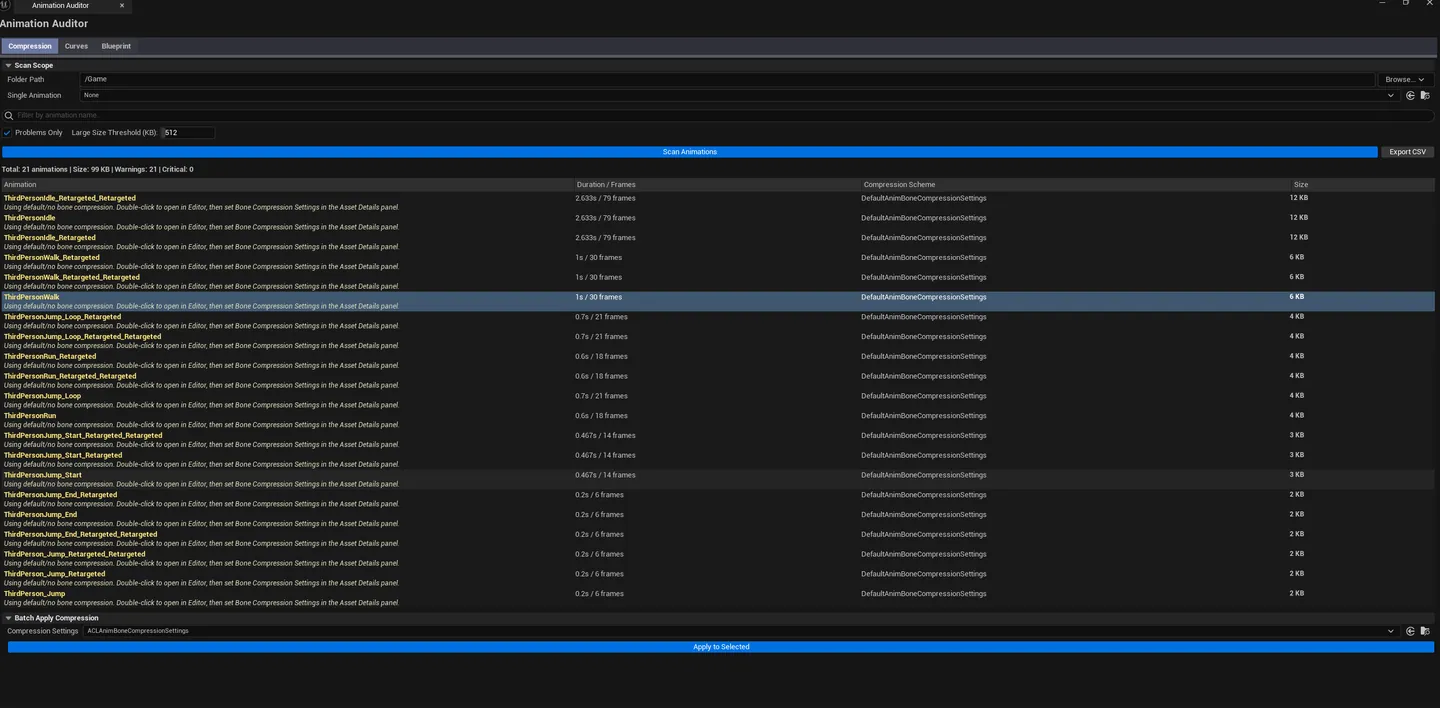
Auditor open on the Compression tab with a populated, sorted list. Tab bar visible at top showing Compression / Curves / Blueprint.
Pre-cook performance pass: find every uncompressed AnimSequence, every flat curve eating memory, every AnimBP with dead states
Inheriting a project: get an objective view of animation budgets across a content set
Onboarding a new platform target: compression that’s fine on PC may be too heavy on mobile
AnimBP refactoring: the Blueprint tab surfaces unreachable states that are usually leftovers from past iterations
Don’t use this for runtime debugging. It’s asset-side analysis, not a runtime profiler.Don’t expect this to fix AnimBPs. Compression and Curves have batch fix actions; Blueprint is read-only.
Open the EQLabs Hub and search for Animation Auditor (or browse to Animation → AnimBP ).
Click the tool card.
Use the tab bar to pick Compression , Curves , or Blueprint .
Project-wide AnimSequence compression audit.
Section What it does Scan Path Folder to scan recursively Single Anim Path Optional — scan a single AnimSequence instead of a folder Search box Filter by name Problems Only checkboxHide healthy entries Scan Walks AnimSequences and computes compression metrics Export CSV Saves the result set to a CSV file Apply Compression to Selected Batch-applies compression settings to selected rows Sortable column headers Sort by size, ratio, or severity Stats Total animations, total size (KB), warning count, critical count Results list Per-anim row: name, scheme, duration, frames, bones, curves, compressed size, ratio, additive flag, severity, suggestion
Severity Meaning Good Reasonable size, sensible compression scheme Warning Over the size threshold (512 KB by default), or compression ratio is suspiciously poor Critical Uncompressed or dramatically oversize
Compression results sorted descending by Compressed Size, top entries showing Critical severity.
Pick a scan path (or a single anim), click Scan .
Sort by size or severity, walk the worst offenders.
Select rows that share the same compression issue, click Apply Compression to Selected with the right scheme.
Save All afterward.
Find unused or flat curves wasting memory.
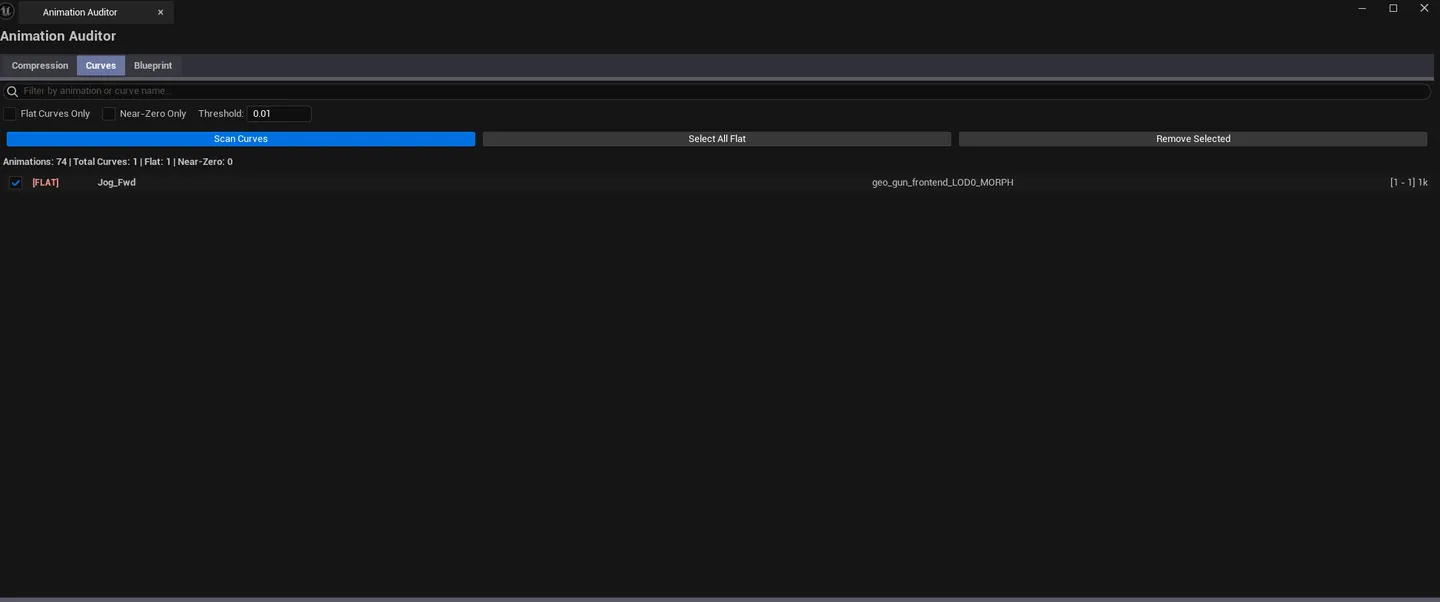
Section What it does Scan buttonWalks every AnimSequence and inspects every embedded curve Search box Filter by curve or animation name Flat Only checkboxHide curves with real animation Near-Zero Only checkboxHide curves above the near-zero threshold Near-Zero Threshold Amplitude below which a curve is “near zero”. Default 0.01. Select All Flat buttonConvenience — select every flat-curve row for batch removal Remove Selected buttonStrips selected curves from their source animations. Undoable. Stats Total curves, flat count, near-zero count, anims scanned Results list Per-curve row: anim name, curve name, key count, min/max value, amplitude, flat/near-zero flags
Flag Meaning Flat All keys have the same value — curve contributes nothing Near Zero Maximum absolute value is below the threshold — curve contributes effectively nothing
Curve audit results with Flat-Only filter applied, Select All Flat + Remove Selected buttons visible.
Click Scan .
Toggle Flat Only and click Select All Flat .
Click Remove Selected , Save All .
Re-scan to confirm the curve count dropped.
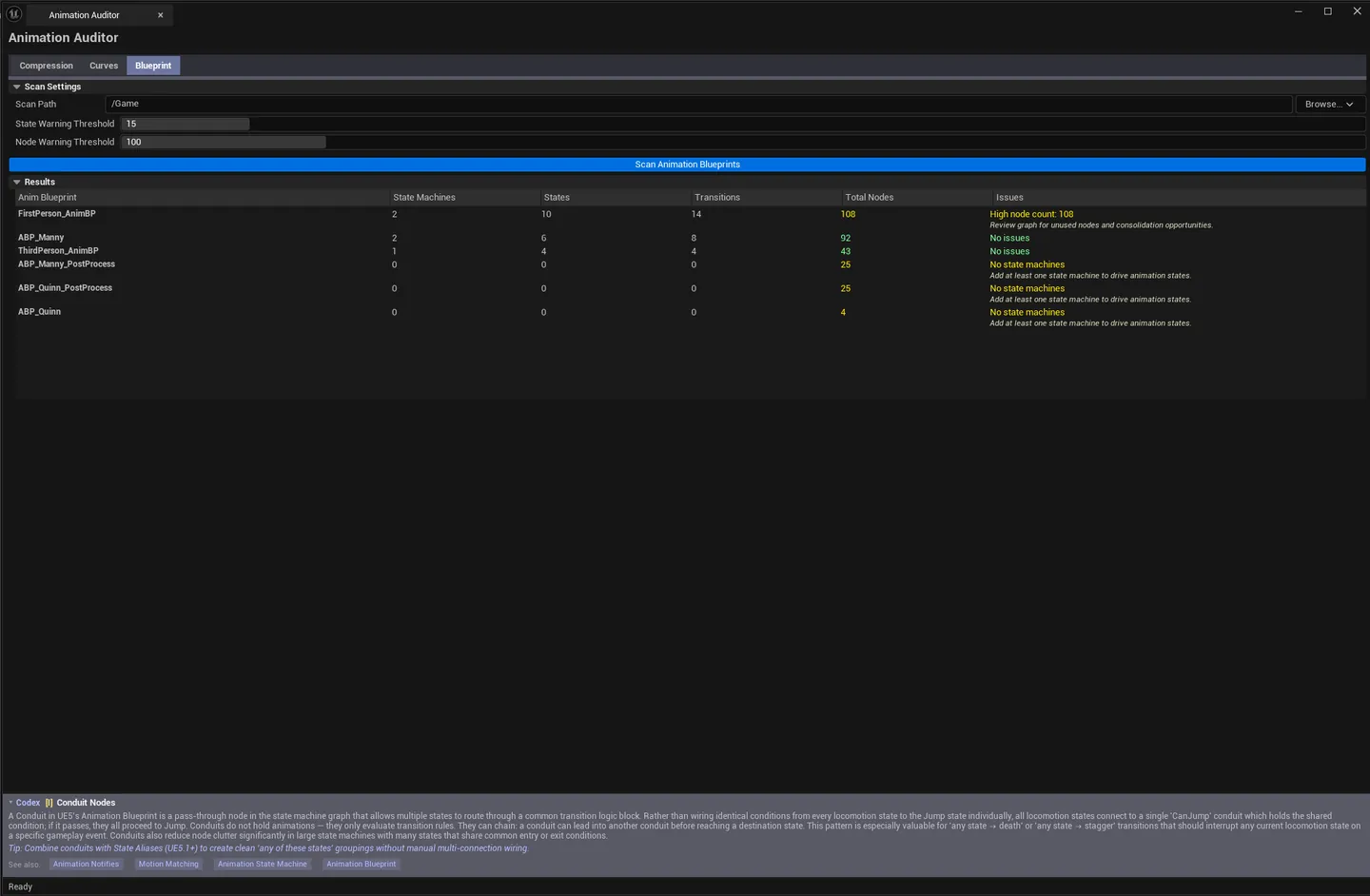
Walks every Animation Blueprint for state-machine and complexity issues.
Section What it does Default Scan Path Folder to scan /GameState Warning Threshold State count at which a state machine is flagged 15Node Warning Threshold Total node count above which the AnimBP is flagged 100Scan buttonWalks every UAnimBlueprint and analyzes its graphs Results list Per-AnimBP row: name, state machine count, total states, transitions, total nodes, linked graphs, blend nodes, severity, suggestion
AnimBPs with state count above the threshold
AnimBPs with total node count above the threshold
Unreachable / unused states
AnimBPs with deprecated nodes
AnimBPs with tick enabled when not strictly needed
Severity Meaning OK Within thresholds, no issues Warning Crossed at least one threshold Critical Multiple severe issues, or a count well past the threshold
Pick a scan path, click Scan .
Sort by total nodes — the heaviest AnimBPs appear at the top.
For Warning/Critical entries, open the AnimBP in UE’s editor (double-click) and refactor.
Field Default Scan Path /GameLarge Size Threshold (KB) 512Problems Only false
Field Default Near-Zero Threshold 0.01Flat Only falseNear-Zero Only false
Field Default Scan Path /GameState Warning Threshold 15Node Warning Threshold 100
Settings are persisted to [Project]/Saved/EQLabs/Settings/AnimationAuditor.json.
Compression tab. CSV export, batch-apply Compression to selected (modifies AnimSequence assets, undoable).Curves tab. Remove Selected (modifies AnimSequence curve data, undoable).Blueprint tab. Read-only audit, no edits.Save All required to persist any modifications
Compression schemes are per-skeleton-suitable. What works for a humanoid won’t work for a tiny prop. Don’t blanket-apply.A “flat” curve isn’t always removable. Sometimes runtime code reads a curve by name and expects it to exist even with constant value. Spot-check before stripping.High AnimBP node count is sometimes legitimate. A Lyra-style AnimBP can have 500+ nodes for valid reasons. Use the threshold as a signal , not a hard rule.Single-click pings the asset; double-click opens the relevant editor (AnimSequence editor for Compression/Curves, AnimBP editor for Blueprint).