
HDRI / Cubemap Inspector
HDRI / Cubemap Inspector
Section titled “HDRI / Cubemap Inspector”Module: Art · Category: Lookdev · Tool ID:
HDRICubemapInspector
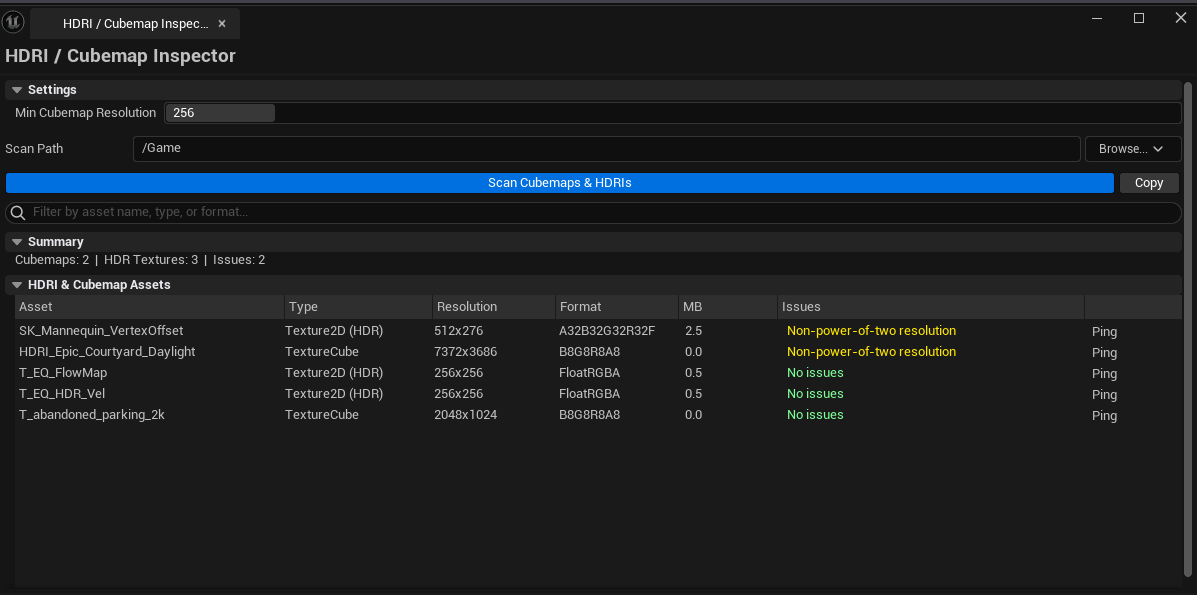
Project-wide audit of every TextureCube and HDR Texture2D asset. Surfaces resolution, format, memory cost per asset, and whether each is power-of-two. Flags cubemaps below a configurable minimum resolution — useful for catching reflection captures that were accidentally authored too small.
When to use it
Section titled “When to use it”- Lookdev audit — confirming all cubemaps and HDRIs are at appropriate resolution
- Memory budget pass — finding oversized HDRIs on platforms where memory is tight
- After importing third-party HDRI packs — checking for non-power-of-two surprises
- Pre-cook validation — reflection captures need to be POT and a reasonable resolution
When not to use it
Section titled “When not to use it”- Don’t use this for runtime cubemap streaming — it’s asset-side analysis
- Don’t expect this to render the cubemap — for that, double-click to open in the Texture editor
Opening the tool
Section titled “Opening the tool”- Open the EQLabs Hub and search for
HDRIorCubemap(or browse to Art → Lookdev) - Click the tool card
- Set scan path and minimum cubemap resolution
- Click Scan
Interface tour
Section titled “Interface tour”| Section | What it does | Default |
|---|---|---|
| Scan Path | Folder to recursively scan | /Game |
| Min Cubemap Res | Cubemap resolution below which the asset is flagged | 256 |
| Search box | Filter by asset name | empty |
| Scan button | Walks the path, builds the entry list | |
| Copy button | Plain-text dump of visible results | |
| Summary | Total cubemaps / total HDRIs / issue count | |
| Results list | Per-asset row: name, type (TextureCube / Texture2D HDR), size X/Y, format, size MB, POT flag, issues, severity |
What gets flagged
Section titled “What gets flagged”| Severity | Issue |
|---|---|
| Error | Severe issues (corrupt asset, missing format) |
| Warning | Below minimum resolution, non-POT, unusual format |
| Info | Just informational — no action needed |
Workflow
Section titled “Workflow”Step 1 — Pick a scan path
Section titled “Step 1 — Pick a scan path”Default /Game for the whole project. Narrow to a folder for a focused audit.
Step 2 — Set Min Cubemap Resolution
Section titled “Step 2 — Set Min Cubemap Resolution”256 is a sensible minimum for most reflection captures. Drop to 128 if you have low-end targets, raise to 512+ for high-end reflection-heavy scenes.
Step 3 — Scan
Section titled “Step 3 — Scan”Click Scan. Both TextureCube and HDR Texture2D assets appear in the same list.
Step 4 — Walk the issues
Section titled “Step 4 — Walk the issues”Sort or filter to see flagged rows. Single-click pings the asset; double-click opens it in the Texture editor.
Settings reference
Section titled “Settings reference”| Field | What it does | Default |
|---|---|---|
| Scan Path | Folder to scan | /Game |
| Min Cubemap Res | Resolution flag threshold | 256 |
| Search | Substring filter | empty |
Settings are persisted to
[Project]/Saved/EQLabs/Settings/HDRICubemapInspector.json.
Output
Section titled “Output”- In-panel results — cleared on each rescan
- Clipboard —
Copybutton writes results as plain text - No edits — read-only audit
Tips & gotchas
Section titled “Tips & gotchas”- Non-POT HDRIs are not always wrong — UE handles non-POT HDRIs reasonably, but mipmap generation can be unpredictable. If quality matters, prefer POT.
- HDR format (
.hdr/.exr) imports as Texture2D in UE — this tool catches both TextureCube andbIsHDRTexture2D assets. - 256×256 reflection captures are visible as low-res in glossy materials — the Min Resolution flag is intentionally conservative; raise it for projects with hero reflections.
- Single-click pings the asset; double-click opens the Texture editor.
Related tools
Section titled “Related tools”- Color Palette Extractor — extract color values from HDR references for material setup
Opens our feedback form in a new tab with the tool name pre-filled.