
Texture Paint Suite
Texture Paint Suite
Section titled “Texture Paint Suite”Module: Art · Category: Paint · Tool ID:
LayeredTexturePaintSuite
A three-tab production paint suite. Splat Map generates RGBA splat-map textures + a matching material function for landscape and modular blending. Vertex Color does channel-isolated fills, blur, and JSON export. Tri-Planar generates a tri-planar projection material function with configurable scale and blend sharpness.
When to use it
Section titled “When to use it”- Building splat-map-driven blend materials (landscape, modular kit, terrain)
- Filling vertex colors on selected meshes (channel-isolated, with blur smoothing)
- Generating tri-planar material functions for kitbashed or auto-mapped materials
- Quick exports of vertex-color data as JSON for downstream tooling
When not to use it
Section titled “When not to use it”- Don’t expect interactive 3D painting in this tool — for that, use Vertex Color Painter (Modeling module) or open the Painting Lab custom asset editor
Opening the tool
Section titled “Opening the tool”- Open the EQLabs Hub and search for
PaintorSplat(or browse to Art → Paint) - Click the tool card
- Use the tab bar: Splat Map, Vertex Color, or Tri-Planar
Tab 1 — Splat Map
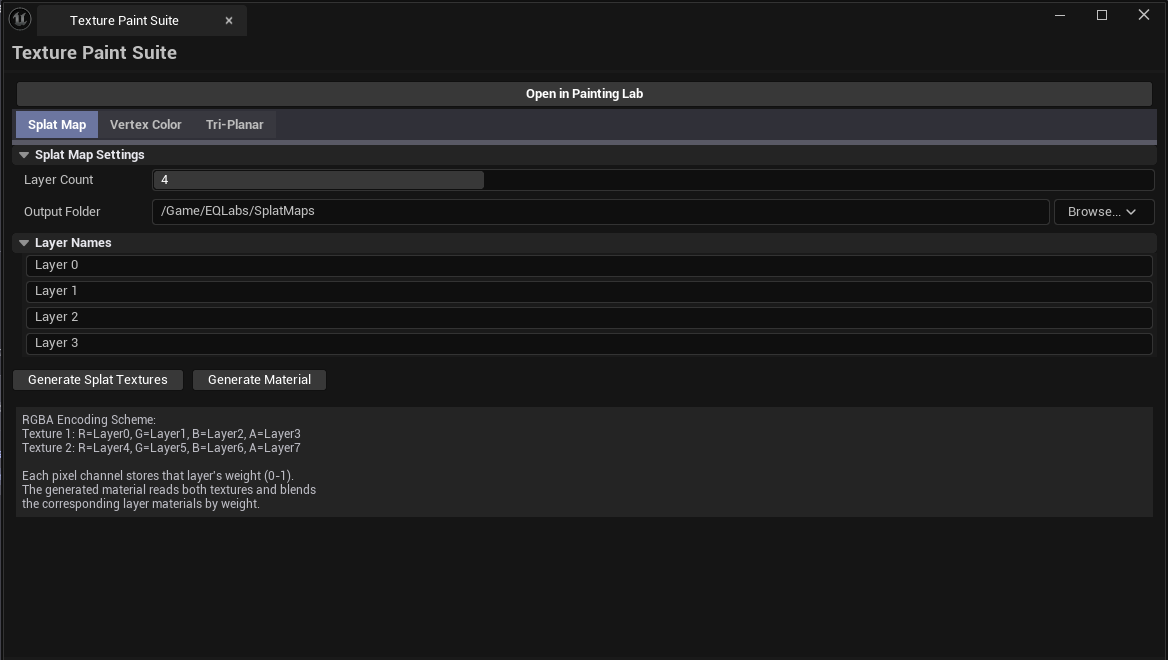
Section titled “Tab 1 — Splat Map”Generate an RGBA splat map texture and a matching material function.
Interface
Section titled “Interface”| Field | What it does | Default |
|---|---|---|
| Splat Layer Count | How many channels to use (max 4 for RGBA) | 4 |
| Splat Resolution | Output texture size | 1024 |
| Splat Output Path | Folder for the generated texture and material function | /Game/EQLabs/SplatMaps |
| Layer names list | One name per channel (R/G/B/A) — used in the material function | |
| Generate Splat Textures | Creates the RGBA splat texture | |
| Generate Splat Material | Creates a Material Function that samples the splat texture and exposes per-channel layer outputs |
Workflow
Section titled “Workflow”- Set layer count (typically
4for full RGBA) - Name each layer (e.g.,
Grass,Dirt,Stone,Sand) - Set resolution and output path
- Click Generate Splat Textures + Generate Splat Material
- Use the material function in your master material to blend layers
Tab 2 — Vertex Color
Section titled “Tab 2 — Vertex Color”Channel-isolated fill, blur, and JSON export for vertex colors on selected meshes.
Interface
Section titled “Interface”| Field | What it does | Default |
|---|---|---|
| Channel R / G / B / A | Which channels are affected | All on |
| Fill Color | Color used by Fill Selected | White (1,1,1,1) |
| Blur Iterations | Smoothing pass count | 1 |
| Fill Selected | Sets the selected meshes’ vertex colors to Fill Color in the active channels | |
| Blur Vertex Colors | Iteratively averages neighbor vertex colors | |
| Export to JSON | Writes vertex color data per mesh to JSON |
Workflow
Section titled “Workflow”- Select meshes in the level
- Toggle which channels to affect (R/G/B/A)
- Pick a fill color (or use blur for smoothing existing colors)
- Click Fill Selected or Blur Vertex Colors
- Optional: Export to JSON for downstream tooling
Tab 3 — Tri-Planar
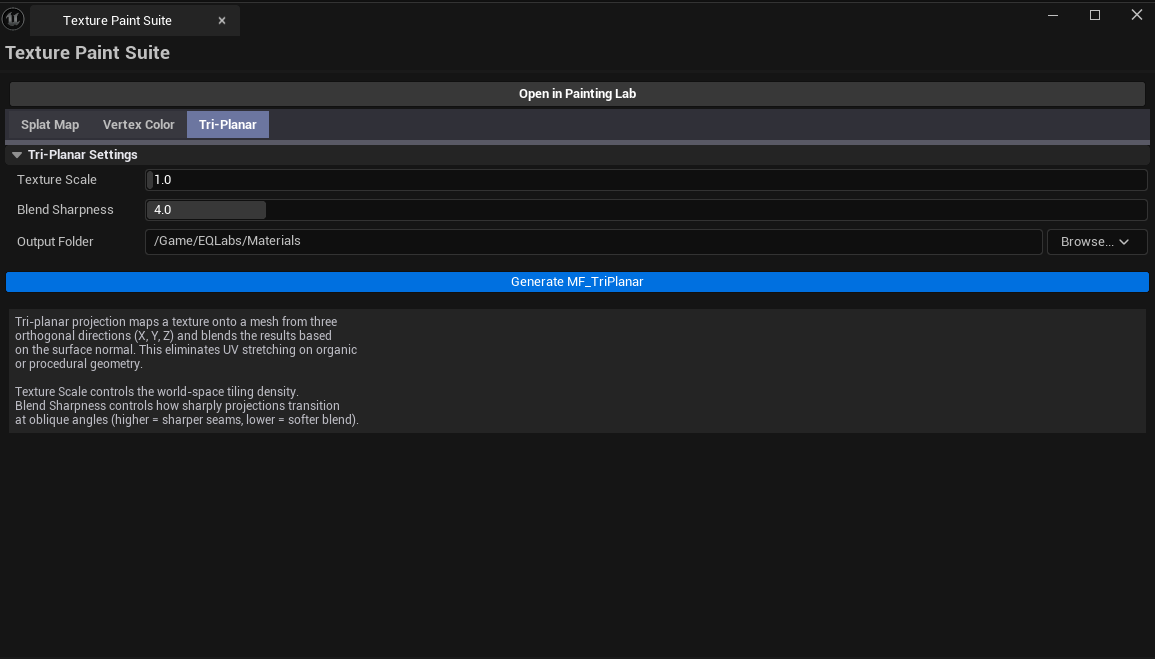
Section titled “Tab 3 — Tri-Planar”Generate a tri-planar projection material function.
Interface
Section titled “Interface”| Field | What it does | Default |
|---|---|---|
| Texture Scale | UV scale factor in the generated function | 1.0 |
| Blend Sharpness | How sharp the tri-planar blend is at axis transitions | 4.0 |
| Tri-Planar Output Path | Folder for the generated material function | /Game/EQLabs/Materials |
| Generate Tri-Planar MF | Builds a UMaterialFunction with the tri-planar setup |
Workflow
Section titled “Workflow”- Set the texture scale to match your project’s standard
- Tune blend sharpness (higher = sharper transitions;
4is a good default) - Click Generate Tri-Planar MF
- Use the function in your master material to enable tri-planar projection
Settings reference
Section titled “Settings reference”Splat Map tab
Section titled “Splat Map tab”| Field | Default |
|---|---|
| Layer Count | 4 |
| Resolution | 1024 |
| Output Path | /Game/EQLabs/SplatMaps |
Vertex Color tab
Section titled “Vertex Color tab”| Field | Default |
|---|---|
| Fill Color | White (1,1,1,1) |
| Blur Iterations | 1 |
| Channels R/G/B/A | All on |
Tri-Planar tab
Section titled “Tri-Planar tab”| Field | Default |
|---|---|
| Texture Scale | 1.0 |
| Blend Sharpness | 4.0 |
| Output Path | /Game/EQLabs/Materials |
Settings are persisted to
[Project]/Saved/EQLabs/Settings/LayeredTexturePaintSuite.json.
Output
Section titled “Output”- Splat tab —
UTexture2D(the splat map) +UMaterialFunction(the layer-blend function) - Vertex Color tab — modifies vertex colors on selected meshes (undoable). Optionally exports JSON to disk.
- Tri-Planar tab —
UMaterialFunction(tri-planar projection)
Tips & gotchas
Section titled “Tips & gotchas”- Splat-map Layer Count is capped at 4 — only RGBA channels are supported. For more layers, chain multiple splat maps.
- Vertex Color blur is mesh-topology-dependent — meshes with poor topology get uneven blur results
- Tri-planar blend sharpness too low gives mushy transitions —
4–8is typical; below2looks washed out - Display name is “Texture Paint Suite” — internal class name and tool ID still
LayeredTexturePaintSuitefor registration continuity - Vertex color edits are undoable — wrapped in
ScopedTransaction.Ctrl+Zreverses.
Related tools
Section titled “Related tools”- Vertex Color Viewer — read-side audit complementing the Vertex Color tab here
- Vertex Color Painter — interactive viewport painting (the proper authoring tool)
- Smart Mask & Texture Processor — generate masks that feed splat maps
Report an issue with this tool
Opens our feedback form in a new tab with the tool name pre-filled.