
OpenPBR Pipeline Bridge
OpenPBR Pipeline Bridge
Section titled “OpenPBR Pipeline Bridge”Module: Art · Category: MaterialAuthoring · Tool ID:
OpenPBRPipelineBridge
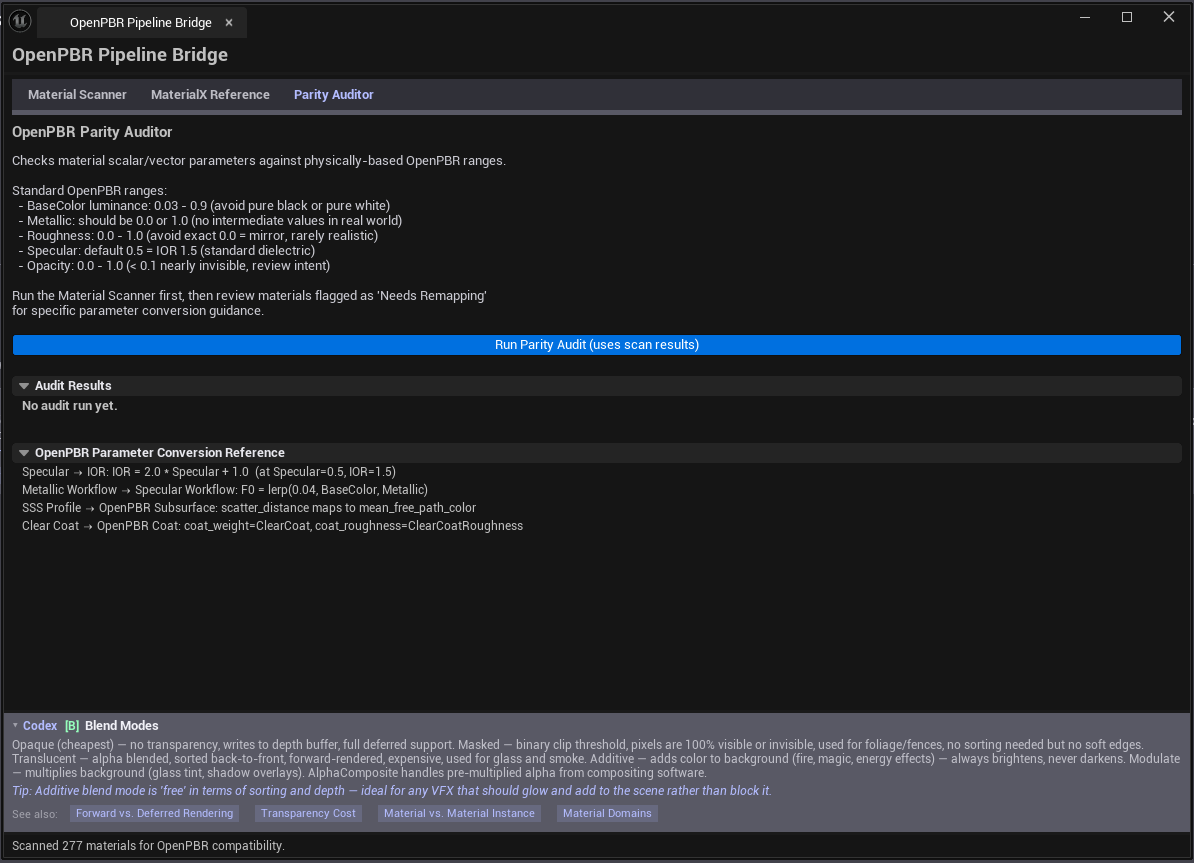
A three-tab bridge between Substance / Omniverse OpenPBR material definitions and UE materials. Material Scanner classifies project materials by OpenPBR / Substrate compatibility. MaterialX Reference is a static lookup table of MaterialX node → UE expression mappings. Parity Auditor checks material parameter values against OpenPBR standard ranges.
When to use it
Section titled “When to use it”- Importing a project from Substance Designer / Omniverse and assessing what compatibility work is needed
- Auditing a UE project’s materials against OpenPBR / Substrate standard ranges (IOR, specular, SSS, coat)
- Building a translation reference between MaterialX nodes and UE Material expressions
- Pre-cook validation — flagging materials that don’t match the OpenPBR target
When not to use it
Section titled “When not to use it”- Don’t expect automatic conversion — this is an analysis bridge, not an automated transpiler. The Material Scanner classifies; the user does the actual remapping work.
Opening the tool
Section titled “Opening the tool”- Open the EQLabs Hub and search for
OpenPBRorMaterialX(or browse to Art → MaterialAuthoring) - Click the tool card
- Use the internal tab switcher: Material Scanner, MaterialX Reference, or Parity Auditor
Tab 1 — Material Scanner
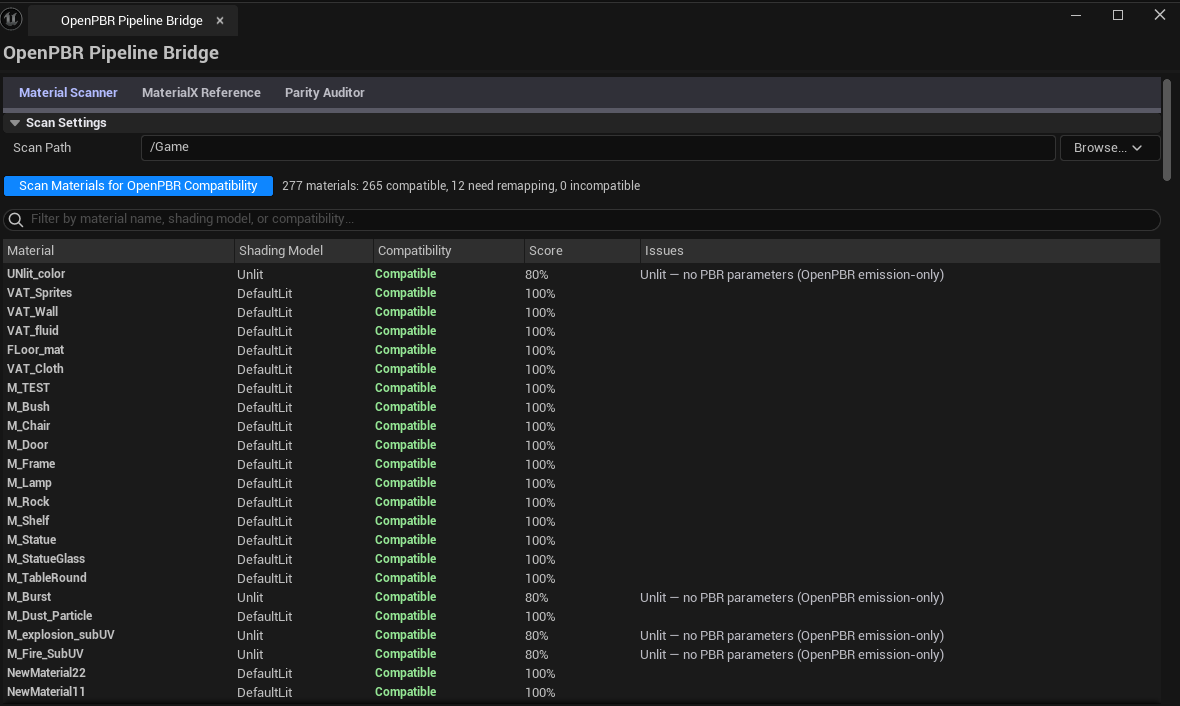
Section titled “Tab 1 — Material Scanner”Classifies every material in the project by OpenPBR/Substrate compatibility.
Interface
Section titled “Interface”| Section | What it does | Default |
|---|---|---|
| Scan Path | Folder to recursively scan | /Game |
| Search box | Filter by material name | empty |
| Scan Materials | Walks every UMaterial and classifies it | |
| Summary | Compatible / Needs Remapping / Incompatible counts | |
| Results list | Per-material row: name, shading model, conversion status, issues, parity score |
Status values
Section titled “Status values”| Status | Meaning |
|---|---|
| Compatible | Material maps cleanly to OpenPBR/Substrate |
| Needs Remapping | Some parameters need conversion (different naming, slightly different ranges) |
| Incompatible | Uses features outside OpenPBR scope (e.g., custom shading models, non-PBR effects) |
Tab 2 — MaterialX Reference
Section titled “Tab 2 — MaterialX Reference”A static lookup table of MaterialX node names → UE Material Expression equivalents.
Interface
Section titled “Interface”| Column | What it shows |
|---|---|
| MaterialX Node | The MaterialX node name (e.g., standard_surface, mix, multiply) |
| UE Equivalent | The closest UE Material Expression |
| Notes | Caveats, semantics differences |
| Direct Mapping | True if 1-to-1 equivalence; false if semantic mismatch requires care |
This is read-only reference data — it doesn’t change based on your project.
Tab 3 — Parity Auditor
Section titled “Tab 3 — Parity Auditor”Checks material parameter values against OpenPBR standard ranges (IOR ~1.5 for dielectrics, specular F0 in expected range, etc.).
Interface
Section titled “Interface”| Section | What it does |
|---|---|
| Run Parity Audit | Walks the materials list (from Scanner) and checks parameter values |
| Pass / Fail counts | Aggregate result |
| Failed entries list | Per-material rows that failed at least one parity check |
| Per-material issues | Specific parameter values that fall outside OpenPBR norms |
What gets checked
Section titled “What gets checked”- IOR values for dielectrics (typical: ~
1.5; flagged outside1.3–1.7) - Specular F0 for non-metals (~
0.04; flagged at extreme values) - Subsurface scattering range and color values
- Coat and emissive parameter sanity
Workflow
Section titled “Workflow”Scanning compatibility
Section titled “Scanning compatibility”- Pick a scan path, click Scan Materials
- Sort by status to see Incompatible entries first
- For Needs-Remapping rows, read the issues list to see what specifically needs remapping
Using the MaterialX reference
Section titled “Using the MaterialX reference”- Switch to MaterialX Reference tab
- Search for a MaterialX node name
- Read the UE equivalent and any notes about semantics
Running parity audit
Section titled “Running parity audit”- Run the Material Scanner first (the audit walks its results)
- Switch to Parity Auditor tab
- Click Run Parity Audit
- Review failed entries — these are materials whose parameter values fall outside OpenPBR norms
Settings reference
Section titled “Settings reference”| Field | What it does | Default |
|---|---|---|
| Scan Path | Folder for Material Scanner | /Game |
| Search | Material name filter | empty |
Settings are persisted to
[Project]/Saved/EQLabs/Settings/OpenPBRPipelineBridge.json.
Output
Section titled “Output”- In-panel results — Scanner list, MaterialX reference, Parity audit results
- No edits — analysis only
Tips & gotchas
Section titled “Tips & gotchas”- “Needs Remapping” is not always an error — UE has its own conventions that don’t map 1-to-1 to OpenPBR but produce equivalent results. Read the issues column carefully.
- Parity Auditor uses heuristic ranges — a material outside the standard range may still be physically correct for an unusual real-world reference. Use as a sanity check, not a hard rule.
- MaterialX Reference is static — it doesn’t analyze your project; it’s a translation table.
- Single-click pings; double-click opens the Material editor.
Related tools
Section titled “Related tools”- Material Layer Studio — for the parent-chain and material function side
- Universal Bake Suite (Material Texture Baker) — when you need to flatten compatible materials to textures
Opens our feedback form in a new tab with the tool name pre-filled.