
No. 0773 DE DesignEQLabs Pro
Lighting Scenario Auditor
Module: Design · Category: LevelDesign · Tool ID:
LightingScenarioAuditor
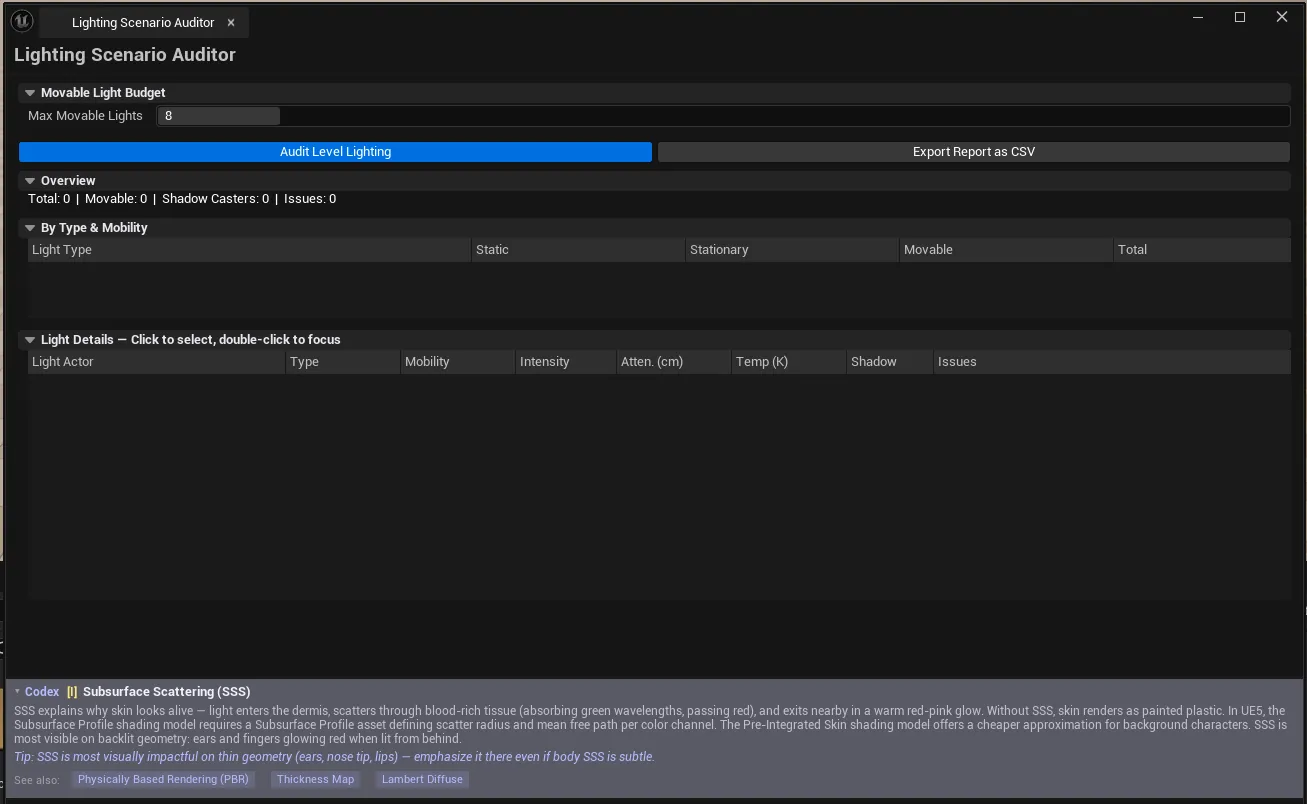
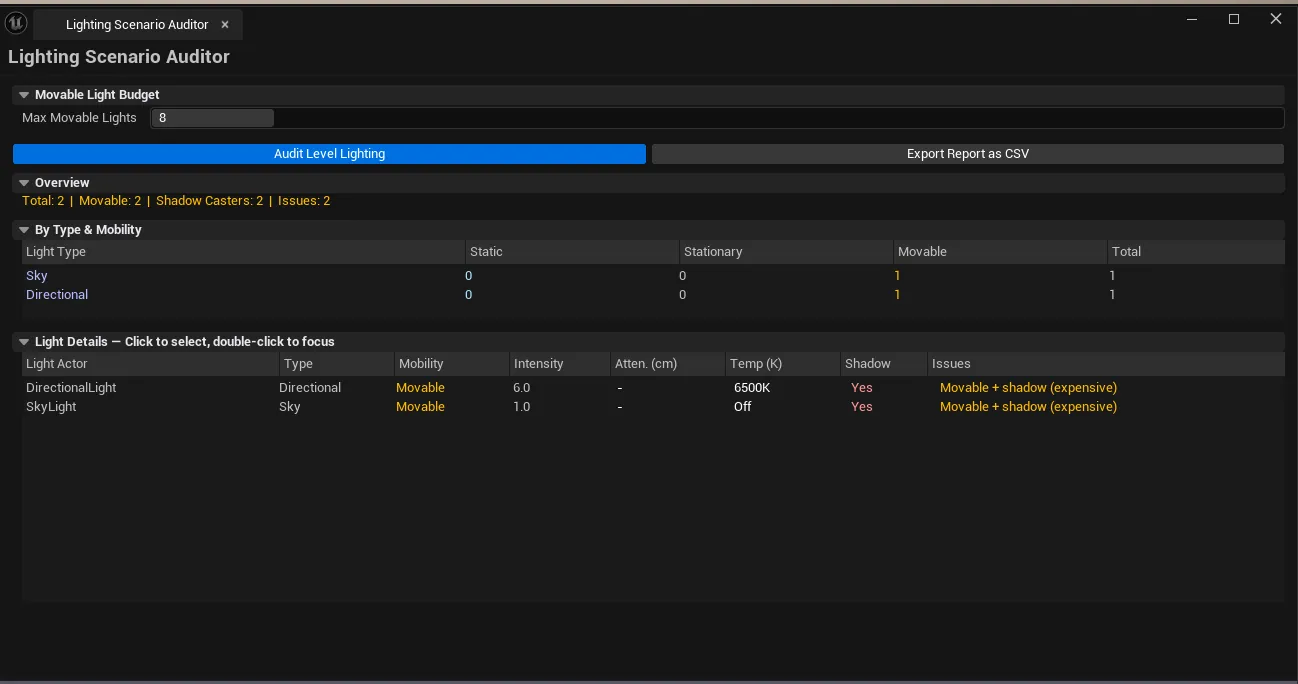
Audits every light in the active level. Groups counts by type (Directional / Point / Spot / Rect / Sky) and mobility (Static / Stationary / Movable). Flags excessive movable lights against a configurable budget, missing essentials (no Skylight, no Directional), shadow-caster count, and unusual attenuation radii. Color temperature is shown when used.
When to use it
Section titled “When to use it”- Performance pass: finding levels with too many movable lights or shadow casters
- Pre-cook validation: confirming a Skylight + Directional Light combination is set up
- Inheriting a level: getting a one-glance view of what’s lighting the scene
- Reporting lighting budgets to the team
What it isn’t for
Section titled “What it isn’t for”- Don’t use this for runtime lighting tuning. It’s an editor-side audit.
Opening the tool
Section titled “Opening the tool”- Open the EQLabs Hub and search for Lighting (or browse to Design → LevelDesign).
- Click the tool card.
- Make sure the level is loaded.
- Click Audit.
Interface tour
Section titled “Interface tour”| Section | What it does | Default |
|---|---|---|
| Audit button | Walks every light actor in the level | |
| Movable Light Budget | Threshold above which the audit flags a warning | 8 |
| Export CSV | Saves the audit as CSV | |
| Summary block | Total / movable / shadow-casters / issue count | |
| Type Summaries list | Per-type row: type, static / stationary / movable / total | |
| Lights list | Per-light row: name, type, mobility, intensity, attenuation radius, color temperature, shadow flag, issues |
Single-click pings the actor in the level outliner.
What gets flagged
Section titled “What gets flagged”- Movable light count > Budget
- More than 4 stationary lights overlapping (UE’s hard limit)
- No Skylight in level
- No Directional Light in level
- Shadow casters above a heuristic threshold
- Suspicious attenuation radii (very large)
Workflow
Section titled “Workflow”- Load the level.
- Set Movable Light Budget to your project’s standard (8 is conservative; 16+ for high-end).
- Click Audit.
- Walk the issues column for actionable fixes.
- Optionally Export CSV.
Settings reference
Section titled “Settings reference”| Field | What it does | Default |
|---|---|---|
| Movable Light Budget | Threshold for movable light count | 8 |
Settings file:
[Project]/Saved/EQLabs/Settings/LightingScenarioAuditor.json
Output
Section titled “Output”- In-panel summary and lights list.
- CSV export
- No edits. Read-only audit.
Tips and gotchas
Section titled “Tips and gotchas”- The 4-stationary-overlap limit is a UE hard constraint. Beyond 4, lights fall back to dynamic. The auditor flags this before it becomes a runtime cost.
- Movable light budgets are platform-dependent. Desktops can handle dozens; mobile chokes around 4-8.
- Single-click selects in outliner.
Related tools
Section titled “Related tools”- Post-Process Volume Inspector — for PP volume side of the lighting setup
- Level Analysis Suite — broader level metrics
Report an issue with this tool
Opens our feedback form in a new tab with the tool name pre-filled.