
No. 0913 DE DesignEQLabs Pro
Smart Actor Align & Distribute
Module: Design · Category: LevelDesign · Tool ID:
SmartActorAlignDistribute
DCC-parity alignment and distribution tool for level actors. Aligns selected actors along any axis (Min / Center / Max), distributes evenly, snaps to ground surface via raycast, matches rotation, snaps to grid, and randomizes offset within a configurable range. Same operations you’d run in Maya / Blender, applied to the selected level actors.
When to use it
Section titled “When to use it”- Aligning a row of placed kit pieces to a shared plane
- Distributing actors evenly along an axis (street lights, columns, fence posts)
- Snapping actors to terrain / ground surface in batch
- Randomizing offset to break visual repetition
What it isn’t for
Section titled “What it isn’t for”- Don’t use this for spline-based distribution. See Spline Asset Placer.
- Don’t expect this for procedural scatter. See Procedural Scattering & Placement Suite.
Opening the tool
Section titled “Opening the tool”- Open the EQLabs Hub and search for Align (or browse to Design → LevelDesign).
- Click the tool card.
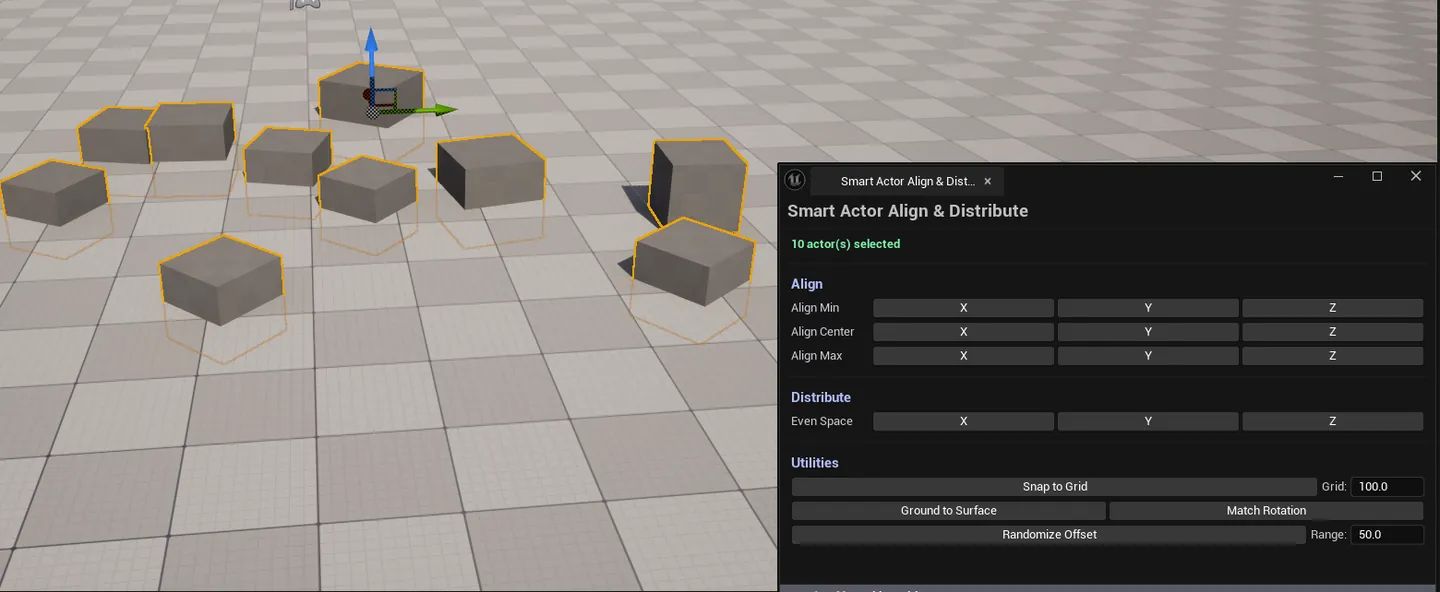
- Select multiple actors in the viewport.
- Use the panel buttons to apply operations.
Interface tour
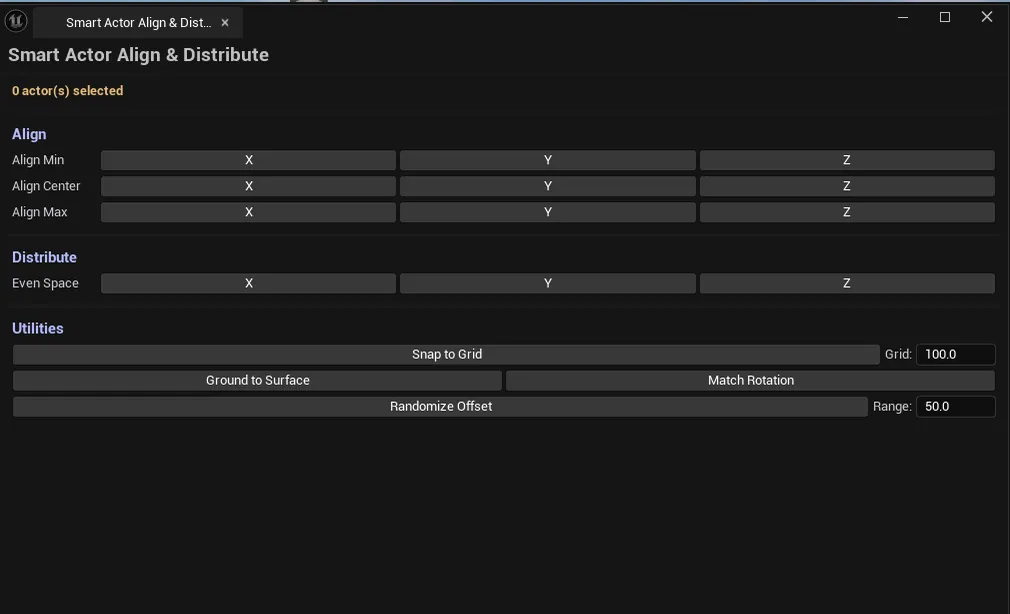
Section titled “Interface tour”Per-axis (X / Y / Z), per-mode (Min / Center / Max). 9 buttons total.
| Mode | What it does |
|---|---|
| Min | Align all selected to the lowest value on this axis |
| Center | Align all to the average center on this axis |
| Max | Align all to the highest value on this axis |
Distribute
Section titled “Distribute”Per-axis (X / Y / Z). Spaces selected actors evenly along the chosen axis.
Utilities
Section titled “Utilities”| Action | What it does |
|---|---|
| Ground to Surface | Raycasts down from each actor and snaps to the hit surface |
| Match Rotation | Sets every selected actor’s rotation to match the active actor’s |
| Snap to Grid | Snaps every selected actor to the configured grid size |
| Randomize Offset | Adds a random ± offset within the configured range |
Settings
Section titled “Settings”| Field | Default |
|---|---|
| Grid Size | 100.0 |
| Random Range | 50.0 |
Workflow
Section titled “Workflow”Aligning a row of objects
Section titled “Aligning a row of objects”- Select the actors.
- Click Align Y Center (or whichever axis is the row).
- Click Distribute X to space them evenly.
Snapping to terrain
Section titled “Snapping to terrain”- Select the actors above terrain.
- Click Ground to Surface — they snap to the raycast hit point.
Breaking visual repetition
Section titled “Breaking visual repetition”- Select identical actors.
- Click Randomize Offset.
- Tune the Random Range slider as needed.
Settings reference
Section titled “Settings reference”| Field | Range | Default |
|---|---|---|
| Grid Size | 1 – any | 100.0 |
| Random Range | 0 – any | 50.0 |
Settings file:
[Project]/Saved/EQLabs/Settings/SmartActorAlignDistribute.json
Output
Section titled “Output”- In-place transform changes. Modifies selected actors directly.
- Undo. Every operation is wrapped in
ScopedTransaction.Ctrl+Zreverses. - No level edits beyond actor transforms. No spawn/delete.
Tips and gotchas
Section titled “Tips and gotchas”- Distribute requires at least 3 actors. Fewer doesn’t give a meaningful distribution.
- Match Rotation uses the active actor’s rotation. Make sure the active actor (last-selected, highlighted) is the reference.
- Ground to Surface uses visibility-channel raycasts. Make sure terrain is on that channel.
- Randomize Offset is per-actor, not relative. Each actor gets its own random ± offset.
Related tools
Section titled “Related tools”- Modular Kit Auditor — for grid-snap validation across a kit-built level
- Measurement & Annotation Tool — verify alignment with measurements
Report an issue with this tool
Opens our feedback form in a new tab with the tool name pre-filled.