
Quick Start
Opening the Hub
Section titled “Opening the Hub”Click the EQLabs button in the main toolbar, or choose Tools → EQLabs → Hub.
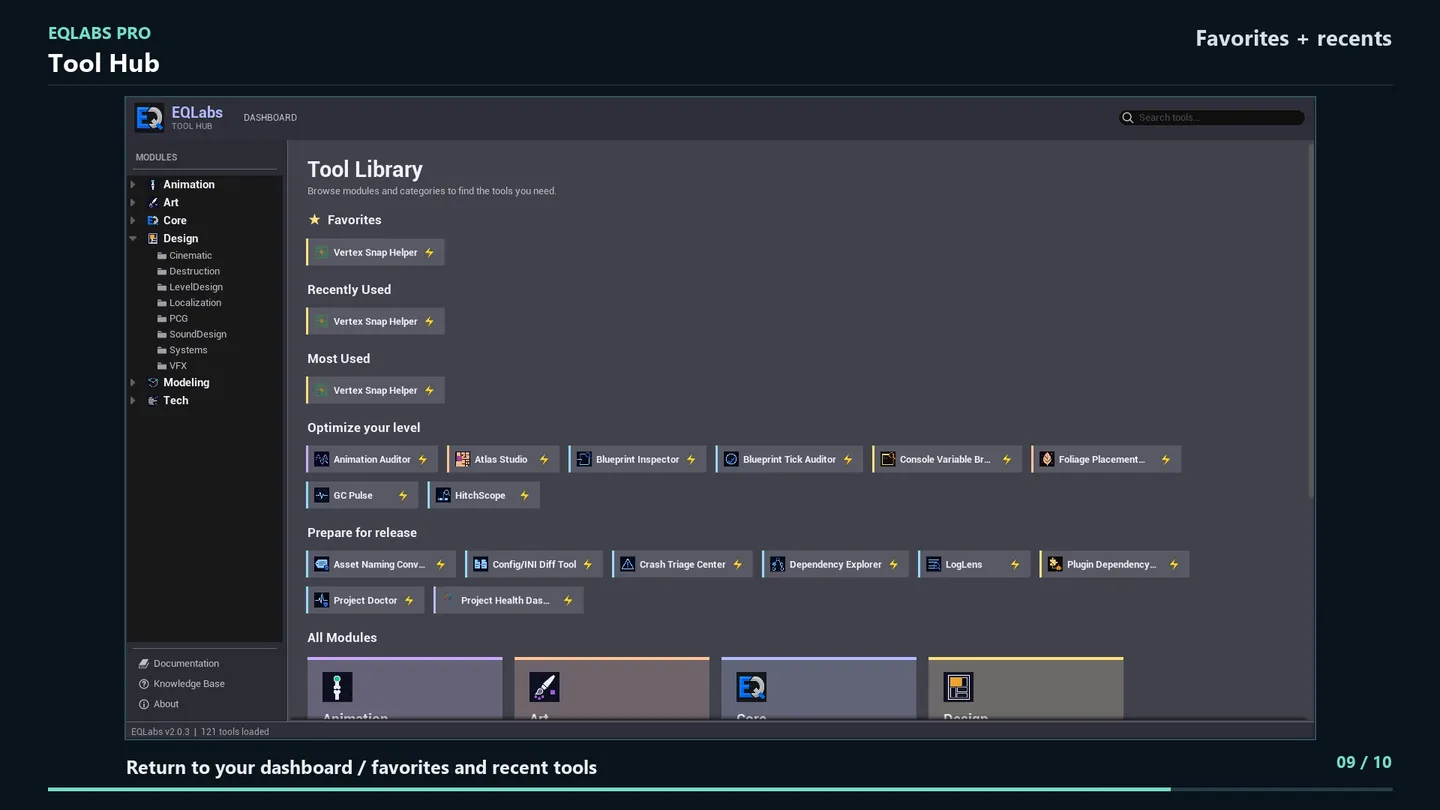
The Hub is where every EQLabs tool starts. It lists all 121 Hub tools by module and category, and the dashboard keeps the ones you use most within reach.
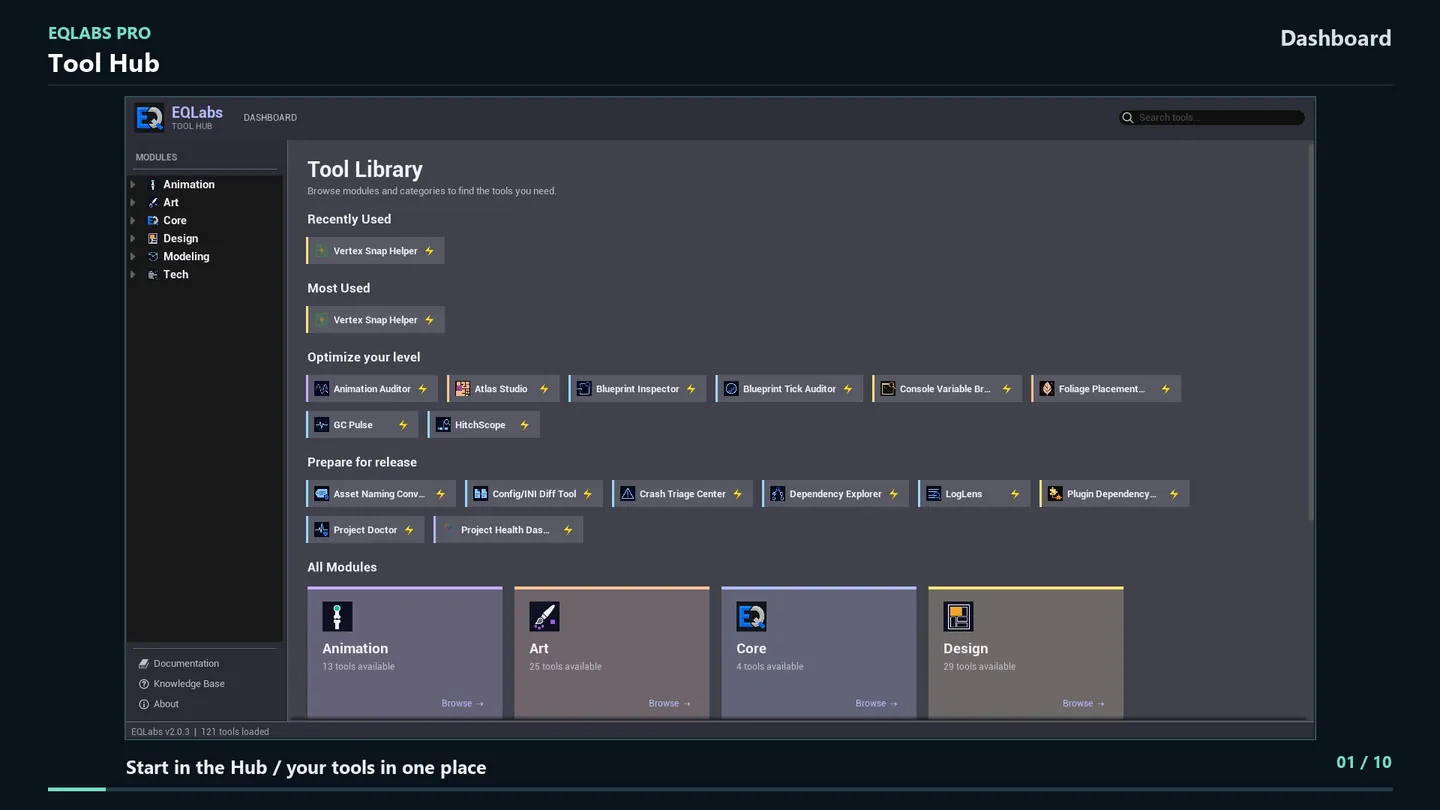
Finding a tool
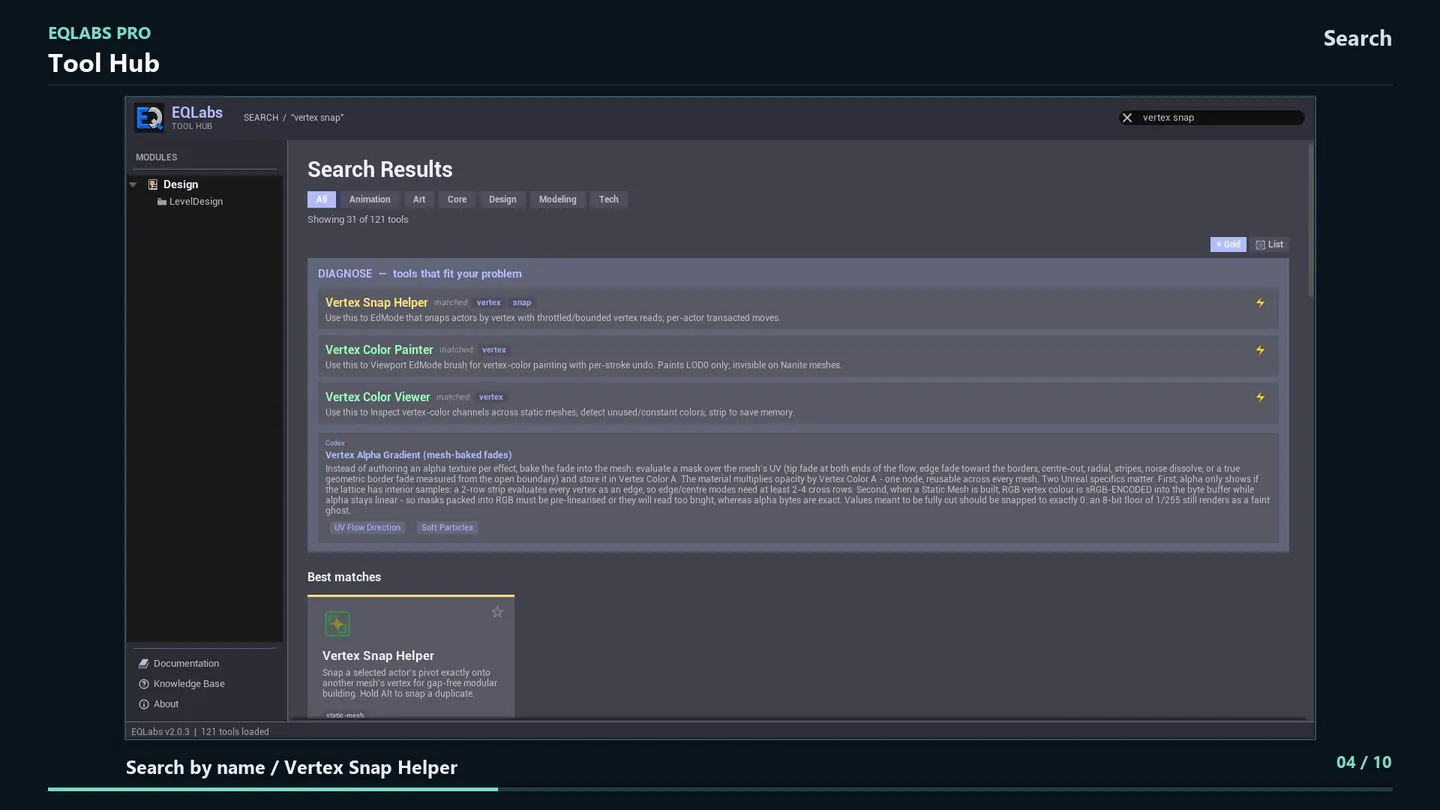
Section titled “Finding a tool”Search. Type a tool name, a keyword or a problem into the search bar at the top of the Hub. Results update as you type, grouped under the tools that fit and the best matches.
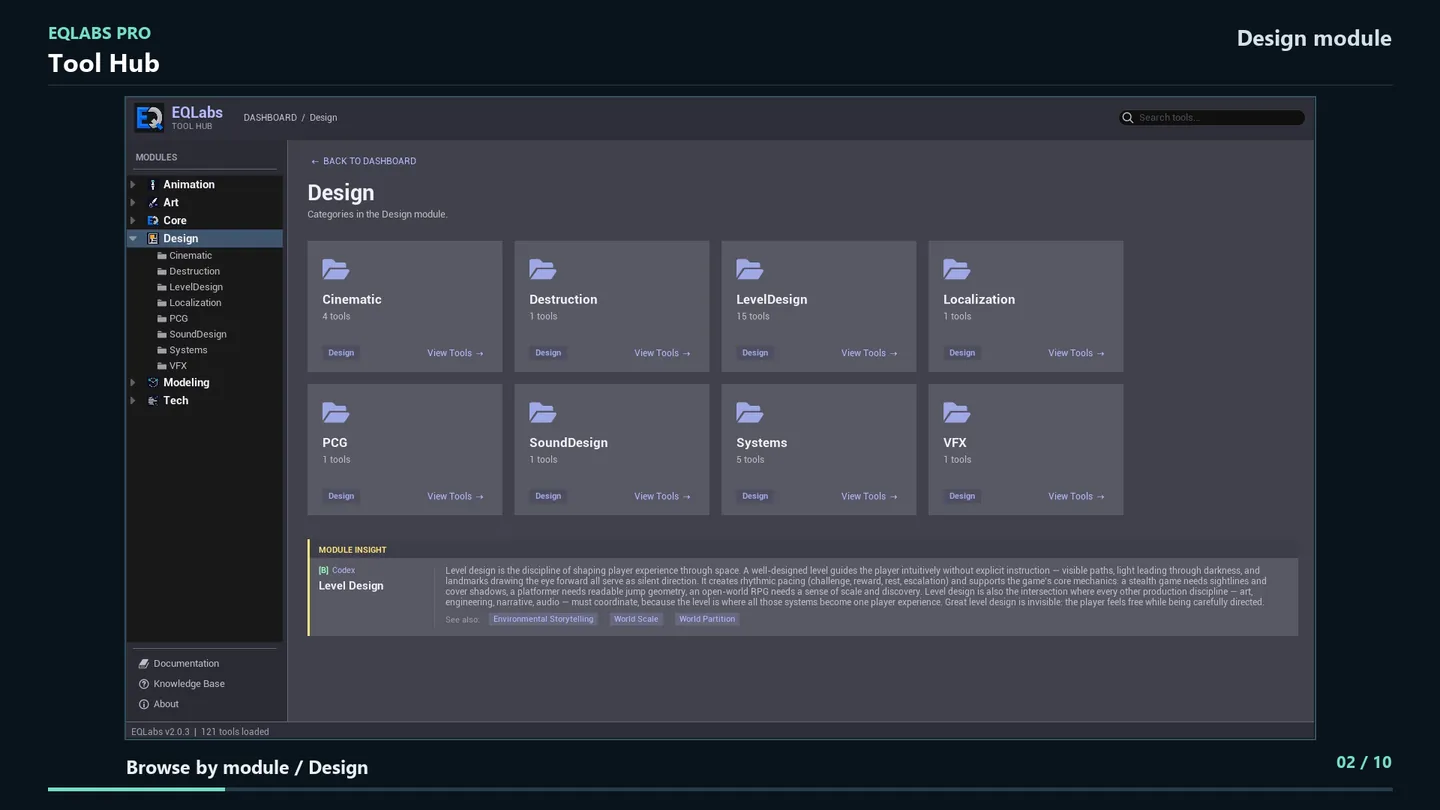
Browse. Click a module card on the dashboard, or use the tree in the sidebar, to see that module’s categories and then its tools.
Opening a tool
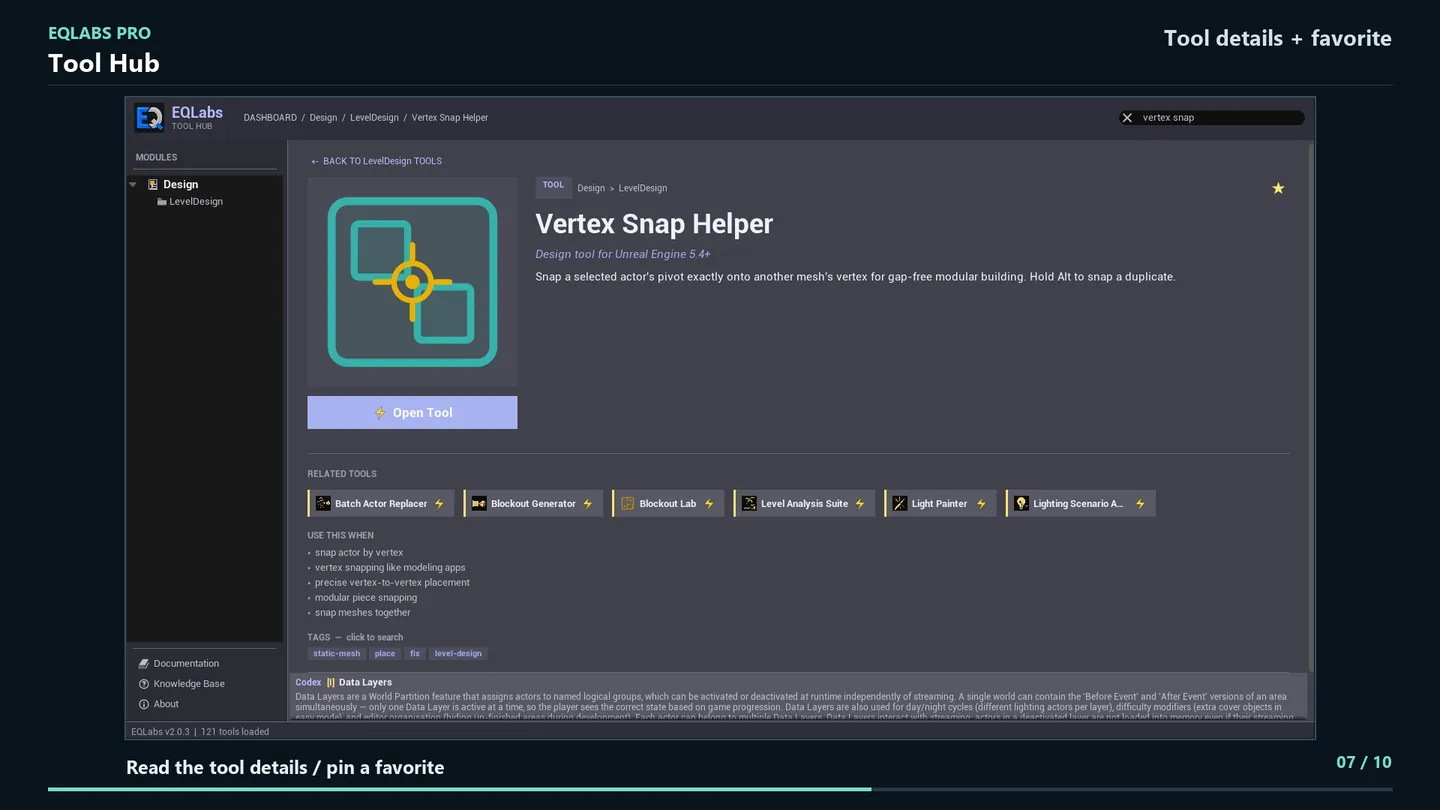
Section titled “Opening a tool”Click a tool card to see its details: what it does, when to use it, related tools and its tags. Click Open Tool to open it in its own dockable tab. You can keep several tools open at once and dock them anywhere in the editor layout.
Click the star to add a tool to Favorites. Favorites and recently used tools stay at the top of the dashboard.
The Knowledge Base
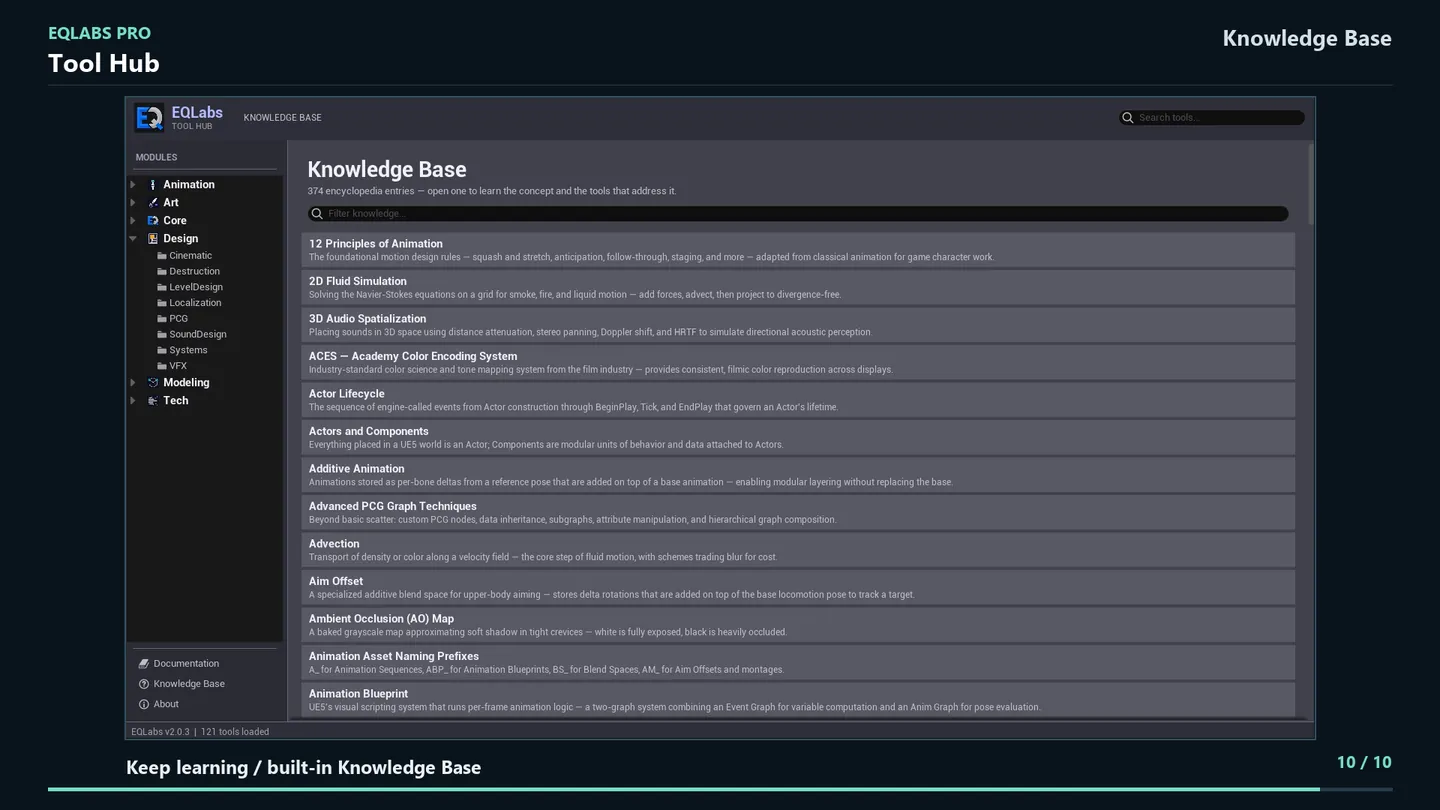
Section titled “The Knowledge Base”The Hub also carries a built-in Knowledge Base: encyclopedia entries on the concepts behind the tools, each linking to the tools that address it. Open it from the bottom of the sidebar.
The modules
Section titled “The modules”| Module | Tools | What it covers |
|---|---|---|
| Tech | 40 | Texture generation, shader debugging, Blueprint auditing, QA |
| Art | 25 | Baking, painting, atlases, environment art, VFX, EQSynth |
| Animation | 13 | Rigging, retargeting, Control Rig, foot locking, notifies |
| Modeling | 10 | LOD, Nanite, UVs, mesh analysis, physics, modular building |
| Design | 29 | Level design, PCG, cinematics, systems, localization, pipeline |
| Core | 4 | The project health dashboard and Ship Lab release tooling |
| Labs | 3 | Painting Lab, Blockout Lab, EQSynth Lab |
Settings are saved per project
Section titled “Settings are saved per project”Every tool saves its settings per project, so a tool reopens exactly as you left it. Settings are stored at:
{YourProject}/Saved/EQLabs/Settings/{ToolId}.jsonBlueprint API
Section titled “Blueprint API”EQLabs includes a Blueprint function library for navigation, asset auditing, viewport control, opening tools and batch operations. Search for EQLabs in the Blueprint editor to see every node.