
No. 1004 AN AnimationEQLabs Pro
Corrective Blendshape Authoring
Module: Animation · Category: Blendshape · Tool ID:
CorrectiveBlendshapeAuthoring
A three-tab workflow for authoring corrective blendshapes (morph targets) directly inside Unreal. Capture & Sculpt snapshots the SkeletalMesh in a problem pose, accepts a corrected StaticMesh from your DCC, computes the per-vertex delta, and registers it as a UMorphTarget. Corrective Library browses, previews, duplicates, and deletes morph targets. Driven Key Planner is a planning cheat sheet — entries are exported as text snippets you copy into your AnimBP for manual hookup.
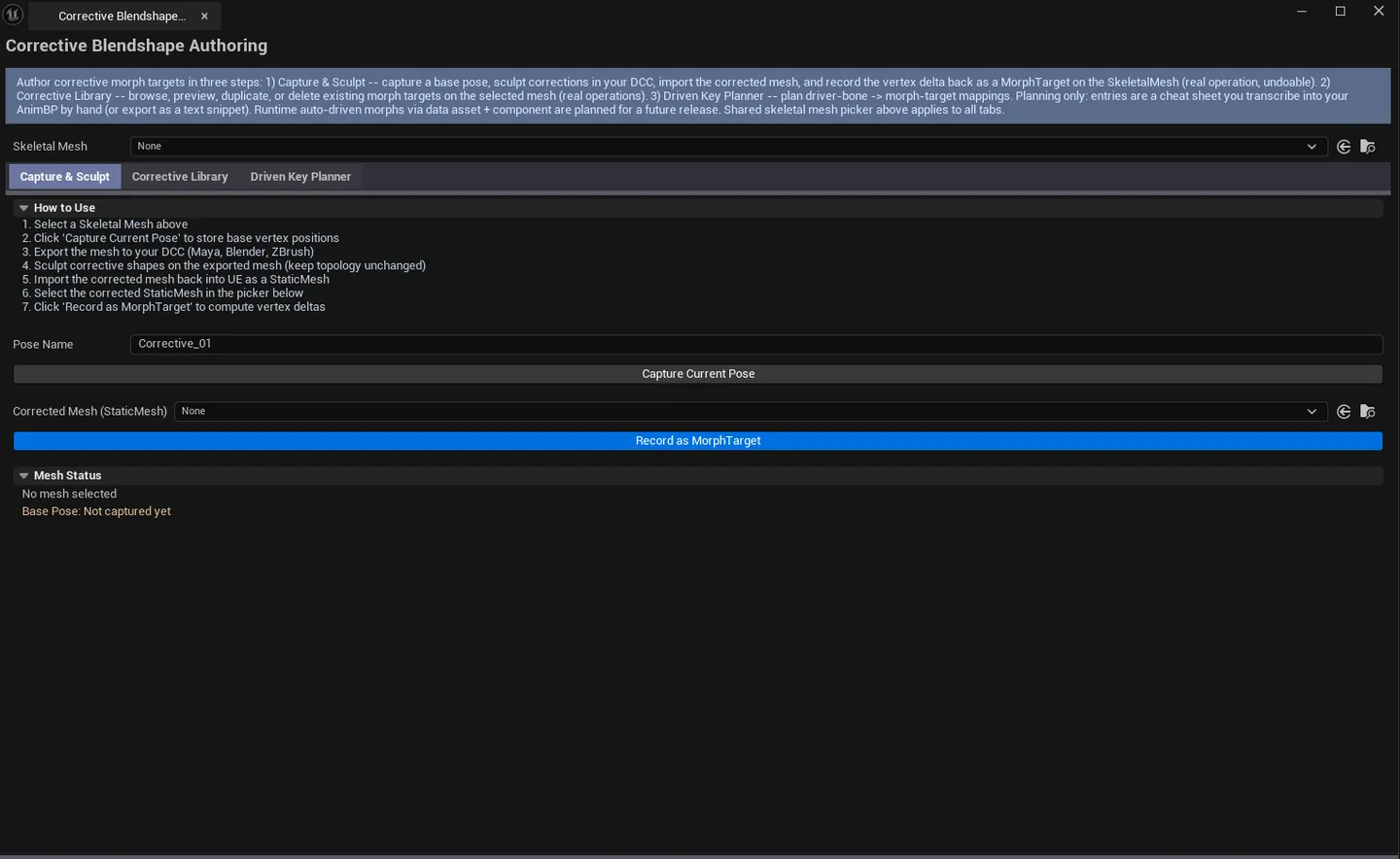
⚠️ V1 scope clarification: Capture & Sculpt and Corrective Library do real work — they create and manage morph targets on your SkeletalMesh. The Driven Key Planner is planning-only — entries are exported as snippet text for manual AnimBP authoring, not auto-driven at runtime. A future release adds a runtime data asset + component that drives morph weights from bone transforms automatically.
When to use it
Section titled “When to use it”- Authoring corrective shapes for joint deformation (elbow / knee / shoulder pinch fixes)
- Quickly fixing a specific pose problem without going back to your DCC and re-exporting the whole skeletal mesh
- Building a corrective library tied to specific driver-bone rotations (planning side)
- Inheriting a SkeletalMesh and wanting to inspect / clean up existing morph targets
What it isn’t for
Section titled “What it isn’t for”- Don’t expect runtime auto-driven morphs. V1’s Driven Key Planner exports text for manual AnimBP nodes; the runtime driver component is a future release.
- Don’t use this to author full facial blend libraries. For that, use Pose Library & Management Toolkit and standard facial pose workflows.
- Don’t expect full DCC-side sculpting. Capture and DCC export remains the source-of-truth for the corrected shape; this tool computes the delta and registers it.
Opening the tool
Section titled “Opening the tool”- Open the EQLabs Hub and search for Corrective or
Blendshape(or browse to Animation → Blendshape). - Click the tool card.
- Drop a SkeletalMesh into the picker (the picker is shared across all three tabs).
Tab 1: Capture & Sculpt
Section titled “Tab 1: Capture & Sculpt”The real authoring workflow: capture, import, delta, register.
Interface
Section titled “Interface”| Field | What it does | Default |
|---|---|---|
| Selected SkeletalMesh | The skeletal mesh to author against | (empty) |
| Pose Name | Name for the new morph target | Corrective_01 |
| Corrected Mesh picker | StaticMesh exported from your DCC with the correction applied | (empty) |
| Capture Pose button | Snapshots the current vertex positions of the SkeletalMesh in its current pose | |
| Record Morph Target button | Computes the delta between capture and corrected mesh, registers as a new UMorphTarget | |
| Stats block | Mesh display name, LOD count, current morph target count, captured vertex count |
Workflow
Section titled “Workflow”- Pick a SkeletalMesh.
- Pose the mesh (in the Skeletal Mesh editor, in a level, or via your AnimBP) so the problem area is visible.
- In the tool, click Capture Pose — vertex positions are snapshotted.
- In your DCC, sculpt the correction on top of the captured shape, export as a StaticMesh.
- Drop the corrected StaticMesh into the picker.
- Set the Pose Name (e.g.,
Corrective_LeftElbow_90). - Click Record Morph Target — delta is computed and a new
UMorphTargetis added to the SkeletalMesh.
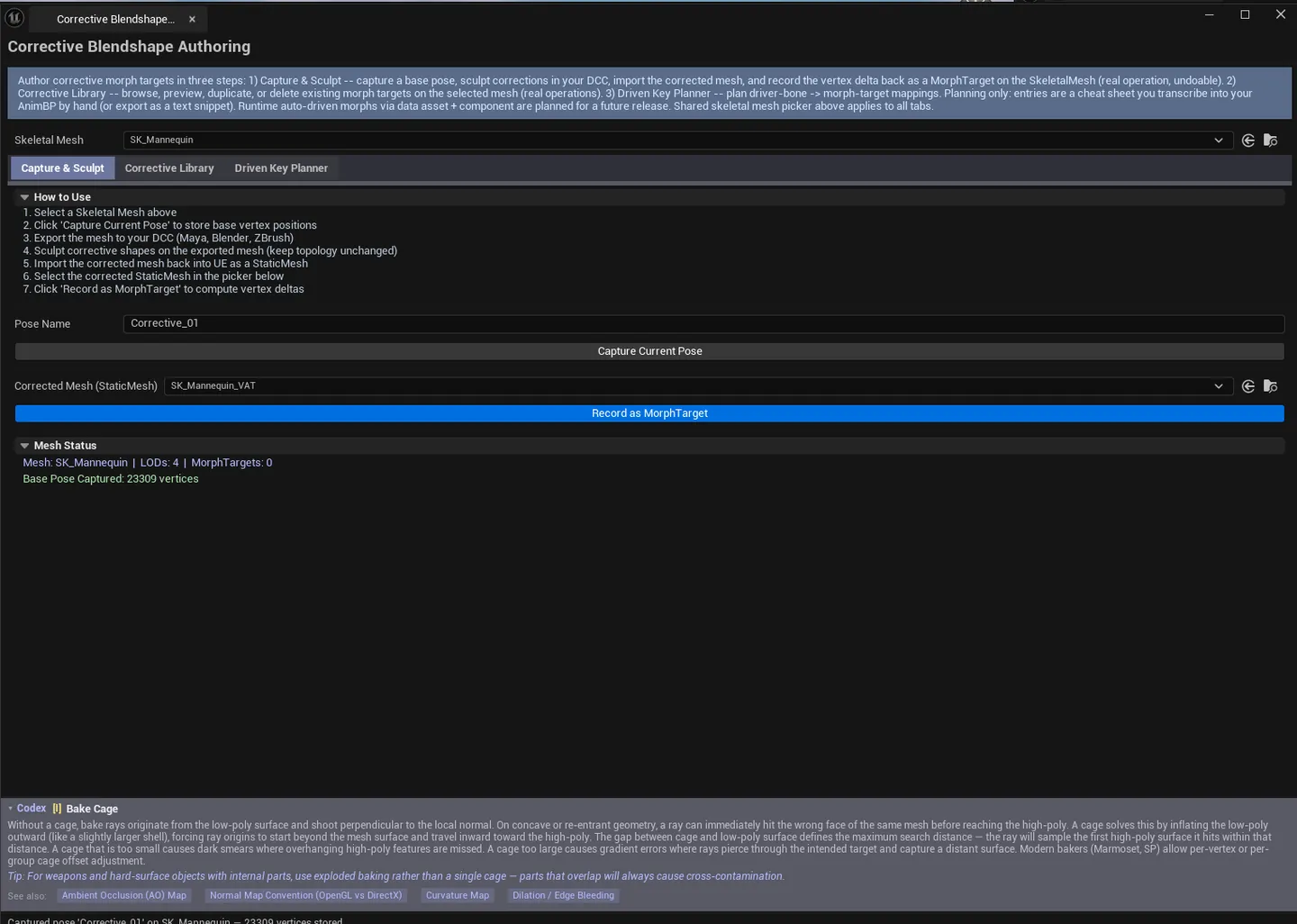
Tab 2: Corrective Library
Section titled “Tab 2: Corrective Library”Browse and manage morph targets on the selected mesh.
Interface
Section titled “Interface”| Section | What it does |
|---|---|
| Scan Morph Targets button | Refreshes the list from the selected SkeletalMesh |
| Corrective list | Per-morph row: name, weight, driven-by name, active flag |
| Preview Selected button | Sets the selected morph target’s weight to 1.0 for preview |
| Duplicate Selected button | Duplicates the selected morph target |
| Delete Selected button | Removes the selected morph target |
Workflow
Section titled “Workflow”- Click Scan Morph Targets to refresh from the asset.
- Click a row to select.
- Use Preview to confirm the morph still produces the intended deformation.
- Use Duplicate when you need a variation; Delete to remove obsolete entries.
Tab 3: Driven Key Planner
Section titled “Tab 3: Driven Key Planner”Plan driver-bone → morph-target mappings. Planning only — exports as text snippet for manual AnimBP authoring.
Interface
Section titled “Interface”| Field | What it does |
|---|---|
| Source Bone | Bone whose rotation drives the morph |
| Driver Property | Which axis (X/Y/Z rotation) |
| Driver Min / Max | Range of driver value (typically degrees) |
| Target Morph Target | Morph target to drive |
| Weight Min / Max | Output morph weight at driver min/max |
| Create Driven Key button | Adds the entry to the planner list |
| Driven keys list | Table of planned mappings |
| Remove Selected button | Removes a row |
| Export as Snippet button | Writes the entries as text the user can copy into AnimBP nodes |
Workflow
Section titled “Workflow”- Pick a source bone (e.g.,
upperarm_l). - Pick a driver property (e.g.,
Rotation Y). - Set the driver range (e.g.,
0to90degrees). - Pick the target morph target (e.g.,
Corrective_LeftElbow_90). - Set weight min/max (typically
0to1). - Click Create Driven Key to add the row.
- Repeat for each correction.
- Click Export as Snippet to get the text — paste into your AnimBP.
The snippet is a text representation, not a graph rewrite — you wire the actual nodes by hand using the values as a reference.
Settings reference
Section titled “Settings reference”Capture & Sculpt
Section titled “Capture & Sculpt”| Field | Default |
|---|---|
| Pose Name | Corrective_01 |
Driven Key Planner
Section titled “Driven Key Planner”| Field | Default |
|---|---|
| Driver Min | 0.0 |
| Driver Max | 90.0 |
| Weight Min | 0.0 |
| Weight Max | 1.0 |
Settings are persisted to
[Project]/Saved/EQLabs/Settings/CorrectiveBlendshapeAuthoring.json.
Output
Section titled “Output”- Capture & Sculpt. Adds a real
UMorphTargetto the SkeletalMesh asset. Marked dirty until Save All. - Corrective Library. Duplicate / Delete actions modify the SkeletalMesh’s morph target collection. Marked dirty until Save All.
- Driven Key Planner. Exports text only. No AnimBP modifications. The user hooks up the nodes manually.
- Undo. Morph target operations are wrapped in
ScopedTransaction.Ctrl+Zreverts.
Tips and gotchas
Section titled “Tips and gotchas”- The corrected StaticMesh must have the same vertex count as the SkeletalMesh’s base mesh. Otherwise the delta computation fails. Export from your DCC without changing topology.
- Pose the mesh before capturing. The morph target deforms relative to the captured pose, so the captured pose must show the problem you’re correcting.
- Driven Key Planner is intentionally planning-only in V1. The runtime auto-driver component is a future release. Don’t be surprised when entries don’t take effect at runtime.
- Naming morph targets matters. Use a convention like
Corrective_<Bone>_<Angle>so AnimBP graphs stay readable. - Save All afterward. Morph target additions/deletions are in-memory until saved.
Related tools
Section titled “Related tools”- Pose Library & Management Toolkit — for non-vertex-delta facial poses
- Animation Auditor — Curves tab for animation curves that drive morph weights at the AnimSequence level
Opens our feedback form in a new tab with the tool name pre-filled.