
No. 1165 MO ModelingEQLabs Pro
Vertex Color Viewer
Module: Modeling · Category: VertexColor · Tool ID:
VertexColorViewer
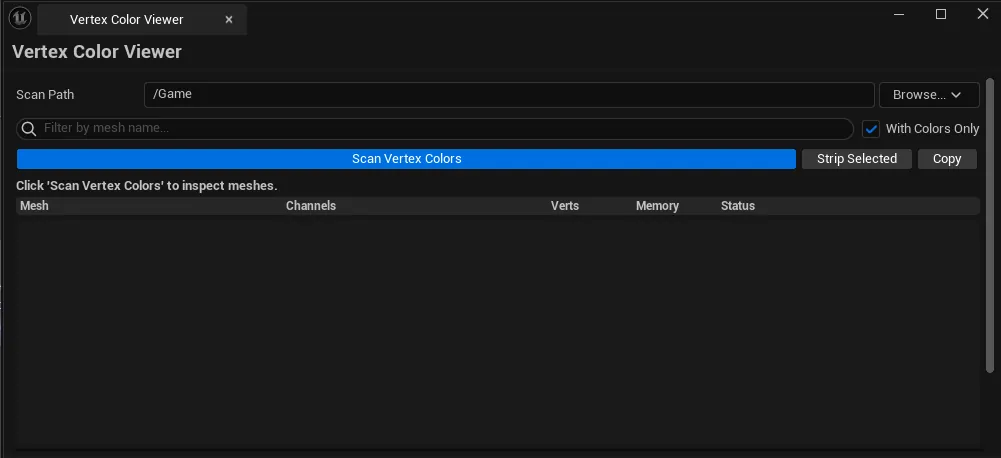
Audits every static mesh in a content folder and reports its vertex color usage — which channels (R/G/B/A) are actually doing work, which are constant (all-white, all-black, or unused), and how much memory each one is costing. Strippable meshes can be selected and cleaned in batch with one click, undoable.
When to use it
Section titled “When to use it”- Memory-budget passes: finding meshes shipped with vertex color data they don’t actually use
- Inheriting an unfamiliar project and wanting to see which assets do rely on vertex colors (so you don’t accidentally strip something a material is reading)
- After a bulk import where the source DCC stamped placeholder white/black colors on every mesh
- Validating that a vertex-color-driven material actually has colors authored on its target meshes
What it isn’t for
Section titled “What it isn’t for”- Don’t use this to paint vertex colors — use Vertex Color Painter for that
- Don’t use this to bake vertex colors from a high-poly source — that lives in the Universal Bake Suite (Art module)
Opening the tool
Section titled “Opening the tool”- Click the EQLabs button in the main editor toolbar (or Window → EQLabs Hub).
- Search for
Vertex Color Viewer, or browse to Modeling → VertexColor. - Click the tool card to open it in its own dockable panel.
Interface tour
Section titled “Interface tour”The panel is a single scroll container, top to bottom:
1. Scan Path picker
Section titled “1. Scan Path picker”A folder field with a Browse button that opens the Content Browser folder tree. Defaults to /Game. Whatever you pick is recursively scanned.
2. Filter row
Section titled “2. Filter row”- Search box. Text filter that matches against the mesh name as you type.
- With Colors Only checkbox (on by default) — hides meshes that have no vertex color data at all
3. Action buttons
Section titled “3. Action buttons”| Button | What it does |
|---|---|
| Scan Vertex Colors | Walks every Static Mesh under the scan path and analyzes channel usage |
| Strip Selected | Removes vertex color data from every selected strippable mesh. Undoable. |
| Copy | Copies the visible (filtered) results to the clipboard as plain text |
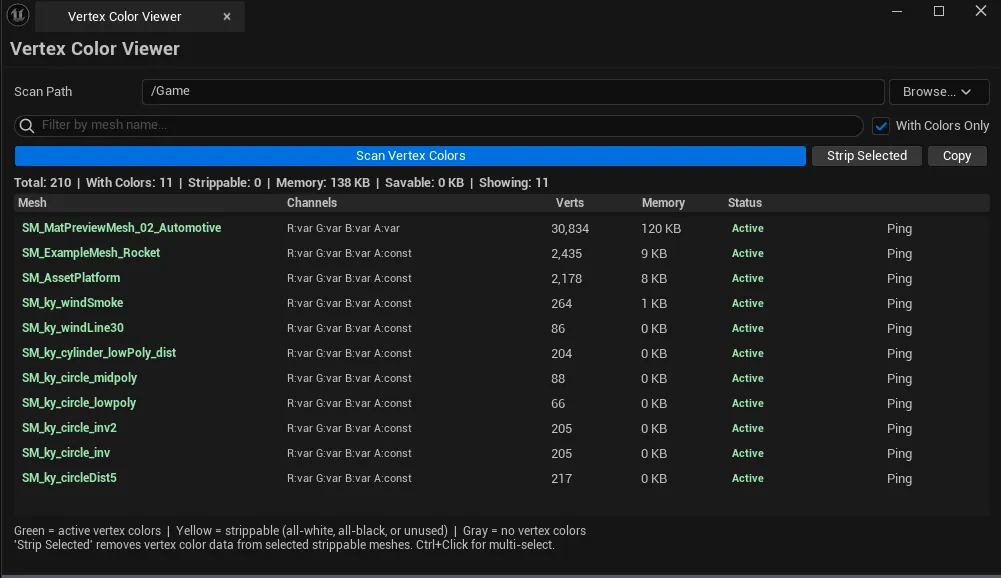
4. Summary line
Section titled “4. Summary line”Live counters showing Total / With Colors / Strippable / Memory (KB) / Savable (KB) / Showing.
5. Column headers
Section titled “5. Column headers”| Column | What it shows |
|---|---|
| Mesh | Asset name |
| Channels | Per-channel R/G/B/A usage indicators (which channels carry real data vs. are constant) |
| Verts | Vertex count |
| Memory | Vertex color memory footprint in KB |
| Status | Green = active, Yellow = strippable, Gray = no vertex colors |
6. Results list
Section titled “6. Results list”Multi-select list (Ctrl+Click / Shift+Click). Selecting a row pings the asset in the Content Browser. Double-clicking opens the Static Mesh editor for that asset.
Workflow
Section titled “Workflow”Step 1: Pick a scan path
Section titled “Step 1: Pick a scan path”Click Browse next to the Scan Path field and pick a folder from the Content Browser tree. For a full project audit use /Game. For a targeted pass, narrow to a subfolder like /Game/Meshes/Environment.
Step 2: Run the scan
Section titled “Step 2: Run the scan”Click Scan Vertex Colors. A progress dialog appears while every mesh under the path is loaded and inspected. The summary line populates when the scan finishes.
Step 3: Read the results
Section titled “Step 3: Read the results”The footer legend tells you what the row colors mean:
- Green. At least one R/G/B/A channel carries real data; do not strip.
- Yellow. All channels are constant (all-white, all-black, or fully unused); safe to strip.
- Gray. No vertex color data at all (already lean).
Use With Colors Only + the search box to narrow the list.
Step 4: Strip strippable meshes
Section titled “Step 4: Strip strippable meshes”Ctrl+Click the yellow rows you want to clean. Click Strip Selected. Vertex color data is removed and the mesh is marked dirty — you still need to Save All to persist the change to disk.
Step 5: Verify
Section titled “Step 5: Verify”Re-run the scan. The savable-memory number should drop. If anything you didn’t expect went yellow, undo with Ctrl+Z before saving.
Settings reference
Section titled “Settings reference”| Field | What it does | Default |
|---|---|---|
| Scan Path | Content folder to recursively scan for Static Meshes | /Game |
| Search | Substring filter on mesh name | empty |
| With Colors Only | Hide meshes that have no vertex color data | true |
Settings are persisted to
[Project]/Saved/EQLabs/Settings/VertexColorViewer.jsonand restored when the tool is reopened.
Output
Section titled “Output”- In-place modification. Strip Selected modifies the Static Mesh asset directly. The asset is marked dirty; nothing is written to disk until you Save All.
- Undo. Strip operations are wrapped in a
ScopedTransaction.Ctrl+Zreverts before save. - Clipboard. The Copy button writes the visible (filtered) results as plain text, one mesh per line.
Tips and gotchas
Section titled “Tips and gotchas”- Single-click pings the Content Browser. A single click on any row syncs the Content Browser to that asset, so you can preview thumbnails without leaving the tool.
- Double-click opens the Static Mesh editor. Handy for quickly checking whether a “yellow” mesh really is unused before committing a strip.
- Strippable ≠ safe to strip blindly. A mesh whose vertex colors are all white may still be sampled by a material that uses them as a multiplier. When in doubt, double-click to inspect, or check material references via the Tech module’s Dependency Explorer.
- The savable-memory number is a lower bound. Runtime savings include the GPU vertex buffer, which is typically larger than the editor-side accounting.
- Save All afterward. The scan + strip is cheap, but the disk write is the slow part. Batch your strips, then save once.
Related tools
Section titled “Related tools”- Vertex Color Painter — paint vertex colors on selected meshes (the write side; this Viewer is the read side)
- Mesh Intelligence Dashboard — broader mesh statistics, batching, and pivot auditing
- Universal Bake Suite (Art module) — bake high-poly data into vertex colors
Opens our feedback form in a new tab with the tool name pre-filled.