
No. 0442 AR ArtEQLabs Pro
EQSynth Lab
Module: Art · Category: TextureSynthesis · Tool ID:
EQSynthLab
A VFX texture synthesizer with simulation-driven processing. Import any texture, run it through fluid, wave, or reaction-diffusion solvers, then export the result as flowmaps, vector fields, caustics, dissolve masks, ripple textures, and more. The Hub panel is a launcher — the actual authoring happens inside the EQSynth custom asset editor that opens when you create or open an EQSynth asset.
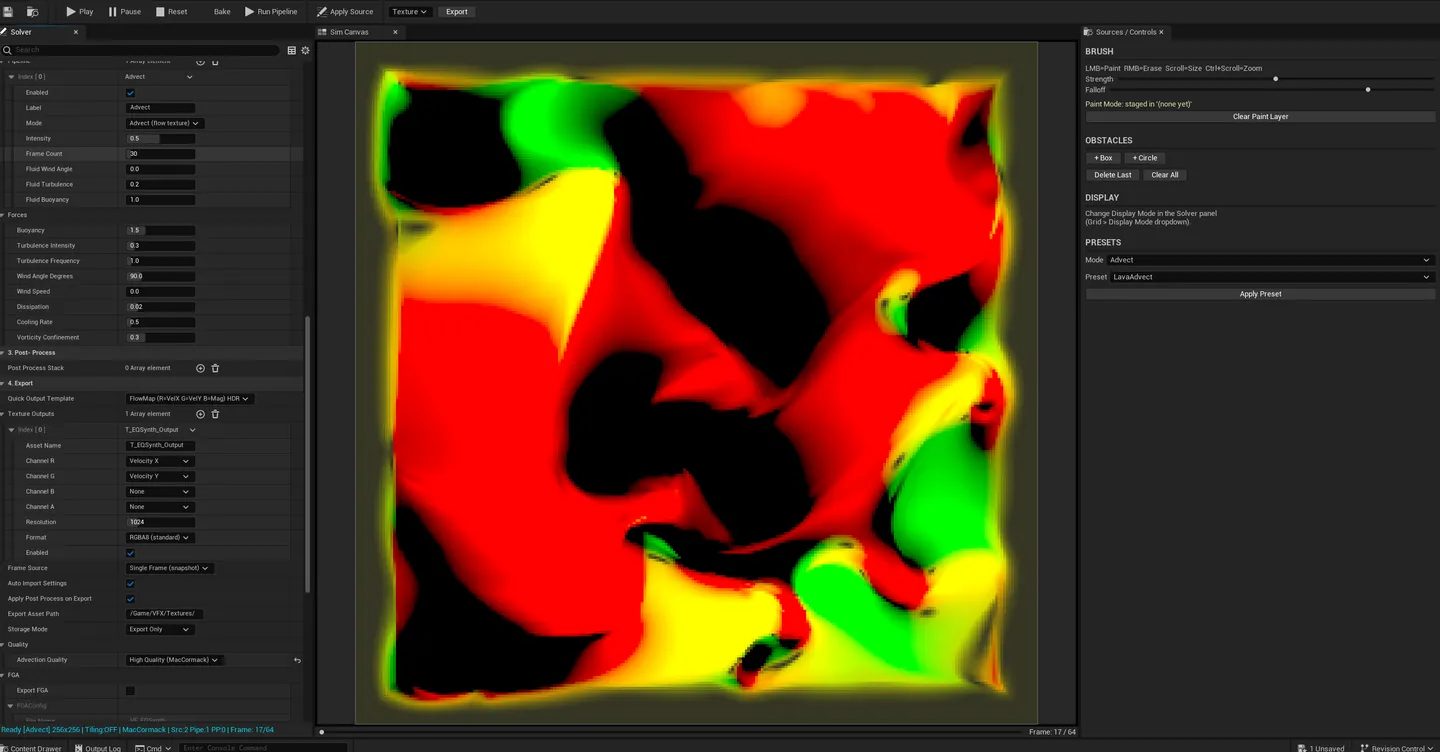
When to use it
Section titled “When to use it”- Authoring procedurally-evolved VFX textures (water caustics, dissolve masks, advected color)
- Building flow maps from a reference image via fluid simulation
- Creating animated dissolve patterns from reaction-diffusion (Turing patterns)
- Vector field generation for Niagara consumption (FGA export)
What it isn’t for
Section titled “What it isn’t for”- Don’t use this for runtime simulation. It’s an authoring tool that bakes results to textures.
- Don’t expect a single panel. EQSynth uses a custom asset editor opened via the Hub launcher, not a single Hub-resident panel.
Opening the tool
Section titled “Opening the tool”The Hub panel is a launcher with two paths:
Create a new EQSynth asset
Section titled “Create a new EQSynth asset”- Open the EQLabs Hub and search for EQSynth (or browse to Art → TextureSynthesis).
- Click the tool card.
- Click Create New — UE’s factory dialog opens; pick a folder and name.
- The new EQSynth asset opens in the EQSynth custom asset editor.
Open an existing EQSynth asset
Section titled “Open an existing EQSynth asset”- Select an EQSynth asset in the Content Browser.
- In the Hub launcher, click Open Selected.
- The editor opens with that asset.
The EQSynth custom asset editor
Section titled “The EQSynth custom asset editor”Once an EQSynth asset is open, the custom editor provides:
- Source texture input. Drop any UTexture2D as the starting point.
- Solver selection. Choose between fluid (advection-diffusion), wave (height-field propagation), reaction-diffusion (Turing patterns).
- Solver parameters. Solver-specific knobs for tuning the simulation.
- Multi-output configuration. Pick which channels to export (flowmap, vector field, dissolve mask, caustic, etc.).
- Real-time preview. See the simulation evolve as you tune.
- Export. Bake the result to UTexture2D assets.
The custom editor’s full UI is documented separately in the EQSynth-specific user guide. This Hub launcher tool only handles entry/exit.
Workflow
Section titled “Workflow”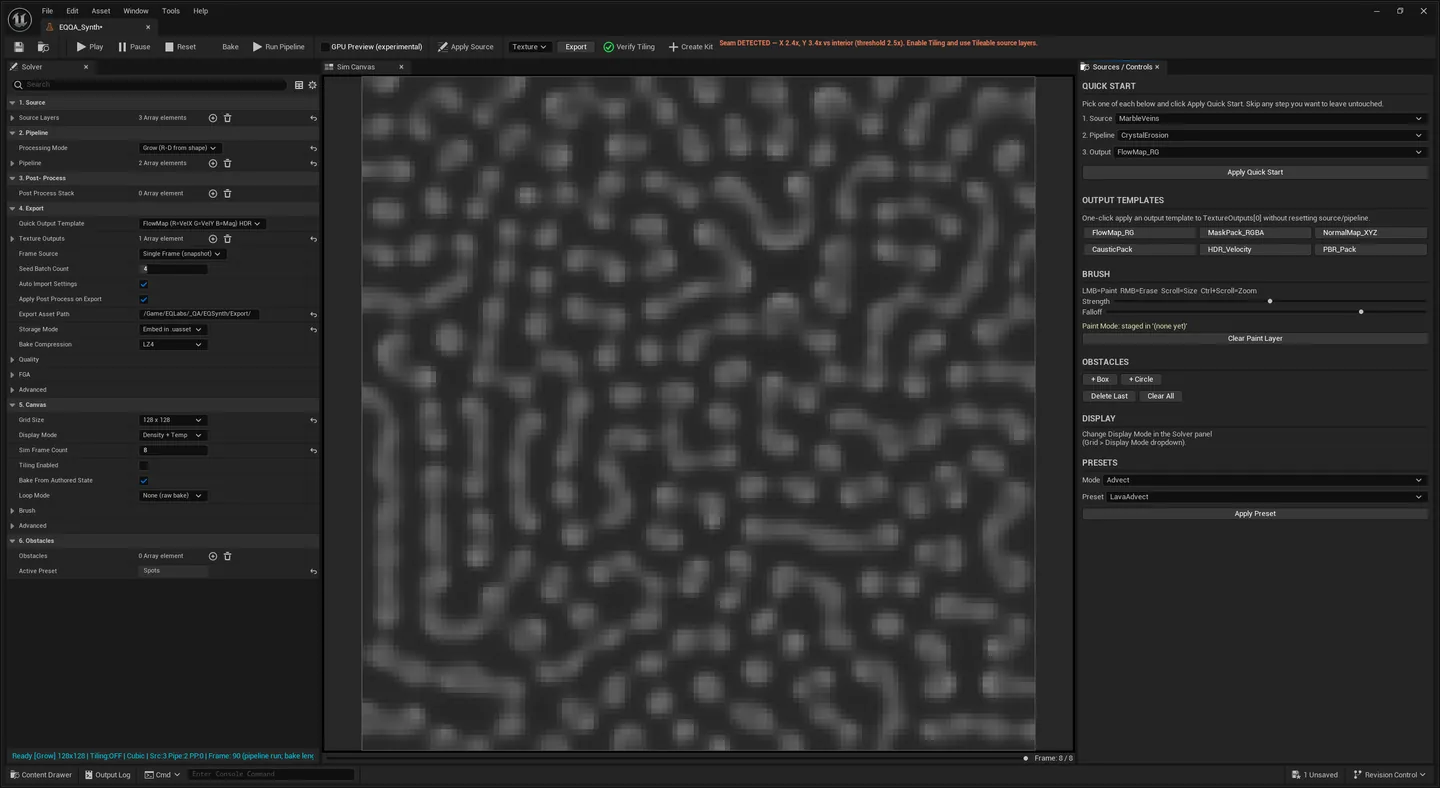
Quick path
Section titled “Quick path”- Open the Hub, click EQSynth Lab tool card.
- Click Create New.
- In the asset editor: drop a source texture, pick a solver, hit Play.
- Tune parameters until the result looks right.
- Click Export — output textures appear in the Content Browser.
From an existing asset
Section titled “From an existing asset”- Find an existing EQSynth asset in the Content Browser.
- Select it.
- From the Hub launcher, click Open Selected.
- The editor opens with that asset’s saved state.
Settings reference
Section titled “Settings reference”EQSynth assets store all simulation state inside the asset itself. The Hub launcher has no persisted settings beyond the standard tool framework.
Output
Section titled “Output”- EQSynth asset (
UEQSynthAsset). Created via the factory dialog, persists in the Content Browser. - Baked textures. Exported
UTexture2Doutputs from the asset editor (flowmap / vector field / dissolve mask / etc.). - FGA file. Vector-field export for Niagara, when the asset configures it.
Tips and gotchas
Section titled “Tips and gotchas”- EQSynth is custom-asset-based, not a single-panel Hub tool — make sure you create an asset to do real work
- Multi-output is the killer feature. A single simulation can produce flowmap + vector field + caustic in one bake.
- Reaction-diffusion takes longer to settle than fluid — let it run for a while before deciding the look
- The Hub launcher is intentionally minimal. The heavy lifting is in the custom editor.
Related tools
Section titled “Related tools”- Flow Map Studio — for hand-painted flow maps without simulation
- Smart Mask & Texture Processor — for non-simulation texture processing
- PaintingLab (separate custom asset editor) — for 3D vertex / texture paint workflows
Opens our feedback form in a new tab with the tool name pre-filled.