
No. 0693 DE DesignEQLabs Pro
Blockout Lab
Module: Design · Category: LevelDesign · Tool ID:
BlockoutLab
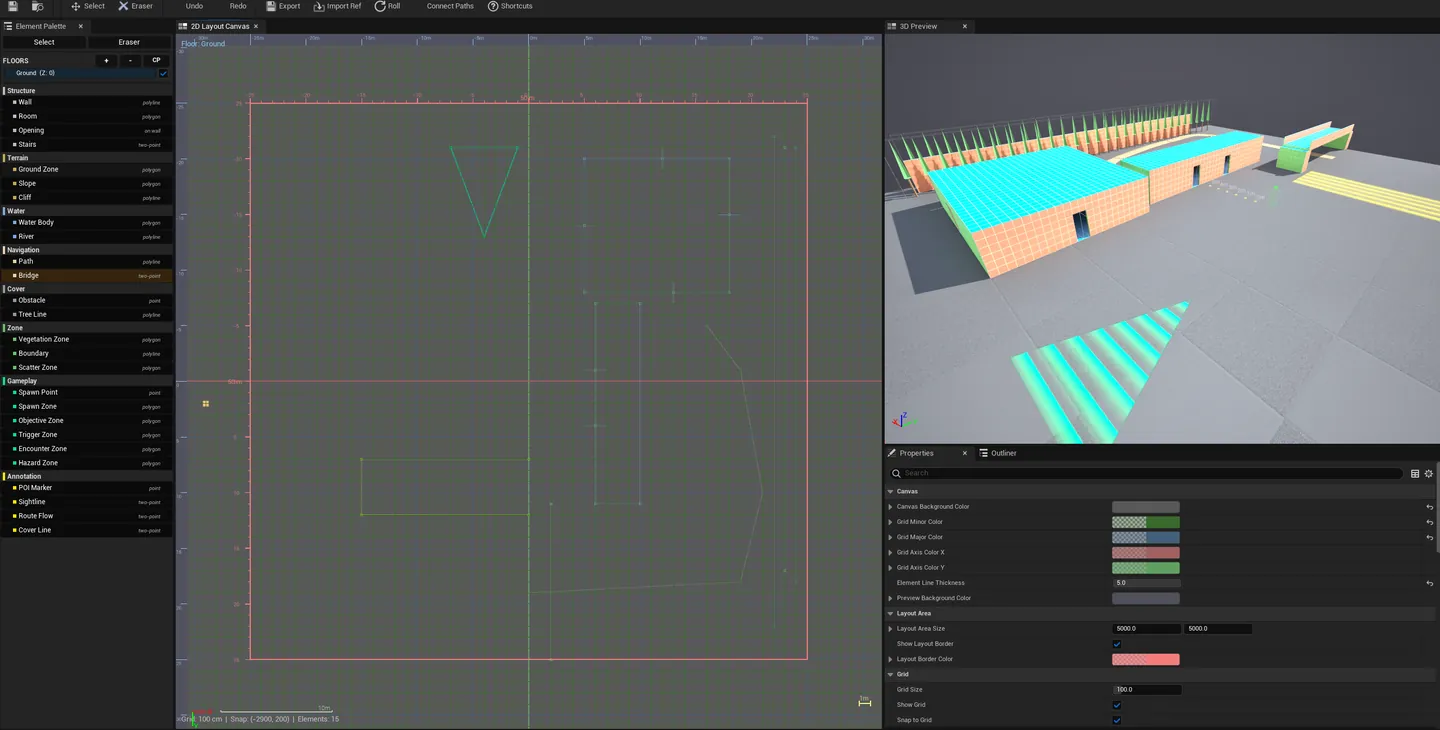
A full level layout designer built as a custom asset editor (Pattern B). Draw rooms, terrain, water, paths, cover, gameplay zones, and player routes on a 2D canvas. See it in 3D instantly via a synchronized 3D viewport. Export as playable geometry with materials, pivots, and annotations. The Hub panel is a launcher — the actual authoring happens inside the Blockout Lab editor that opens when you create or open a Blockout Layout asset.
When to use it
Section titled “When to use it”- Authoring full level layouts: rooms + terrain + water + paths + zones in one canvas
- Pre-blockout planning: drawing the layout 2D before committing to 3D
- Multi-story level design: layered floor plans with synchronized 3D preview
- Sharing a level concept with the team: export as documentation + playable geometry
What it isn’t for
Section titled “What it isn’t for”- Don’t use this for quick parametric primitives. See Blockout Generator.
- Don’t expect this to replace UE’s Modeling Mode. It’s a higher-level layout tool, not a polygon editor.
Opening the tool
Section titled “Opening the tool”The Hub panel is a launcher with two paths:
Create a new Blockout Layout
Section titled “Create a new Blockout Layout”- Open the EQLabs Hub and search for Blockout Lab (or browse to Design → LevelDesign).
- Click the Blockout Lab card.
- Click Create New Layout — pick a save path.
- The new layout opens in the Blockout Lab editor.
Open an existing layout
Section titled “Open an existing layout”- In the Hub launcher, the Recent Layouts list shows your most recently modified layouts.
- Click any to open in the editor.
- Or select the asset in the Content Browser and double-click.
The Blockout Lab editor
Section titled “The Blockout Lab editor”Once a Blockout Layout is open, the custom editor provides:
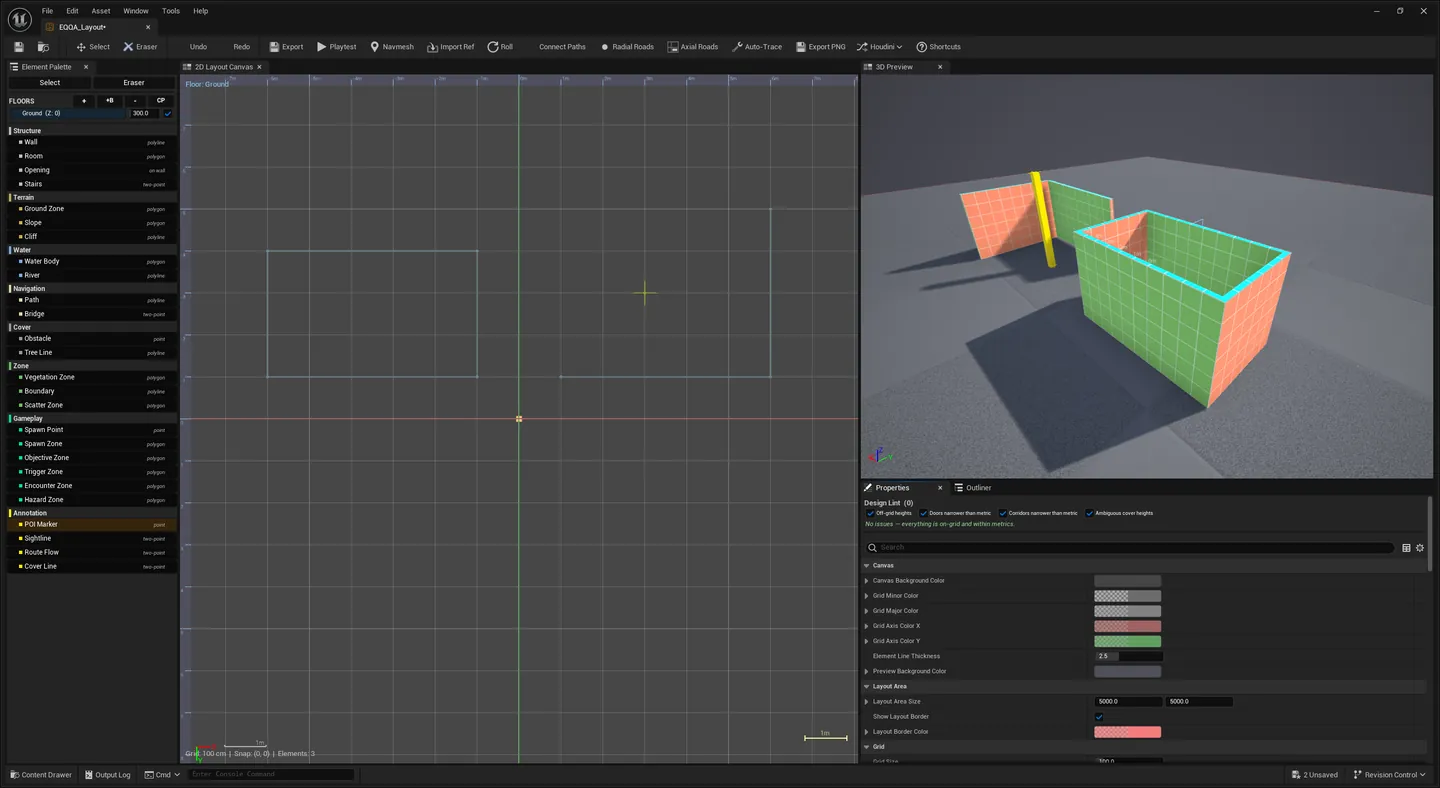
- 2D canvas. Draw shapes representing rooms, terrain regions, water, paths, cover, zones.
- 3D viewport. Synchronized 3D preview that updates as you draw.
- Element palette. 26+ element types covering rooms, geometry, gameplay, decoration.
- Outliner. Hierarchical view of every drawn element.
- Properties panel. Per-element editing.
- Scatter zones. Generate procedural mesh placement using
UBlockoutAssetSet(weighted mesh sets) with 3 distribution patterns. - Auto-Connect Paths. Minimum spanning tree algorithm connecting drawn nodes.
- JSON preset manager. Save/load layout presets.
The Blockout Lab editor’s full UI is documented separately. This Hub launcher tool only handles entry/exit.
Key features
Section titled “Key features”- 2D + 3D synchronized: changes in either view update the other
- 5 Gameplay polygon zones with animated
MI_Zonesmaterial — per-zone MID parameters (Color / Opacity / Width / Multiplier / Speed / Direction) - Asset Set support via
UBlockoutAssetSetdata assets — weighted mesh selection - Auto-Connect Paths. MST algorithm for connecting waypoints.
- JSON serialization at version 13 — type-changing schema migration
Workflow
Section titled “Workflow”Quick path
Section titled “Quick path”- Open the Hub, click Blockout Lab.
- Click Create New Layout.
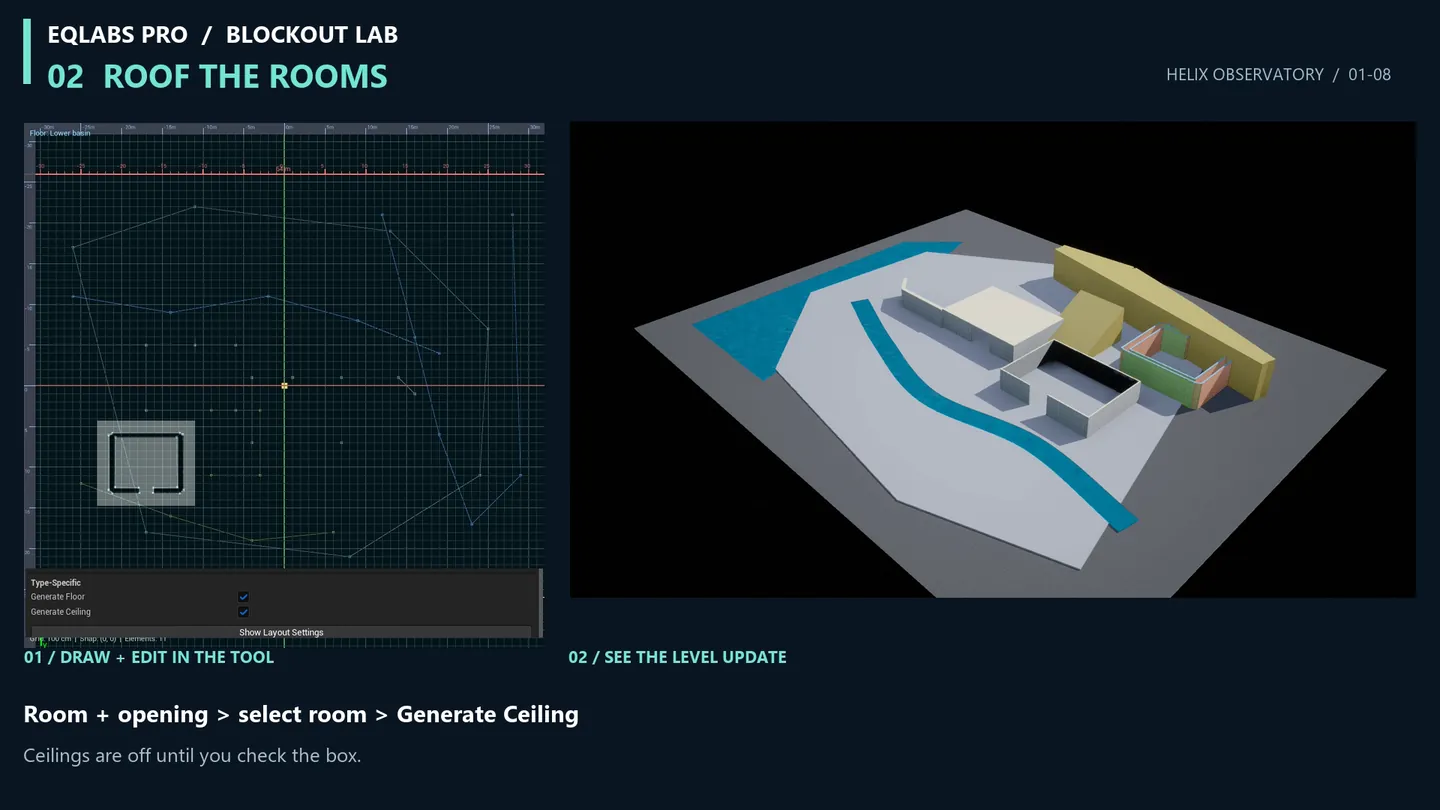
- In the editor: draw rooms with the room tool.
- Add terrain regions, water, paths from the element palette.
- Drop a
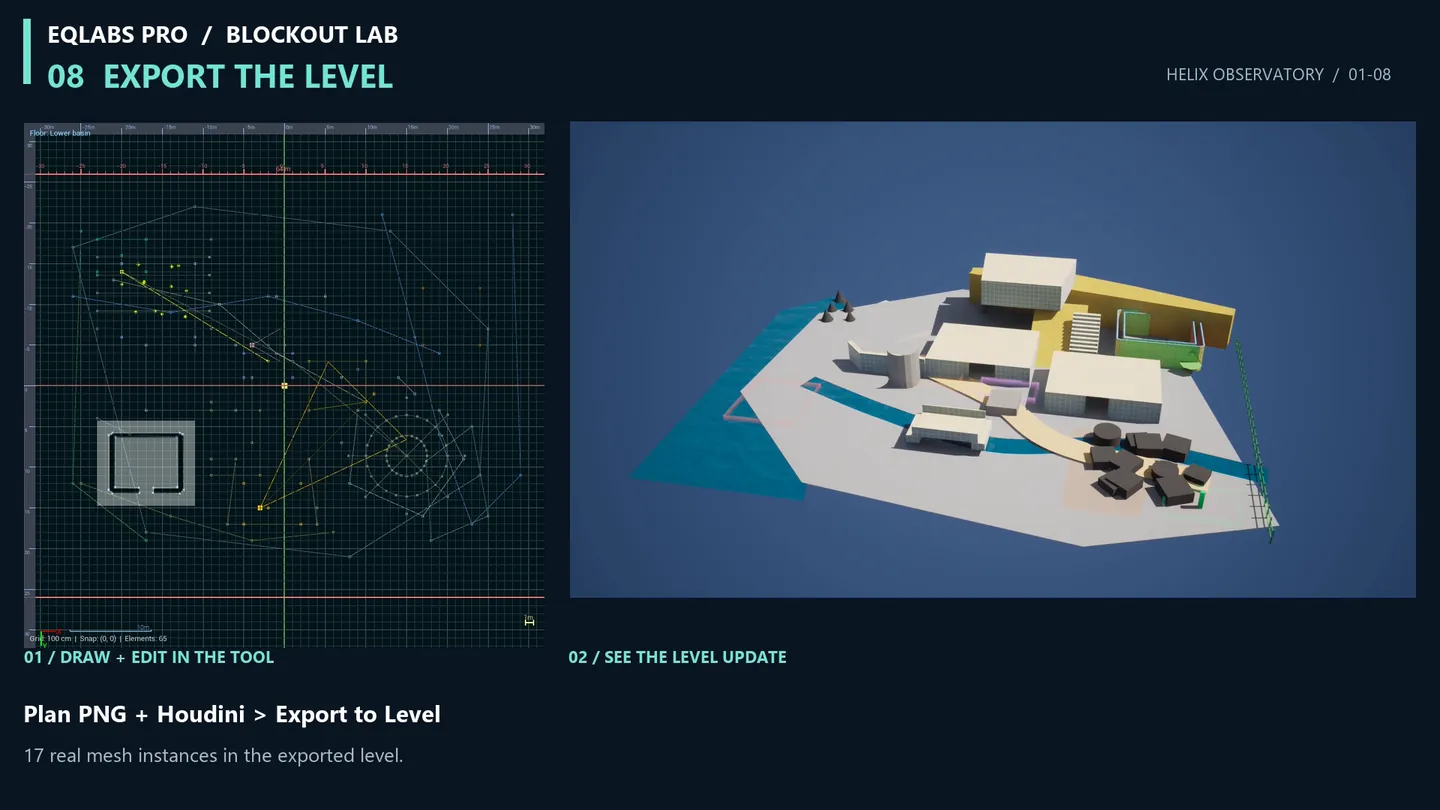
UBlockoutAssetSetinto a scatter zone. - Click Generate Geometry to convert to playable level geometry.
- Save the asset.
From an existing layout
Section titled “From an existing layout”- Find a Blockout Layout in the Hub launcher’s Recent list.
- Click to open.
- Continue editing in the custom editor.
Settings reference
Section titled “Settings reference”Layout state lives in the UBlockoutLayout asset itself. Hub launcher has no persisted settings beyond the recent layouts list.
Output
Section titled “Output”UBlockoutLayoutasset. Created via the launcher, persists in the Content Browser.- Generated playable geometry.
AStaticMeshActorinstances + materials + zone volumes when you Generate Geometry. - JSON preset files. Saved scatter rule presets at
[Project]/Saved/EQLabs/.
Tips and gotchas
Section titled “Tips and gotchas”- Blockout Lab is custom-asset-based. Make sure you create a Layout asset to do real work.
- 2D + 3D sync is the killer feature. Draw in 2D for speed, see 3D for spatial check.
- Multi-story layouts use depth ordering in 2D. Z-index controls vertical placement.
- Asset Set scatter is non-destructive. Change the asset set, regenerate; the layout stays the same.
- JSON preset format is versioned. Schema migrations handled internally (V11 → V12 → V13).
Full walkthrough
Section titled “Full walkthrough”Related tools
Section titled “Related tools”- Blockout Generator — quick parametric primitives without a full layout asset
- Reference Image Overlay — overlay reference images while blocking out
- Modular Kit Auditor (Modeling module) — validate placement after Blockout Lab generates geometry
Opens our feedback form in a new tab with the tool name pre-filled.