
No. 0432 AR ArtEQLabs Pro
Color Scheme Manager
Module: Art · Category: ColorDesign · Tool ID:
ColorSchemeManager
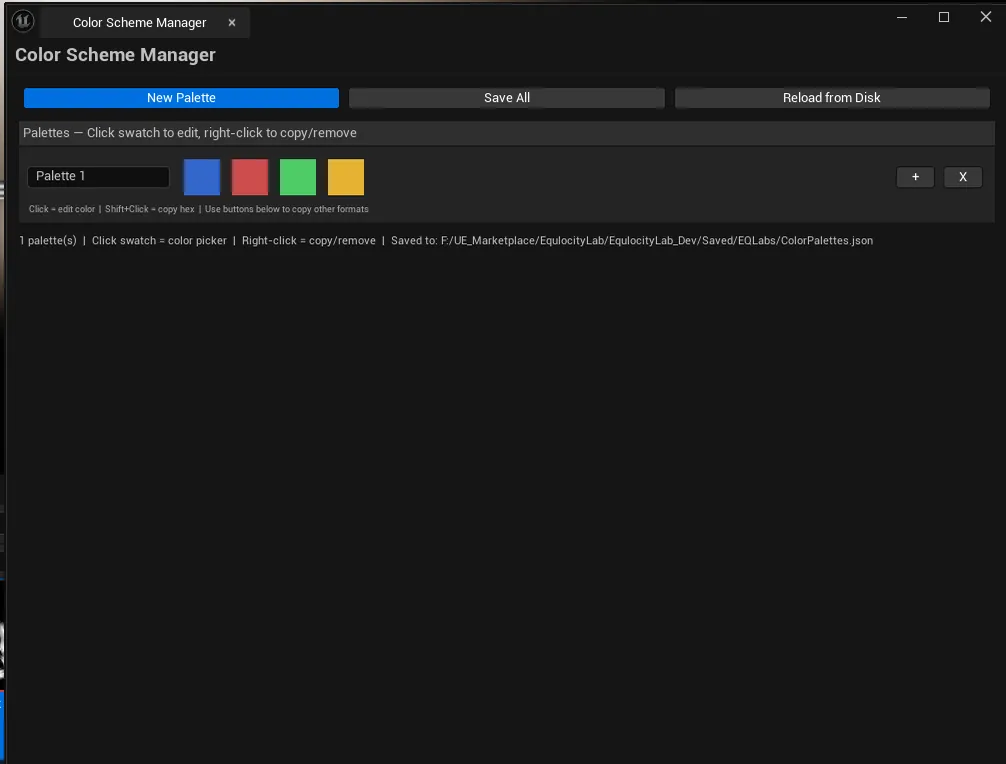
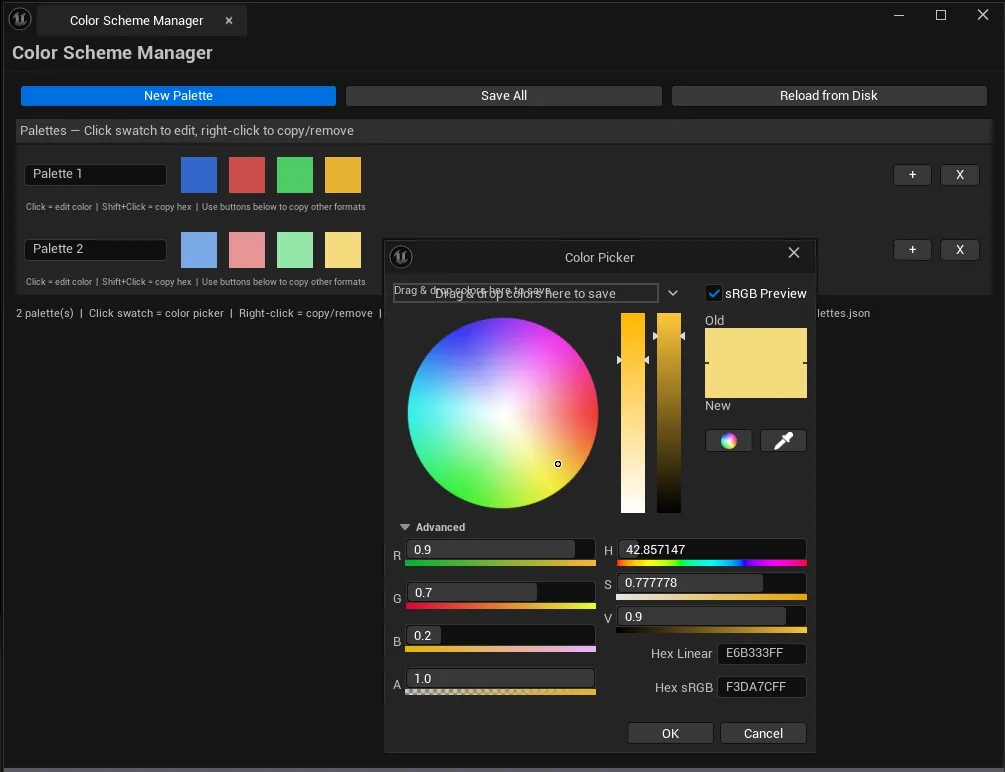
A persistent color palette manager. Up to 8 colors per palette, click any swatch to edit via UE’s color picker, copy in multiple formats (Hex, Linear (r,g,b,a), FLinearColor() macro, sRGB), right-click a swatch to remove. Palettes auto-load on tool open and persist to JSON in the project’s Saved folder — survives across sessions.
When to use it
Section titled “When to use it”- Maintaining a project-wide color reference accessible from anywhere in the editor
- Quick copy-paste of color values into materials, UI, or Blueprint
- Building per-team palette references that other tools (or your own AnimBP) can read from JSON
- Establishing a brand palette that survives across sessions and team members
What it isn’t for
Section titled “What it isn’t for”- Don’t use this to author one-off colors. UE’s color picker does that fine on its own.
- Don’t expect K-means extraction. For that, use Color Palette Extractor.
Opening the tool
Section titled “Opening the tool”- Open the EQLabs Hub and search for Color Scheme or
Palette(or browse to Art → ColorDesign). - Click the tool card.
- Existing palettes auto-load from
[Project]/Saved/EQLabs/ColorSchemes.json.
Interface tour
Section titled “Interface tour”| Section | What it does |
|---|---|
| Palettes list | One row per palette, each with a name and up to 8 swatches |
| Add Palette | Adds a new empty palette |
| Remove palette | Per-row action (delete a palette) |
| Add Color to palette | Adds a new swatch via the color picker |
| Click a swatch | Opens the color picker to edit |
| Right-click a swatch | Removes that color from the palette |
| Copy color | Per-swatch action — copy as Hex / Linear / FLinearColor / sRGB |
Copy formats
Section titled “Copy formats”| Format | Example output |
|---|---|
| Hex | #FF8C42 |
| Linear | (R=1.0,G=0.55,B=0.26,A=1.0) |
| FLinearColor | FLinearColor(1.0f, 0.55f, 0.26f, 1.0f) |
| sRGB | (255, 140, 66, 255) |
Workflow
Section titled “Workflow”Building a palette
Section titled “Building a palette”- Click Add Palette.
- Rename it to something meaningful (e.g., “Hero Materials”).
- Add colors via the per-palette Add Color button.
- Click each swatch to open the color picker and pick a color.
- Right-click any swatch to remove it.
Using palette colors elsewhere
Section titled “Using palette colors elsewhere”- Click the per-swatch copy action.
- Pick the format that matches where you’re pasting:
- Hex for UI / browser tools
- Linear for material parameter pasting in UE
- FLinearColor for C++ source code
- sRGB for Photoshop / web tools
Cross-session persistence
Section titled “Cross-session persistence”Palettes save automatically to [Project]/Saved/EQLabs/ColorSchemes.json whenever you modify them. Reopening the tool loads them back. Editing the JSON directly is supported — useful for team-shared palettes via Git.
Settings reference
Section titled “Settings reference”Up to 8 colors per palette. Unlimited palettes.
Save path:
[Project]/Saved/EQLabs/ColorSchemes.json
Output
Section titled “Output”- In-panel display. Visual swatches per palette.
- Clipboard. Copy actions per swatch in 4 formats.
- JSON file. Auto-persisted to
Saved/EQLabs/ColorSchemes.json.
Tips and gotchas
Section titled “Tips and gotchas”- Hex format is sRGB-encoded. UE’s editor treats Hex inputs as sRGB by default. The Linear/FLinearColor formats are UE’s internal linear space (no gamma).
- Right-click to remove a single swatch. No “are you sure” prompt. Adds back via Add Color.
- JSON is human-readable. Open
ColorSchemes.jsonin a text editor for bulk edits or to share with teammates via Git. - Palettes survive across sessions automatically. No manual save needed.
Related tools
Section titled “Related tools”- Color Palette Extractor — extract palettes from reference images via K-means
- Material Layer Studio. Apply palette colors to material parameters.
Opens our feedback form in a new tab with the tool name pre-filled.