
No. 0974 AN AnimationEQLabs Pro
Blend Space Visualizer
Module: Animation · Category: BlendSpace · Tool ID:
BlendSpaceVisualizer
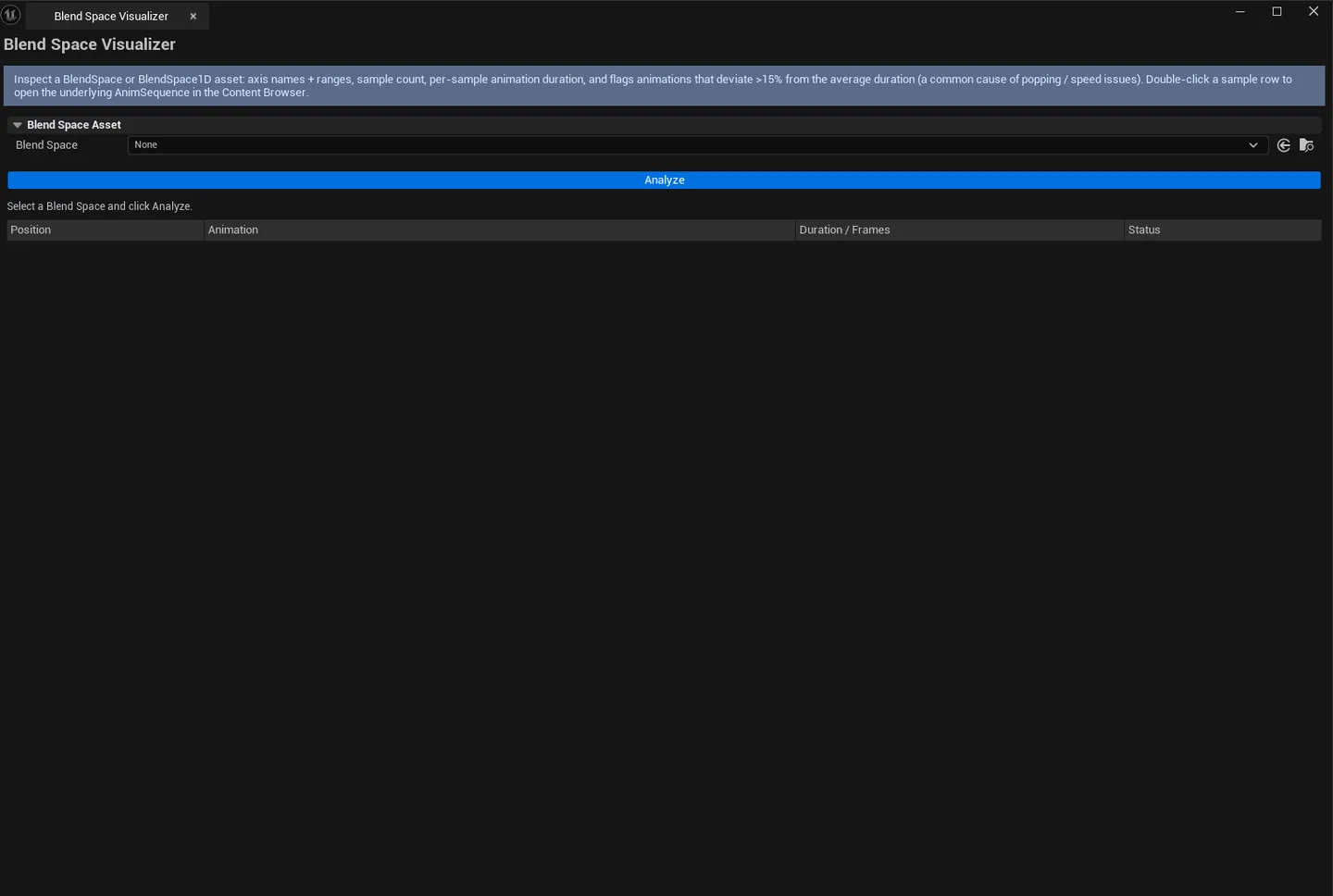
Loads any BlendSpace or BlendSpace1D asset and lays out its sample points so you can see at a glance which grid cells have animations, where the coverage gaps are, and whether the referenced animation sequences play nicely together (matched durations, expected frame counts).
When to use it
Section titled “When to use it”- Building a locomotion blend space from scratch: confirming every speed/direction cell is covered before you ship
- Inheriting a character’s locomotion setup and wanting to see what’s actually wired up
- Debugging a “twitchy” or “snappy” blend: usually a missing sample or a mismatched duration
- After importing a new animation set: quick sanity-check that all references resolve
What it isn’t for
Section titled “What it isn’t for”- Don’t use this to author blend spaces. Sample placement happens in UE’s BlendSpace editor; this tool is read-only.
- Don’t use it for AnimBP debugging. Use Animation Auditor for state machines and transitions.
Opening the tool
Section titled “Opening the tool”- Open the EQLabs Hub and search for Blend Space (or browse to Animation → BlendSpace).
- Click the tool card.
- Drop a BlendSpace asset into the picker field.
Interface tour
Section titled “Interface tour”A scrollable single-panel layout. Top to bottom:
| Section | What it does |
|---|---|
| BlendSpace Asset picker | Load any UBlendSpace or UBlendSpace1D |
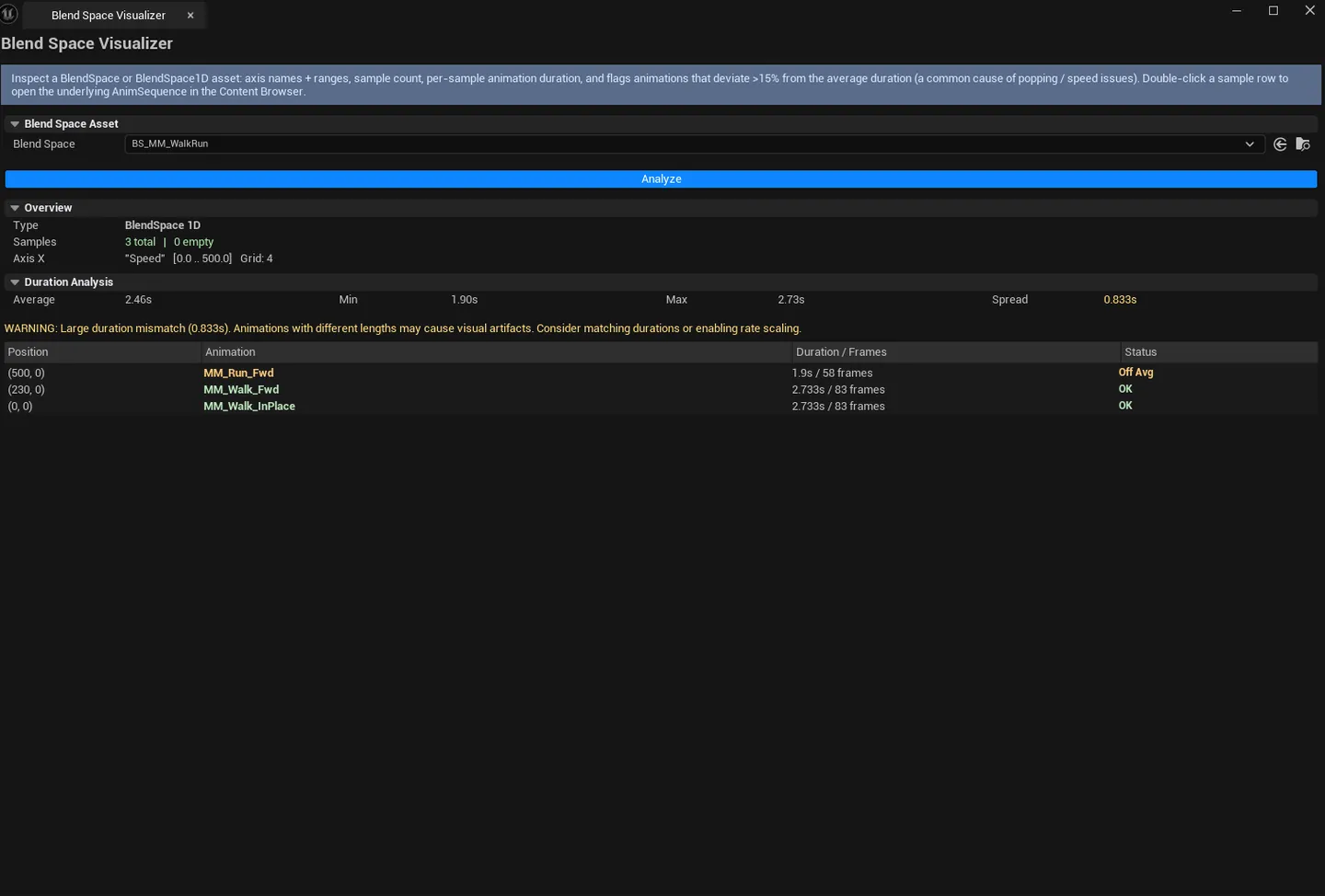
| Info block | Axis X/Y labels and ranges, grid divisions, 1D/2D detection |
| Stats block | Total samples, empty samples, avg/min/max duration, max duration spread between samples |
| Issues block | Warnings — empty grid cells, mismatched durations, missing animation references |
| Sample list | Per-sample row: Position, animation name, duration, frame count, gap/outlier flags |
What gets flagged
Section titled “What gets flagged”| Flag | Meaning |
|---|---|
| Empty Sample | Grid cell has a position but no animation reference |
| Duration Outlier | Animation duration is far from the average — usually a sign of an accidentally-imported wrong-length clip |
| Missing Anim | Sample’s referenced AnimSequence couldn’t be resolved |
Workflow
Section titled “Workflow”Step 1: Load the BlendSpace
Section titled “Step 1: Load the BlendSpace”Drop your locomotion or facial blend space into the picker. The Info, Stats, and Sample list populate automatically.
Step 2: Read the Info block
Section titled “Step 2: Read the Info block”Confirm Axis X/Y labels and ranges match what you intended. A common mistake is shipping a 1D speed blend that’s authored as 2D with one axis at a single value.
Step 3: Walk the Stats line
Section titled “Step 3: Walk the Stats line”Empty Samples should be 0 for a fully-covered grid. Max Duration Spread (the difference between the longest and shortest sample) tells you how synchronized the clips are — wide spreads mean the blend will desync.
Step 4: Audit individual rows
Section titled “Step 4: Audit individual rows”Single-click pings the AnimSequence in the Content Browser. Double-click opens the sequence’s editor for inspection.
Settings reference
Section titled “Settings reference”This tool has no persisted settings — it operates on whatever BlendSpace you load.
Output
Section titled “Output”- In-panel display only. No edits to the BlendSpace asset.
- No clipboard / CSV export in V1 — copy info manually if you need it elsewhere
Tips and gotchas
Section titled “Tips and gotchas”- A “missing animation” doesn’t always mean broken. The BlendSpace may reference an asset you haven’t loaded yet. Check the Content Browser before deleting anything.
- Duration outliers usually point to imported-with-wrong-FPS clips. Check the source AnimSequence’s frame rate.
- 1D BlendSpaces show one axis range as zero-to-zero. The tool detects this and labels it
bIs1D = trueinternally. The Info block will show only one meaningful axis. - Empty samples are sometimes intentional. Corner cases (e.g., “moving backward at full speed”) might genuinely have no animation. Read the warning, decide.
Related tools
Section titled “Related tools”- Animation Auditor — when the blend space references animations with bad compression
- Montage Section Builder — for montage-driven blends
- AnimBP analysis. Animation Auditor’s Blueprint tab covers the state machine layer above the BlendSpace.
Opens our feedback form in a new tab with the tool name pre-filled.