
No. 0703 DE DesignEQLabs Pro
Camera Sequencer Enhancement
Module: Design · Category: Cinematic · Tool ID:
CameraSequencerEnhancement
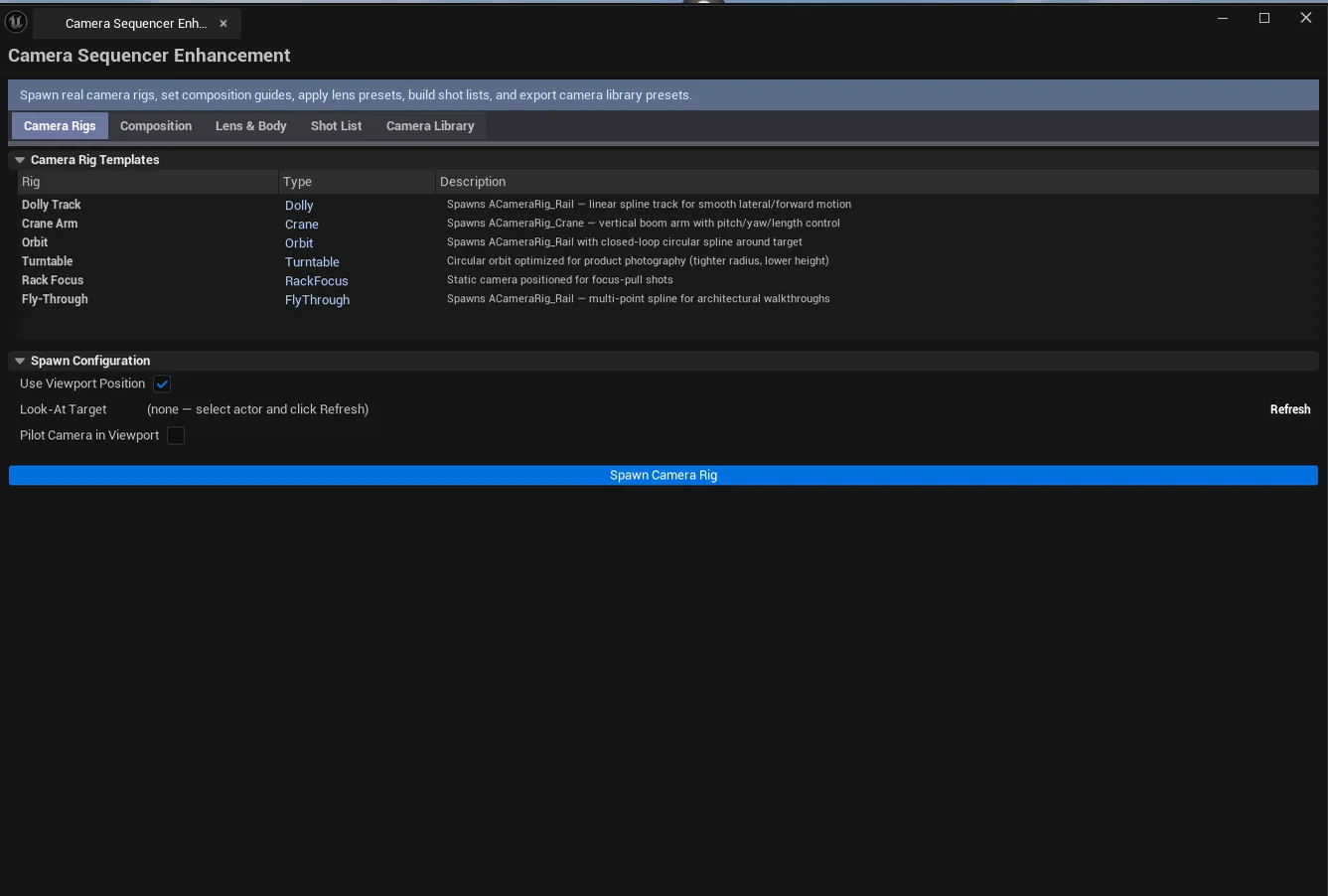
A five-tab cinematic camera authoring toolkit. Camera Rig Templates spawns real UE5 camera rigs (Crane, Rail/Dolly, Orbit, Turntable). Composition Guides overlays Rule of Thirds / Golden Ratio / Center Cross / Safe Zones in the viewport with aspect-ratio control. Lens & Body Presets applies real-world lens (focal length, aperture, focus distance) and sensor (ARRI, RED) presets to selected cameras. Shot List & Turntable builds shot lists with camera assignment and generates LevelSequences with camera cuts; also creates animated 360° turntables. Camera Library browses lens & body database with JSON import/export.
When to use it
Section titled “When to use it”- Cinematic-shot setup: quickly spawning real crane/dolly/orbit rigs instead of hand-building from CineCameraActor
- Composition checking: overlaying Rule of Thirds while framing a shot
- Applying production-grade lens / sensor presets (50mm f/2.8, ARRI Alexa, RED Komodo) to camera actors
- Building shot lists tied to specific cameras + generating LevelSequences automatically
- Creating animated 360° turntables for marketing renders
What it isn’t for
Section titled “What it isn’t for”- Don’t expect this to render. It sets up the camera infrastructure; render via Movie Render Queue.
- Don’t expect this to author keyframes. For that, use Sequencer.
Opening the tool
Section titled “Opening the tool”- Open the EQLabs Hub and search for Camera (or browse to Design → Cinematic).
- Click the tool card.
- Use the tab bar: Camera Rigs, Composition, Lens & Body, Shot List, Camera Library.
Tab 1: Camera Rig Templates
Section titled “Tab 1: Camera Rig Templates”Spawn real UE5 camera rigs.
Available rigs
Section titled “Available rigs”| Rig | What it does |
|---|---|
| Dolly | ACameraRig_Rail — straight line travel |
| Crane | ACameraRig_Crane — overhead arm with configurable length and pitch |
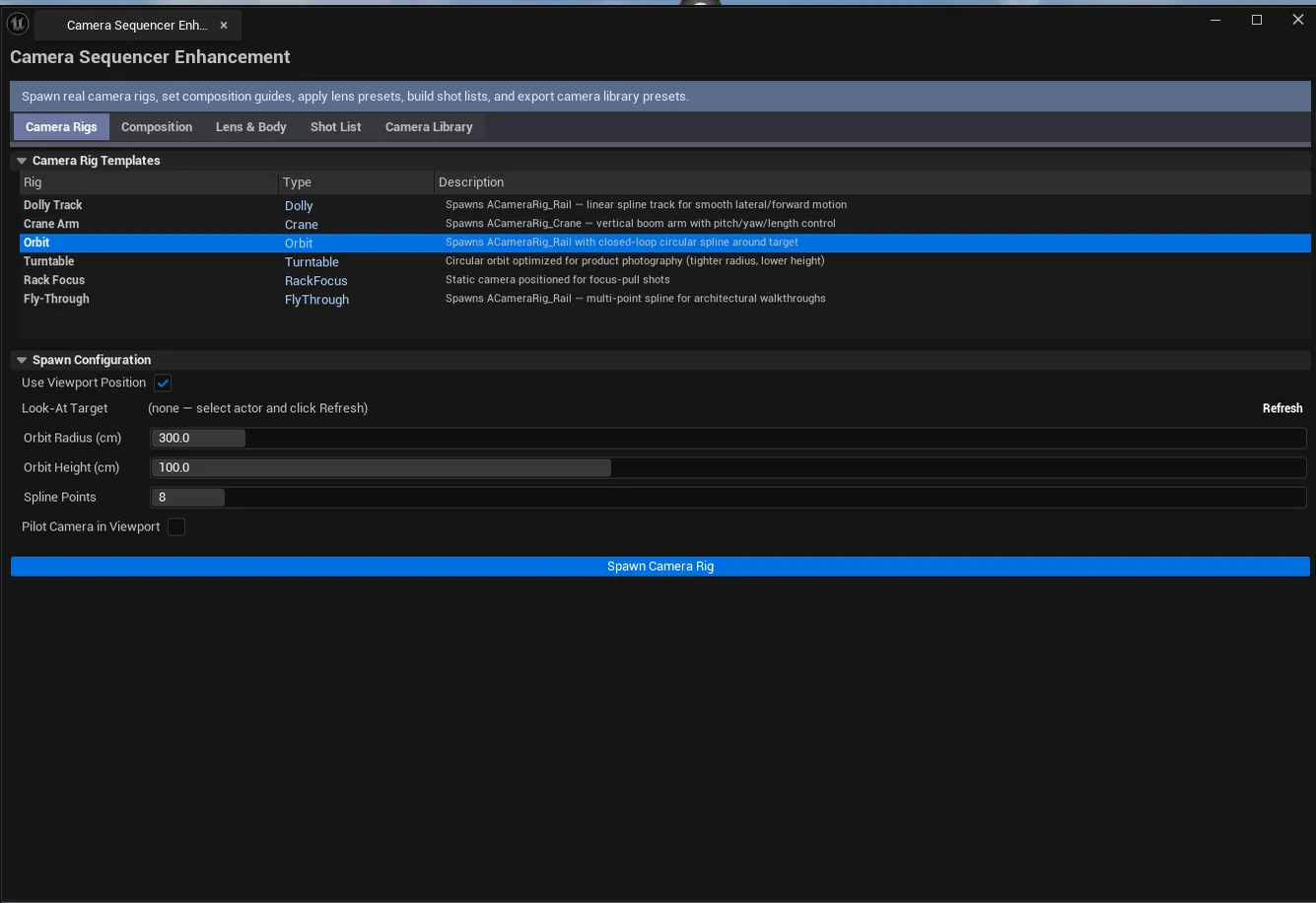
| Orbit | Multi-camera circular rail with N evenly-spaced positions |
| Turntable | Single-camera circular rail for 360° rotation |
| Rack Focus | Static camera with focus pull setup |
| Fly-Through | Linear path with smooth ease-in/out |
| Static | Fixed-position cinematic camera |
Spawn config
Section titled “Spawn config”- Use Viewport Position. Spawn at viewport camera location.
- Manual Spawn Location. Explicit XYZ.
- Target Actor. Auto-look-at a specific actor.
- Pilot After Spawn. Toggle viewport piloting after spawn.
- Rig-specific params. Crane arm length / pitch, rail length, orbit radius / height / camera count.
Tab 2: Composition Guides
Section titled “Tab 2: Composition Guides”Real-time viewport overlays.
| Toggle | What it overlays |
|---|---|
| Rule of Thirds | 3×3 grid |
| Golden Ratio | Phi-spiral grid |
| Center Cross | Center crosshair |
| Safe Zones | Action / title safe zones |
| Aspect Ratio | 16:9 / 21:9 / 2.35:1 / 4:3 / Square / Custom |
| Apply Aspect Ratio | Constrains viewport to the selected aspect |
Overlays draw via UCanvas HUD callbacks during play / Sequencer preview.
Tab 3: Lens & Body Presets
Section titled “Tab 3: Lens & Body Presets”Apply real-world cinema presets.
Lens presets
Section titled “Lens presets”24mm f/1.4, 35mm f/1.8, 50mm f/2.8, 85mm f/1.4, 100mm Macro f/2.8, 200mm f/4, etc.
Body presets
Section titled “Body presets”ARRI Alexa Mini, RED Komodo 6K, Canon C300, Sony Venice, RED Helium, etc. Each preset configures sensor width/height, ISO range, and shutter angle.
Workflow
Section titled “Workflow”- Select a CineCameraActor in the level.
- Pick a lens preset, click Apply Lens.
- Pick a body preset, click Apply Body & Lens.
- Toggle DOF Preview to see depth of field in the viewport.
Tab 4: Shot List & Turntable
Section titled “Tab 4: Shot List & Turntable”Shot list
Section titled “Shot list”| Section | What it does |
|---|---|
| New Shot Name + Duration | Adds a shot to the list |
| Camera assignment | Pick a camera from the level for each shot |
| Reorder | Move shots up/down |
| Generate Camera Cuts | Creates a LevelSequence with camera cuts for the shot list |
Turntable
Section titled “Turntable”| Section | What it does | Default |
|---|---|---|
| Duration | Total turntable seconds | 10.0 |
| Radius | Distance from target | 400.0 |
| Height | Vertical offset | 150.0 |
| Axis | Y / X / Z | Y |
| Create Turntable | Spawns a circular rail rig + LevelSequence |
Tab 5: Camera Library
Section titled “Tab 5: Camera Library”JSON-backed database of lens + body presets.
| Section | What it does |
|---|---|
| Library list | All lens + body entries |
| Selected entry detail | Shows full specs for the selected entry |
| Apply to Selected Cameras | One-click apply |
| Export Preset JSON / Import Preset JSON | Share preset libraries with the team |
Settings reference
Section titled “Settings reference”Per-tab settings persist to [Project]/Saved/EQLabs/Settings/CameraSequencerEnhancement.json.
Output
Section titled “Output”- Spawned actors.
ACameraRig_*+ACineCameraActorinstances in the level. - LevelSequence.
Generate Camera CutsandCreate Turntableproduce realULevelSequenceassets. - JSON files. Exported presets via Camera Library tab.
Tips and gotchas
Section titled “Tips and gotchas”- Composition overlays only render during play / Sequencer preview. They’re HUD-based, not editor-window draws.
- Lens DOF preview can be performance-heavy. Toggle off when not actively framing.
- Shot list works best with real camera actors in the level. Assign cameras explicitly per shot.
- Turntable spawns its own circular rail rig. Separate from anything you did in Camera Rig Templates.
Related tools
Section titled “Related tools”- Sequencer Shot Validator — validate the LevelSequences this tool generates
- LUT Color Grading Baker — apply color grading to cinematic shots
- OTIO-Sequencer Bridge — exchange edits with editorial software
Opens our feedback form in a new tab with the tool name pre-filled.