
No. 1014 AN AnimationEQLabs Pro
Montage Section Builder
Module: Animation · Category: Montage · Tool ID:
MontageSectionBuilder
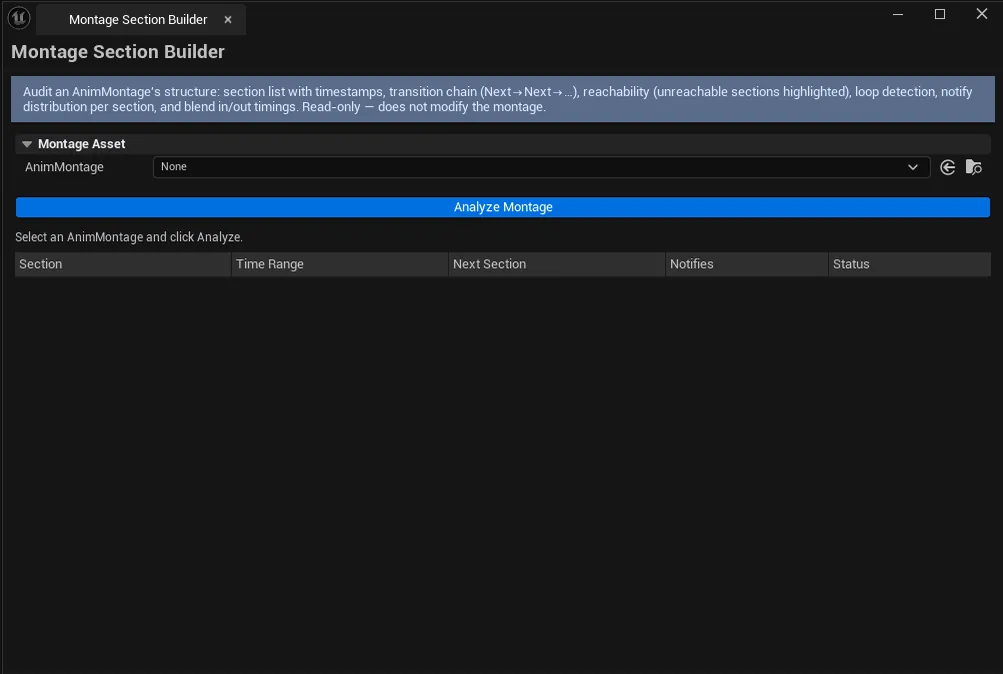
Loads any AnimMontage asset and surfaces the structure that gameplay code actually depends on: every section’s start/end time, the next-section link chain, slot/group routing, blend-in/out settings, and notify events per section. Flags broken links, overlapping sections, and sections that can never be reached from the start.
When to use it
Section titled “When to use it”- Building combo or multi-stage ability montages: verifying the chain actually loops/branches the way you wrote it
- Debugging “a section never plays” bugs: usually a typo in
Next Section - Reviewing montages from a teammate before they merge to main
- Spot-checking blend-in/out times for consistency across an animation set
What it isn’t for
Section titled “What it isn’t for”- Don’t use this to edit montages. It’s read-only; section editing lives in UE’s Montage editor.
- Don’t expect playback. The tool inspects the data, it doesn’t preview playback.
Opening the tool
Section titled “Opening the tool”- Open the EQLabs Hub and search for Montage (or browse to Animation → Montage).
- Click the tool card.
- Drop an AnimMontage asset into the picker field.
Interface tour
Section titled “Interface tour”| Section | What it does |
|---|---|
| Montage Asset picker | Load any UAnimMontage |
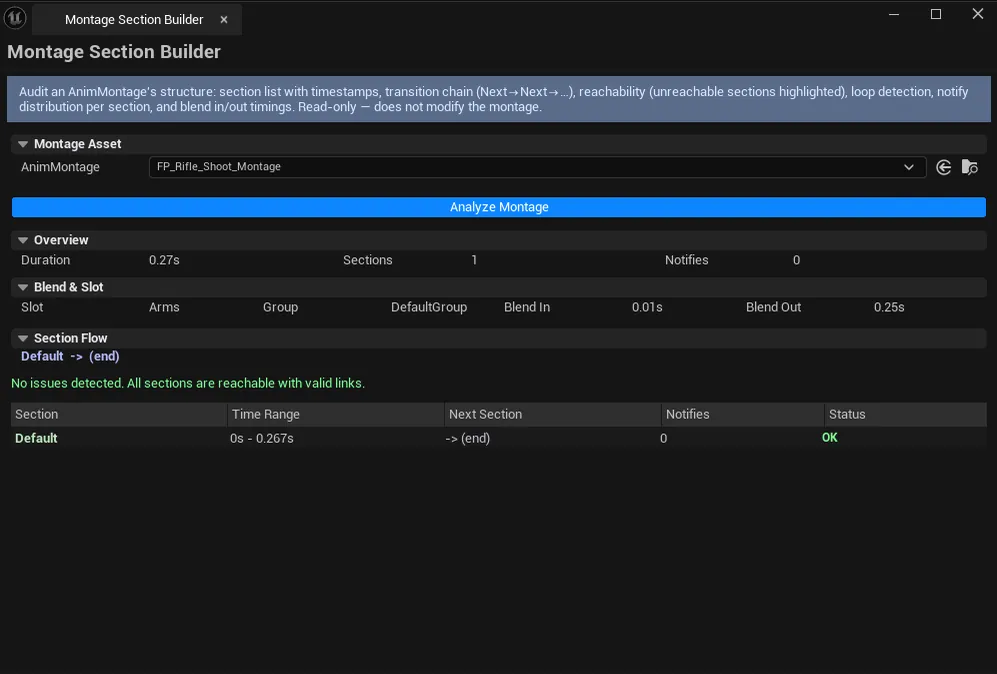
| Info block | Slot, Group, Blend In, Blend Out, total duration, total notify count |
| Section Chain block | Linear text rendering of the link chain — e.g., Start → Loop → End |
| Issues block | Broken links, overlapping sections, unreachable sections |
| Section list | Per-section row: name, start/end time, next-section link, notify count, reachability |
What gets flagged
Section titled “What gets flagged”| Flag | Meaning |
|---|---|
| Broken Link | A section’s Next Section points to a name that doesn’t exist on the montage |
| Unreachable | Section is not connected to any chain starting from the entry section |
| Overlap | Two sections occupy overlapping time ranges (rarely intentional) |
Workflow
Section titled “Workflow”Step 1: Load the montage
Section titled “Step 1: Load the montage”Drop the AnimMontage into the picker. Sections list populates automatically.
Step 2: Read the chain
Section titled “Step 2: Read the chain”The Section Chain block renders the link order as plain text. Confirm the flow matches what you intended (e.g., a 3-hit combo should chain Hit1 → Hit2 → Hit3 with Hit3 not chaining anywhere).
Step 3: Spot the flags
Section titled “Step 3: Spot the flags”Walk the Issues block first. Broken links are almost always bugs; unreachable sections are usually leftovers from refactoring.
Step 4: Inspect notifies
Section titled “Step 4: Inspect notifies”The notify count column tells you which sections have events. A section with no notifies driving gameplay events may be missing its trigger.
Settings reference
Section titled “Settings reference”No persisted settings — operates on whichever montage you load.
Output
Section titled “Output”- In-panel display only. Read-only against the source asset.
- No clipboard export in V1 — copy chain manually if needed
Tips and gotchas
Section titled “Tips and gotchas”- The chain is computed from
Next Sectionproperties. If you author montages by hand-editing properties (rare), make sure the names match exactly (case-sensitive). - An “unreachable” section can be intentional. Sometimes you want a manual-only section that gameplay code triggers via name. Read the warning, decide.
- Section overlap is almost never intentional. Overlapping sections cause undefined playback behavior.
Related tools
Section titled “Related tools”- Anim Notify Manager — broader notify analysis across all montages and sequences
- Animation Auditor — Blueprint tab catches the AnimBP that triggers the montage
Opens our feedback form in a new tab with the tool name pre-filled.