
No. 0693 DE DesignEQLabs Pro
Blockout Lab
Type: Custom Asset Editor (Pattern B) · Asset class:
UBlockoutLayout· Category: Labs
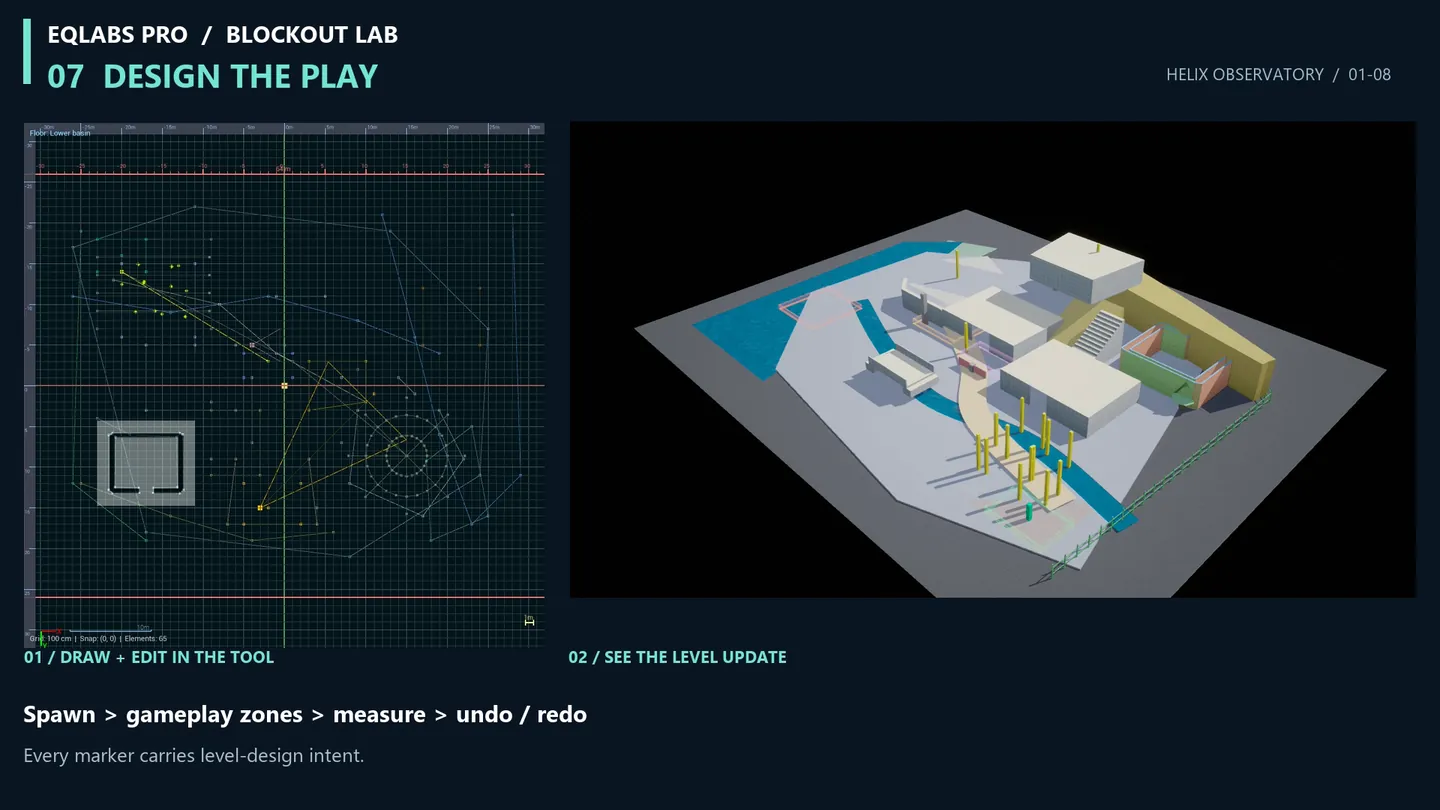
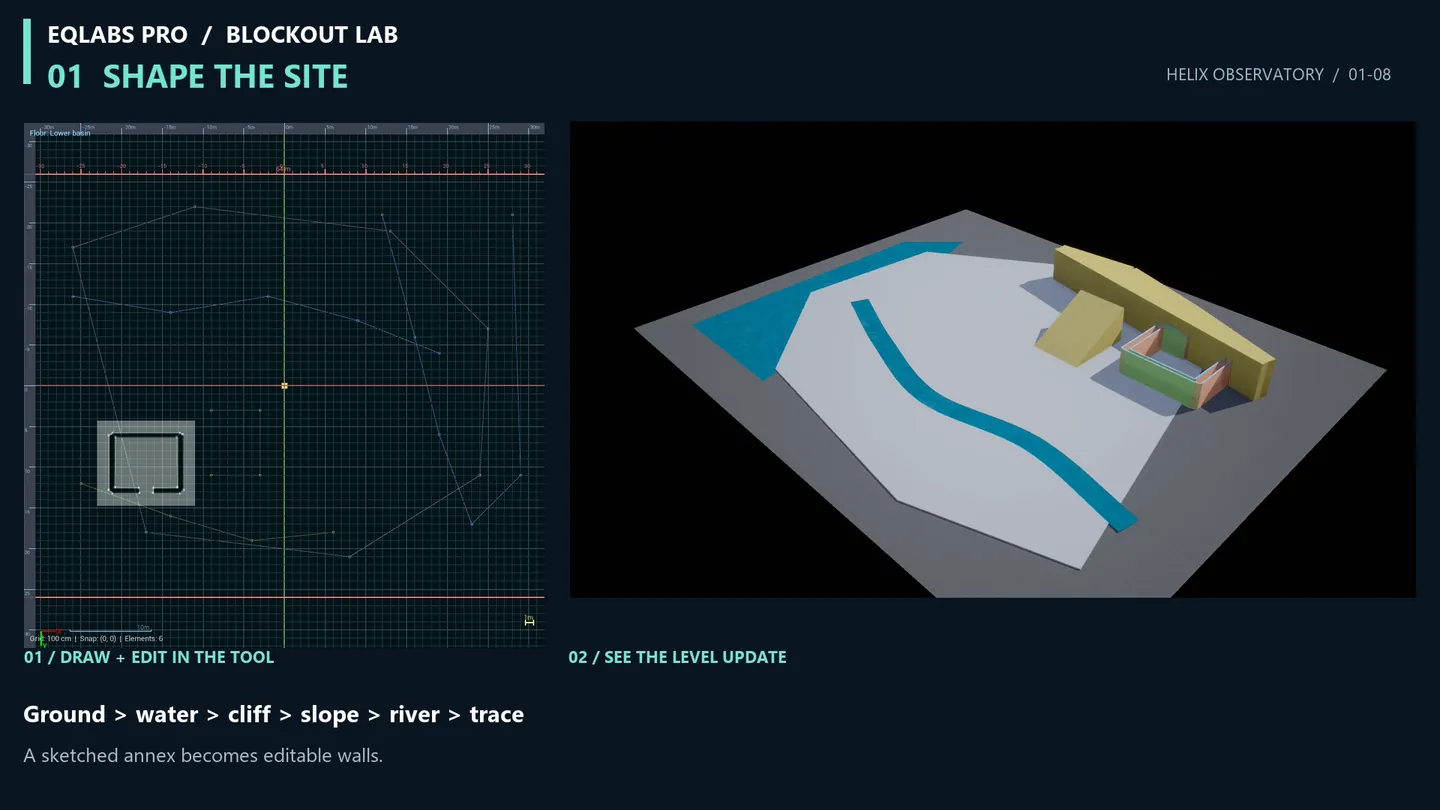
A complete in-engine level blockout editor. Draw layouts on a top-down 2D canvas; the 3D preview extrudes geometry in real time; one click exports the whole layout as named, collision-ready actors in your level. 26 element types cover walls, terrain, water, navigation, cover, zones, gameplay markers, and annotations. Multi-story support with staircase connectors. Procedural scatter zones drive weighted mesh distributions through three pattern algorithms. Auto-Connect Paths runs Prim’s MST across selected points. Roll Layout reseeds every procedural element with one button. JSON preset library persists scatter recipes across projects. The asset is a real .uasset with version-tagged serialization that survives the full production lifecycle.
When to use it
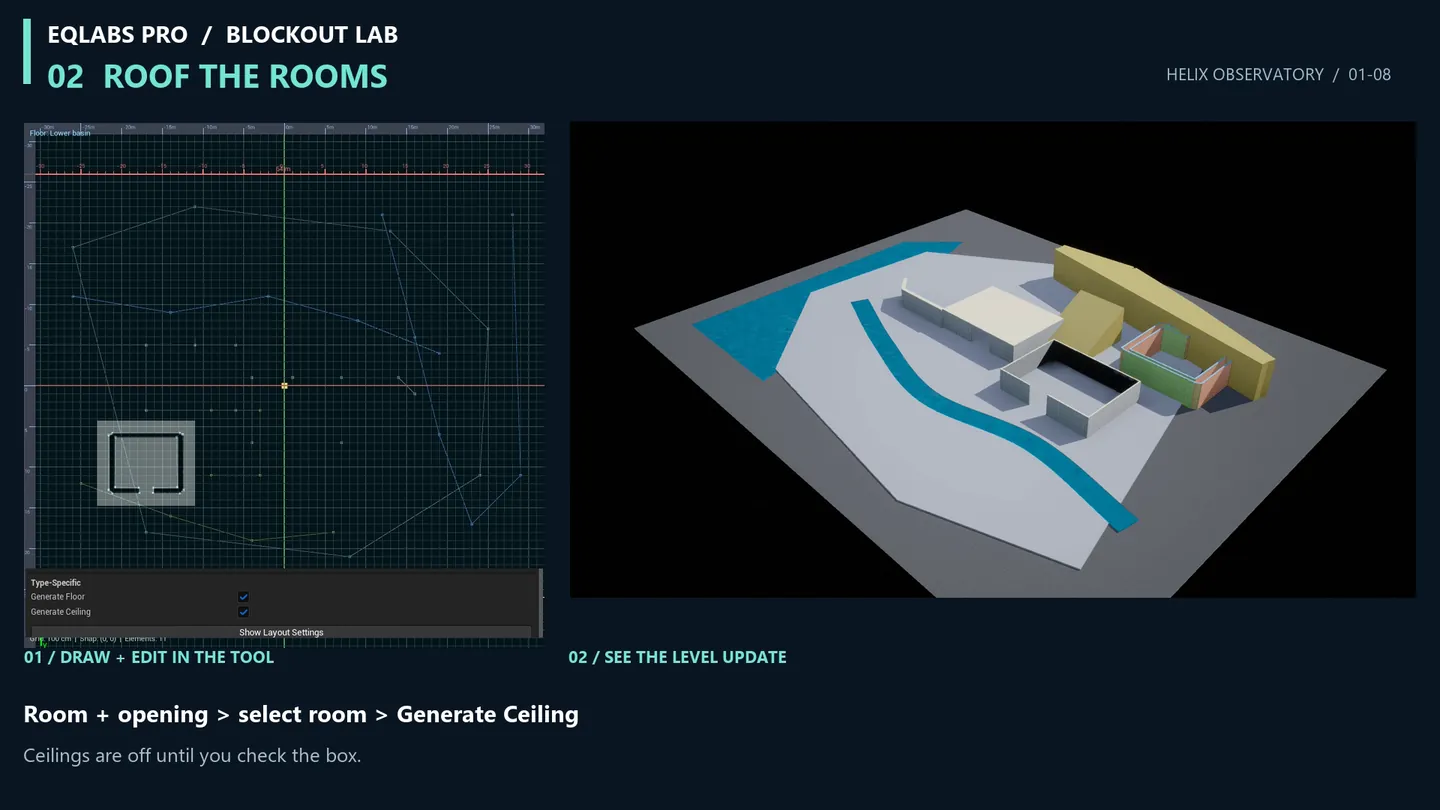
Section titled “When to use it”- Pre-production layout passes. Design level flow entirely in 2D before committing to final geometry, with player-capsule and door-frame overlays for scale validation.
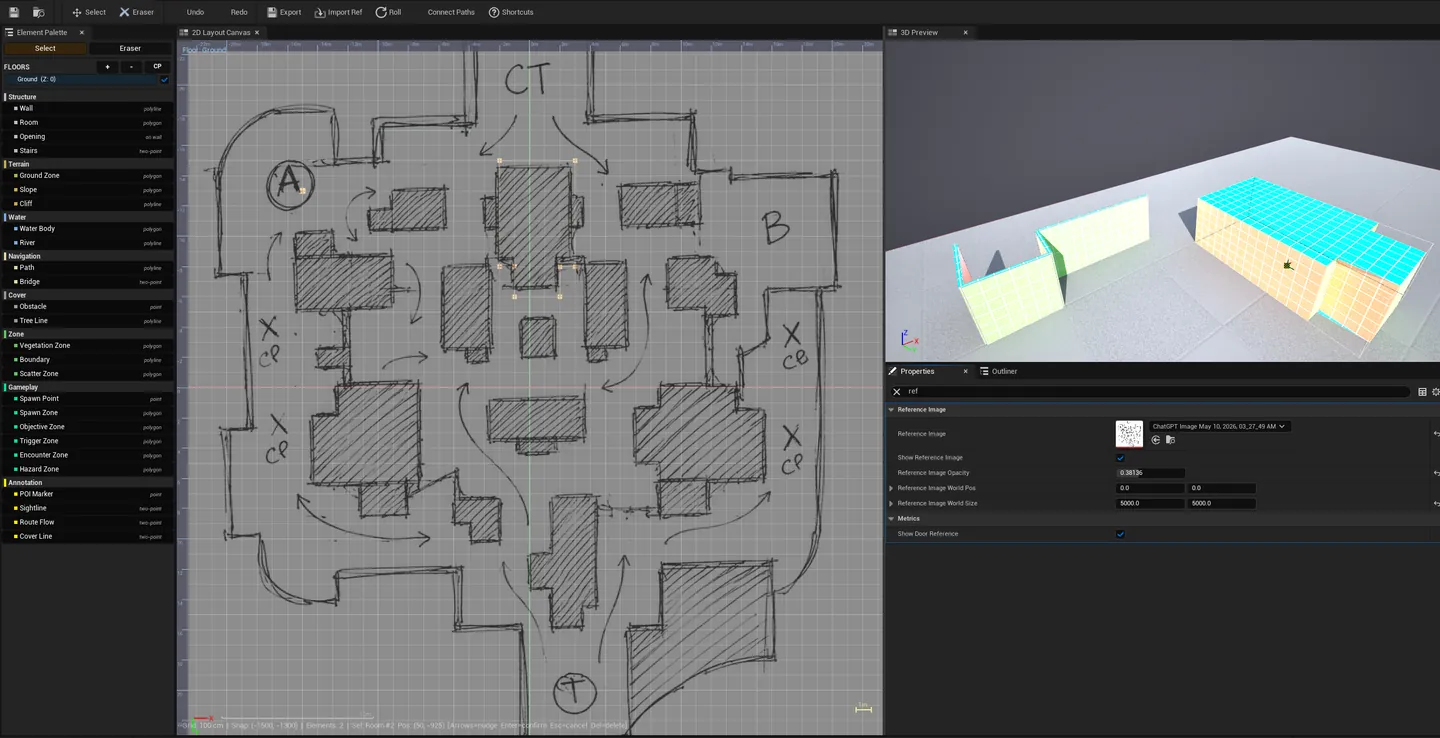
- Floorplan-driven design. Import a reference floorplan PNG, threshold + auto-trace walls (V2), iterate in 3D from a real-world basis.
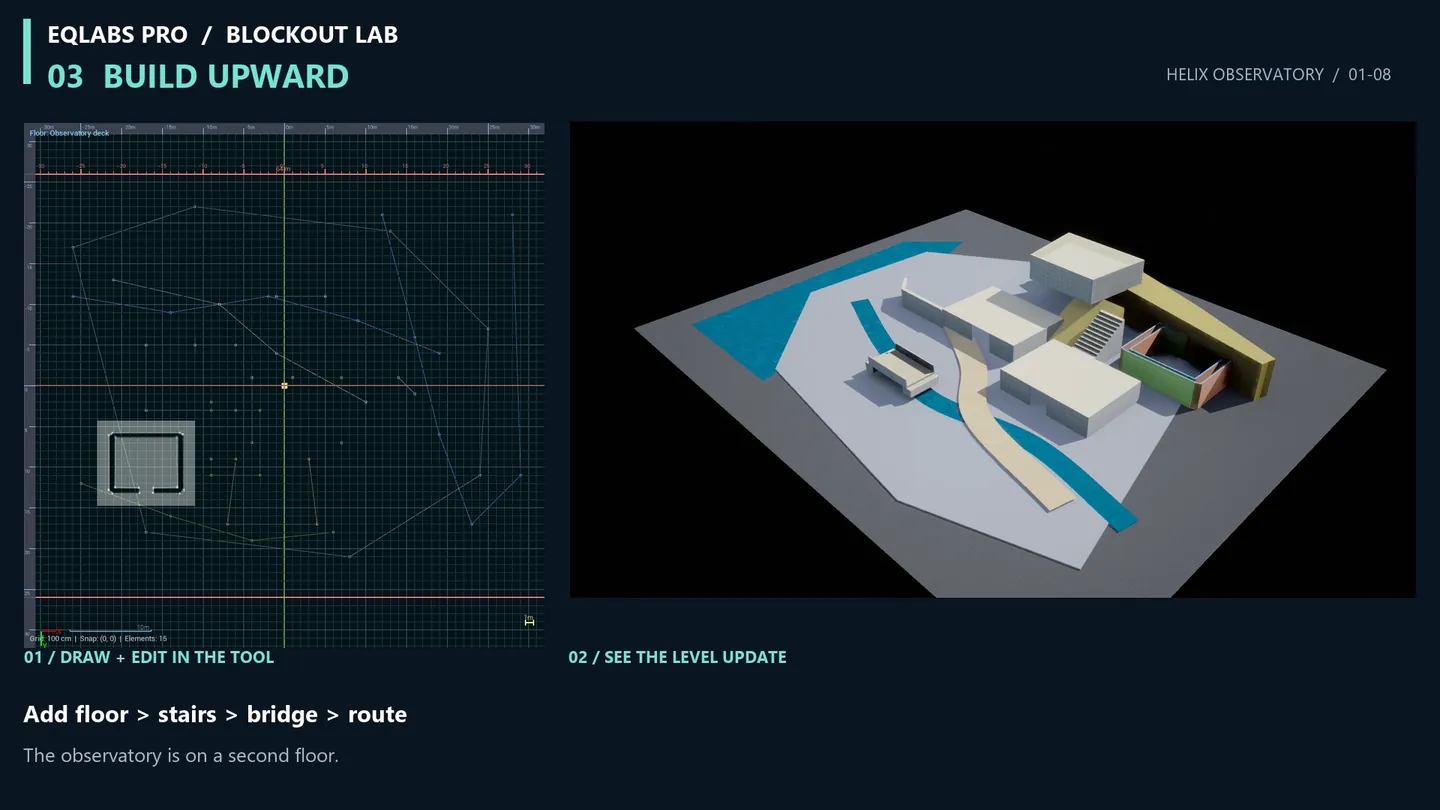
- Multi-story building blockouts. Stack floors with correct stair connectors, per-floor visibility, and accurate per-story height controls.
- Combat encounter prototyping. Block in cover positions, sightlines, elevation changes, and gameplay zones (spawn / objective / trigger / hazard) before any art pass.
- Procedural scatter setup. Define ScatterZones, attach weighted
UBlockoutAssetSetmesh distributions, roll the layout to generate variation iterations. - Level art handoff. Deliver clean, named, collision-ready blockout actors to environment artists with the source
.uassetpreserved for design reference.
What it isn’t for
Section titled “What it isn’t for”- Don’t expect optimized final geometry. Exported meshes are blockout-grade (placeholder grid materials, basic triangulation). They’re meant to be replaced by hand-modeled assets at the end of blockout.
- Don’t use it for organic terrain sculpting. Blockout Lab handles flat zones, slopes, and cliffs. For sculpted terrain, use Landscape.
- Don’t use it for World Partition cell layout. It places actors in the active level. WP sub-levels need the relevant cell loaded before exporting.
- Concave room polygons may extrude with reflex-angle artifacts. V1 uses a simple inward-extrude algorithm. Workaround: split concave rooms into convex pieces; ear-clipping triangulation is a V2 addition.
Creating the asset
Section titled “Creating the asset”From the Content Browser:
- Right-click in the Content Browser.
- Pick EQLabs → Blockout Lab → Blockout Layout.
- Name it; double-click to open.
From the EQLabs Hub:
- Open Window → EQLabs Hub.
- Search
Blockoutor browse to Design → Level Design. - Click the Blockout Lab tile — pick Create New or open from the recent layouts list.
There’s a second asset type — Blockout Asset Set — created the same way (EQLabs → Blockout Lab → Blockout Asset Set). It’s a UDataAsset holding a weighted list of static meshes used by ScatterZone / VegetationZone elements.
Editor layout
Section titled “Editor layout”Toolbar (top)
Section titled “Toolbar (top)”| Control | What it does |
|---|---|
| Drawing Mode | Polygon / Polyline / WallPoint / TwoPoint / Point / Select / Eraser |
| Element Type | Picks the active element (Wall / Room / River / etc.) |
| Grid Snap | 25 / 50 / 100 / 200 / 500 cm |
| Roll Layout | Reseeds every Cliff + ScatterZone with new procedural seeds (single undo) |
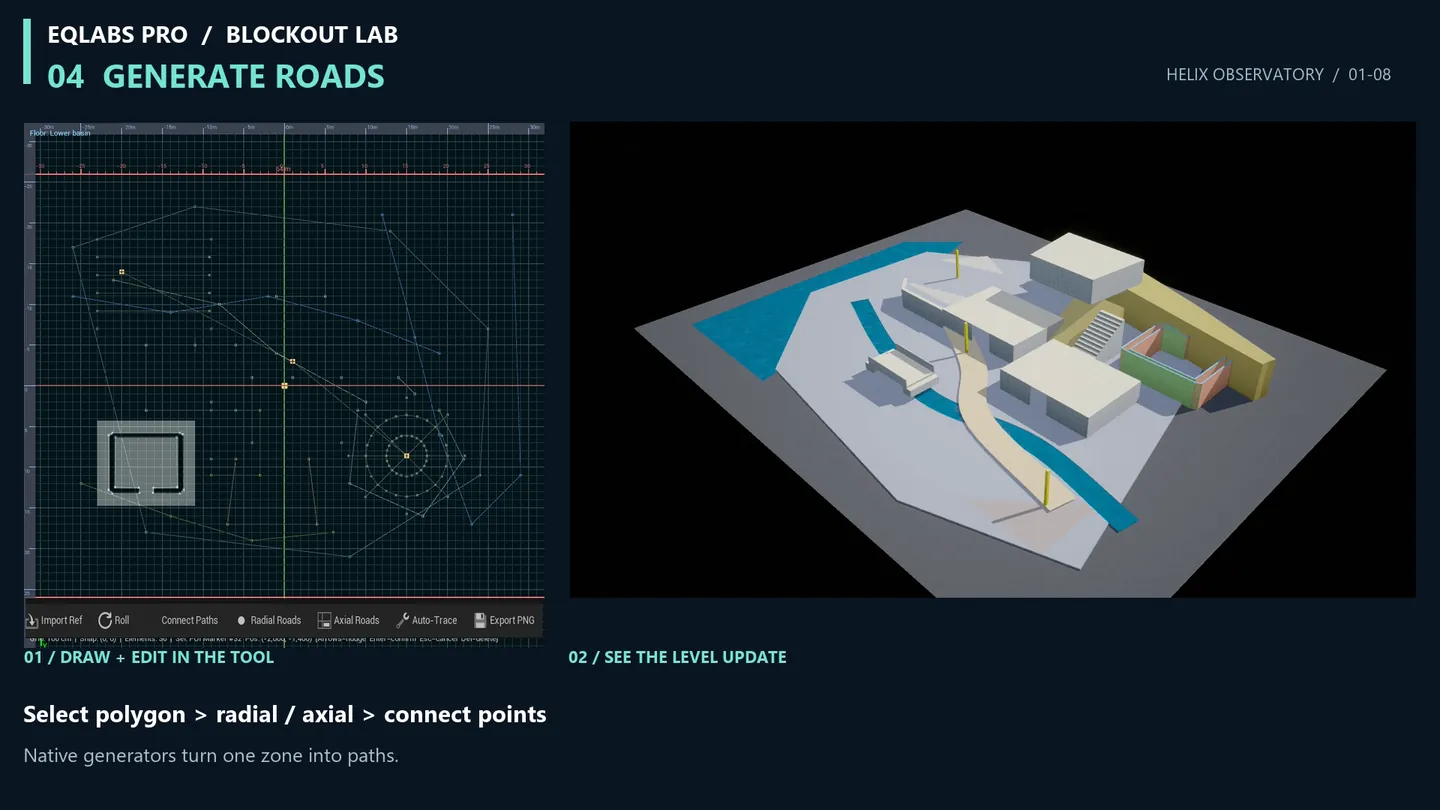
| Auto-Connect Paths | Builds Prim’s MST across selected POIMarker / SpawnPoint / Obstacle elements (one Path per edge) |
| Generate Scatter Children | (Re)runs scatter algorithm on selected ScatterZone(s) |
| Export to Level | One-click level export |
| Undo / Redo | Standard Ctrl+Z / Ctrl+Y |
Element Palette (left)
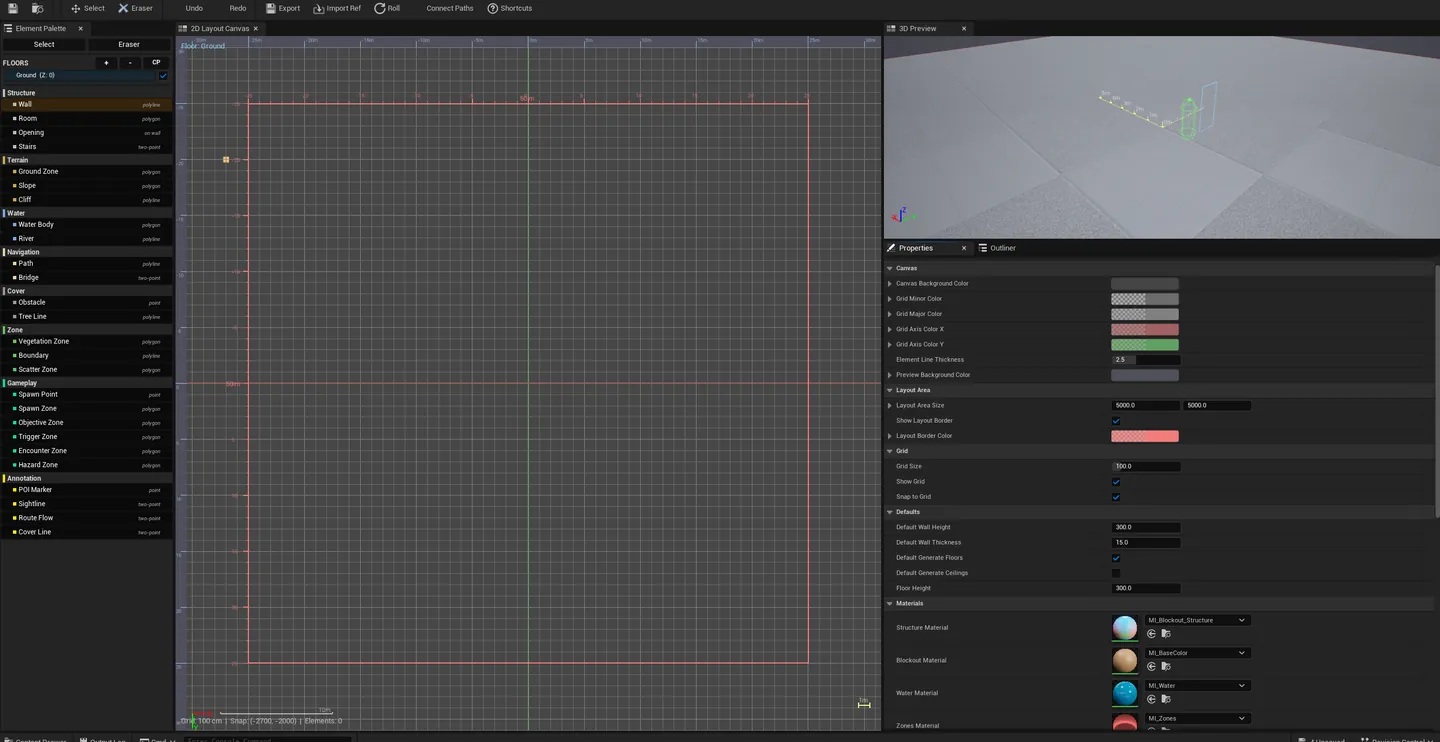
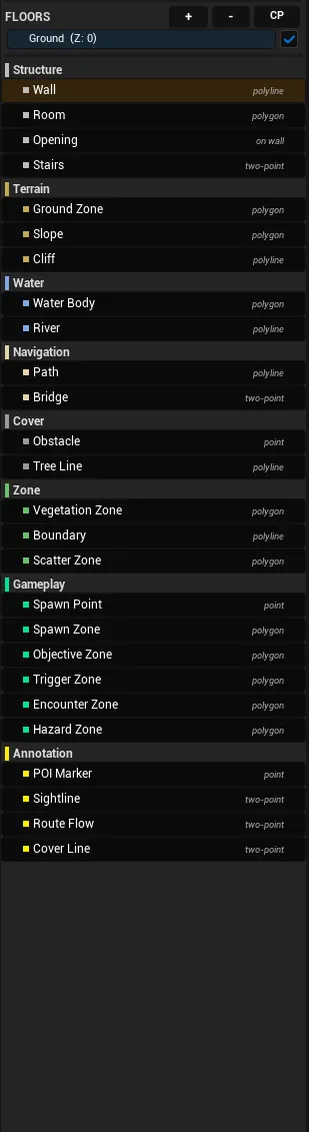
Section titled “Element Palette (left)”Categorized list of all 26 element types. Click an entry to set it as the active element type. Categories are color-coded for quick visual scan.
2D Canvas (center-left)
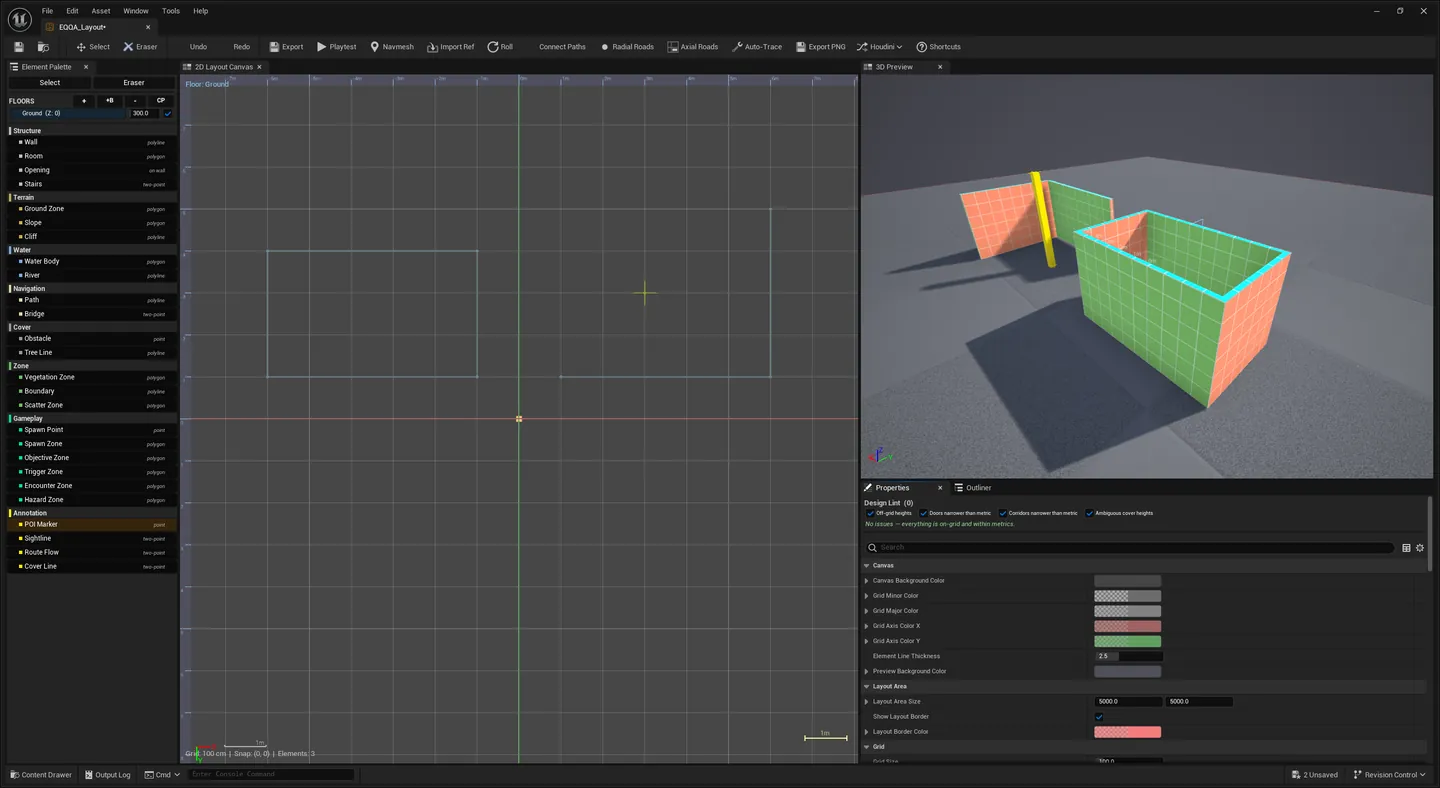
Section titled “2D Canvas (center-left)”Orthographic top-down drawing surface. Active grid snap is visible. All placed elements are color-coded by type. Live overlays:
- Player capsule outline at any clicked location for scale reference
- Door frame height guide on selected wall segments
- World-scale ruler showing the current view size in centimeters
Drag to pan, scroll to zoom. Single-click selects, drag-select for box selection. Whole-row selection in the Outliner mirrors canvas selection (and vice versa).
3D Preview (center-right)
Section titled “3D Preview (center-right)”Live perspective viewport of the same layout, extruded. Updates instantly as you draw. Camera orbit / zoom / pan supported. Per-floor visibility toggles isolate single stories during review.
Properties (right: top)
Section titled “Properties (right: top)”Per-element property panel for the currently-selected element:
| Section | Fields |
|---|---|
| Common | Label, Color, Height, Width, Elevation, FloorIndex, Pivot |
| Type-specific | Slope’s LowEdgeStart/End indices, Stairs’ step count, Cliff’s Closed toggle + style (Jagged / Stepped / Smooth), Bridge’s deck/abutment params, Sightline’s cone toggle, etc. |
| Procedural | ProceduralSeed, DensityFalloff, bPinnedForProcgen (gates whether scatter rerolls touch this element) |
| Scatter (ScatterZone only) | ScatterPattern (Scatter / Mandala / Cluster), ScatterCount, ZoneAssetSet (weighted mesh distribution) |
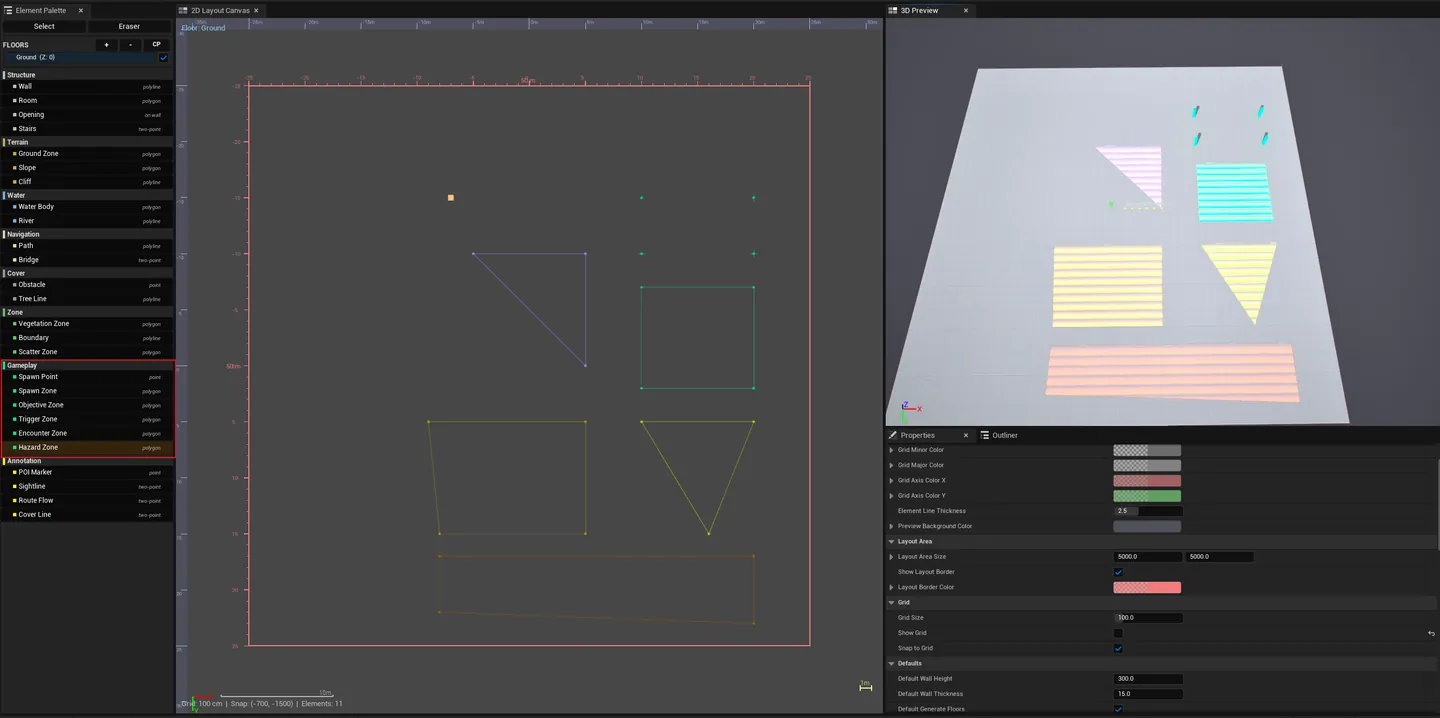
| Material (Gameplay zones only) | ZoneOpacity, ZoneWidth, ZoneMultiplier, ZoneSpeed, ZoneDirection — drives the animated MI_Zones material |
Outliner / Floor Manager (right: bottom)
Section titled “Outliner / Floor Manager (right: bottom)”Hierarchical view of every element in the layout, grouped by floor. Click a row to select the corresponding canvas + 3D-preview element. Floor Manager controls add / remove floors, set per-floor base height + ceiling height, and toggle floor visibility.
Export Settings panel
Section titled “Export Settings panel”| Field | Default |
|---|---|
| Output Folder | /Game/Blockout/ |
| Actor Name Prefix | Blockout_ |
| Mesh LOD | None (blockout) |
| Collision Preset | BlockAll |
| Clear Previous Export | false |
Element types (26 across 8 categories)
Section titled “Element types (26 across 8 categories)”| Category | Elements | Drawing mode |
|---|---|---|
| Structure | Wall, Room, Opening, Stairs | Polyline / Polygon / WallPoint / TwoPoint |
| Terrain | GroundZone, Slope, Cliff | Polygon / Polygon / Polyline |
| Water | WaterBody, River | Polygon / Polyline |
| Navigation | Path, Bridge | Polyline / TwoPoint |
| Cover | Obstacle, TreeLine | Point / Polyline |
| Zone | VegetationZone, Boundary, ScatterZone | Polygon |
| Annotation | POIMarker, Sightline, RouteFlow, CoverLine | Point / Polyline |
| Gameplay | SpawnPoint, SpawnZone, ObjectiveZone, TriggerZone, EncounterZone, HazardZone | Point / Polygon (zones) |
Notable element behaviors
Section titled “Notable element behaviors”- Wall (Polyline) — extruded box per segment, opening cutouts split walls cleanly
- Room (Polygon) — polygon defines the outer edge; walls extrude inward by
Width(default 15 cm). Centroid heuristic picks inward direction - Opening (WallPoint) — cutout-only; references parent Wall / Room via
ParentWallId. Doesn’t export as a separate actor - Stairs (TwoPoint) — N stepped boxes ascending; height from
Elem.Heightor derived from target floor - Slope (Polygon) — tilted ramp using
SlopeLowEdgeStart/EndIdx(defaults 0/1 on creation) - Cliff (Polyline) —
bCliffClosedtoggle: closed = plateau (loop walls + interior cap), open = linear strip withCliffStyle(Jagged / Stepped / Smooth) using procedural seed for variation - River / Path (Polyline) — Catmull-Rom smoothed mitered ribbon; River uses water material at water Z, Path uses
MI_BaseColoratBaseZ + 2cm - Bridge (TwoPoint) — parametric: deck (top slab) + 2 abutments + 2 railings, structure-grid material
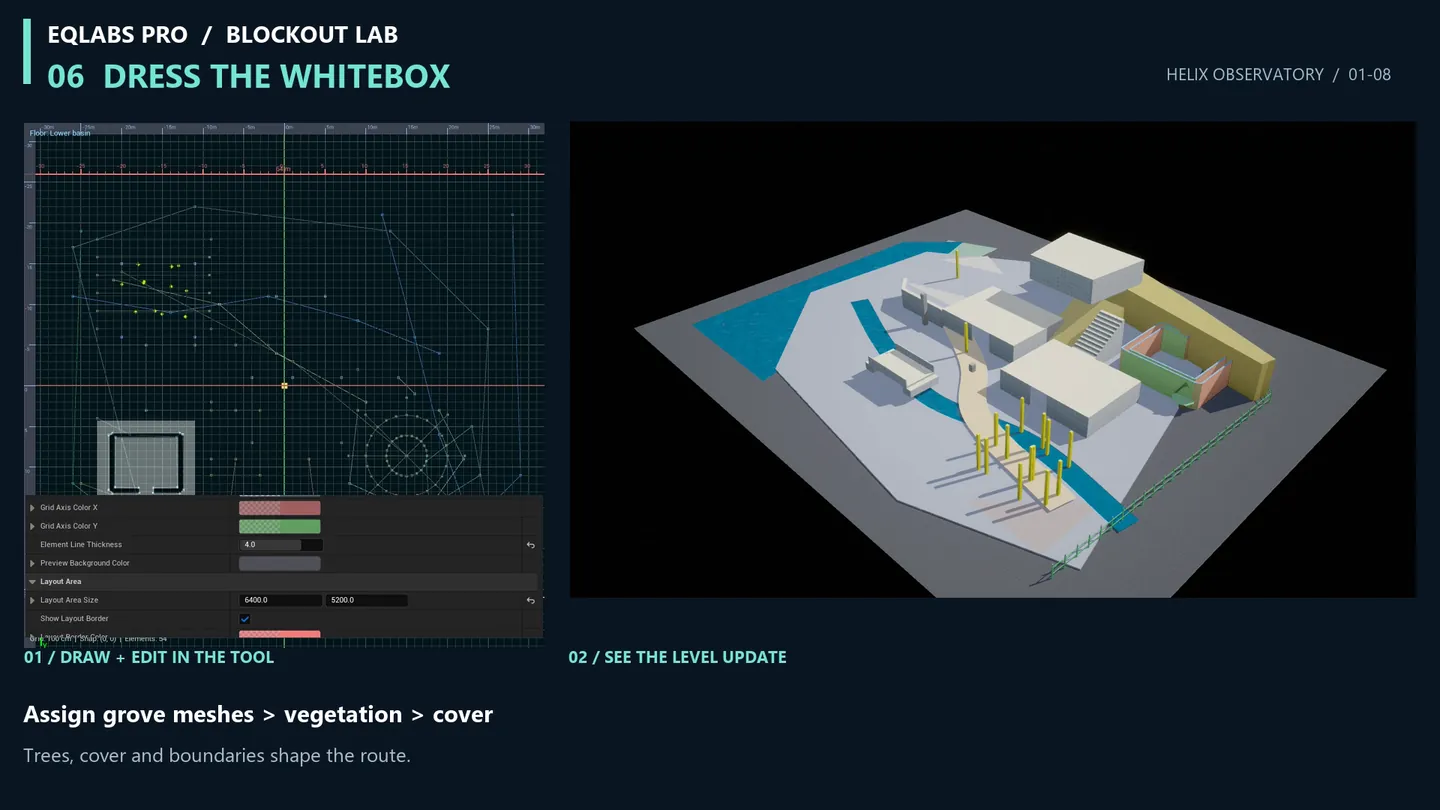
- TreeLine (Polyline) — distributed cylinder-trunk + cone-crown trees along the polyline (two material slots: trunk brown / crown green); honors
IsProceduralPointAllowed(skips trees in HazardZones) - Boundary (Polyline) —
BoundaryTypeenum:MinimalistWall(default, thin solid) orWoodenFence(posts + 2 horizontal rails) - Annotation elements. Exported as
USplineComponentactors pivoted atPoints[0]so the gizmo lands on the corner.
Multi-story / floor management
Section titled “Multi-story / floor management”Each FBlockoutFloor stores:
- Base Height. World Z offset.
- Ceiling Height. Clearance above base.
- Visibility. Toggle isolates one floor in the 2D canvas + 3D preview.
Stairs elements span between floors — TargetFloor resolves the upper floor’s base height for automatic step generation. Per-floor visibility lets you draw on one story at a time without clutter from others.
Procedural scatter system
Section titled “Procedural scatter system”ScatterZone (Polygon, Zone category)
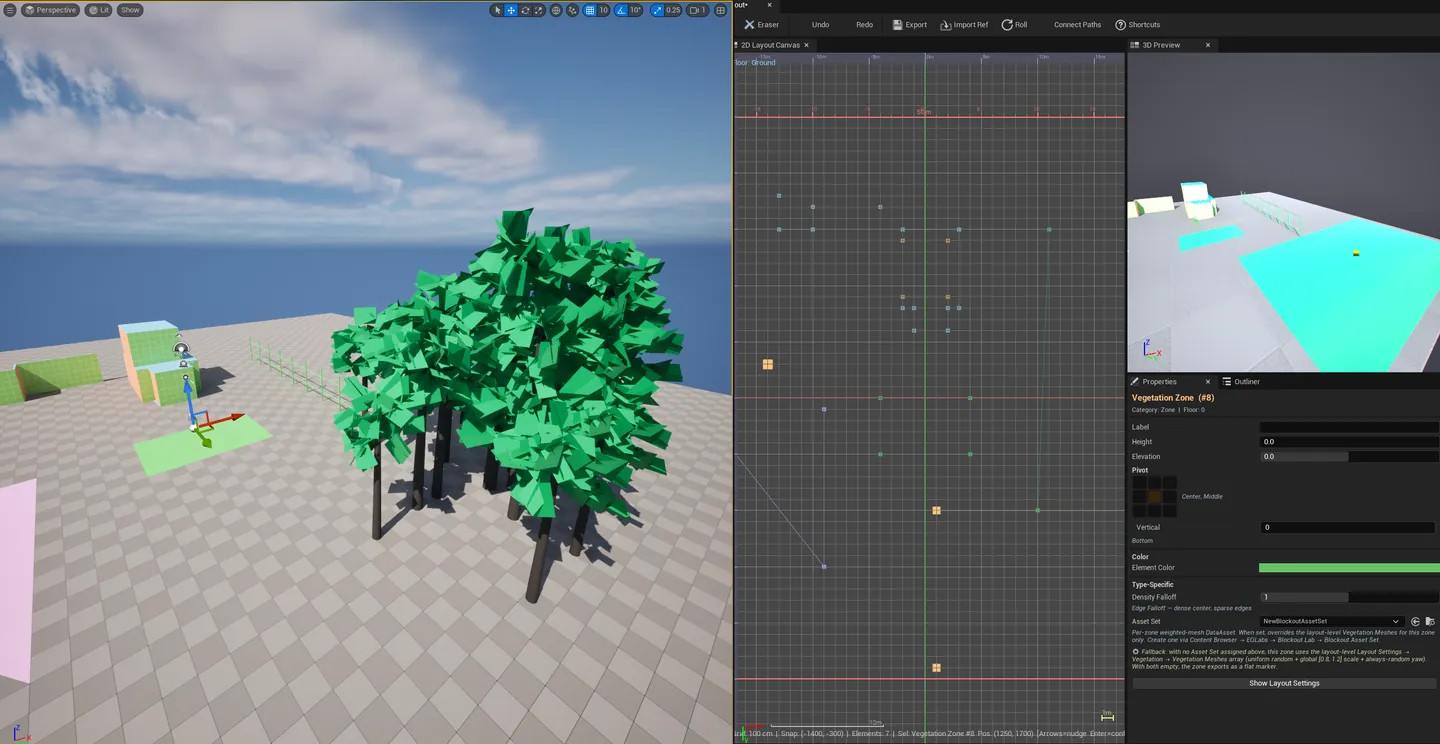
Section titled “ScatterZone (Polygon, Zone category)”A polygon zone that procedurally distributes children using one of three pattern algorithms:
| Pattern | Algorithm | Look |
|---|---|---|
| Scatter | Bridson Poisson-disc | Well-spaced, no clumping — ideal for trees, debris |
| Mandala | Concentric rings around centroid | sqrt(N×0.8) rings, perimeter-proportional slot count — formal, symmetrical |
| Cluster | Perlin noise rejection | Clumpy, biome-like — natural variation |
All patterns honor:
IsProceduralPointAllowed: skips HazardZones, respects closed Boundary inclusionGetProceduralDensityAt:DensityFalloffcurve weights distribution from centroid outward- Pinned anchors. Children with
bPinnedForProcgen=truesurvive rerolls; only algorithmic fills change.
UBlockoutAssetSet: weighted mesh distributions
Section titled “UBlockoutAssetSet: weighted mesh distributions”A UDataAsset holding TArray<FBlockoutAssetEntry>. Each entry:
| Field | What it does |
|---|---|
| Mesh | TSoftObjectPtr<UStaticMesh> |
| Weight | Auto-normalized; relative likelihood of selection |
| MinScale / MaxScale | Per-entry random scale range |
| bRandomYaw | Per-instance yaw randomization toggle |
PickRandomEntry() runs an inverse-CDF weighted pick. Attach an asset set to a ScatterZone (ZoneAssetSet) and exporting builds a HISM (Hierarchical Instanced Static Mesh) actor with AddInstance per child position, using weighted picks + per-entry scale / yaw.
Resolution priority for scatter zones:
Elem.ZoneAssetSet(per-zone weighted distribution) — wins if set.Layout->VegetationMeshes(V6 fallback) — uniform random + global[0.8, 1.2]scale.- Empty → exports as flat POIMarkers only.
Roll Layout
Section titled “Roll Layout”Single toolbar button. Reseeds every Cliff + ScatterZone with new non-zero ProceduralSeed. Auto-regenerates each ScatterZone’s algorithmic children. One FScopedTransaction covers the whole roll — Ctrl+Z reverts the entire iteration. Cliffs use the seed for jagged / stepped variation; ScatterZones for child distribution and HISM-instance variation.
Auto-Connect Paths
Section titled “Auto-Connect Paths”Toolbar action that runs Prim’s MST across the currently-selected point-like elements (POIMarker / SpawnPoint / Obstacle). Emits one 2-point Path per edge. New paths inherit the first-selected node’s FloorIndex. Single transaction.
Scatter Preset Manager (JSON library)
Section titled “Scatter Preset Manager (JSON library)”Save / load scatter recipes as JSON files at [Project]/Saved/EQLabs/BlockoutScatterPresets/<Name>.json. Schema V1 captures pattern, count, density falloff curve, and the asset set reference (as FSoftObjectPath). Skips polygon points and procedural seed (recipes, not snapshots).
UI lives in the ScatterZone properties section: Save As input + Apply / Delete buttons + dropdown of saved presets. Filenames are sanitized to alphanumeric + dash / underscore / space.
Materials
Section titled “Materials”UBlockoutLayout ctor wires four default materials, picked per-element by category:
| Material | Used by | Per-element params |
|---|---|---|
MI_Blockout_Structure (StructureMaterial) | Wall / Room / Opening / Stairs / Bridge | FrontColor / RightColor / TopColor / TileX / TileY / TileSpacing |
MI_BaseColor (BlockoutMaterial) | Path / Obstacle / Cliff / Boundary / non-Gameplay zones | BaseColor (= Elem.Color) |
MI_Water (WaterMaterial) | River / WaterBody | (no per-element params) |
MI_Zones (ZonesMaterial) | 5 Gameplay polygon zones (Spawn / Objective / Trigger / Encounter / Hazard) | Color / Opacity / Width / Multiplier / Speed / Direction |
The MI_Zones material is animated — Direction is a 0-1 scalar driving panning angle, Speed controls animation rate, Width / Multiplier control pattern density. Each gameplay zone gets its own MID instance so per-zone params don’t bleed.
TreeLine has two extra material slots — TreeTrunkMaterial (brown) + TreeCrownMaterial (green), both MI_BaseColor with hardcoded BaseColor values.
Asset model: what’s stored
Section titled “Asset model: what’s stored”UBlockoutLayout serializes (V13 magic-numbered + version-tagged):
- Elements.
TArray<FBlockoutElement>with all per-element fields (geometry, type-specific params, procedural state, gameplay zone material params). - Floors.
TArray<FBlockoutFloor>with base + ceiling heights and visibility. - Reference image. Soft pointer to the imported floorplan.
- Materials. Soft pointers to the four defaults (overridable per asset).
- Vegetation Meshes. Fallback array for VegetationZone scatter.
- Canvas Settings. Zoom / pan / grid snap / layout area size.
- Scatter preset state
The format is forward-compatible append-only: pre-V6 saves still load; new fields default. Pattern proven through 8 incremental version bumps (V6 → V13).
Workflow
Section titled “Workflow”Drawing a single-floor layout
Section titled “Drawing a single-floor layout”- Open / create the layout asset.
- Pick a Drawing Mode (Polygon for rooms / terrain zones, WallPoint for walls, Polyline for paths / rivers).
- Pick an Element Type from the palette.
- Click on the canvas to place points; close polygons by clicking the first point or pressing
Enter. - Adjust the placed element’s
Height/Width/ etc. in the Properties panel.
 6. Repeat — the 3D Preview updates live.
Adding a second floor + stairs
Section titled “Adding a second floor + stairs”- Open the Floor Manager panel → Add Floor.
- Set the new floor’s base height and ceiling height.
- Use Floor Visibility to focus on one story while drawing.
- Add Stairs elements between floors — set
TargetFloorto the upper floor.
Driving procedural scatter
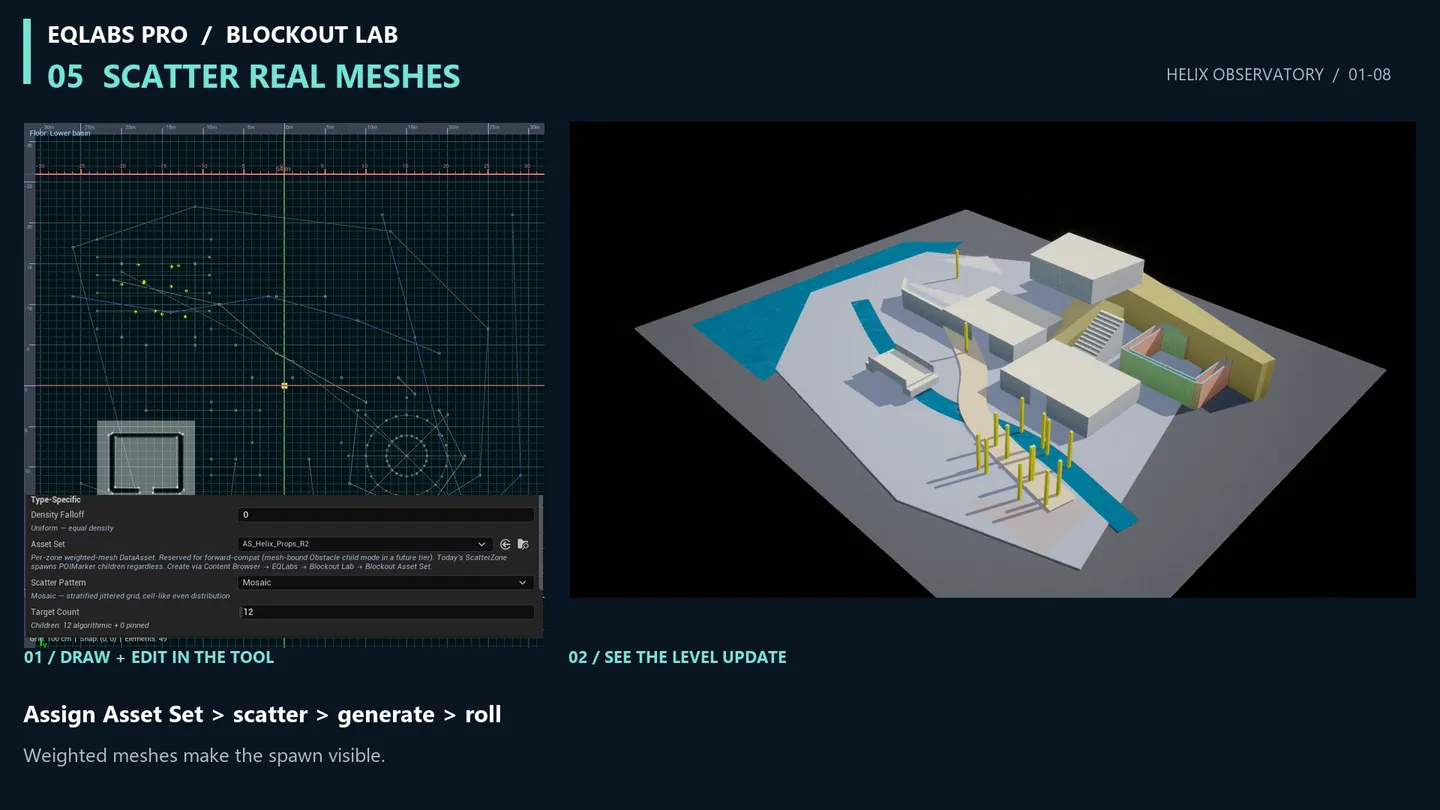
Section titled “Driving procedural scatter”- Draw a ScatterZone polygon.
- In Properties, set the ScatterPattern (Scatter / Mandala / Cluster) and ScatterCount.
- (Optional) Create a
UBlockoutAssetSetdata asset with weighted meshes; assign it to the ScatterZone’s ZoneAssetSet field. - Click Generate Scatter Children in the toolbar — children appear at scattered positions.
- Click Roll Layout to reseed and reroll variation iterations.
- Pin specific children (
bPinnedForProcgen = true) to lock them through future rolls.
Connecting points with the MST action
Section titled “Connecting points with the MST action”- Drag-select a group of POIMarker / SpawnPoint / Obstacle elements (3+).
- Click Auto-Connect Paths in the toolbar.
- The minimum spanning tree is built and emitted as Path elements.
- Edit the resulting paths individually as needed.
Saving a scatter recipe as a preset
Section titled “Saving a scatter recipe as a preset”- With a ScatterZone selected, configure pattern + count + density falloff + asset set.
- In the ScatterZone Properties section, type a preset name in Save As → click Save.
- The preset is written to
[Project]/Saved/EQLabs/BlockoutScatterPresets/<Name>.json. - Apply that preset to any other ScatterZone via the dropdown + Apply.
Exporting to a level
Section titled “Exporting to a level”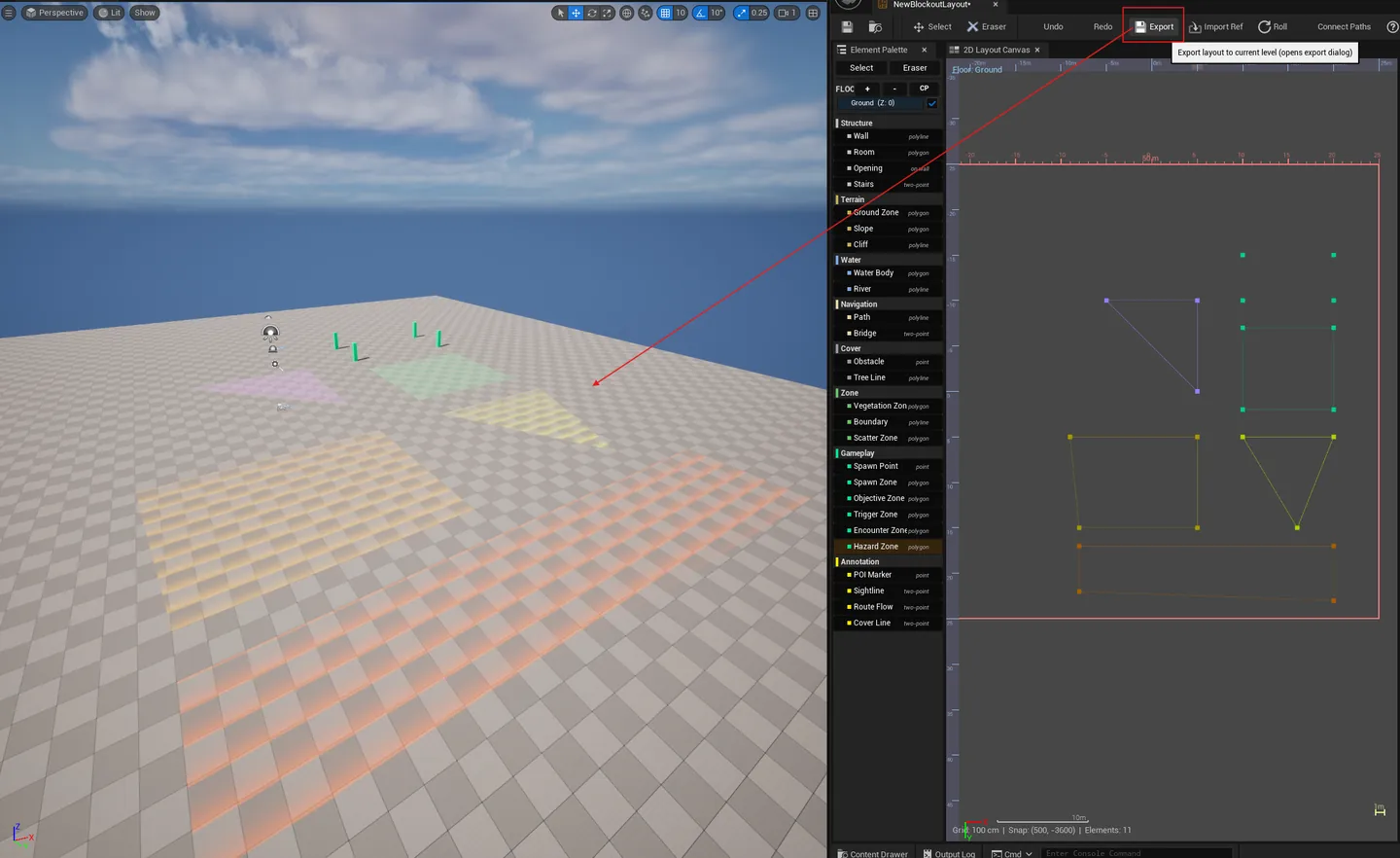
- Open the target level.
- Open the Export Settings panel — set output folder + actor name prefix.
- Click Export to Level.
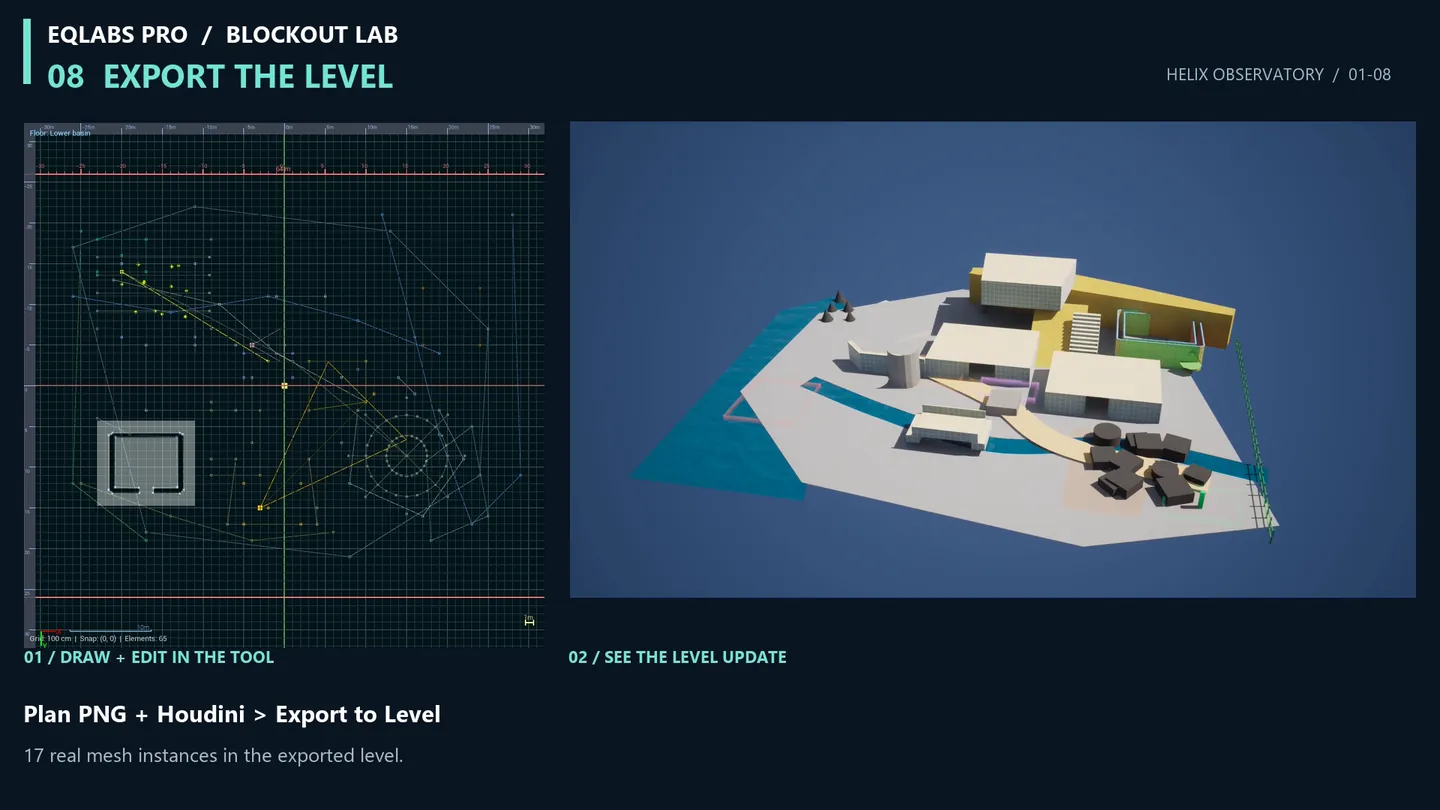
- Each element becomes a properly-named
AStaticMeshActor(orAActorfor annotations / HISM scatter), placed at the correct world transform with collision + materials applied. - (Optional) Toggle Clear Previous Export before re-exporting to dedupe stale
AStaticMeshActoractors.
Settings reference
Section titled “Settings reference”| Field | Default | Range / Type |
|---|---|---|
| Grid Snap | 100 cm | 25 / 50 / 100 / 200 / 500 |
| Default Wall Height | 300 cm | float |
| Default Extrusion Depth | 30 cm | float |
| Floor Base Height | 0 cm | float |
| Floor Ceiling Height | 320 cm | float |
| Image Trace Threshold | 0.5 | 0 – 1 |
| Export Name Prefix | Blockout_ | string |
| Export Output Folder | /Game/Blockout/ | path |
| Collision Preset | BlockAll | enum |
| Clear Previous Export | false | bool |
| ScatterCount | varies | int |
| DensityFalloff | curve | enum (Constant / Linear / Smoothstep / etc.) |
| ZoneOpacity (Gameplay) | 0.5 | 0 – 1 |
| ZoneWidth (Gameplay) | 1.0 | 0 – 5 |
| ZoneMultiplier (Gameplay) | 1.0 | 0 – 5 |
| ZoneSpeed (Gameplay) | 1.0 | 0 – 10 |
| ZoneDirection (Gameplay) | 0.0 | 0 – 1 (mapped to angle) |
Asset persistence: all layout state lives inside the
.uasset. Scatter presets live separately at[Project]/Saved/EQLabs/BlockoutScatterPresets/<Name>.json— they’re shared across layouts and projects.
Engine integration
Section titled “Engine integration”- Export to Level places
AStaticMeshActorper element, named with the configured prefix + element type (e.g.,Blockout_Wall_001,Blockout_Room_003) - Annotations export as
USplineComponentactors instead of static meshes (Sightline / CoverLine / RouteFlow) - ScatterZone with AssetSet exports as a Hierarchical Instanced Static Mesh actor — collision
QueryAndPhysics, folderBlockout/<Layout>/Scatter/ - VegetationZone exports as HISM (collision
NoCollision) usingLayout->VegetationMeshesfallback list - Materials applied at export. Structure / blockout / water / zones / tree, plus per-element MID overrides.
- Source asset preserved. Re-open and iterate any time; export workflow is repeatable.
Tips and gotchas
Section titled “Tips and gotchas”- Wrong UProject path = silent no-op. When developing the plugin from source, building against the wrong target name finishes in <2s with “Target is up to date.” Real rebuilds are 20s+ per
.cpp. (Plugin folder isPlugins/EQLabs/, notPlugins/EqulocityLab/.) - Concave Room polygons may extrude with reflex-angle artifacts. V1 uses a simple inward-extrude algorithm. Workaround: split concave rooms into convex pieces. Ear-clipping triangulation is in the V2 backlog.
- Replace mode in exporter doesn’t dedupe annotations + HISM scatter. It currently extends only
AStaticMeshActor. Re-export creates duplicate spline / HISM actors — clean manually until V2. - Pin elements before rerolling scatter.
bPinnedForProcgen=truesurvives Roll Layout; algorithmic children are deleted and regenerated. Pin the ones you want to keep. - ScatterZone children aren’t typed today. The exporter spawns POIMarkers (or HISM via AssetSet). Spawning Obstacle / SpawnPoint children is V2.
- Image Auto-Trace is V2. V1 supports importing the reference image as a backdrop; the threshold + edge-detect autotrace pipeline is on the V2 list.
- MI_Zones direction is a 0-1 scalar, not 0-360°. Internal mapping handles the angle conversion. (V12 briefly used a bool — V13 reverted to scalar for diagonal angles.)
- World Partition cells must be loaded before exporting. The export targets the active persistent level; sub-level cells need streaming-in first.
- Quick EdMode is a sketch tool, not a full editor. It supports basic drawing only — no floor management, no procedural scatter, no preset library. Use the full asset editor for production work.
Full walkthrough
Section titled “Full walkthrough”Related tools
Section titled “Related tools”- World Partition Inspector — verify streaming setup after exporting blockout geometry to a partitioned world
- Level Analysis Suite — run Actor Inventory + Room Metric Analyzer on the exported blockout
- Procedural Scattering Suite — feed exported blockout zones as density-map inputs for full-scale procedural foliage
- Modular Kit Auditor — transition from blockout to modular-kit assembly using the blockout as spatial guide
- OFPA Nexus — manage one-file-per-actor source-control concerns for exported blockout actors
Opens our feedback form in a new tab with the tool name pre-filled.