
No. 0803 DE DesignEQLabs Pro
Modeling-to-Gameplay Tag Pipeline
Module: Design · Category: Systems · Tool ID:
ModelingToGameplayTagPipeline
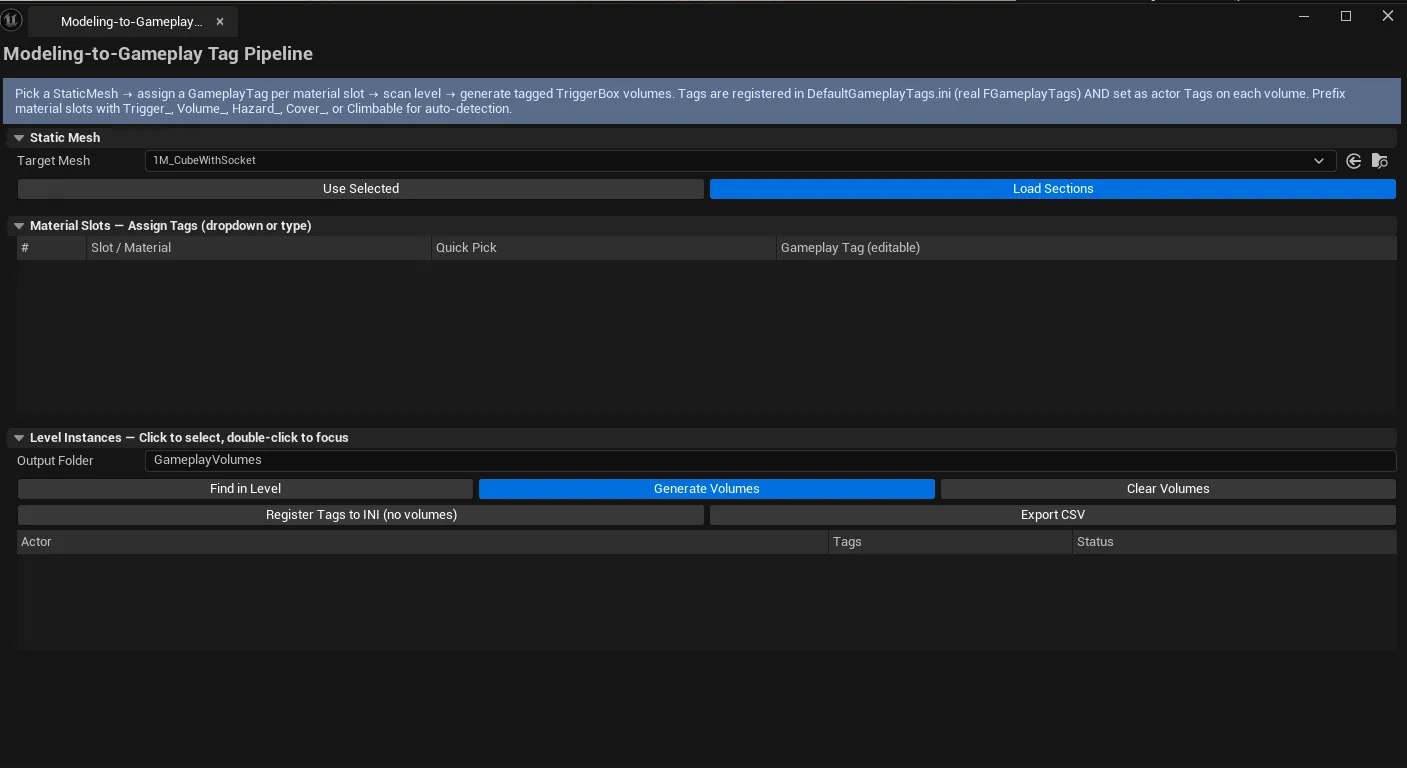
Bridges Modeling and Design by assigning gameplay tags to a static mesh’s material slots / sections, then auto-generating matching TriggerBox volumes around every level instance of the mesh. Auto-detects tags from naming conventions (Trigger_, Volume_, Hazard_, Cover_, Climbable), supports quick-pick presets, and exports the section-to-tag mapping as CSV.
When to use it
Section titled “When to use it”- Modular kit setup: tagging cover / hazard / climbable surfaces on the mesh, then auto-spawning trigger volumes wherever the mesh is placed
- Gameplay-driven environment dressing: when level designers need volumes that follow modeling decisions
- Onboarding to an unfamiliar kit: auto-detect tags from naming conventions saves manual work
What it isn’t for
Section titled “What it isn’t for”- Don’t expect this to handle non-static-mesh gameplay. It works on
UStaticMeshmaterial slots. - Don’t expect this to author gameplay logic. It places trigger volumes; gameplay code listens for tags via
UGameplayTagsManager.
Opening the tool
Section titled “Opening the tool”- Open the EQLabs Hub and search for Gameplay Tag or
Modeling(or browse to Design → Systems). - Click the tool card.
- Either select a mesh in the Content Browser and click Use Selected, or drop a mesh into the picker.
Interface tour
Section titled “Interface tour”| Section | What it does | Default |
|---|---|---|
| Selected Mesh picker | The static mesh to tag | (empty) |
| Use Selected | Picks the currently-selected Content Browser mesh | |
| Volume Folder Path | Output folder for generated TriggerBoxes | GameplayVolumes |
| Sections list | Per-section row: index, name, material name, assigned tag, triangle count | |
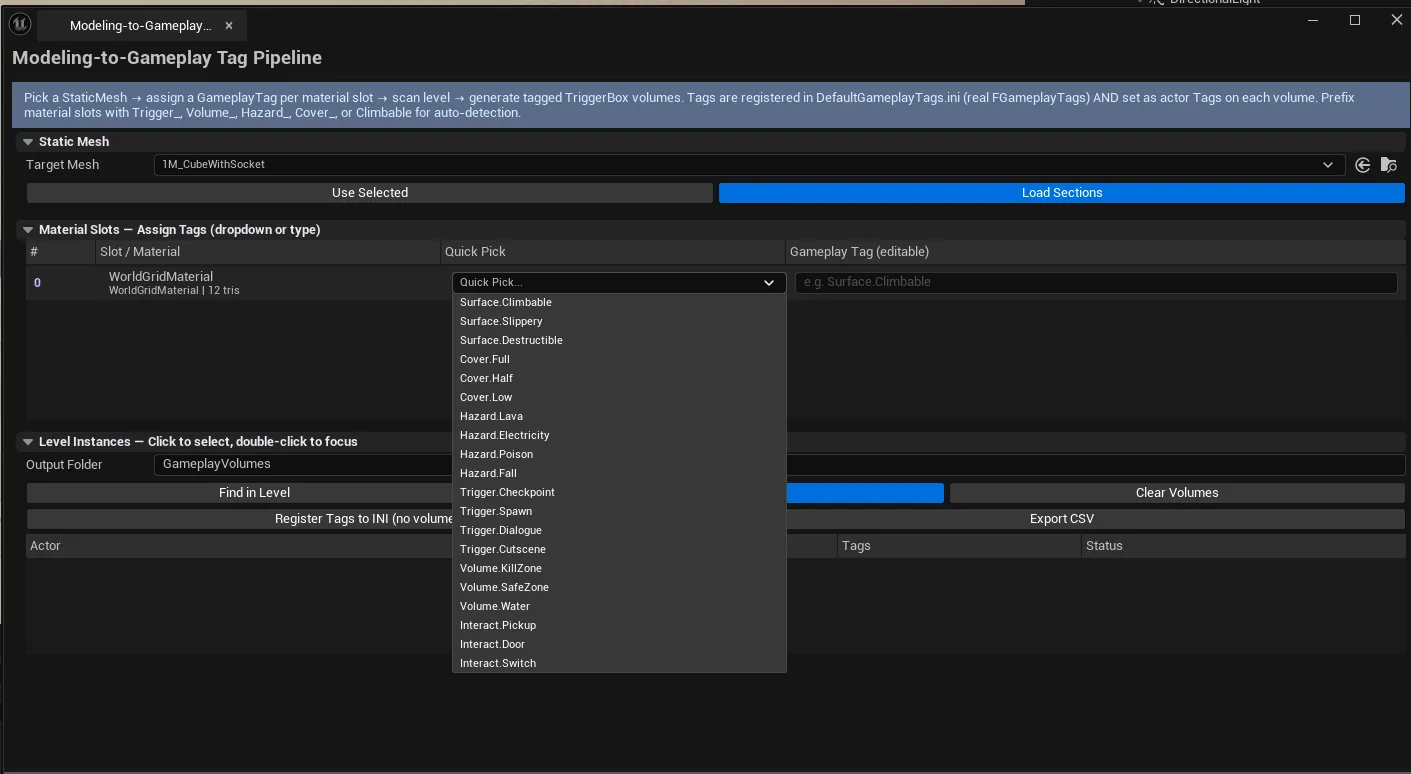
| Tag Presets combo | Quick-pick presets (Trigger_, Volume_, Hazard_, Cover_, Climbable) | |
| Scan Level | Walks the level for instances of the selected mesh | |
| Generate Volumes | Spawns TriggerBoxes around each instance with the assigned tags | |
| Clear Volumes | Removes generated TriggerBoxes | |
| Register Tags Only | Validates + registers tags in DefaultGameplayTags.ini without spawning volumes | |
| Export CSV | Saves the section-to-tag mapping | |
| Instances list | Per-instance row: actor name, mesh name, tagged section count, volumes-generated flag |
Naming-convention auto-detect
Section titled “Naming-convention auto-detect”If a section’s material name starts with a recognized prefix (Trigger_, Volume_, Hazard_, Cover_, or contains Climbable), the tag is auto-suggested from that prefix. Example: a material named Cover_Brick auto-suggests the tag Cover.Brick.
Workflow
Section titled “Workflow”- Pick a mesh.
- Look at the Sections list — assign tags via the Tag Presets combo or by typing manually.
- Click Register Tags Only to add the tags to
DefaultGameplayTags.ini(a one-time step). - Click Scan Level to find instances.
- Click Generate Volumes — TriggerBoxes spawn at each instance with the assigned tags.
- Optionally Export CSV for documentation.
Cleanup
Section titled “Cleanup”If you regenerate, click Clear Volumes first to avoid duplicates.
Settings reference
Section titled “Settings reference”| Field | What it does | Default |
|---|---|---|
| Volume Folder Path | Output folder for TriggerBoxes | GameplayVolumes |
Settings file:
[Project]/Saved/EQLabs/Settings/ModelingToGameplayTagPipeline.json
Output
Section titled “Output”- TriggerBox actors. Spawned in the level under the configured folder.
- Tags registered to
.ini. Via Register Tags Only. - CSV export. Section-to-tag mapping.
- Undo. Via standard
ScopedTransaction.
Tips and gotchas
Section titled “Tips and gotchas”- Tag names must be valid
Tag.Subtag.Subtag. Invalid characters are flagged; the tool surfaces invalid tags before spawning anything. - Generated volumes are recreatable. If the source mesh’s section tags change, regenerate (clear first).
- Single-click on instance row selects the actor; double-click flies the camera there.
- Volumes scale to instance bounds. Bigger instances get bigger TriggerBoxes.
Related tools
Section titled “Related tools”- Data Systems Inspector — for inspecting the registered tag hierarchy
- Modular Kit Auditor — companion modular-kit placement audit
Opens our feedback form in a new tab with the tool name pre-filled.