Module: Modeling · Category: Stats · Tool ID: MeshIntelligenceDashboard
A three-tab dashboard for static mesh analysis. Stats profiles every static mesh in the project (tri counts, vertices, bounds, materials, Nanite, collision) with sorting and CSV export. Batching audits placed meshes for instancing opportunities and draw-call savings. Pivot flags off-center / underground / floating pivots and bakes them to standard presets.
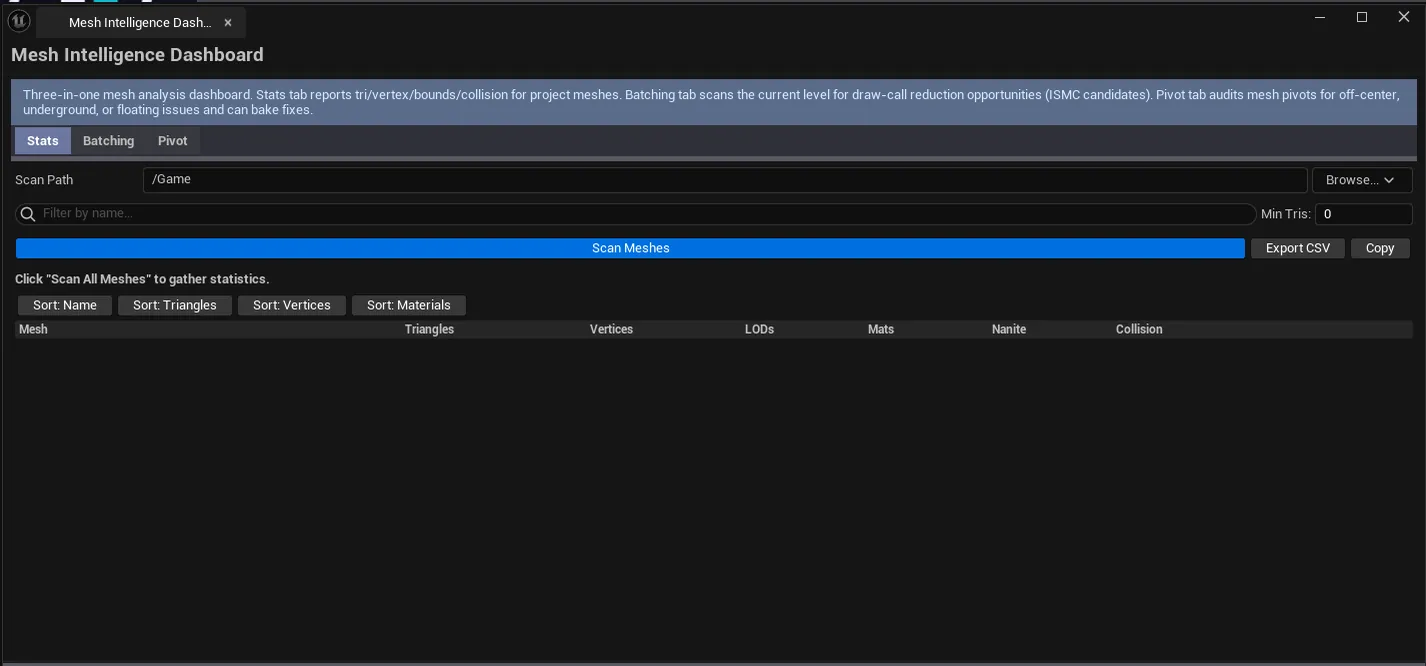
Dashboard open on the Stats tab with a populated, sorted list. Tab bar visible showing all three tabs.
Performance pass: find your highest-poly meshes, your highest-draw-call placements, your worst pivot offenders, all without leaving the editor
Inheriting a project: get an objective view of mesh budgets across the content
Pre-cook validation: confirm no surprise multi-million-tri assets, no meshes missing collision, no pivots stuck at world origin
Design feedback loop: Export CSV lets you slice the data in a spreadsheet for the team
Don’t use this to fix individual meshes. The Stats tab is read-only; per-mesh fixes happen in the Static Mesh editor.Don’t use this for skeletal meshes. It’s static-mesh focused; skeletal physics lives in Physics & Collision Studio .
Open the EQLabs Hub and search for Mesh Intelligence (or browse to Modeling → Stats ).
Click the tool card.
Use the tab bar to switch between Stats , Batching , and Pivot .
Project-wide static mesh stats. Sortable, filterable, exportable.
Section What it does Scan Path Folder to recursively scan. Default /Game. Search box Filter by mesh name. Min Triangles filterHide meshes below this triangle count. Scan Meshes buttonWalks every Static Mesh under the path. Export CSV Saves the full result set to a CSV file. Copy Plain-text dump to clipboard. Summary Total meshes, total tris, average tris. Results list Per-mesh row, sortable by clicking any column.
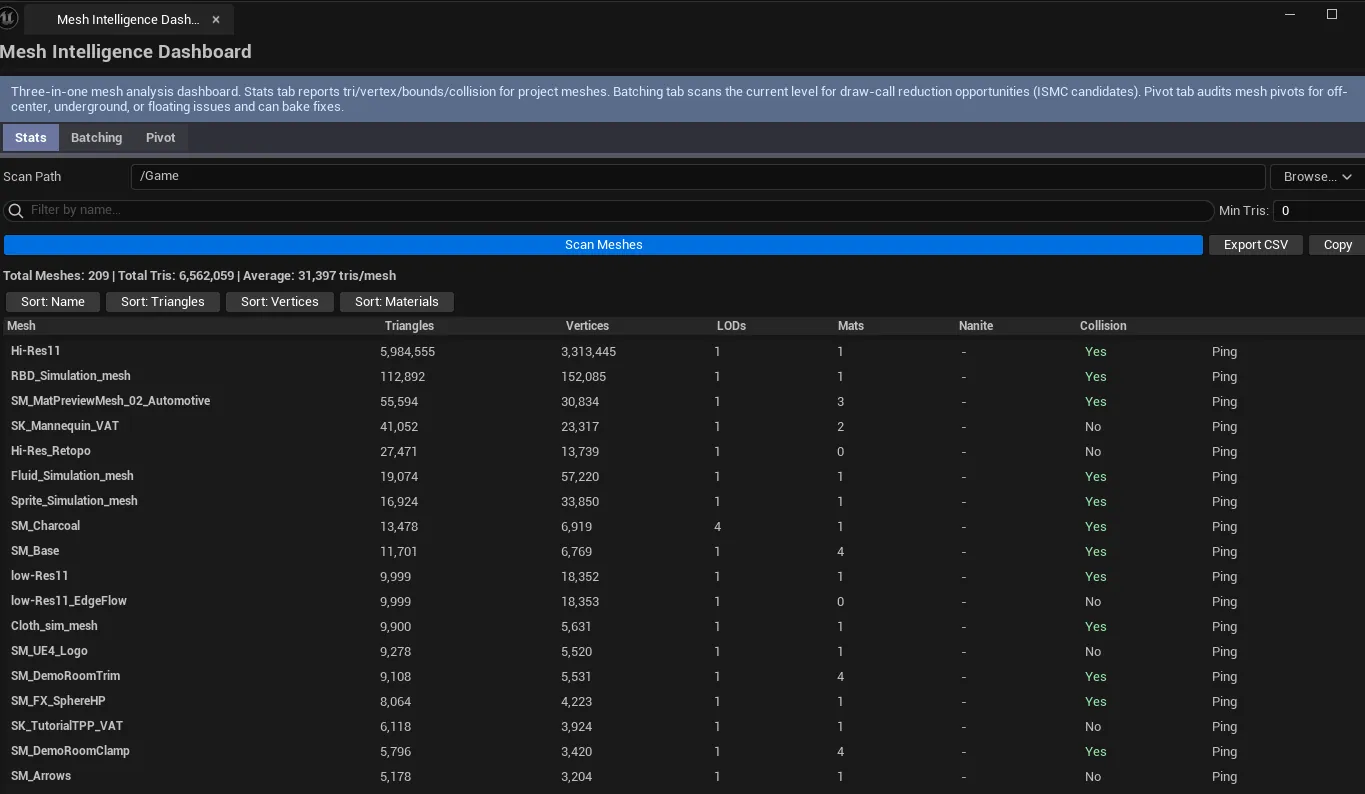
Column What it shows Name Asset name Triangles Total triangles at LOD0 Vertices Total vertices at LOD0 LODs LOD count Material Slots Material slot count Bounds Bounding box dimensions Nanite Whether Nanite is enabled Collision Whether the mesh has collision data
Stats tab populated, sorted descending by Triangles, top 10 high-poly meshes visible.
Pick a scan path, click Scan Meshes .
Click any column header to sort (default sort is Triangles descending).
Use the search box and Min Triangles filter to narrow.
Export CSV if you want to dig in a spreadsheet.
Looks at placed meshes in the level (not assets), groups by mesh, and surfaces instancing opportunities.
Section What it does Search box Filter by mesh name. Candidates Only checkboxHide meshes that are already instanced or placed only once. Scan Level Walks every static mesh actor in the active level. Copy Clipboard dump. Summary Unique meshes, total placements, estimated draw calls, batchable mesh count. Results list Per-mesh row with severity coding.
Column What it shows Mesh Asset name Placements How many actors of this mesh exist in the level Material Slots Material slot count (each slot = a draw call per instance) Estimated DC Placements × Material SlotsTriangles Source mesh tri count Status Good (instanced or single) / Info (batchable) / Warning (>3 material slots)Suggestion Short text — e.g., “Convert to ISMC for 38-DC saving”
Open the level you want to audit.
Click Scan Level .
Toggle Candidates Only to focus on meshes worth converting.
Sort by Estimated DC descending — top entries are your highest-value optimization targets.
Catches pivot misalignments — a common import problem that breaks placement workflows.
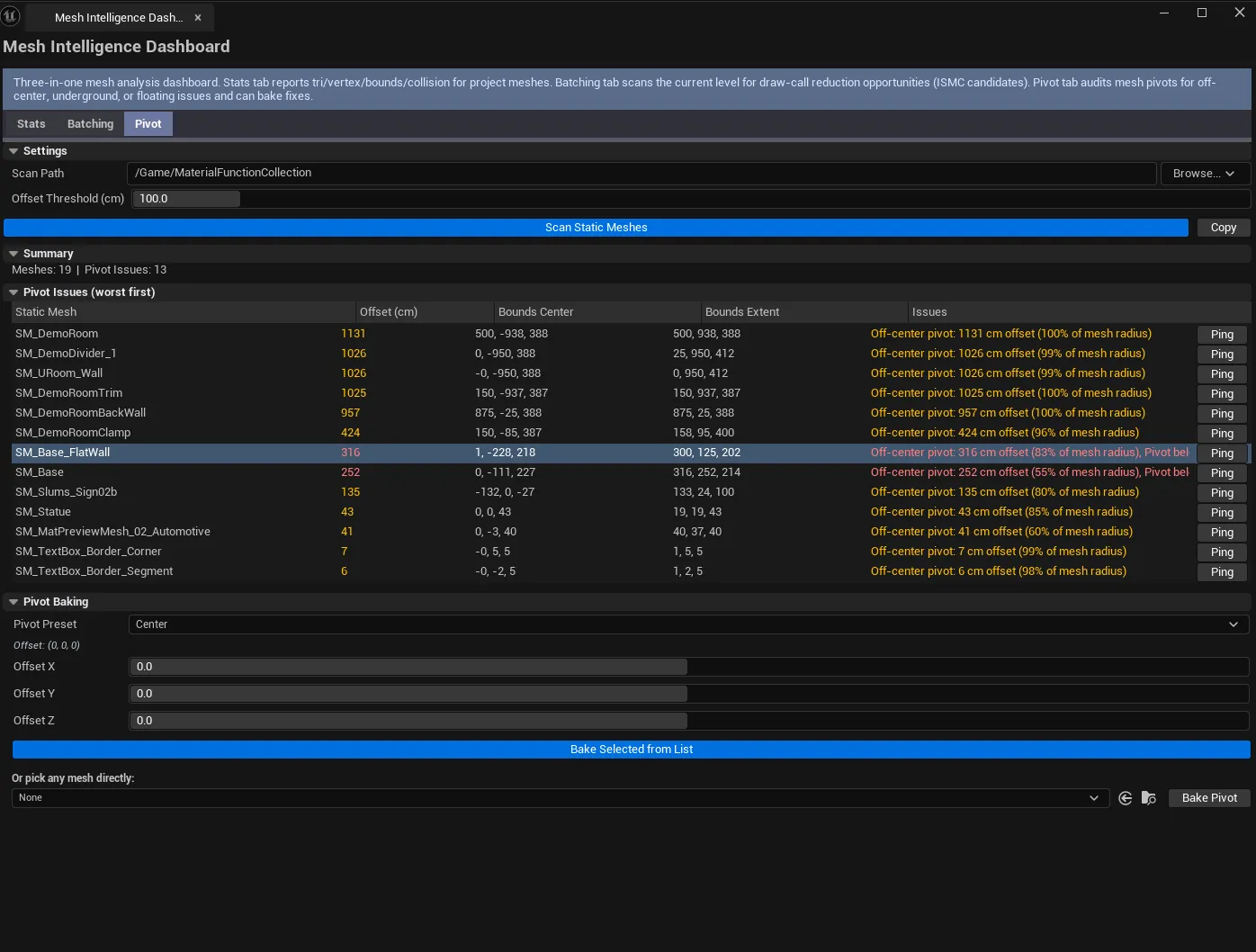
Section What it does Scan Path Folder to scan. Offset Threshold (cm) Flag pivots farther than this from the mesh’s bounds center. Default 100. Scan Walks every Static Mesh under the path, computes pivot offset from bounds center. Copy Clipboard dump. Results list Per-mesh row showing offset distance, underground/floating flags, severity. Pivot Baking section Pivot preset combo + custom offset + alignment + Bake Selected / Bake Direct Mesh buttons.
Flag Meaning Off-Center Pivot is far from the bounds center (per Offset Threshold) Underground Pivot is below the bottom of the mesh’s bounds Floating Pivot is above the top of the mesh’s bounds At Origin Pivot is at (0,0,0) while bounds are far from origin — usually a broken import
Preset Where the pivot lands Center Bounds center Bottom Center of the bottom face of bounds Top Center of the top face Front / Back / Left / Right Center of the corresponding bounds face Custom The custom XYZ offset you specify
Pivot tab with results visible above and the baking controls (preset combo + bake buttons) below.
Pick a scan path, set the offset threshold, click Scan .
Walk the issues — single-click to ping in Content Browser, double-click to open mesh editor.
To fix: select the offending rows in the list, pick a preset (typically Bottom for props, Center for hero meshes), click Bake Selected Pivots .
Or bake a single arbitrary mesh: drop it into the Direct Bake Mesh field and click Bake Direct Mesh .
Field What it does Default Scan Path Folder to scan /GameName Filter Substring filter empty Min Triangles Hide meshes below this tri count 0Sort Column Column to sort by TrianglesSort Direction Ascending / Descending Descending
Field What it does Default Name Filter Substring filter empty Candidates Only Hide non-batchable meshes false
Field What it does Default Scan Path Folder to scan /GameOffset Threshold (cm) Distance from bounds center to flag 100Pivot Preset Where to bake the pivot CenterCustom Offset (XYZ) Used when preset = Custom (0,0,0)
Settings are persisted per project at [Project]/Saved/EQLabs/Settings/MeshIntelligenceDashboard.json.
In-panel results. Three independent lists, cleared on each re-scan of the relevant tab.CSV export. Stats tab only, full result set written to a file via the platform’s save dialog.Pivot baking. Modifies the source Static Mesh asset directly. Mark dirty until Save All .Undo. Pivot bakes are wrapped in ScopedTransaction. Ctrl+Z reverts.Clipboard. Every tab has a Copy button for plain-text export.
Stats tab counts LOD0 only. The triangle and vertex counts reflect LOD0. For full storage costs across LODs, look at the asset directly in the Static Mesh editor.Batching tab uses a heuristic for draw calls. Placements × Material Slots is an estimate; actual draw calls are affected by view culling, instanced static mesh state, and engine batching. Use it for relative prioritization.A mesh at world origin with bounds elsewhere is usually broken. This is the classic “DCC export from an offset asset” issue. Bake the pivot to Center or re-export.Pivot bake is destructive. It modifies the source mesh. If multiple actors reference the mesh, all of them shift to compensate. Confirm in a test scene first.Single-click pings the asset in the Content Browser; double-click opens the Static Mesh editor.
LOD & Nanite Studio — when high-tri meshes need LODs or NanitePhysics & Collision Studio — collision-side analysis when the Stats tab flags meshes without collisionModular Kit Auditor — kit-placement validation; complements the Batching tab’s instancing analysisProject Doctor Suite (Tech module) — broader project audit including textures, blueprints, build settings