
No. 0863 DE DesignEQLabs Pro
Playtest Recorder & Tagger
Module: Design · Category: LevelDesign · Tool ID:
PlaytestRecorderTagger
Records level-design observations as location-anchored event tags during PIE sessions, then provides a review timeline for designer iteration. Persists sessions to JSON on disk. Path-records player position/rotation during PIE. Integrates with UE’s Replay system for full playback. Heatmap visualization for event density.
When to use it
Section titled “When to use it”- Designer-led playtests: tagging combat / pacing / navigation / bug / polish observations as they happen
- Internal QA pass: recording where players consistently get stuck
- Replay analysis: recording a playtest and reviewing where to improve
- Heatmapping event density across a level
What it isn’t for
Section titled “What it isn’t for”- Don’t expect this for analytics. It’s an editor-time designer tool, not telemetry.
- Don’t use this for video recording. UE’s Movie Render Queue handles that.
Opening the tool
Section titled “Opening the tool”- Open the EQLabs Hub and search for Playtest (or browse to Design → LevelDesign).
- Click the tool card.
- Create a new session (or load an existing one).
- Start PIE — tag events as they happen.
Interface tour
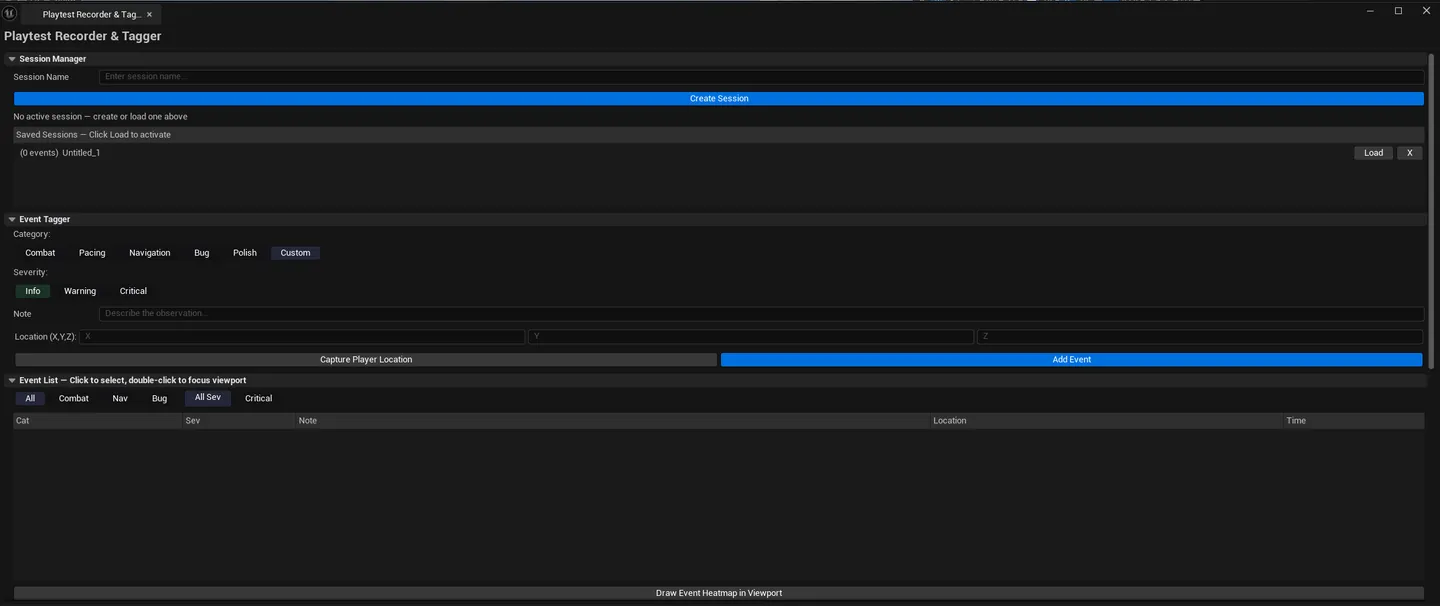
Section titled “Interface tour”Session Manager
Section titled “Session Manager”| Action | What it does |
|---|---|
| Session Name input | Name for the new session |
| Create Session | Creates and activates a new session |
| Sessions list | Per-session row: name, map name, start time, duration, event count |
| Load Session | Activates the selected session |
| Delete Session | Removes the session file |
Event Tagger
Section titled “Event Tagger”| Field | What it does |
|---|---|
| Category picker | Combat / Pacing / Navigation / Bug / Polish / Custom |
| Severity picker | Info / Warning / Critical |
| Note input | Free-text observation |
| Capture Player Location | Reads PIE player’s current position |
| Manual Location XYZ | Manually enter location |
| Add Event | Logs the event with location + category + severity + note |
Event List & Filter
Section titled “Event List & Filter”| Section | What it does |
|---|---|
| Filter Category | Show only events of one category |
| Filter Severity | Show only events of one severity |
| Events list | Per-event row: timestamp, category, severity, note, location |
Single-click an event to focus the editor camera at the event location.
Path Recording
Section titled “Path Recording”| Action | What it does |
|---|---|
| Toggle Recording | Starts/stops capturing player position + rotation at intervals |
| Capture Interval | Sample rate (default 0.25s) |
| Stored as JSON | Serialized to disk per session |
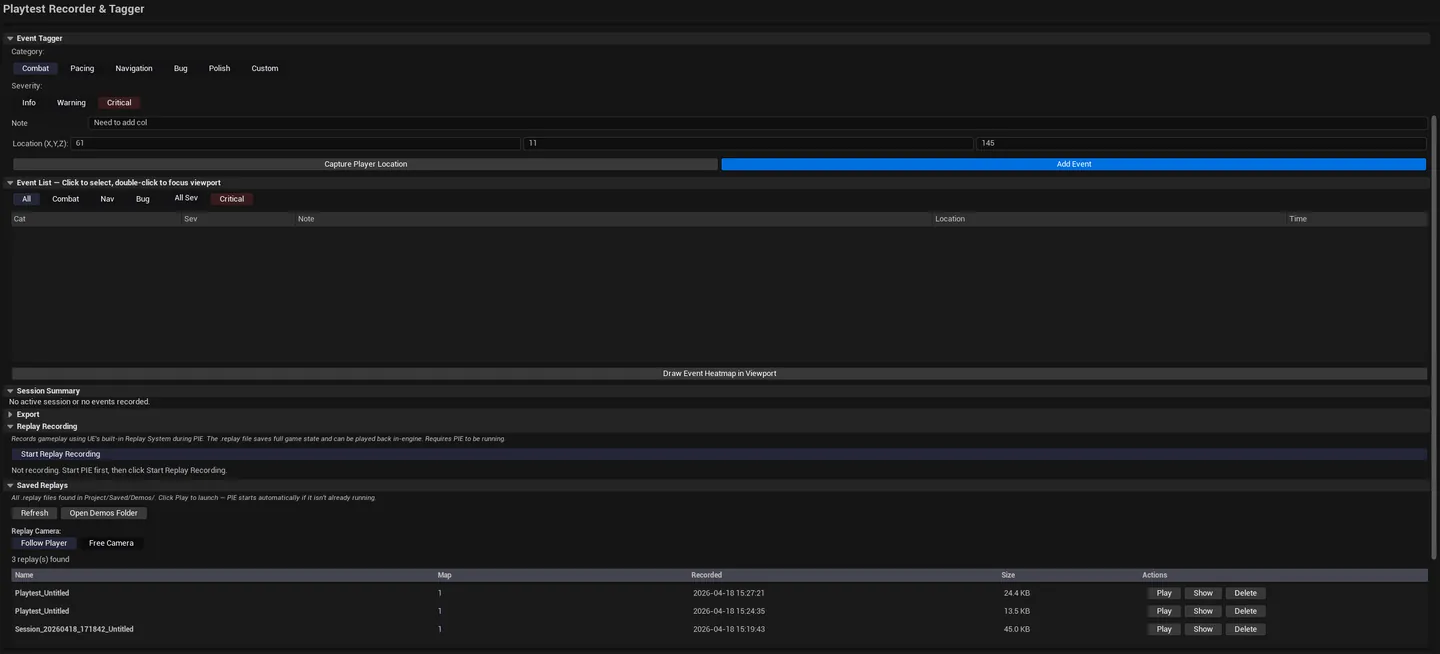
UE Replay System Integration
Section titled “UE Replay System Integration”| Action | What it does |
|---|---|
| Start Recording Replay | Triggers UE’s full demo recording |
| Saved Replays list | Browse, play, delete saved replays |
| Replay View Mode | Free Camera / Follow Player (chosen at playback) |
| Play Saved Replay | Plays back via UE’s PlayReplay system |
Heatmap Overlay
Section titled “Heatmap Overlay”Visualizes event density in the editor viewport — colored hot spots based on event clustering.
Workflow
Section titled “Workflow”Recording a session
Section titled “Recording a session”- Click Create Session, give it a name.
- Optionally toggle Path Recording to capture player movement.
- Optionally Start Recording Replay for full UE demo.
- Start PIE.
- As you play, switch to the editor and tag events: pick category + severity, type a note, click Capture Player Location, click Add Event.
- Stop PIE — session auto-saves.
Reviewing a session
Section titled “Reviewing a session”- Load the session from the Session Manager.
- Switch to Event Review.
- Filter by category / severity.
- Click events to focus the viewport at their location.
- Optionally enable Heatmap Overlay to see event density.
- Optionally Play Saved Replay to re-watch the session.
Exporting
Section titled “Exporting”Export CSV writes the events list as plain text for sharing with the team.
Settings reference
Section titled “Settings reference”Sessions persist to [Project]/Saved/EQLabs/Playtest/sessions/<sessionname>.json. Replays use UE’s standard demo path.
Output
Section titled “Output”- JSON session files. Events + path captures.
- UE replay files. When Replay recording is enabled.
- CSV export. Events as plain text.
- In-viewport heatmap. Toggle visualization.
Tips and gotchas
Section titled “Tips and gotchas”- Event location must be valid. Capture Player Location requires PIE running; otherwise use Manual Location.
- Replay playback supports two view modes. Free Camera (default UE) and Follow Player (auto-set view target on first non-spectator pawn).
- Heatmap density is logarithmic. Small clusters show faintly, hot spots saturate.
- Sessions accumulate. Clean up old session files manually if storage matters.
Related tools
Section titled “Related tools”- Project Doctor Suite (Tech module) — runtime health audit complementary to designer events
Opens our feedback form in a new tab with the tool name pre-filled.