
No. 1135 MO ModelingEQLabs Pro
Scan Cleanup & Remesh Utility
Module: Modeling · Category: Modeling · Tool ID:
ScanCleanupRemeshUtility
A five-tab workshop for taming scanned and raw geometry. Remesh rebuilds a mesh to a uniform face count. Hole Fill finds and patches boundary holes. Self-Intersection detects and resolves overlapping faces. Component Isolation breaks a mesh into its connected pieces. Topology Analyzer maps edge loops and runs edge-flow smoothing.
When to use it
Section titled “When to use it”- Bringing photogrammetry / 3D scan data into a real-time pipeline: typically too dense, full of holes, often self-intersecting
- Cleaning up CAD imports that come in as a single fused mesh with hidden internal geometry
- Pre-Nanite preparation: Nanite handles density beautifully but still benefits from watertight, well-formed input
- Topology research: analyzing edge flow on a reference mesh before retopo
What it isn’t for
Section titled “What it isn’t for”- Don’t use this for hand-authored low-poly meshes. The operations are aggressive and assume scanner-quality input.
- Don’t expect this to replace ZBrush / 3D-Coat / similar. It’s a triage and cleanup tool, not a full sculpting/retopo suite.
Opening the tool
Section titled “Opening the tool”- Open the EQLabs Hub and search for Scan Cleanup (or browse to Modeling → Modeling).
- Click the tool card.
- Use the tab bar at the top to pick the operation you need.
Each tab works on a single Static Mesh asset at a time, picked via the Static Mesh field on that tab.
Tab 1: Remesh
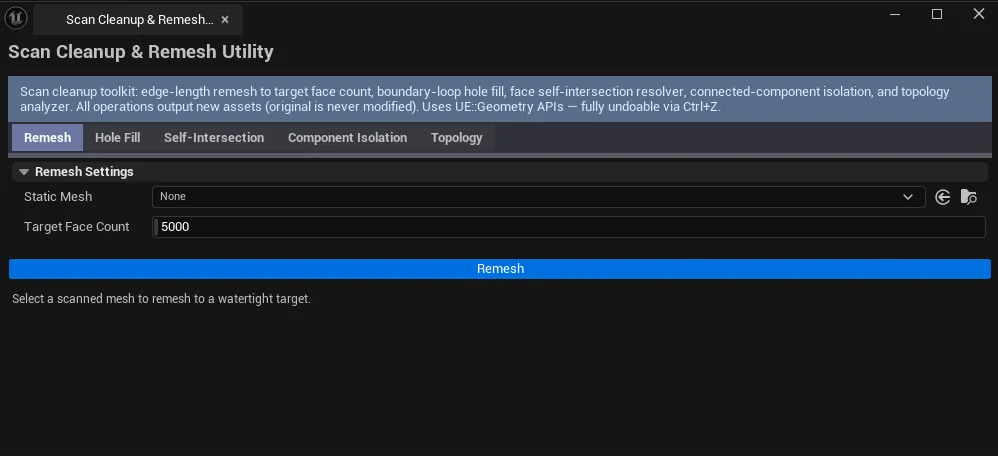
Section titled “Tab 1: Remesh”Uniform edge-length remeshing to a target face count. Useful for normalizing density on scanned meshes.
Interface
Section titled “Interface”| Field | What it does | Default |
|---|---|---|
| Static Mesh | The mesh to remesh | (empty) |
| Target Face Count | The output triangle count after remeshing | 5000 |
| Voxel Resolution | Internal voxel grid resolution — higher preserves detail but is slower | 128 |
| Remesh button | Runs the remesh operation. Creates a new _Remesh asset (non-destructive). |
How it works
Section titled “How it works”Internally voxelizes the mesh at Voxel Resolution, then meshes the voxel surface at an edge length tuned to hit Target Face Count. The result is a uniform-density mesh.
Workflow
Section titled “Workflow”- Drop a Static Mesh into the field.
- Set Target Face Count — start with
5000for a hero asset, drop to1500for low-poly background dressing. - Adjust Voxel Resolution if details are lost (
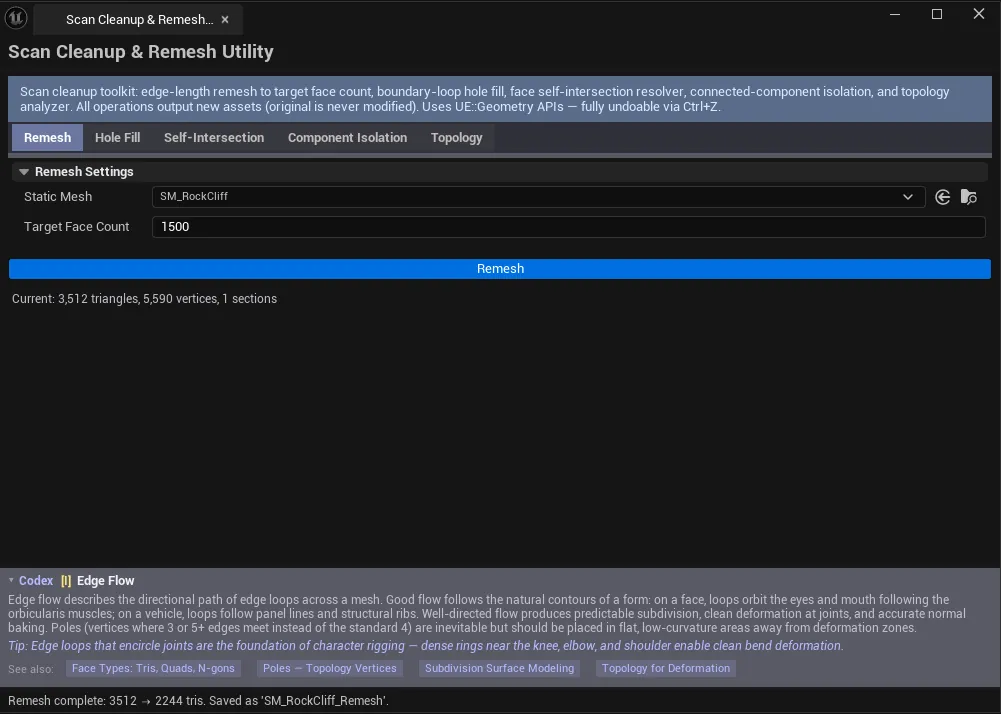
256for fine features,64for blobby targets). - Click Remesh. A new
<MeshName>_Remeshasset is created in the same folder.
Tab 2: Hole Fill
Section titled “Tab 2: Hole Fill”Detects boundary edges and fills holes up to a configurable size.
Interface
Section titled “Interface”| Field | What it does | Default |
|---|---|---|
| Static Mesh | The mesh to inspect | (empty) |
| Hole Size Threshold | Maximum hole perimeter to fill. Holes larger than this are left alone (typically these are intentional openings). | 10.0 |
| Fill Strategy | Planar / Smooth / Minimal | Planar |
| Detect Holes button | Scans for boundary edges and lists holes by perimeter | |
| Fill All button | Fills every hole in the list using the selected strategy | |
| Holes list | Per-hole row: index, edge count, perimeter |
Fill strategies
Section titled “Fill strategies”| Strategy | What it does |
|---|---|
| Planar | Flat triangle fan — fast and predictable, best for small holes |
| Smooth | Interpolated fill matching surrounding curvature — best for organic surfaces |
| Minimal | Fewest new triangles — best when minimizing density matters |
Workflow
Section titled “Workflow”- Drop a Static Mesh.
- Click Detect Holes — list populates with every boundary loop.
- Tune Hole Size Threshold so the threshold-bigger holes (legitimate openings like windows or doorways) are excluded.
- Pick a Fill Strategy that matches the surface character.
- Click Fill All.
Tab 3: Self-Intersection Detection
Section titled “Tab 3: Self-Intersection Detection”Finds faces that intersect each other — common in scanned meshes where the surface folds back on itself.
Interface
Section titled “Interface”| Field | What it does |
|---|---|
| Static Mesh | The mesh to scan |
| Scan Intersections button | Walks all face pairs looking for intersections |
| Resolve All button | Attempts automatic resolution of every detected intersection |
| Intersections list | Per-pair row: face IDs and a description |
Workflow
Section titled “Workflow”- Drop a Static Mesh, click Scan Intersections.
- If the list is short, eyeball each entry and decide whether auto-resolve makes sense.
- Click Resolve All to apply automatic resolution.
- Re-scan to confirm.
Self-intersection resolution is best-effort; severely tangled scanned meshes may need manual cleanup in a DCC.
Tab 4: Component Isolation
Section titled “Tab 4: Component Isolation”Decomposes a mesh into its connected components and lets you extract individual pieces as separate assets.
Interface
Section titled “Interface”| Field | What it does |
|---|---|
| Static Mesh | The mesh to decompose |
| Analyze Components button | Walks the topology, identifies connected components |
| Isolate Selected button | Exports the selected component as a new Static Mesh |
| Components list | Per-component row: name, triangle count, vertex count |
Workflow
Section titled “Workflow”- Drop a Static Mesh, click Analyze Components.
- Review the list — a properly-modeled single object should be one component; multi-piece scans show multiple.
- Select the components you want to extract, click Isolate Selected.
- Each selected component is saved as a new Static Mesh asset.
This is especially useful for kitbashed scans where multiple objects were captured in a single mesh.
Tab 5: Topology Analyzer
Section titled “Tab 5: Topology Analyzer”Inspects edge loops, hard edges, and topology poles. Includes a non-destructive edge-flow smoother.
Interface
Section titled “Interface”| Field | What it does | Default |
|---|---|---|
| Static Mesh | The mesh to analyze | (empty) |
| Hard Edge Angle | Dihedral angle threshold above which edges are considered “hard” | 60° |
| Detect Edge Loops button | Analyzes for boundary loops, hard edge loops, and irregular-valence vertices | |
| Apply Edge Flow button | Runs Laplacian smoothing while preserving hard edges. Creates a new _EdgeFlow asset (non-destructive). | |
| Copy button | Plain-text dump of the topology report | |
| Edge Loops list | Per-loop row: index, edge count, description |
Workflow
Section titled “Workflow”- Drop a mesh, set Hard Edge Angle to match your tolerance (
30°for soft surfaces,60°for typical mechanical edges,90°for cube-like). - Click Detect Edge Loops — list populates with boundaries, hard edge loops, and pole vertices.
- If you want to clean up surface noise, click Apply Edge Flow — creates a new
_EdgeFlowasset that you can compare against the original.
Settings reference
Section titled “Settings reference”| Tab | Field | Default |
|---|---|---|
| Remesh | Target Face Count | 5000 |
| Remesh | Voxel Resolution | 128 |
| Hole Fill | Hole Size Threshold | 10.0 |
| Hole Fill | Fill Strategy | Planar |
| Topology | Hard Edge Angle | 60° |
Settings are persisted to
[Project]/Saved/EQLabs/Settings/ScanCleanupRemeshUtility.json.
Output
Section titled “Output”- Non-destructive operations. Remesh and Apply Edge Flow create new assets named
<Original>_Remeshand<Original>_EdgeFlowrespectively. - In-place operations. Hole Fill, Self-Intersection Resolve, Component Isolation modify the source asset (or create new components for isolation).
- Undo. Operations that modify the source mesh are wrapped in
ScopedTransactionand reversible withCtrl+Z. - Clipboard. Topology Analyzer has a Copy button for the topology report.
Tips and gotchas
Section titled “Tips and gotchas”- Voxelization in Remesh has a memory cost.
Voxel Resolution: 256on a large mesh can spike RAM. Start at128, raise only if you need more detail. - Hole Size Threshold has tricky semantics. It’s the maximum perimeter to fill. Set it high to fill big holes, set it low to only patch tiny gaps.
- Self-Intersection auto-resolve isn’t a magic wand. It cleans up obvious cases. Severe self-intersection means the input was bad and may need DCC-side cleanup.
- Component Isolation works on connected topology only. Meshes that share UVs or materials but are topologically separate count as different components. Disconnected islands within a single material count as separate components.
- Edge Flow output is a separate asset. Original is preserved. Compare in the Static Mesh editor before committing.
- All operations are single-mesh. No batch mode. For cleaning a folder of scans, run the tool repeatedly.
Related tools
Section titled “Related tools”- LOD & Nanite Studio — for generating LODs after cleaning a mesh, or evaluating Nanite readiness
- UV & Texel Suite — UVs typically need to be regenerated after remeshing
- Mesh Intelligence Dashboard — find the high-tri scan candidates that need cleanup in the first place
Opens our feedback form in a new tab with the tool name pre-filled.