
No. 1034 AN AnimationEQLabs Pro
Motion-Physics Sync Engine
Module: Animation · Category: Physics · Tool ID:
MotionPhysicsSyncEngine
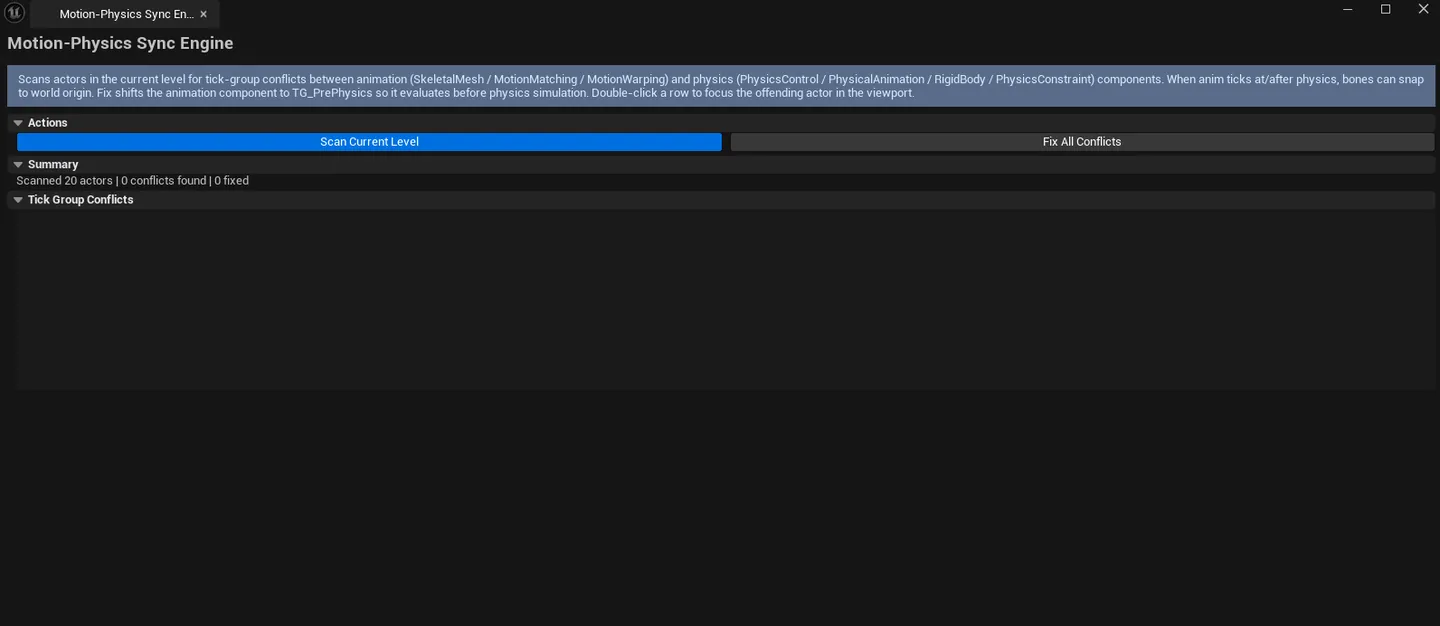
A targeted fix for a specific bug: when an actor uses both Motion Matching (which ticks in PreCMC) and a Physics Control component, the competing tick group ordering can snap bones to the world origin every frame. This tool walks the level, finds every actor with the conflict, and shifts the conflicting component’s tick group to Pre-Physics to restore correct evaluation order.
When to use it
Section titled “When to use it”- Bones snap to
(0,0,0)every frame on a character that uses Motion Matching + Physics Control - After enabling Physics Control on an existing Motion Matching character: usually triggers the issue
- Pre-shipping check on any character using both subsystems
- Onboarding a new project where this combination is part of the character setup
What it isn’t for
Section titled “What it isn’t for”- Don’t use this on characters without Motion Matching or Physics Control. There’s nothing to fix.
- Don’t use this as a generic tick group debugger. It’s specific to this exact MM+PC interaction.
Opening the tool
Section titled “Opening the tool”- Open the EQLabs Hub and search for Motion-Physics or
Tick Group(or browse to Animation → Physics). - Click the tool card.
- Make sure the level you want to scan is open.
Interface tour
Section titled “Interface tour”| Section | What it does |
|---|---|
| Scan World button | Walks every actor in the active level looking for MM+PC tick conflicts |
| Fix All button | Shifts every conflicting component’s tick group to Pre-Physics. Undoable. |
| Summary | Total actors scanned, conflicts found, conflicts fixed |
| Conflicts list | Per-actor row: actor name, two component names, both component tick groups, fix description, fix flag |
What gets flagged
Section titled “What gets flagged”A row is added when an actor has both:
- A component using Motion Matching (typically ticking in
PreCMC) - A Physics Control component (typically ticking in a default group)
…and the relative tick order causes the known bone-snap symptom.
Workflow
Section titled “Workflow”Step 1: Open the level
Section titled “Step 1: Open the level”The tool operates on the active editor world. Load the level that contains the affected characters.
Step 2: Scan
Section titled “Step 2: Scan”Click Scan World. The conflicts list populates. If empty: no MM+PC conflicts in this level — you’re fine.
Step 3: Review the proposed fixes
Section titled “Step 3: Review the proposed fixes”Each row tells you exactly which component will have its tick group shifted. Read them — the fix is conservative but worth a sanity check.
Step 4: Fix in batch
Section titled “Step 4: Fix in batch”Click Fix All. Every flagged component is shifted to Pre-Physics. Wrapped in a single transaction — Ctrl+Z reverses the lot.
Step 5: Save
Section titled “Step 5: Save”Save the affected actors / Blueprints so the fix persists.
Settings reference
Section titled “Settings reference”This tool has no persisted settings — it’s a single-purpose scan and fix.
Output
Section titled “Output”- In-place modification.
Fix Allmodifies component tick group properties on the affected actors. - Undo. Wrapped in
ScopedTransaction.Ctrl+Zreverses. - Save. Affected actors / Blueprints need to be saved to persist the change.
Tips and gotchas
Section titled “Tips and gotchas”- The fix is conservative. Shifting tick group to
Pre-Physicsis the documented Epic resolution for this exact conflict. If your project has a more complex tick ordering scheme, review before applying. - Single-click on a row selects the actor in the viewport.
- Re-scan after Fix All to confirm the conflicts list is empty.
- A persistent character template (Blueprint) may need to be edited at the source. Fixing instances in the level is a level-only fix; for a permanent fix, edit the Blueprint class.
Related tools
Section titled “Related tools”- Skeleton Inspector & Rig Shortcuts — when the underlying skeleton is part of the diagnosis
- Physics & Collision Studio (Modeling module) — for static mesh collision setup, related but different domain
Opens our feedback form in a new tab with the tool name pre-filled.