
No. 0723 DE DesignEQLabs Pro
Console Variable Browser
Module: Design · Category: Systems · Tool ID:
ConsoleVariableBrowser
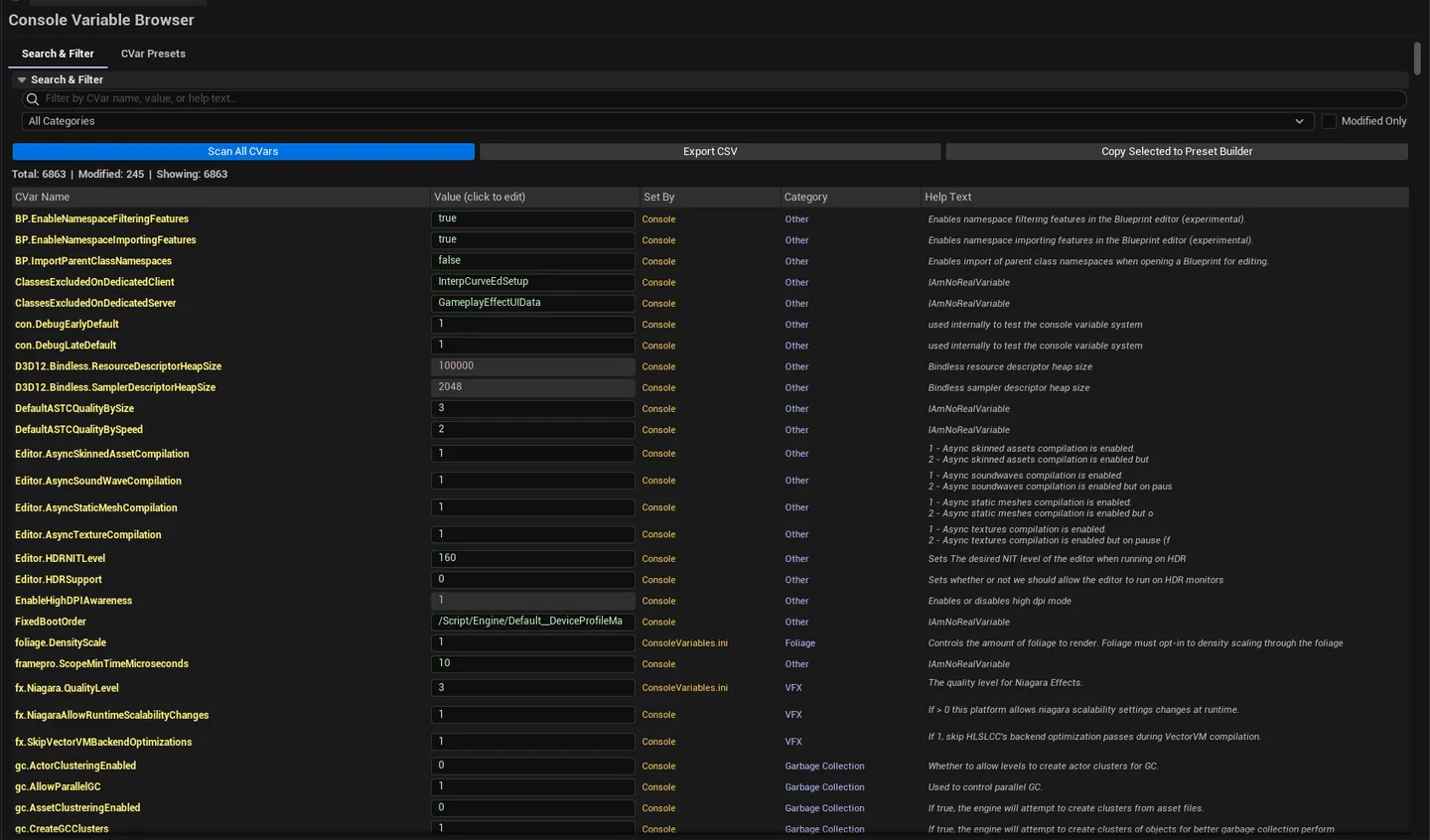
Two-tab CVar manager. Search & Filter enumerates every console variable in the engine via IConsoleManager, supports search by name / value / help text, filters by category prefix or modified-only, and lets you edit values inline. Presets ships 20+ built-in presets across Cinematic / Debug / Performance / Platform / Workflow categories (including per-discipline presets for Environment Artist, Lighting Artist, Animator, VFX Artist), with a manual CVar builder for custom presets that persist to JSON.
When to use it
Section titled “When to use it”- Tuning rendering / scalability CVars without typing into the console every time
- Saving tested CVar combos as named presets for future sessions
- Onboarding to a project: applying the team’s standard “Lighting Artist” or “VFX Artist” preset
- Debugging: quickly toggling between Default and a custom debug-vis preset
What it isn’t for
Section titled “What it isn’t for”- Don’t use this for runtime gameplay CVars. Those need to be set via game code, not editor session.
- Don’t expect persistent project-wide CVar changes. Most CVars reset on editor restart unless saved to a
.ini.
Opening the tool
Section titled “Opening the tool”- Open the EQLabs Hub and search for CVar or
Console(or browse to Design → Systems). - Click the tool card.
- Use the tab bar: Search & Filter or Presets.
Tab 1: Search & Filter
Section titled “Tab 1: Search & Filter”Enumerate, search, and edit individual CVars.
Interface
Section titled “Interface”| Section | What it does |
|---|---|
| Scan button | Enumerates every CVar via IConsoleManager |
| Filter text | Search by CVar name, current value, or help text |
| Category combo | Filter by category prefix (r., s., tg., etc.) |
| Modified Only checkbox | Hide CVars at default values |
| Export CSV | Saves the visible list |
| Copy to Preset Builder | Per-row action — adds the CVar to the Presets tab’s manual builder |
| Stats | Total CVars / modified count |
| Results list | Per-CVar row: name, current value (editable), source, help text, category, modified flag |
Inline editing
Section titled “Inline editing”Click the value column on any row — UE’s inline editor opens. Press Enter to commit. Read-only CVars are flagged and skipped.

Tab 2: CVar Presets
Section titled “Tab 2: CVar Presets”Browse built-in presets, build custom ones, save to disk.
Built-in preset categories
Section titled “Built-in preset categories”| Category | Examples |
|---|---|
| Cinematic | Cinematic Render Quality, Cinematic Lighting Setup |
| Debug | GPU Visualizers, Wireframe Mode, Stat Counters |
| Performance | Quality Low / Medium / Epic, Mobile Profile |
| Platform | Console Profile, Mobile Profile, Quest VR Profile |
| Workflow | Environment Artist, Lighting Artist, Animator, VFX Artist, Tech Artist, Designer, Audio |
Click a preset row to see its CVar list in the detail panel. Click Apply to set every CVar in the preset.
Manual CVar builder
Section titled “Manual CVar builder”| Section | What it does |
|---|---|
| New Preset Name | Name for the custom preset |
| CVar Name + Value inputs | Type to add a single CVar to the builder |
| Add CVar to Builder | Adds the row to the builder |
| Builder list | Per-row CVar entries; remove individual rows |
| Save Builder as Preset | Persists to JSON in the user presets directory |
| Clear Builder | Resets the builder |
Persistence
Section titled “Persistence”User presets save to [Project]/Saved/EQLabs/CVarPresets/<presetname>.json and reload automatically when the tool opens.
Workflow
Section titled “Workflow”Apply a preset
Section titled “Apply a preset”- Open the Presets tab.
- Browse / filter by category.
- Click a preset — review the CVar list in the detail panel.
- Click Apply Preset.
Build a custom preset
Section titled “Build a custom preset”- Apply a baseline preset (e.g., Quality Epic).
- Switch to the Search tab, dial in the CVars you want to tune.
- Per-row, click Copy to Preset Builder.
- Switch back to Presets, give the builder a name, click Save Builder as Preset.
Apply the Reset to Default preset to restore engine defaults.
Settings reference
Section titled “Settings reference”| Field | Default |
|---|---|
| Filter Text | empty |
| Modified Only | false |
| Selected Category | All |
User presets save to:
[Project]/Saved/EQLabs/CVarPresets/
Output
Section titled “Output”- In-panel CVar list, preset list and builder.
- CSV export. Current filtered view.
- JSON files. User presets saved per file.
- Engine state changes. Applying a preset modifies CVar values in the live editor session.
Tips and gotchas
Section titled “Tips and gotchas”- CVar changes are session-only by default. To persist, save to a
.inifile or use a startup CVar preset. - Some CVars are read-only or threadsafe-locked. The tool flags these and skips inline edit.
- The 20+ built-in presets are a starting point. Copy and tweak, don’t fight the defaults.
- Workflow presets are per-discipline. Environment Artist’s preset turns on visualizers an env artist needs; same for VFX, Lighting, etc.
Related tools
Section titled “Related tools”- Enhanced Input Mapper — input bindings often interact with CVars (e.g.,
r.PostProcessAAQuality)
Opens our feedback form in a new tab with the tool name pre-filled.