
Material Preset Manager
Material Preset Manager
Section titled “Material Preset Manager”Module: Tech · Category: Workflow · Tool ID:
MaterialPresetManager
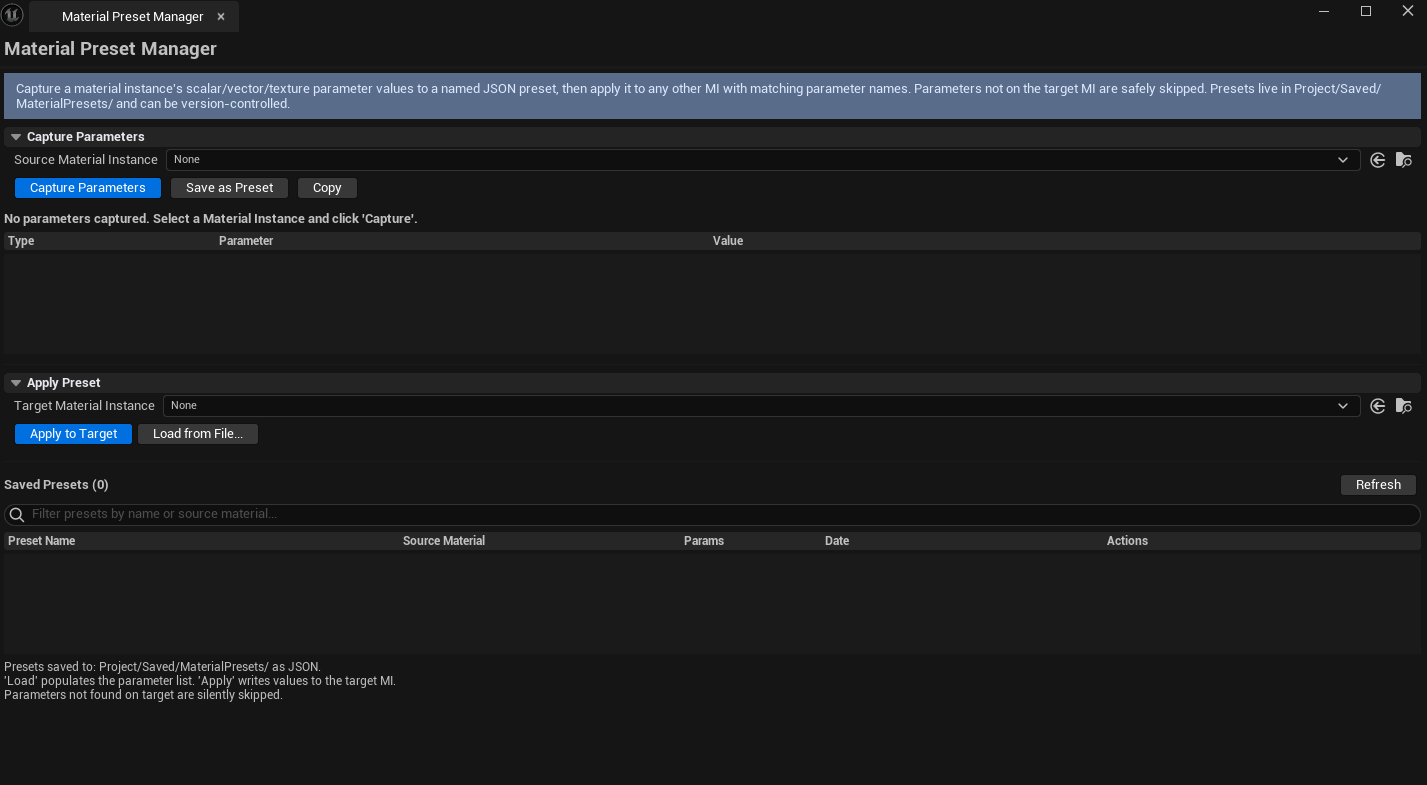
Capture material parameter values (scalar, vector, texture) from any Material Instance, save as a named JSON preset, and apply to a different Material Instance. Useful for: copying a tested look across multiple assets, building project-wide preset libraries, sharing parameter recipes via Git.
When to use it
Section titled “When to use it”- Capturing a tested material parameter set as a reusable preset
- Applying a saved preset to multiple new MIs
- Sharing material recipes with the team via JSON files in Git
- Building per-project preset libraries (e.g., “Stone Wall A”, “Wet Concrete”)
When not to use it
Section titled “When not to use it”- Don’t use this to capture textures themselves — only parameter references are captured (texture asset paths)
- Don’t expect cross-parent compatibility — a preset built from MI A’s parent won’t fully apply to MI B from a different parent
Opening the tool
Section titled “Opening the tool”- Open the EQLabs Hub and search for
Material Preset(or browse to Tech → Workflow) - Click the tool card
- Capture from a source, save with a name, apply to a target
Interface tour
Section titled “Interface tour”| Field | What it does |
|---|---|
| Source Material picker | The MI to capture parameters from |
| Target Material picker | The MI to apply to |
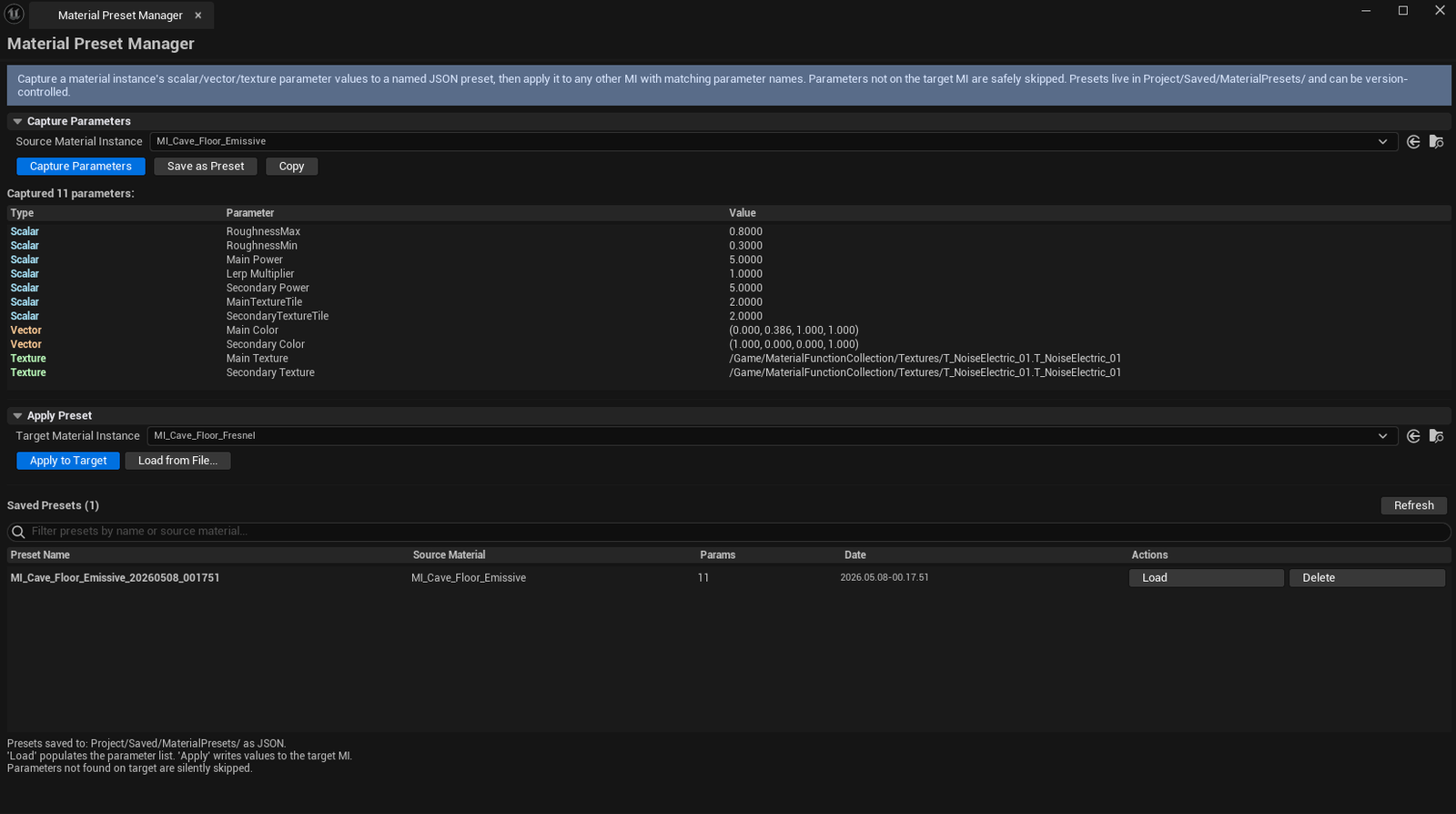
| Capture Params | Reads source MI’s parameters into the panel |
| Captured Params list | Per-param row: name, type (Scalar/Vector/Texture), value |
| Save Preset | Persists to JSON with a name |
| Load Preset | Loads a saved preset back into the captured-params view |
| Apply to Target | Writes captured params onto the target MI |
| Copy Params | Plain-text dump |
| Refresh Preset List | Reloads JSON files from disk |
| Preset Search | Filter by preset name |
| All Presets list | Per-preset row: name, file path, source material name, date saved, param count |
Workflow
Section titled “Workflow”Capture and apply
Section titled “Capture and apply”- Drop source MI into Source picker
- Click Capture Params
- (Optional) Click Save Preset, give it a name
- Drop target MI into Target picker
- Click Apply to Target
Load and apply
Section titled “Load and apply”- Browse the All Presets list, click one
- Captured Params populate from the JSON
- Drop target MI, click Apply to Target
Settings reference
Section titled “Settings reference”Presets save to [Project]/Saved/EQLabs/MaterialPresets/<presetname>.json.
Output
Section titled “Output”- JSON preset files — versioned, human-readable, Git-friendly
- Material Instance modifications — Apply to Target writes parameters; undoable
- Clipboard — Copy Params writes a text dump
Tips & gotchas
Section titled “Tips & gotchas”- Texture parameters store paths, not the textures themselves — preset is portable as long as the texture assets exist
- Cross-parent application is partial — only parameters present on both parents apply
- JSON format is stable — feel free to hand-edit / Git diff
- Preset naming convention helps team libraries —
<Material>_<Variant>(e.g.,Concrete_Wet,Concrete_Dry)
Related tools
Section titled “Related tools”- Material Replacer — for swapping the material itself, not just parameters
- Material Property Diff — diff two MIs to verify a preset applied correctly
- Material Instance Manager — hierarchy + override tracking
Report an issue with this tool
Opens our feedback form in a new tab with the tool name pre-filled.