
No. 0632 AR ArtEQLabs Pro
Texture Sheet Splitter
Module: Art · Category: TextureArt · Tool ID:
TextureSheetSplitter
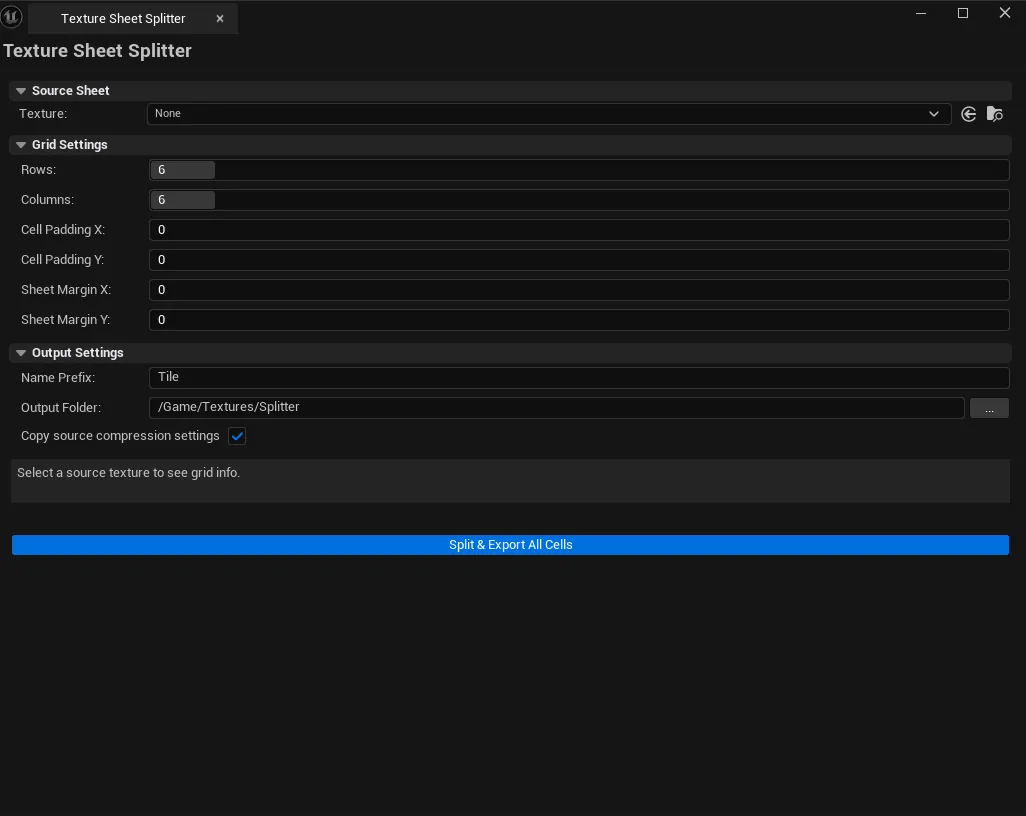
The inverse of Flipbook Maker: take an existing atlas or sprite sheet and split it into individual UTexture2D assets. Supports uniform grid splitting with configurable rows, columns, padding, and margin. Live cell-size preview before commit.
When to use it
Section titled “When to use it”- Importing a third-party sprite sheet and needing individual frames as separate textures
- Recovering individual textures from an atlas built without the source files
- Converting a VFX flipbook back into per-frame textures for re-edit
What it isn’t for
Section titled “What it isn’t for”- Don’t use this on packed atlases with non-uniform cell sizes. Only uniform grids are supported. For irregular packs, you’ll need to extract regions manually.
Opening the tool
Section titled “Opening the tool”- Open the EQLabs Hub and search for Splitter (or browse to Art → TextureArt).
- Click the tool card.
- Drop a Texture2D into the Source field.
Interface tour
Section titled “Interface tour”| Section | What it does | Default |
|---|---|---|
| Source Texture picker | The atlas / sheet to split | (empty) |
| Rows | Vertical cell count | 4 |
| Columns | Horizontal cell count | 4 |
| Padding X / Y | Pixels of padding inside each cell | 0 |
| Margin X / Y | Pixels of margin around the entire grid | 0 |
| Output Prefix | Filename prefix for split tiles | Tile |
| Output Folder | Where to save the new textures | (empty = same folder as source) |
| Copy Source Compression | Apply the source texture’s compression to the split tiles | true |
| Source dimensions | Read-only display of source texture size | — |
| Cell Width / Height | Computed cell size based on rows/columns/padding/margin | — |
| Update Preview | Recompute the cell layout | |
| Split & Export | Performs the split and saves all tiles |
Workflow
Section titled “Workflow”Step 1: Drop the source texture
Section titled “Step 1: Drop the source texture”Pick the atlas / sprite sheet from the Content Browser via the picker.
Step 2: Configure the grid
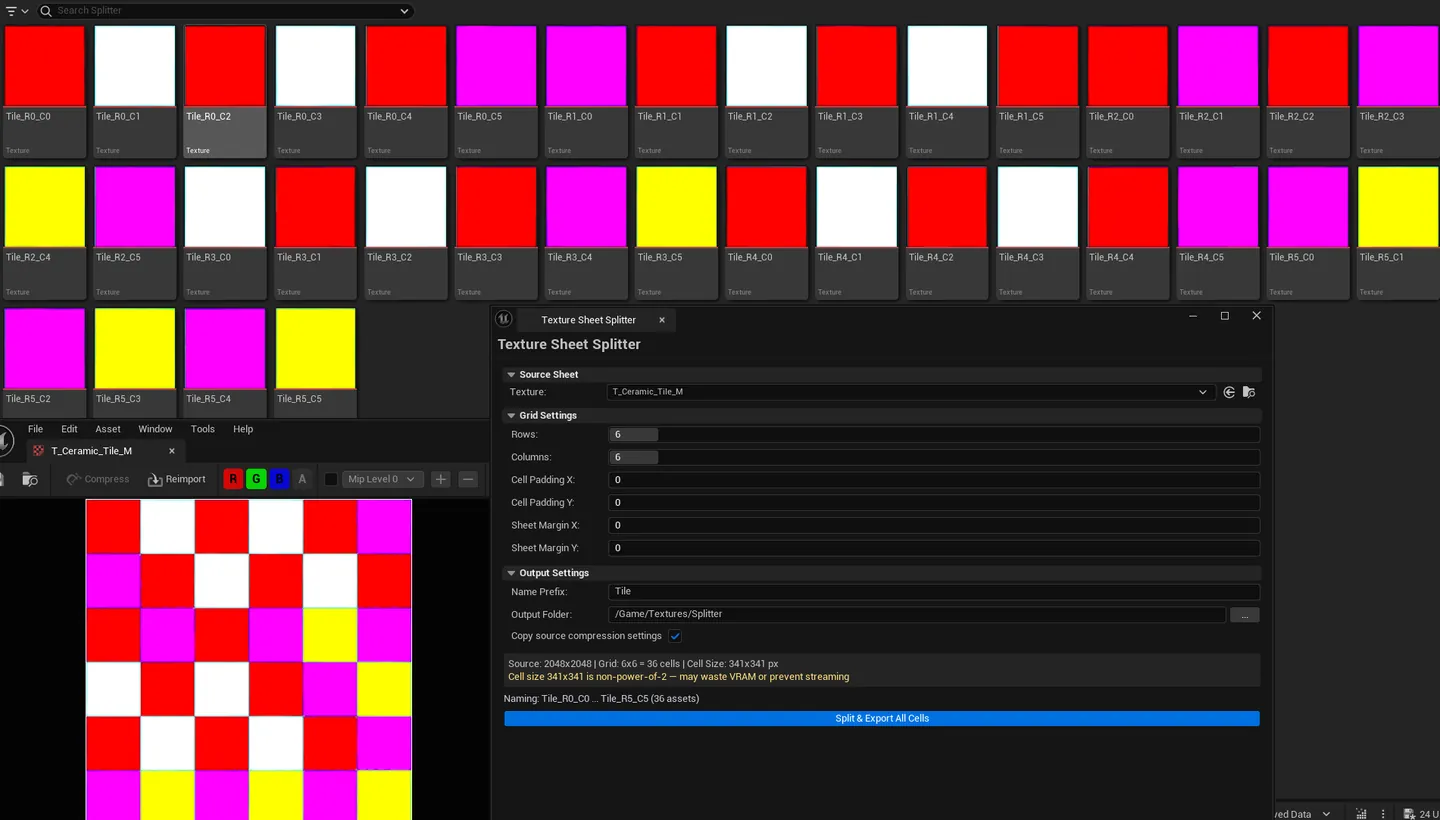
Section titled “Step 2: Configure the grid”Set rows and columns to match the source. The Cell Width / Height fields update live as you change values.
Step 3: Tweak padding/margin if the source has gaps
Section titled “Step 3: Tweak padding/margin if the source has gaps”Padding is inside each cell (gap around each individual sprite). Margin is around the whole grid (gap at the edges of the atlas).
Step 4: Set output
Section titled “Step 4: Set output”Pick an output folder and prefix. Tiles are named <Prefix>_R<row>C<col> by default.
Step 5: Click Split & Export
Section titled “Step 5: Click Split & Export”Each tile is created as a UTexture2D asset and saved to the output folder. Compression matches the source if Copy Source Compression is on.
Settings reference
Section titled “Settings reference”| Field | Range | Default |
|---|---|---|
| Rows | 1 – any | 4 |
| Columns | 1 – any | 4 |
| Padding X / Y | 0 – any | 0 |
| Margin X / Y | 0 – any | 0 |
| Output Prefix | text | Tile |
| Copy Source Compression | bool | true |
Settings are persisted to
[Project]/Saved/EQLabs/Settings/TextureSheetSplitter.json.
Output
Section titled “Output”- New
UTexture2Dassets. One per cell, saved to the output folder. - Naming convention.
<Prefix>_R<row>C<col>(zero-padded for sortable ordering). - No source modification. Source texture is untouched.
Tips and gotchas
Section titled “Tips and gotchas”- Cell size =
(SourceWidth - 2 × MarginX - (Columns - 1) × PaddingX) / Columns. If you get fractional pixel results, your padding/margin values don’t divide cleanly into the source dimensions. - Copy Source Compression preserves quality. Turning it off forces default compression on the split tiles, which can degrade non-default-compressed sources.
- Output folder defaults to source folder. Leave empty to save tiles next to the source atlas.
Related tools
Section titled “Related tools”- Flipbook Maker — the inverse operation: assemble individual textures into a sheet
- Atlas Studio — for non-uniform atlas packing/unpacking
Opens our feedback form in a new tab with the tool name pre-filled.