
Sound Cue Auditor
Sound Cue Auditor
Section titled “Sound Cue Auditor”Module: Design · Category: SoundDesign · Tool ID:
SoundCueAuditor
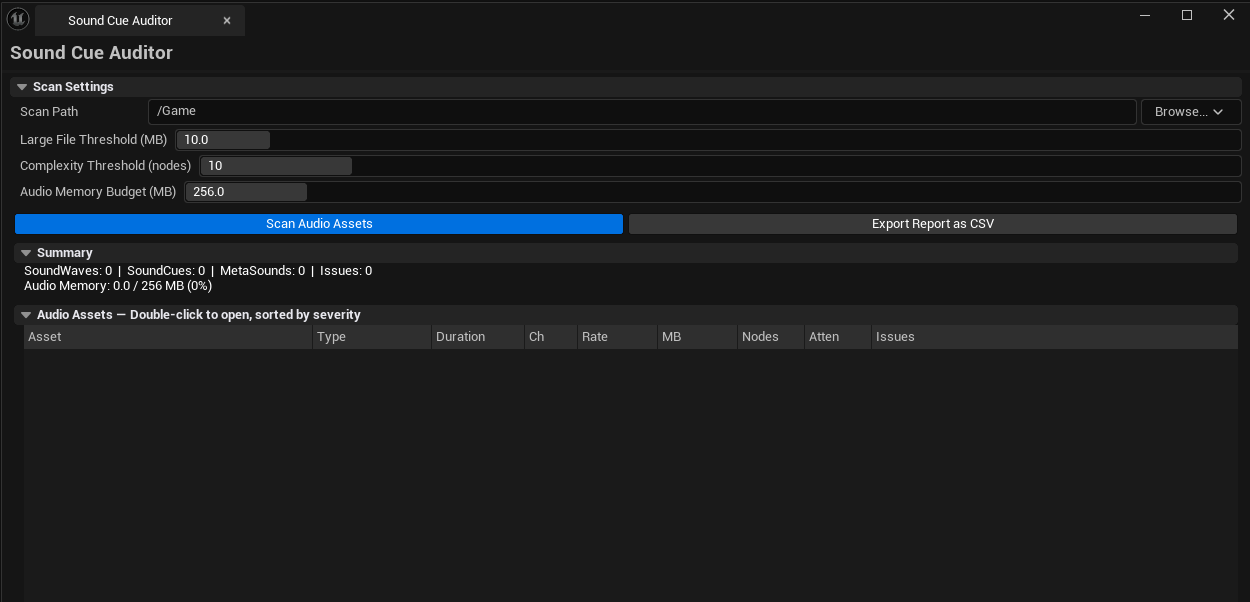
Project-wide audit of audio assets: SoundCue node count, SoundWave duration / sample rate / channel count / size, MetaSoundSource detection, attenuation and concurrency settings validation. Flags large audio files against a memory budget, unusual sample rates, and missing references. Exports CSV for team review.
When to use it
Section titled “When to use it”- Memory budget pass — finding the largest audio files in the project
- Pre-cook audit — confirming sample rates and channel counts match team standards
- Onboarding to a project — getting an inventory of every audio asset
- Migration audit — finding SoundCues that should be migrated to MetaSounds
When not to use it
Section titled “When not to use it”- Don’t use this to fix sound cues — it audits; fixes happen in the Sound Cue / MetaSound editor
- Don’t expect this to validate runtime mixing — asset-side analysis only
Opening the tool
Section titled “Opening the tool”- Open the EQLabs Hub and search for
Sound(or browse to Design → SoundDesign) - Click the tool card
- Set Scan Path
- Click Scan Audio
Interface tour
Section titled “Interface tour”| Section | What it does | Default |
|---|---|---|
| Scan Path | Folder to scan | /Game |
| Large File Threshold (MB) | Files above this are flagged | 10.0 |
| Complexity Threshold | SoundCue node count above this is flagged | 10 |
| Audio Budget (MB) | Total project-audio memory budget | 256 |
| Scan Audio | Walks every SoundCue / SoundWave / MetaSoundSource | |
| Export CSV | Saves the audit | |
| Summary | Total cues / waves / metasounds / issue count / total size | |
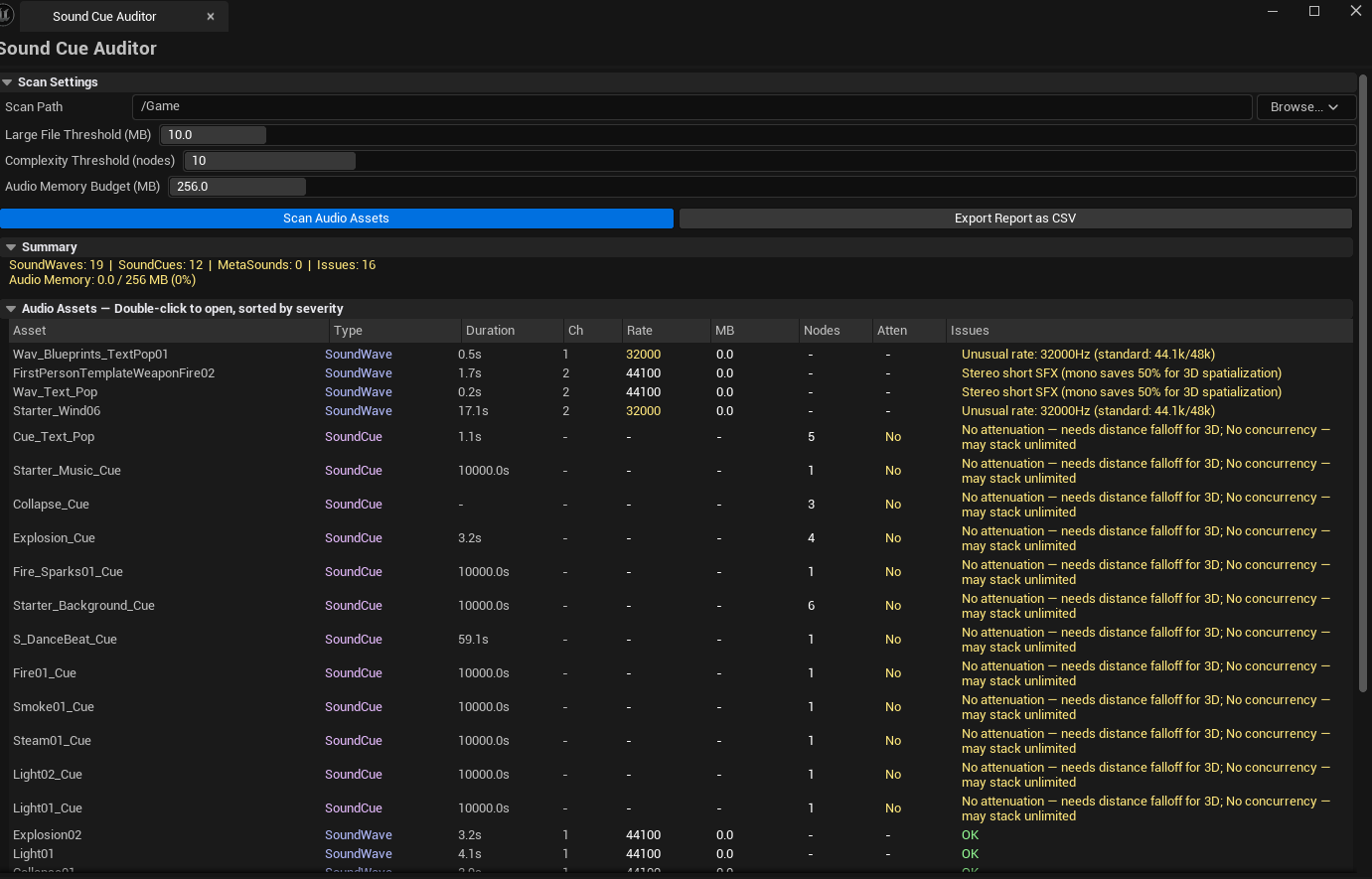
| Results list | Per-asset row: name, type, duration, node count, channels, sample rate, size MB, attenuation flag, concurrency flag, issues, severity |
Severity coding
Section titled “Severity coding”| Severity | Meaning |
|---|---|
| OK | Within thresholds, sensible settings |
| Warning | Crossed at least one threshold |
| Error | Severe issues — broken references, missing required settings |
Workflow
Section titled “Workflow”- Set Scan Path, configure thresholds
- Click Scan Audio
- Sort by Size MB descending — top entries are typically your highest-impact optimization targets
- Walk Warning/Error rows — usually missing attenuation or oversize files
- Optionally Export CSV
Settings reference
Section titled “Settings reference”| Field | What it does | Default |
|---|---|---|
| Scan Path | Folder to scan | /Game |
| Large File Threshold (MB) | Flag threshold | 10.0 |
| Complexity Threshold | SoundCue node count threshold | 10 |
| Audio Budget (MB) | Total project audio budget | 256 |
Settings file:
[Project]/Saved/EQLabs/Settings/SoundCueAuditor.json
Output
Section titled “Output”- In-panel results list
- CSV export
- No edits — read-only audit
Tips & gotchas
Section titled “Tips & gotchas”- MetaSoundSource is UE 5.4+ — older projects won’t see this asset type
- Sample rate inconsistency causes resampling at runtime — pick a project standard (
48000is common) and keep all assets at it - Missing attenuation often means a 2D sound that intends to be 3D — flag and fix
- Audio budget is a guideline, not a hard limit — warning means “this is a lot”, not “this won’t ship”
Related tools
Section titled “Related tools”- Project Doctor Suite (Tech module) — broader project-health audit including audio
Report an issue with this tool
Opens our feedback form in a new tab with the tool name pre-filled.