
No. 0391 TE TechEQLabs Pro
Virtual Texture Diagnostic
Module: Tech · Category: Debugging · Tool ID:
VirtualTextureDiagnostic
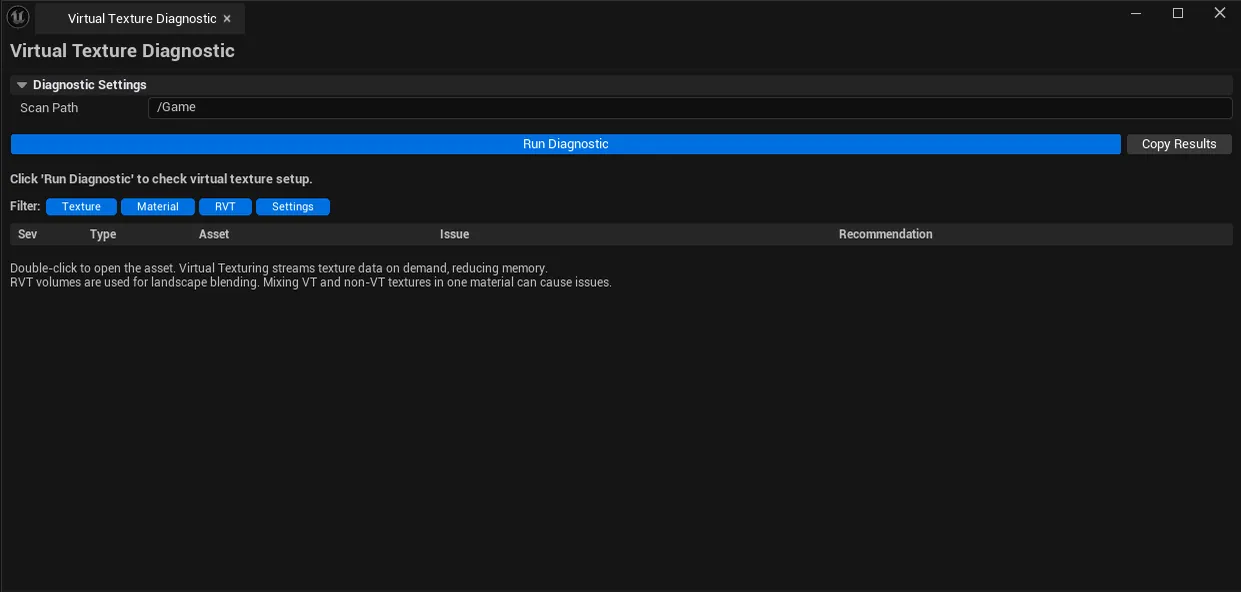
Audits the project’s virtual texture setup. Verifies VT project settings, lists textures using VT vs standard streaming with size analysis, finds materials (base + instances) mixing VT and non-VT textures (a common bug), surfaces Runtime Virtual Texture volumes in the level, and estimates VT memory + recommends pool sizes.
When to use it
Section titled “When to use it”- Setting up VT for the first time: confirming project settings + memory budget
- Debugging “why isn’t this VT working?”: usually a material mixing VT and non-VT textures
- RVT volume audit: finding rogue / misconfigured volumes
- Memory budget review: VT vs standard streaming costs
What it isn’t for
Section titled “What it isn’t for”- Don’t use this for runtime VT residency debugging. That’s a runtime tool.
- Don’t expect this to fix issues. Surfaces them; fixes happen per-asset.
Opening the tool
Section titled “Opening the tool”- Open the EQLabs Hub and search for VT or
Virtual Texture(or browse to Tech → Debugging). - Click the tool card.
- Click Diagnose.
Interface tour
Section titled “Interface tour”| Field | What it does | Default |
|---|---|---|
| Scan Path | Folder to scan | /Game |
| Filter Texture / Material / RVT / Setting | Toggle which categories appear | |
| Diagnose | Runs all checks | |
| Copy Results | Plain-text dump | |
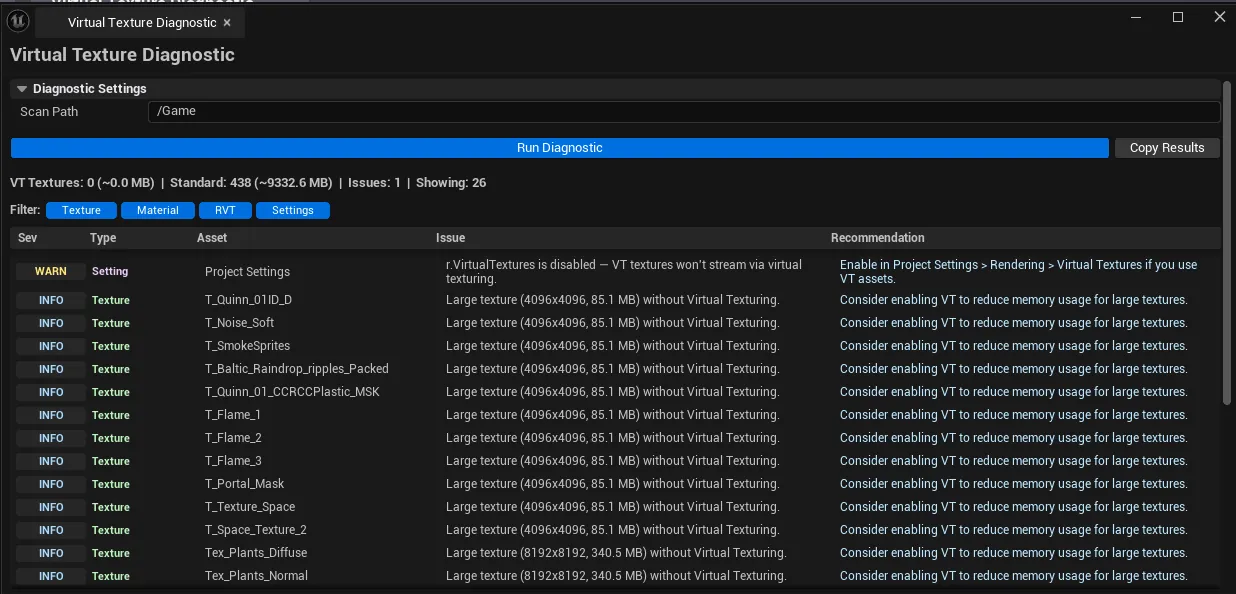
| Stats | VT texture count / standard texture count / issue count / VT memory MB / standard memory MB | |
| Diagnostic list | Per-entry row: type (Texture / Material / RVT / Setting), severity, asset name, issue, recommendation |
What gets checked
Section titled “What gets checked”- Project Settings. VT enabled flag, pool sizes, format support.
- Textures. Are the right textures using VT? Are large textures using standard streaming when VT would be better?
- Materials (base + instances). Mixing VT and non-VT textures in the same material breaks VT for that material.
- RVT Volumes. Each
ARuntimeVirtualTextureVolumein the level is reported. - Memory. VT pool memory estimation + recommended pool sizes.
Workflow
Section titled “Workflow”- Click Diagnose.
- Walk Error / Warning entries in priority order.
- For mixed-texture materials: open the material in editor, set all texture parameters to either VT or non-VT consistently.
- For RVT volume issues: edit the volume’s settings or material assignment.
Settings reference
Section titled “Settings reference”| Field | Default |
|---|---|
| Scan Path | /Game |
| Category filters | all on |
Settings file:
[Project]/Saved/EQLabs/Settings/VirtualTextureDiagnostic.json
Output
Section titled “Output”- In-panel diagnostic list and stats.
- Clipboard. Copy Results.
- No edits. Read-only audit.
Tips and gotchas
Section titled “Tips and gotchas”- VT pool size affects VRAM. Too small = constant streaming hitches; too large = VRAM pressure on other systems.
- Mixing VT + non-VT textures in one material is the most common VT bug
- RVT volumes need the right material assignment. Verify after editing the volume.
Related tools
Section titled “Related tools”- Lumen Scene Debugger — sibling debugging tool
- Rendering Systems Auditor — VT runtime tuning
Report an issue with this tool
Opens our feedback form in a new tab with the tool name pre-filled.