
No. 1175 MO ModelingEQLabs Pro
World-Scale & Traversal Checker
Module: Modeling · Category: Traversal · Tool ID:
WorldScaleTraversalChecker
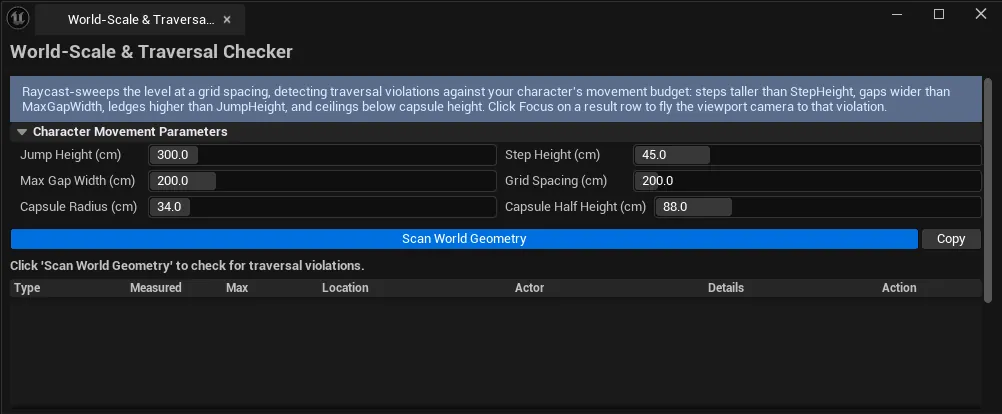
Sweeps the open level with raycasts on a configurable grid and flags every spot where the geometry violates your character’s movement budget — steps too tall, gaps too wide, ceilings too low, ledges higher than jump height. Each violation lists a world location and an actor name, and clicks the viewport camera straight to it for inspection.
When to use it
Section titled “When to use it”- Whitebox / blockout pass: confirming your level actually conforms to the movement budget you wrote on a whiteboard
- Inheriting a level built by another team and wanting an objective list of “is this even traversable?”
- Tuning a new character’s movement params against an existing environment
- Pre-playtest sanity sweep: cheaper than discovering the gym is impossible during a session
What it isn’t for
Section titled “What it isn’t for”- Don’t use this for nav-mesh debugging. UE has dedicated nav-mesh visualizers; this tool is geometry-side, not pathing-side.
- Don’t expect dynamic/instanced foliage to be tested. The sweep traces visibility-channel collision; foliage typically isn’t in that channel.
Opening the tool
Section titled “Opening the tool”- Open the EQLabs Hub and search for Traversal (or browse to Modeling → Traversal).
- Click the tool card to open the panel.
- Make sure you have a level loaded — the tool sweeps the active editor world.
Interface tour
Section titled “Interface tour”The panel is a single scroll container, top to bottom:
1. Info banner
Section titled “1. Info banner”A reminder of what the tool does and how the Focus action works on result rows.
2. Character Movement Parameters
Section titled “2. Character Movement Parameters”A two-column section with six fields. Defaults match a roughly UE-default Character.
| Field | What it represents | Default |
|---|---|---|
| Jump Height (cm) | Max vertical jump. Ledges taller than this are flagged as LedgeTooHigh. | 300 |
| Step Height (cm) | Max step the character can walk up without jumping. Steps above are flagged as StepTooHigh. | 45 |
| Max Gap Width (cm) | Max gap the character can cross. Wider gaps are flagged as GapTooWide. | 200 |
| Grid Spacing (cm) | Distance between scan sample points on the X/Y grid. Lower = thorough but slower. | 200 |
| Capsule Radius (cm) | Character collision radius. Used for ceiling/gap geometry queries. | 34 |
| Capsule Half Height (cm) | Character half-height. Ceilings under 2 × HalfHeight are flagged as CeilingTooLow. | 88 |
3. Action buttons
Section titled “3. Action buttons”| Button | Behavior |
|---|---|
| Scan World Geometry | Computes level bounds, walks a grid, raycasts in 4 directions per sample, flags violations. Progress dialog shows during the sweep. |
| Copy | Copies all violations as plain text to the clipboard. |
4. Results list
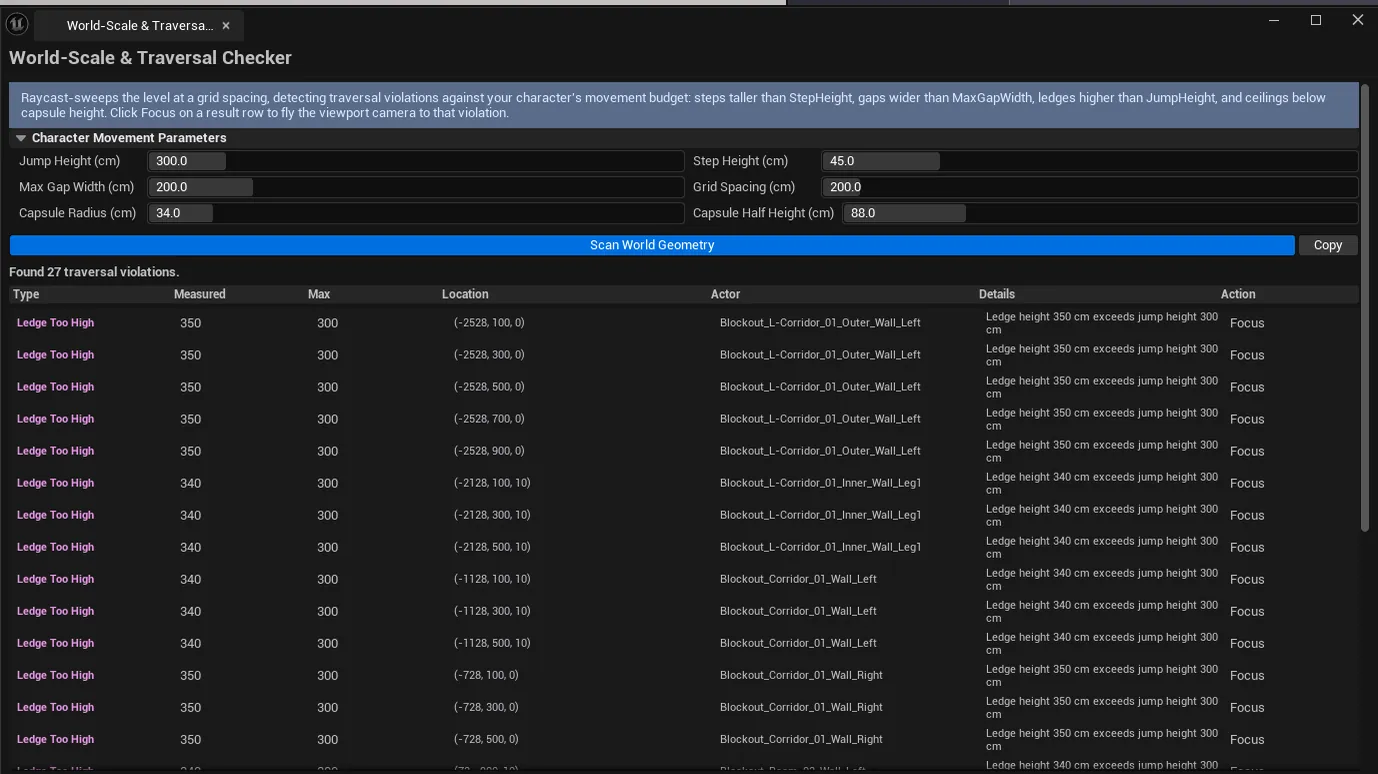
Section titled “4. Results list”One row per violation, with type, description (with measured vs. allowed values), actor name, and a Focus action. Single-click pings the location, double-click flies the viewport camera to it.
Workflow
Section titled “Workflow”Step 1: Open the level you want to test
Section titled “Step 1: Open the level you want to test”The tool sweeps GEditor->GetEditorWorldContext().World() — whatever level is currently open.
Step 2: Set your movement budget
Section titled “Step 2: Set your movement budget”Plug in the Jump Height, Step Height, Max Gap Width, and capsule dimensions that match your character. If you’re not sure, start with the defaults — they approximate UE’s stock Character.
Step 3: Pick a grid spacing
Section titled “Step 3: Pick a grid spacing”200 cm is a good default for most levels. Drop to 100 cm for a thorough pass on a small playable space. Keep 200+ for large World Partition cells unless you’re willing to wait.
Step 4: Click Scan World Geometry
Section titled “Step 4: Click Scan World Geometry”A progress dialog appears while the level is swept. Total samples are clamped to a maximum of 200 × 200 to prevent runaway scans on enormous worlds.
Step 5: Walk the violations
Section titled “Step 5: Walk the violations”Each row tells you:
- The type of violation (
Step Too High,Gap Too Wide,Ceiling Too Low,Ledge Too High,Unreachable Area) - The measured value vs. the max allowed
- The actor that contributed the offending geometry
Single-click a row to ping. Double-click (or use Focus) to fly the camera there. Fix or accept each issue in turn.
Settings reference
Section titled “Settings reference”| Field | Range | Default |
|---|---|---|
| Jump Height | 0 – 2000 cm | 300 |
| Step Height | 0 – 200 cm | 45 |
| Max Gap Width | 0 – 1000 cm | 200 |
| Grid Spacing | 50 – 2000 cm | 200 |
| Capsule Radius | 10 – 200 cm | 34 |
| Capsule Half Height | 20 – 300 cm | 88 |
Settings are persisted to
[Project]/Saved/EQLabs/Settings/WorldScaleTraversalChecker.json.
Output
Section titled “Output”- Results list. In-panel; cleared on each new scan.
- Clipboard. Via the Copy button, plain text, one violation per line.
- No level edits. The tool is read-only with respect to the level.
Tips and gotchas
Section titled “Tips and gotchas”- The tool needs a level open. If you see “No editor world available”, load a level and try again.
- Sample grid is hard-capped. Internally clamped to
200 × 200samples regardless of grid spacing. Very large levels with tight grid spacing will under-sample; pass over the level in chunks if precision matters. - Visibility channel only. Geometry that isn’t on the visibility collision channel won’t be traced. Make sure your test environment uses default collision presets, or the sweep will misreport gaps.
- Lighting probe / nav volumes can sometimes block the cast. If you get phantom violations, hide non-geometry actors first.
- Empty result is the goal. A clean sweep returns “Click ‘Scan World Geometry’ to check for traversal violations” or zero violations after scanning.
Related tools
Section titled “Related tools”- Modular Kit Auditor — placement-level validation (off-grid, unsnapped, floating)
- Level Analysis Suite (Design module) — broader level metrics: actor inventory, map size, room metrics
- Lighting Scenario Auditor (Design module) — lighting validation in the same workflow
Opens our feedback form in a new tab with the tool name pre-filled.