
No. 0452 AR ArtEQLabs Pro
Flipbook Maker
Module: Art · Category: VFX · Tool ID:
FlipbookMaker
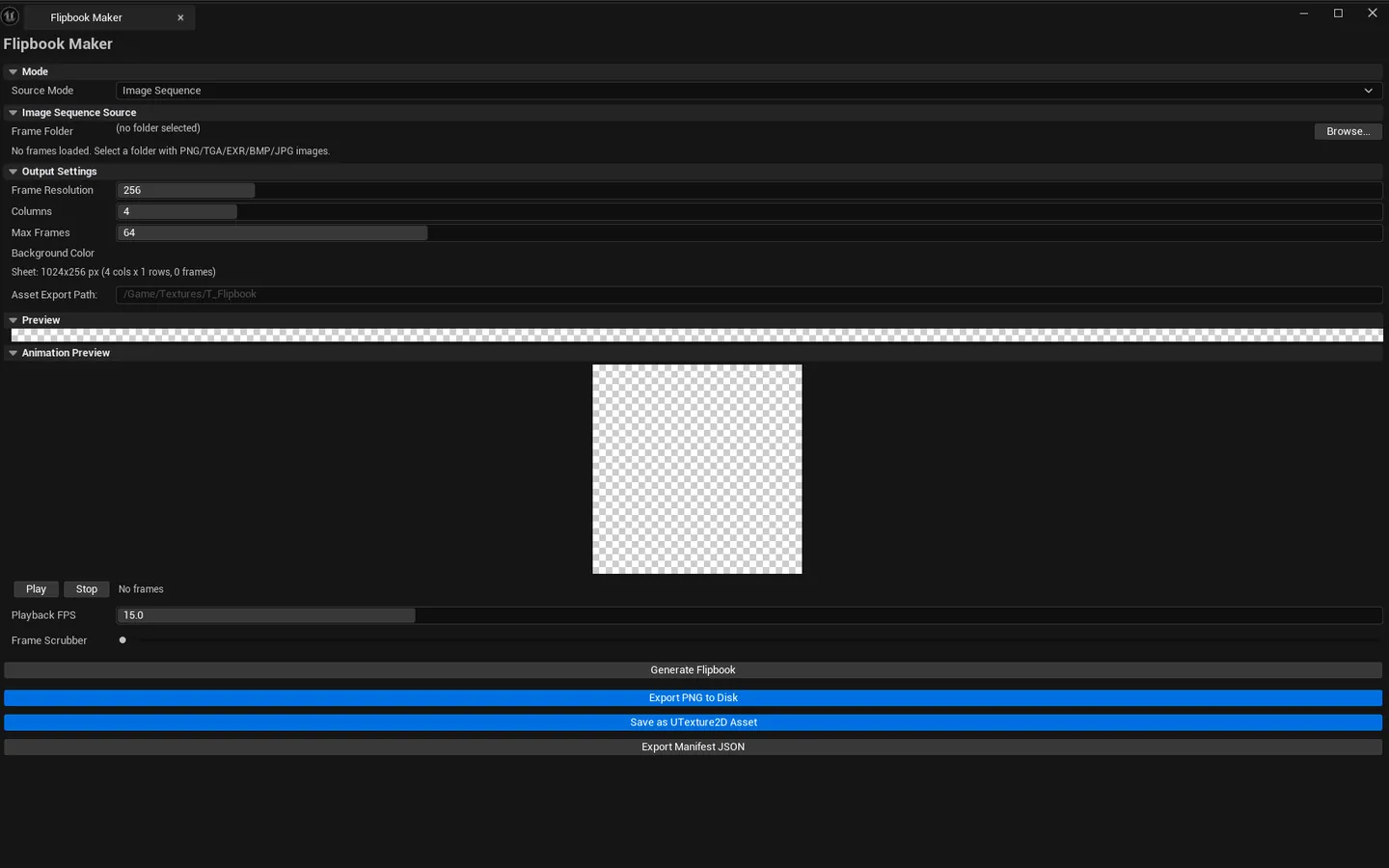
A four-mode sprite-sheet builder. Assembles flipbook textures from any of: a folder of image frames on disk, a SkeletalMesh captured frame-by-frame in the level, a video file or EXR/PNG sequence, or a hand-picked set of Content Browser textures. Output is a single sprite sheet texture with live preview, animated playback, and one-click PNG or UAsset export.
When to use it
Section titled “When to use it”- Building VFX flipbook textures (smoke, fire, explosions) from offline-rendered frame sequences
- Capturing a character’s animation cycle as a sprite sheet for billboard impostors or 2D fallbacks
- Converting a video reference into a frame-flippable texture
- Assembling hand-picked Content Browser textures into a sheet for use in particle systems or UI
What it isn’t for
Section titled “What it isn’t for”- Don’t use this for live runtime sprite sheets. It’s an authoring tool that produces a static texture.
- Don’t expect this to render Niagara directly. For that, use real-time capture in your particle system.
Opening the tool
Section titled “Opening the tool”- Open the EQLabs Hub and search for Flipbook (or browse to Art → VFX).
- Click the tool card.
- Pick a mode from the mode switcher at the top of the panel.
The four modes
Section titled “The four modes”Mode 1: Image Sequence
Section titled “Mode 1: Image Sequence”Import a folder of pre-rendered frame images.
| Field | What it does |
|---|---|
| Image Folder | Folder containing the frame images (loaded in alphabetical order) |
| Browse | Picks the folder via OS dialog |
Mode 2: Skeletal Capture
Section titled “Mode 2: Skeletal Capture”Capture frames from an animated SkeletalMesh in the level.
| Field | What it does | Default |
|---|---|---|
| SkeletalMesh | Mesh to capture | (empty) |
| AnimSequence | Animation to play during capture | (empty) |
| Frame Count | How many frames to capture | 16 |
| Capture Resolution | Per-frame resolution before tiling | 512 |
| View Angle | Front / Back / Left / Right / Top / Bottom / 3/4 Perspective | Front |
| Capture FOV | Camera FOV (degrees) | 45 |
| Background Mode | Transparent / Solid Color / Level/Scene | Transparent |
| Lighting Preset | Studio 3-Point / Outdoor Sun / Dramatic Rim / Flat Ambient | Studio 3-Point |
| Capture Background Color | Used when Background Mode = Solid Color | (transparent black) |
The capture spawns a temporary actor + lighting rig per the chosen preset, runs the animation, captures each frame at the chosen view angle, then tiles them.
Mode 3: Video Sequence
Section titled “Mode 3: Video Sequence”Extract frames from a video file or EXR/PNG sequence on disk.
| Field | What it does | Default |
|---|---|---|
| Video File | Path to the source video / sequence | (empty) |
| Extract Frames | How many frames to sample | 16 |
| Start / End Time | Time range (seconds, normalized) | 0.0 / 1.0 |
Mode 4: Content Browser Textures
Section titled “Mode 4: Content Browser Textures”Pick textures from the Content Browser, reorder them, and assemble.
| Action | What it does |
|---|---|
| Add from Content Browser | Adds the currently-selected Content Browser textures to the frame list |
| Remove Selected | Removes selected rows |
| Move Up / Down | Reorder frames |
Shared output settings
Section titled “Shared output settings”These apply across all four modes:
| Field | What it does | Default |
|---|---|---|
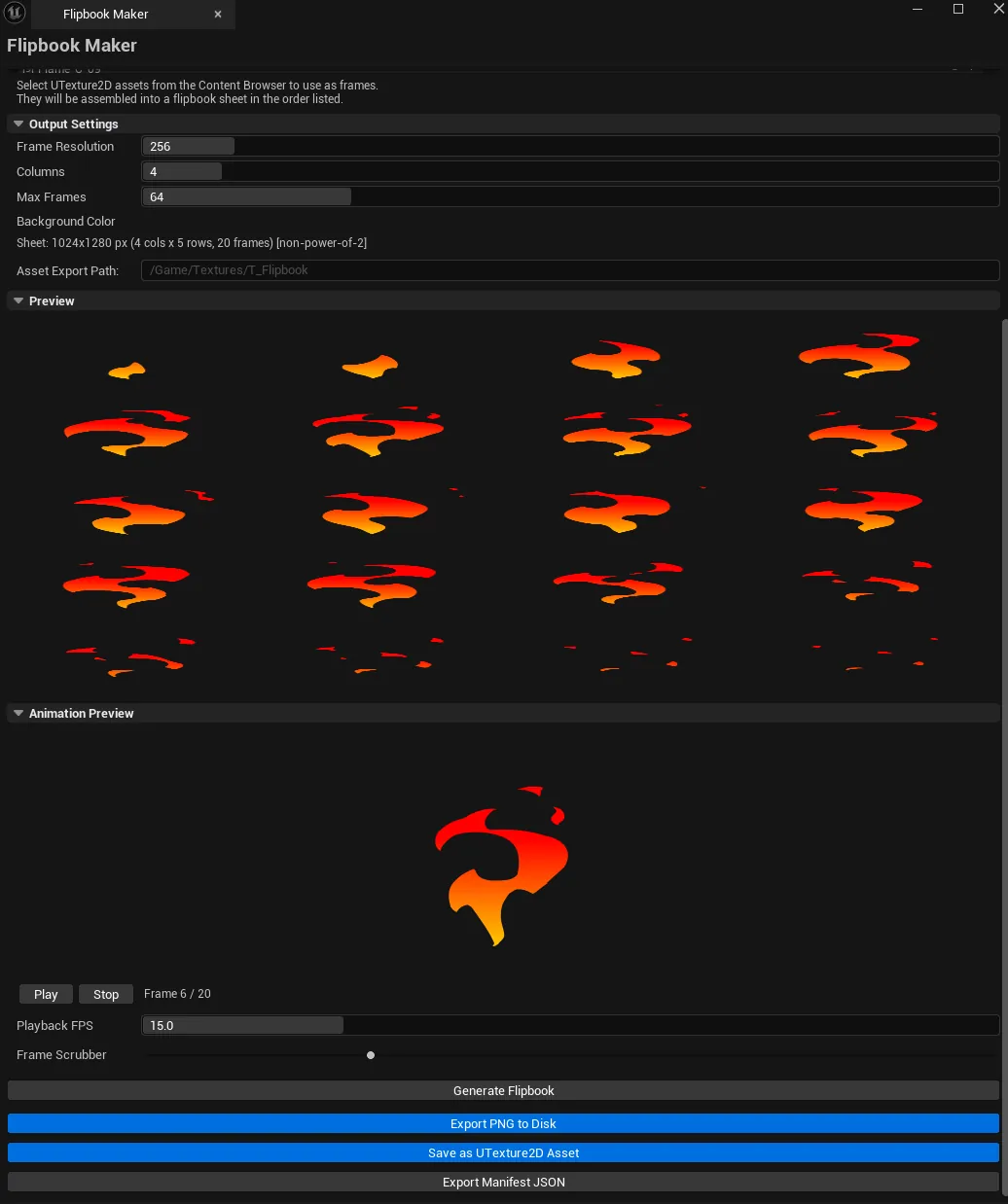
| Output Resolution | Per-frame size in the final sheet | 256 |
| Columns | Number of columns in the sheet grid | 4 |
| Max Frames | Cap on total frames (rows × columns) | 64 |
| Background Color | Sheet background fill | (transparent) |
Workflow
Section titled “Workflow”Step 1: Pick a mode
Section titled “Step 1: Pick a mode”The mode switcher at the top routes the rest of the panel to the right input controls.
Step 2: Configure the mode-specific inputs
Section titled “Step 2: Configure the mode-specific inputs”Each mode has its own block (see “The four modes” above).
Step 3: Set the shared output (resolution, columns, background)
Section titled “Step 3: Set the shared output (resolution, columns, background)”The defaults work for most VFX uses (256 × 256 per frame, 4 × 4 grid = 16 frames).
Step 4: Generate
Section titled “Step 4: Generate”Click Generate. The sprite sheet preview populates. Use the animation preview controls (Play / Pause / FPS / scrubber) to verify timing.
Step 5: Export
Section titled “Step 5: Export”| Action | Output |
|---|---|
| Export PNG | Sprite sheet as .png to disk |
| Export Asset | Sprite sheet as a UTexture2D UAsset in the Content Browser |
| Export Manifest | Plain-text frame manifest (frame paths, ordering) |
Settings reference
Section titled “Settings reference”Per-mode settings persist via the standard EQLabs settings system to [Project]/Saved/EQLabs/Settings/FlipbookMaker.json.
Output
Section titled “Output”- Live preview. Sprite sheet visible in the panel, with Play/Pause/FPS animated playback.
- PNG file. Via Export PNG.
- UTexture2D asset. Via Export Asset (saved to Content Browser at the configured asset path).
- Frame manifest. Via Export Manifest (text file listing frame ordering).
Tips and gotchas
Section titled “Tips and gotchas”- Image Sequence mode loads in alphabetical order. Name your frames with zero-padded indices (
frame_001,frame_002) to ensure correct ordering. - Skeletal Capture’s “Transparent” background mode hides the level. The temporary capture actor is rendered against an empty scene with the chosen lighting preset.
- Frame count × resolution can spike memory.
64 frames × 1024pxis a 256MB allocation. Stay reasonable. - The 3/4 Perspective view angle is usually the most useful for character flipbooks. Front and Back are flat.
- Video Sequence mode extracts at evenly-spaced times. For non-linear extraction, pre-export your video to a frame sequence and use Image Sequence mode instead.
- Particle Sheet Generator was absorbed into this tool (P19). Content Browser Textures mode replaces the standalone tool.
Related tools
Section titled “Related tools”- Niagara Profiler — for analyzing Niagara systems that consume flipbooks
- Texture Sheet Splitter — the inverse operation: split a sheet into individual textures
- Atlas Studio — when you need a packed atlas instead of a uniform-grid flipbook
Opens our feedback form in a new tab with the tool name pre-filled.