
No. 0542 AR ArtEQLabs Pro
Material Layer Studio
Module: Art · Category: MaterialAuthoring · Tool ID:
MaterialLayerStudio
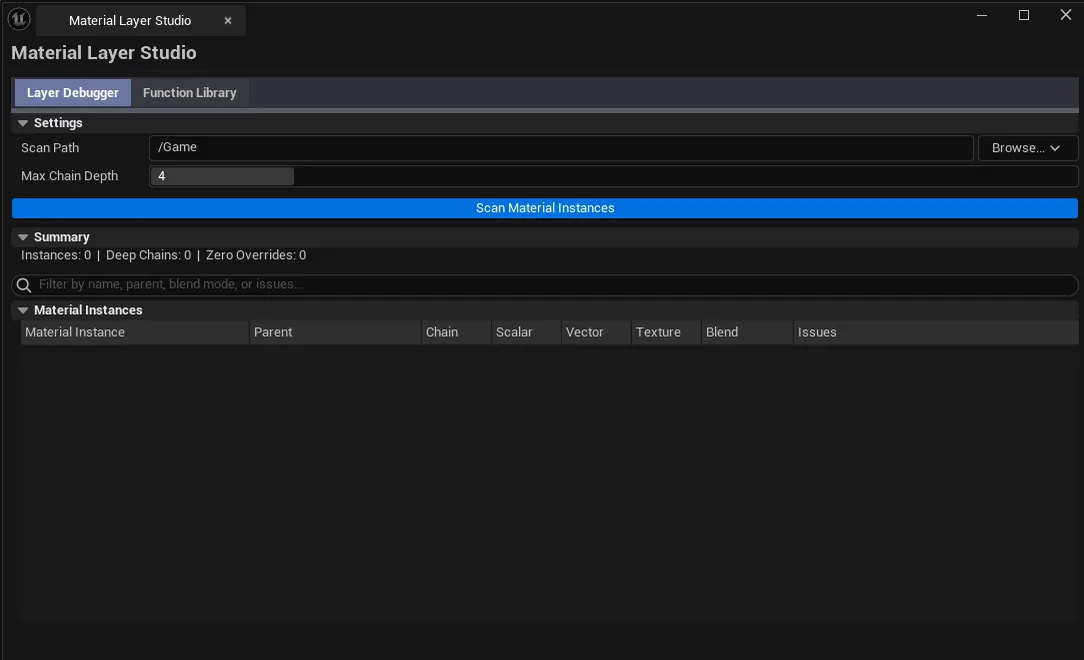
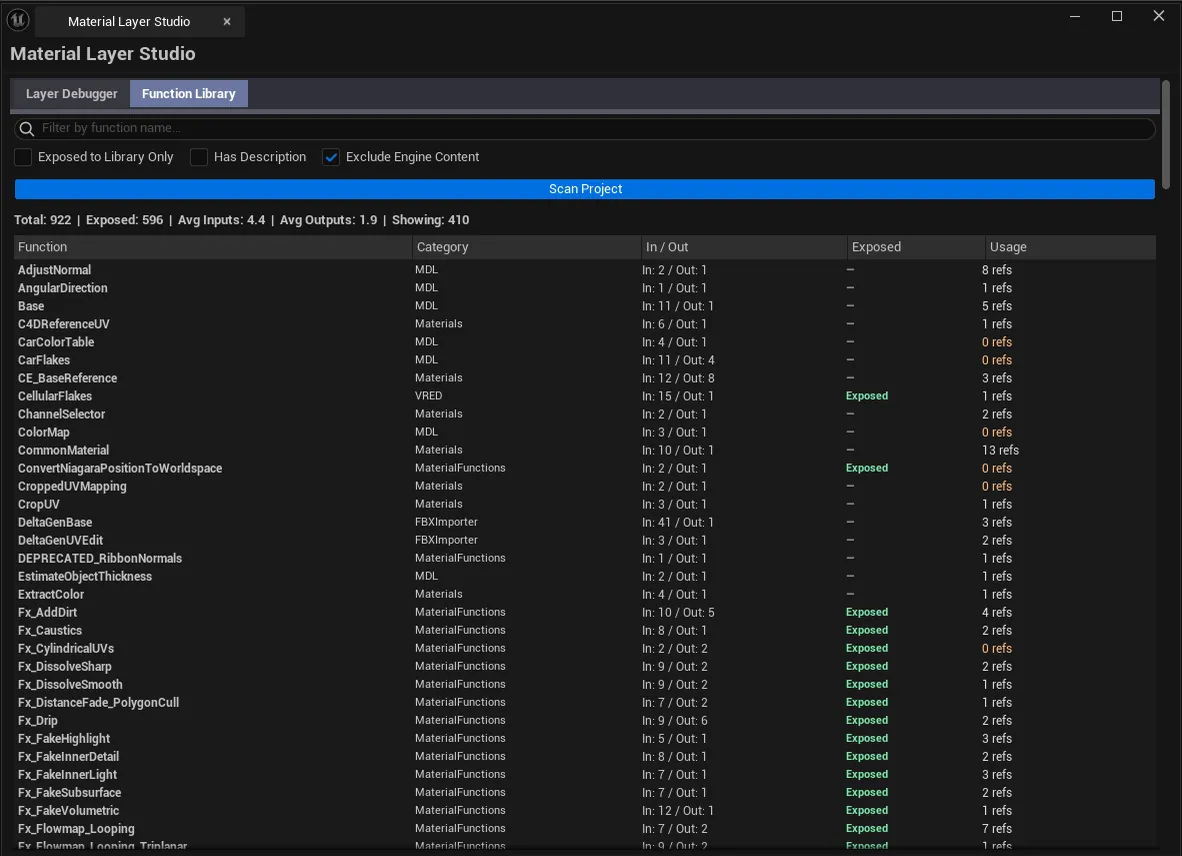
A two-tab material authoring helper. Debugger walks a material instance’s parent chain and surfaces which parameters are overridden where. Library browses every Material Function in the project with usage counts so you can see which functions are widely shared infrastructure and which are one-offs.
When to use it
Section titled “When to use it”- Debugging “why doesn’t this parameter take effect?”: usually a parent override conflict, easy to see in the chain view
- Refactoring a material library: finding which functions are widely used vs. orphaned
- Onboarding to a project: understanding the material parent hierarchy
- Pre-merge review on a teammate’s new master material
What it isn’t for
Section titled “What it isn’t for”- Don’t use this for material editing. It’s read-only inspection; edits happen in the Material editor.
- Don’t expect this to auto-fix override conflicts. Surfaces them; you fix them.
Opening the tool
Section titled “Opening the tool”- Open the EQLabs Hub and search for Material Layer (or browse to Art → MaterialAuthoring).
- Click the tool card.
- Use the tab bar to switch between Debugger and Library.
Tab 1: Material Layer Debugger
Section titled “Tab 1: Material Layer Debugger”Walks a material instance’s parent chain and shows override status per level.
Interface
Section titled “Interface”| Section | What it does |
|---|---|
| Material Instance picker | Drop a UMaterialInstance |
| Analyze | Walks the parent chain |
| Parent chain | Each level: parent material/instance name, override count, parameter list |
| Override details | Per-parameter row: name, value, which level overrides it |
Workflow
Section titled “Workflow”- Drop a material instance.
- Click Analyze.
- Walk the chain — overrides “shadow” each other (a parameter overridden at level 2 wins over level 3).
Tab 2: Material Function Library
Section titled “Tab 2: Material Function Library”Browses every Material Function in the project.
Interface
Section titled “Interface”| Section | What it does |
|---|---|
| Scan Path | Folder to scan recursively |
| Scan | Walks every UMaterialFunction |
| Search box | Filter by function name |
| Functions list | Per-function row: name, input count, output count, usage count (how many materials reference it) |
Workflow
Section titled “Workflow”- Pick a scan path, click Scan.
- Sort by usage count — high-use functions are shared infrastructure.
- Single-click pings the function; double-click opens it in the Material Function editor.
Settings reference
Section titled “Settings reference”| Field | What it does | Default |
|---|---|---|
| Scan Path | Folder for Library tab | /Game |
| Search | Substring filter | empty |
Settings are persisted to
[Project]/Saved/EQLabs/Settings/MaterialLayerStudio.json.
Output
Section titled “Output”- In-panel results. Read-only inspection.
- No edits. Auditing only.
Tips and gotchas
Section titled “Tips and gotchas”- Override counts in the parent chain include inherited overrides. A child instance “overrides” everything overridden by its parents.
- Functions with zero usage count are candidates for cleanup. But check carefully; some may be referenced via Material Function calls inside other functions.
- Single-click pings; double-click opens the relevant Material / Material Function editor.
Related tools
Section titled “Related tools”- OpenPBR Pipeline Bridge — for OpenPBR/Substance compatibility analysis
- Smart Mask & Texture Processor — Material Instance Factory tab creates instances from a parent + texture set
Report an issue with this tool
Opens our feedback form in a new tab with the tool name pre-filled.