
No. 0893 DE DesignEQLabs Pro
Reference Image Overlay
Module: Design · Category: LevelDesign · Tool ID:
ReferenceImageOverlay
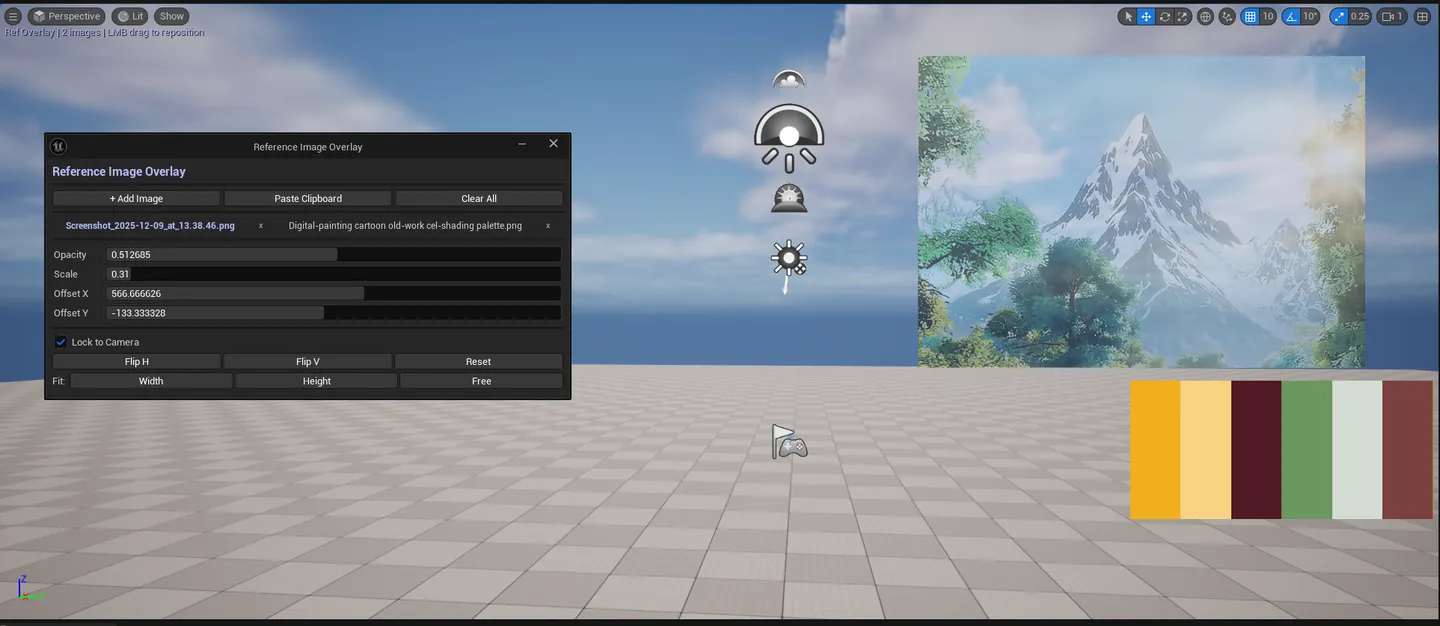
A Hub-launcher tool for an EdMode that displays reference images directly in the viewport. Activate the mode, drop in concept art / floor plans / mood boards, and frame them in 3D space alongside your level so you can build to spec.
When to use it
Section titled “When to use it”- Whitebox / blockout work: building to a concept-art reference
- Floor-plan-driven level design: overlaying architectural drawings
- Cross-checking proportions against mood boards
- Reviewing a design alongside a reference without leaving the viewport
What it isn’t for
Section titled “What it isn’t for”- Don’t use this for texture-overlay work. It’s a viewport reference display, not a paint tool.
- Don’t expect 3D-tracked image overlay. Images are anchored in world space, but they’re flat.
Opening the tool
Section titled “Opening the tool”- Open the EQLabs Hub and search for Reference or
Overlay(or browse to Design → LevelDesign). - Click the tool card to open the launcher panel.
- Click Activate to enable the EdMode.
- The viewport panel for managing reference images appears.
Interface tour
Section titled “Interface tour”Hub launcher panel
Section titled “Hub launcher panel”Minimal launcher:
| Action | What it does |
|---|---|
| Activate | Enables the Reference Image Overlay EdMode |
| Deactivate | Disables the EdMode |
| Status | Green ACTIVE / Gray Inactive |
Viewport panel (when active)
Section titled “Viewport panel (when active)”When the EdMode is active, a viewport panel exposes per-overlay controls:
- Add / Remove reference images
- Position, rotation, scale per image (XYZ)
- Opacity per image
- Front / Back ordering
- Lock / unlock manipulation
Workflow
Section titled “Workflow”- Click the Hub tool card, then Activate.
- In the viewport panel, click Add Image, pick a texture / image file.
- Position the image in world space (drag in viewport or use the panel’s transform fields).
- Tune opacity / ordering.
- Build your level using the reference as a guide.
- Click Deactivate when done.
Settings reference
Section titled “Settings reference”Reference image collections persist via the EdMode’s own state. Hub launcher has no persisted settings.
Output
Section titled “Output”- In-viewport reference images. Visible during play / editing while EdMode is active.
- No level edits. Reference images are EdMode state, not level actors.
Tips and gotchas
Section titled “Tips and gotchas”- Reference images are flat. They’re textured planes in world space. Position them on a wall or floor for natural composition.
- Multiple references can stack. Useful for layered floor plans (foundation, first floor, roof).
- Press Escape to exit the EdMode. Fastest way out without going back to the Hub.
Related tools
Section titled “Related tools”- Measurement & Annotation Tool — for measurement during reference-driven design
- Blockout Generator — quickly spawn primitives matching reference proportions
- Blockout Lab. Full custom-asset-editor blockout workflow.
Report an issue with this tool
Opens our feedback form in a new tab with the tool name pre-filled.