
No. 0652 AR ArtEQLabs Pro
Material Texture Baker
Module: Art · Category: Bake · Tool ID:
UniversalBakeSuite
A three-tab material baking suite. High → Low transfers a high-poly mesh’s material onto a low-poly mesh’s UV layout. Material → Texture flattens material channels (BaseColor, Normal, Roughness, Metallic, AO, Emissive) into individual textures. Batch runs the same flattening operation across a folder of meshes.
⚠️ This is NOT projection / mesh-to-mesh / cage baking.
This tool bakes material channels by sampling a material graph onto a UV layout. It does not raycast from a low-poly through a cage to a high-poly to extract geometric Normal / AO / Curvature / Thickness / Cavity (the Substance Painter / Marmoset Toolbag / xNormal workflow).
The “Normal” output is the material graph’s normal output, not a normal map derived from high-poly surface geometry. For projection baking, use a dedicated DCC.
Also does not bake: lightmaps, distance fields, Nanite, HLOD, physics, or shader caches.
When to use it
Section titled “When to use it”- Flattening a complex Material graph into individual textures (e.g., to ship a final material as a simpler PBR set)
- Cross-mesh material transfer: sampling material A onto mesh B’s UV layout
- Batch flattening every material in a folder: preparing assets for an external pipeline that expects raw textures
What it isn’t for
Section titled “What it isn’t for”- Don’t use this for high-to-low projection baking. The “Normal” output here is the material graph’s normal, not a geometric normal from a high-poly mesh. Use Substance / Marmoset / xNormal for projection baking.
- Don’t expect lightmap / distance-field baking. Those have dedicated UE workflows.
- Don’t expect Nanite or HLOD baking. Those have their own systems.
Opening the tool
Section titled “Opening the tool”- Open the EQLabs Hub and search for Bake or
Material Texture(or browse to Art → Bake). - Click the tool card.
- Use the tab bar: High → Low, Material → Texture, or Batch.
Tab 1: High → Low
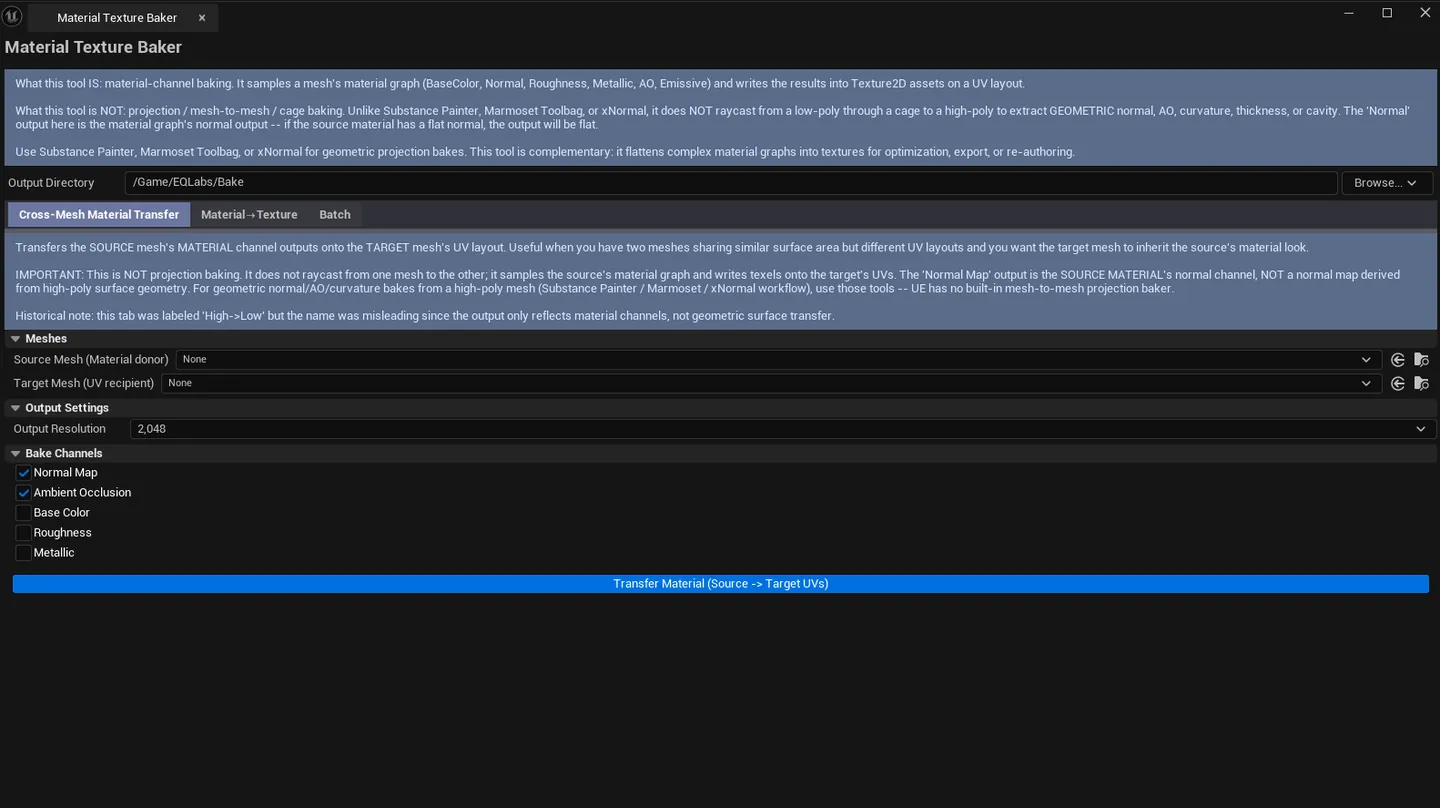
Section titled “Tab 1: High → Low”Bake one mesh’s material onto another mesh’s UV layout.
Interface
Section titled “Interface”| Field | What it does | Default |
|---|---|---|
| High Mesh picker | Source mesh whose material is sampled | (empty) |
| Low Mesh picker | Target mesh whose UV layout is used | (empty) |
| Resolution | Output texture size | 2048 |
| Bake Normal | Toggle Normal channel | true |
| Bake AO | Toggle AO channel | true |
| Bake BaseColor | Toggle BaseColor channel | false |
| Bake Roughness | Toggle Roughness channel | false |
| Bake Metallic | Toggle Metallic channel | false |
| Bake | Runs the cross-mesh material transfer |
Workflow
Section titled “Workflow”- Pick the high-poly mesh (source material).
- Pick the low-poly mesh (target UV layout).
- Pick channels to bake.
- Click Bake.
- New textures are saved to the configured output directory.
Tab 2: Material → Texture
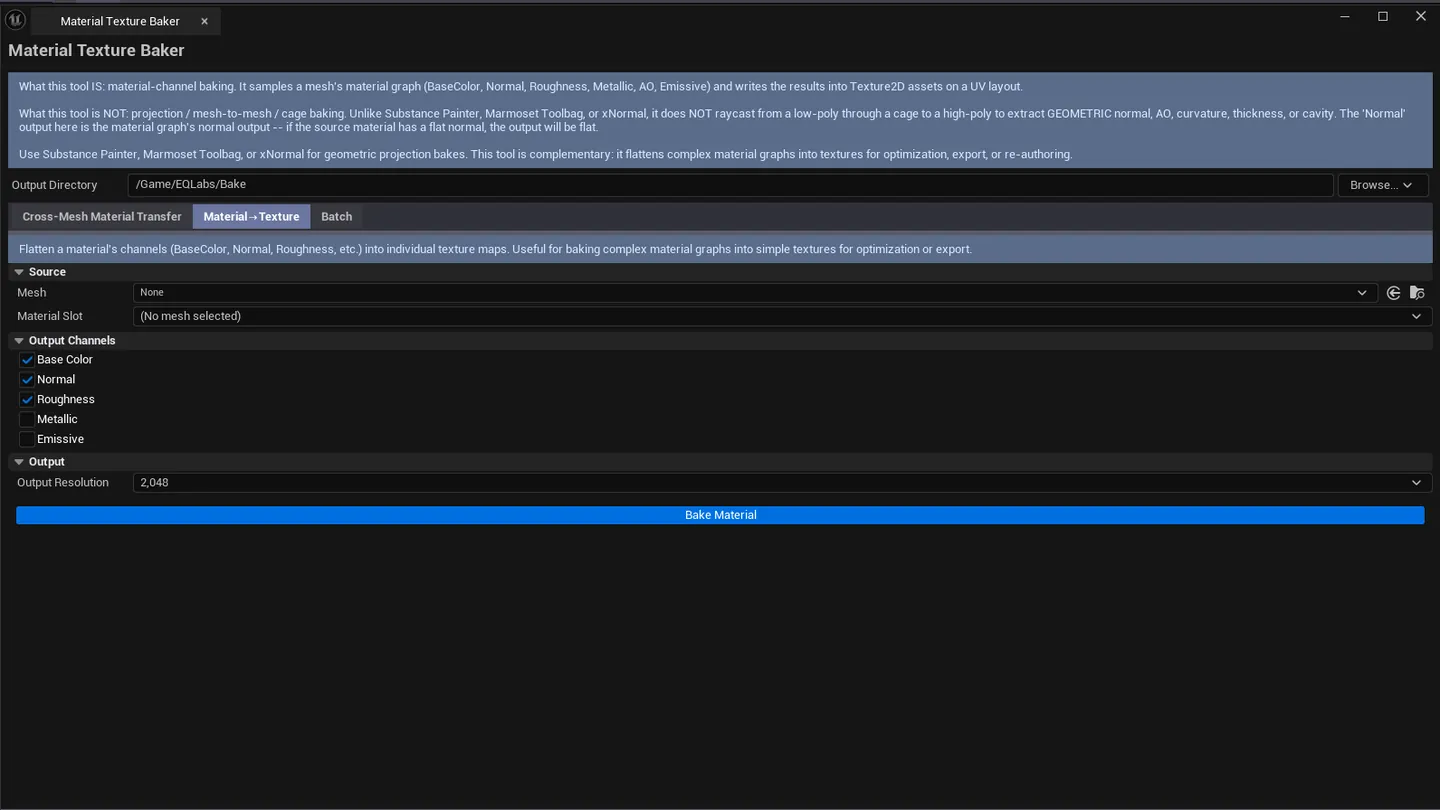
Section titled “Tab 2: Material → Texture”Flatten a single material’s channels to individual textures.
Interface
Section titled “Interface”| Field | What it does | Default |
|---|---|---|
| Mesh picker | The mesh whose material to flatten | (empty) |
| Material Slot combo | Which material slot on the mesh | 0 |
| Resolution | Output texture size | 2048 |
| Bake BaseColor | Toggle BaseColor | true |
| Bake Normal | Toggle Normal | true |
| Bake Roughness | Toggle Roughness | true |
| Bake Metallic | Toggle Metallic | false |
| Bake Emissive | Toggle Emissive | false |
| Bake | Flattens the chosen channels |
Workflow
Section titled “Workflow”- Drop a static mesh.
- Pick the material slot (most meshes have only slot 0).
- Choose the channels you need.
- Set resolution (
2048for hero assets,1024for environment dressing). - Click Bake.
Tab 3: Batch Mode
Section titled “Tab 3: Batch Mode”Folder-level batch baking — runs the Material → Texture flow on every mesh under a path.
Interface
Section titled “Interface”| Field | What it does | Default |
|---|---|---|
| Batch Folder Path | Folder of meshes to process | /Game/ |
| Batch Bake Mode | Material to Texture (V1; more modes planned) | Material to Texture |
| Batch Resolution | Output resolution applied to all meshes | 2048 |
| Channel toggles | Same as Material → Texture tab | |
| Process Folder | Walks the folder, runs the bake on each mesh | |
| Batch Result list | Per-mesh result: name, path, status (OK / Error / Skipped), message |
Workflow
Section titled “Workflow”- Set the batch folder.
- Pick channels.
- Click Process Folder.
- Walk the result list to confirm everything succeeded.
Settings reference
Section titled “Settings reference”Output Directory
Section titled “Output Directory”| Field | Default |
|---|---|
| Output Directory | /Game/EQLabs/Bake |
Resolution options
Section titled “Resolution options”512, 1024, 2048, 4096, 8192 (per-tab default: 2048)
Settings are persisted to
[Project]/Saved/EQLabs/Settings/UniversalBakeSuite.json.
Output
Section titled “Output”- New
UTexture2Dassets. One per baked channel, saved to the configured Output Directory. - Naming.
<MeshName>_<Channel>(e.g.,SM_Chair_BaseColor,SM_Chair_Normal). - Compression. Appropriate per channel (Normal uses
TC_Normalmap, BaseColor usesTC_Default, Roughness/Metallic useTC_Masks). - Batch result list. In-panel; cleared on each new batch.
Tips and gotchas
Section titled “Tips and gotchas”- The “Normal” output is from the material graph, not from geometry. Read the warning at the top of this doc carefully if you’re confused about why your high-poly detail isn’t in the bake.
- Resolution × channel count = memory.
4096× 6 channels = ~400 MB during the bake. Use lower resolution if you’re hitting memory limits. - Cross-mesh transfer (Tab 1) requires both meshes to have valid UV layouts. Verify with UV & Texel Suite before baking.
- Compression is set per channel automatically. Overrides happen via the standard Texture editor afterward if needed.
- Display name is “Material Texture Baker”. But the tool ID and class name are still
UniversalBakeSuitefor registration history continuity.
Related tools
Section titled “Related tools”- Smart Mask & Texture Processor — for normal-map blending and mask generation, complementary to material flattening
- UV & Texel Suite (Modeling module) — verify UV layouts before baking
- Atlas Studio — pack multiple baked outputs into a single atlas
Opens our feedback form in a new tab with the tool name pre-filled.