
Trim & Decal Authoring Suite
Trim & Decal Authoring Suite
Section titled “Trim & Decal Authoring Suite”Module: Art · Category: TrimDecal · Tool ID:
TrimDecalAuthoringSuite
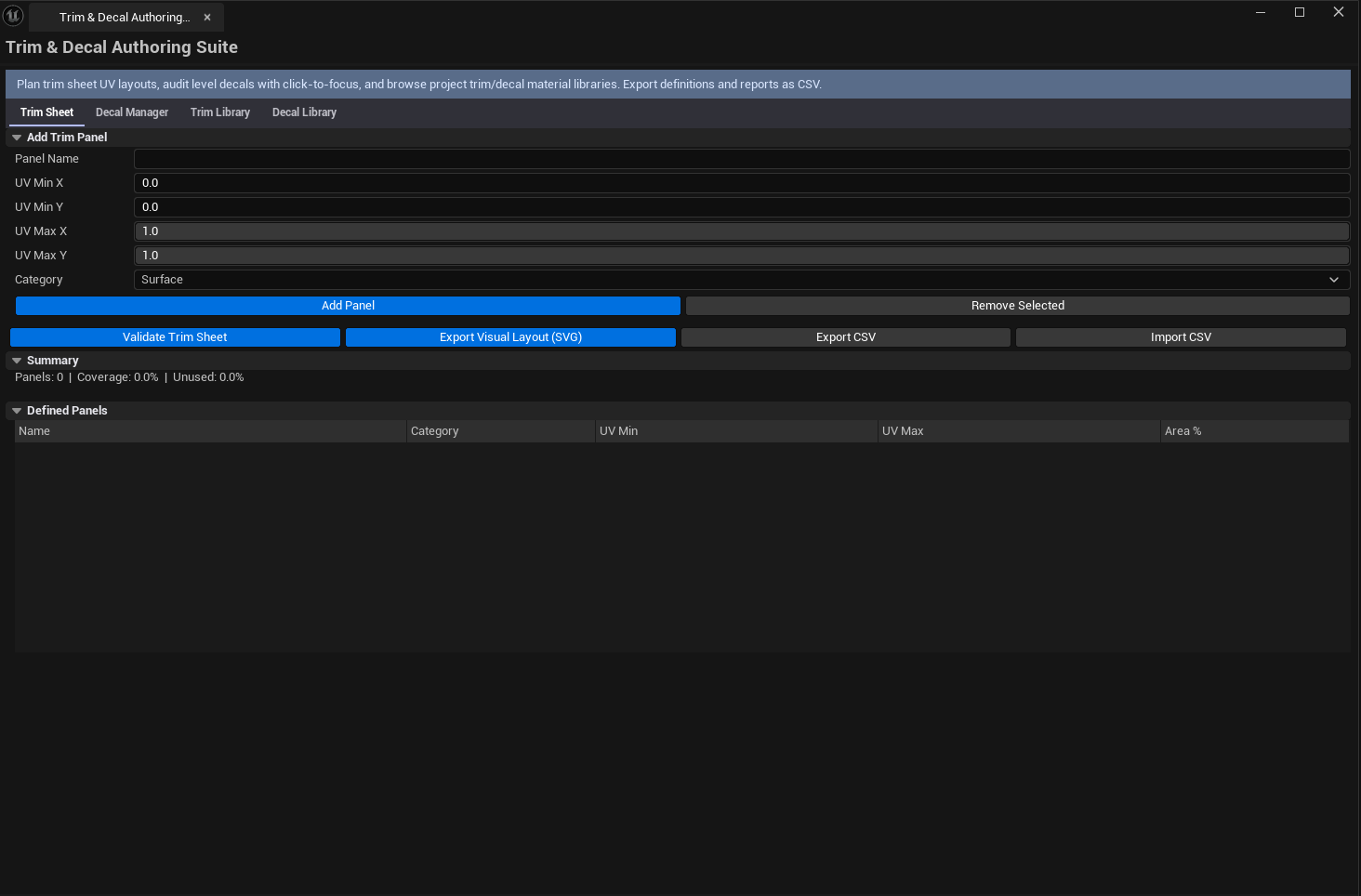
A four-tab management suite for trim sheets and decals. Trim Sheet Manager defines UV panels with categories and validates coverage on a trim sheet. Decal Manager scans every decal actor in the level with click-to-select navigation. Trim Sheet Library browses materials tagged as trim sheets across the project. Decal Library browses every decal-domain material.
When to use it
Section titled “When to use it”- Authoring a trim sheet — defining each UV panel with its category (Edge / Surface / Bolt / Detail) and validating coverage
- Auditing decals across a level — finding misplaced or orphaned decal actors
- Building a project-wide trim sheet / decal library reference
- Pre-cook validation — confirming trim sheets have no UV waste and decals are correctly configured
When not to use it
Section titled “When not to use it”- Don’t use this to author the trim sheet texture itself — that lives in your DCC. This tool defines panel UV regions on an already-authored sheet.
- Don’t expect this to author decals — the Decal Manager audits existing decal actors
Opening the tool
Section titled “Opening the tool”- Open the EQLabs Hub and search for
TrimorDecal(or browse to Art → TrimDecal) - Click the tool card
- Use the tab bar: Trim Sheet Manager, Decal Manager, Trim Sheet Library, or Decal Library
Tab 1 — Trim Sheet Manager
Section titled “Tab 1 — Trim Sheet Manager”Define UV panels on a trim sheet with categories.
Interface
Section titled “Interface”| Section | What it does |
|---|---|
| Add Panel form | Name, UV Min X/Y, UV Max X/Y, Category (Edge / Surface / Bolt / Detail) |
| Add Panel button | Adds the panel to the list |
| Remove Selected | Removes the selected panel |
| Validate Trim Sheet | Computes coverage percentage and validation status |
| Panels list | Per-panel row: name, UV bounds, category |
| Stats | Total panel count, coverage percentage, unused UV space, validation status |
| Export Trim CSV | Saves panel definitions to CSV |
| Import Trim CSV | Reloads panels from a previously exported CSV |
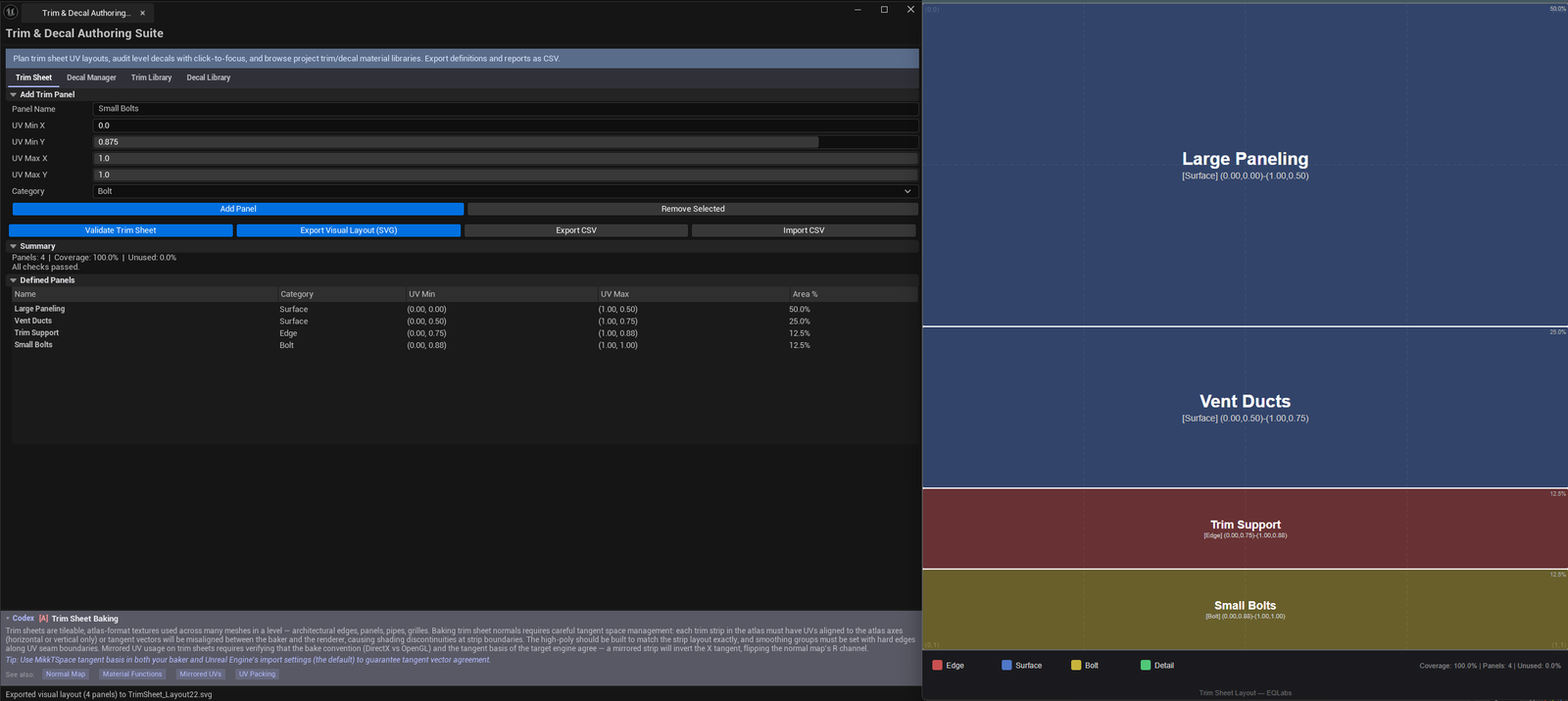
| Export Trim Visual SVG | Generates a visual SVG layout map for artist reference |
Categories
Section titled “Categories”| Category | Use case |
|---|---|
| Edge | Corner trims, edge highlights |
| Surface | Main flat surface panels |
| Bolt | Bolt heads, rivets, hardware details |
| Detail | Small decorative or functional details |
Tab 2 — Decal Manager
Section titled “Tab 2 — Decal Manager”Scan decal actors in the active level.
Interface
Section titled “Interface”| Action | What it does |
|---|---|
| Scan Decals | Walks every decal actor in the level |
| Validate Decals | Checks decals for size / fade / sort order issues |
| Export Decal CSV | Saves the decal audit to CSV |
| Decals list | Per-decal row: name, material, decal size, sort order, fade start/duration, issues |
Single-click selects the decal in the viewport. Double-click selects + flies the camera to it.
Tab 3 — Trim Sheet Library
Section titled “Tab 3 — Trim Sheet Library”Browse project materials tagged as trim sheets.
Interface
Section titled “Interface”| Section | What it does |
|---|---|
| Browse Trim Sheets | Walks the configured scan path for materials matching trim-sheet conventions |
| Search box | Filter by material name |
| Trim sheets list | Per-material row: name, parent material, texture count, estimated draw cost, asset path |
Tab 4 — Decal Library
Section titled “Tab 4 — Decal Library”Browse every decal-domain material in the project.
Interface
Section titled “Interface”| Section | What it does | Default |
|---|---|---|
| Browse Decal Materials | Walks the project for MD_DeferredDecal materials | |
| Search box | Filter by name | |
| Exclude Engine Decals | Hide engine-shipped decal materials | true |
| Decal materials list | Per-material row: name, blend mode, translucent flag, texture count, domain, path |
Workflow
Section titled “Workflow”Authoring a trim sheet
Section titled “Authoring a trim sheet”- Switch to Trim Sheet Manager
- For each visible panel on your trim sheet, fill in the Add Panel form (name, UV bounds, category)
- Click Validate Trim Sheet — coverage percentage shows how much of the sheet is in use
- Export as CSV (for documentation) or Visual SVG (for artists)
Auditing decals in a level
Section titled “Auditing decals in a level”- Open the level
- Switch to Decal Manager, click Scan Decals
- Click Validate Decals — issues appear in the issues column
- Single-click a row to select the decal in the viewport
- Optional: Export Decal CSV for the team
Settings reference
Section titled “Settings reference”Per-tab settings persist to [Project]/Saved/EQLabs/Settings/TrimDecalAuthoringSuite.json.
Output
Section titled “Output”- In-panel results — panel list, decals list, library lists
- CSV exports — per-tab save buttons write to disk
- SVG export — visual trim-sheet layout map
Tips & gotchas
Section titled “Tips & gotchas”- Coverage percentage doesn’t count overlapping panels — overlapping is bad anyway, but the metric assumes non-overlap
- Decal Library defaults to excluding Engine decals — turn off if you need to see Epic-shipped decals too
- Single-click on a Decal Manager row selects in viewport; double-click flies the camera there
- Trim sheet categories are optional but useful — they enable filtered views in downstream tooling
Related tools
Section titled “Related tools”- Material Layer Studio — for trim/decal material parent-chain analysis
- Smart Mask & Texture Processor — generate masks for trim sheet authoring
- Modular Kit Auditor (Modeling module) — for placement audit of trim-using kits
Opens our feedback form in a new tab with the tool name pre-filled.