
No. 1024 AN AnimationEQLabs Pro
Motion Cleanup & Foot Locking
Module: Animation · Category: Motion · Tool ID:
MotionCleanupFootLocking
A three-tab cleanup pipeline for mocap and authored animations. Foot Analysis loads an AnimSequence, samples foot bone velocities, and detects contact frames. IK Lock Curves generates IK lock curves on the analyzed clip with configurable blend time and IK type. Batch Processing runs the same workflow across a folder of AnimSequences in one pass.
When to use it
Section titled “When to use it”- Cleaning up raw mocap walk/run cycles where feet visibly slide on the ground
- Generating IK lock curves consistently across an entire animation set without hand-authoring each one
- Preparing a movement clip for a Two-Bone IK / Pose Warping / Full Body IK setup
- Batch-processing a folder of locomotion clips after a mocap session
What it isn’t for
Section titled “What it isn’t for”- Don’t use this for hand-keyed animation. They typically don’t slide.
- Don’t expect this to replace cleanup in your DCC. It generates lock curves that an IK system reads at runtime, it doesn’t bake the cleanup into the source clip.
Opening the tool
Section titled “Opening the tool”- Open the EQLabs Hub and search for Foot or
Motion Cleanup(or browse to Animation → Motion). - Click the tool card.
- Use the tab bar to pick Foot Analysis, IK Lock Curves, or Batch Processing.
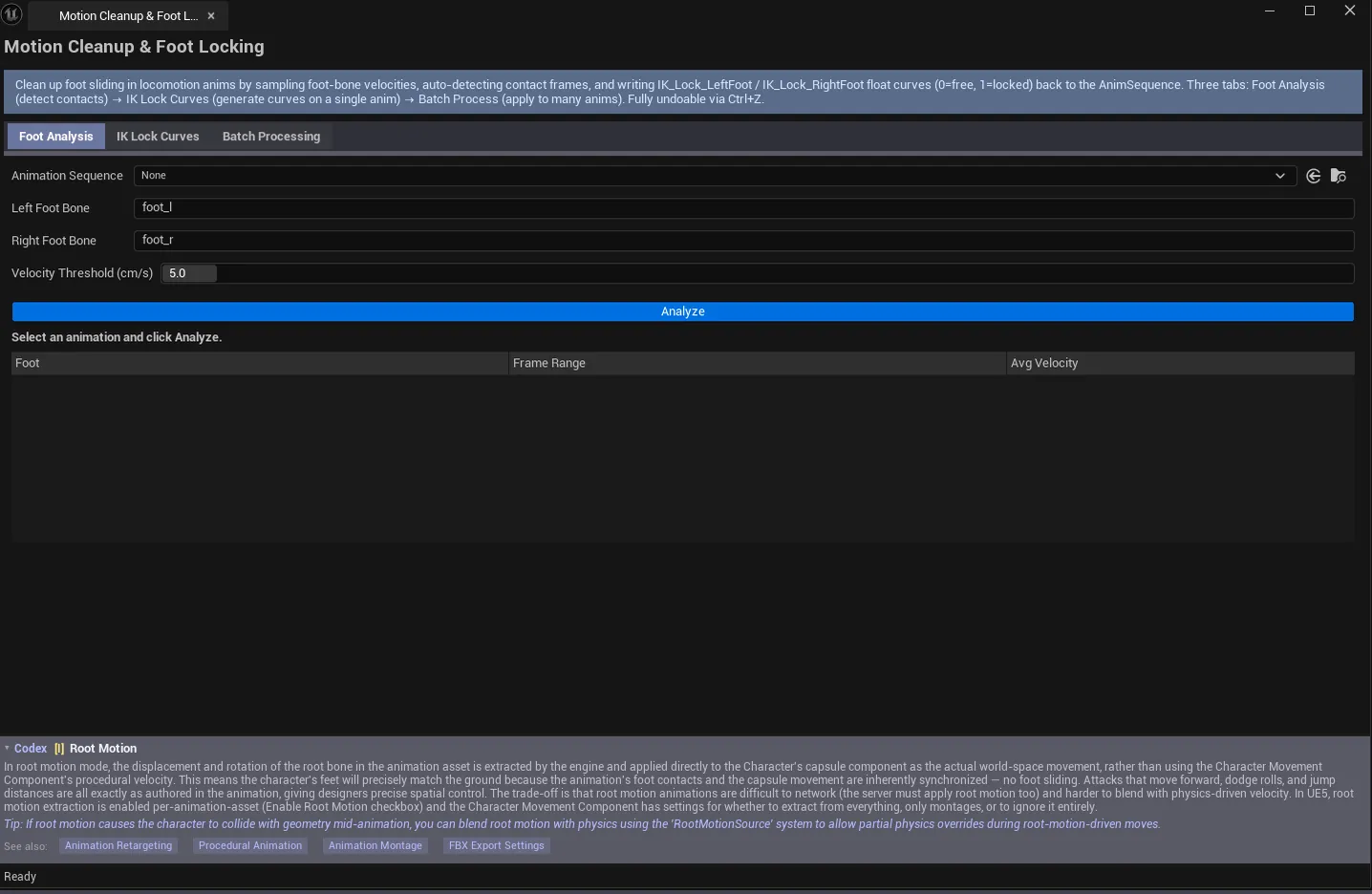
Tab 1: Foot Analysis
Section titled “Tab 1: Foot Analysis”Sample foot bone velocities and detect contact frames.
Interface
Section titled “Interface”| Field | What it does | Default |
|---|---|---|
| AnimSequence picker | Drop the clip to analyze | (empty) |
| Left Foot Bone | Bone name for the left foot | foot_l |
| Right Foot Bone | Bone name for the right foot | foot_r |
| Velocity Threshold | Velocity below this counts as contact (cm/s) | 5.0 |
| Analyze button | Walks the clip, samples velocities, builds contact ranges | |
| Stats block | Frame count, duration, detected contact count | |
| Contact ranges list | Per-range row: foot name, start frame, end frame, average velocity |
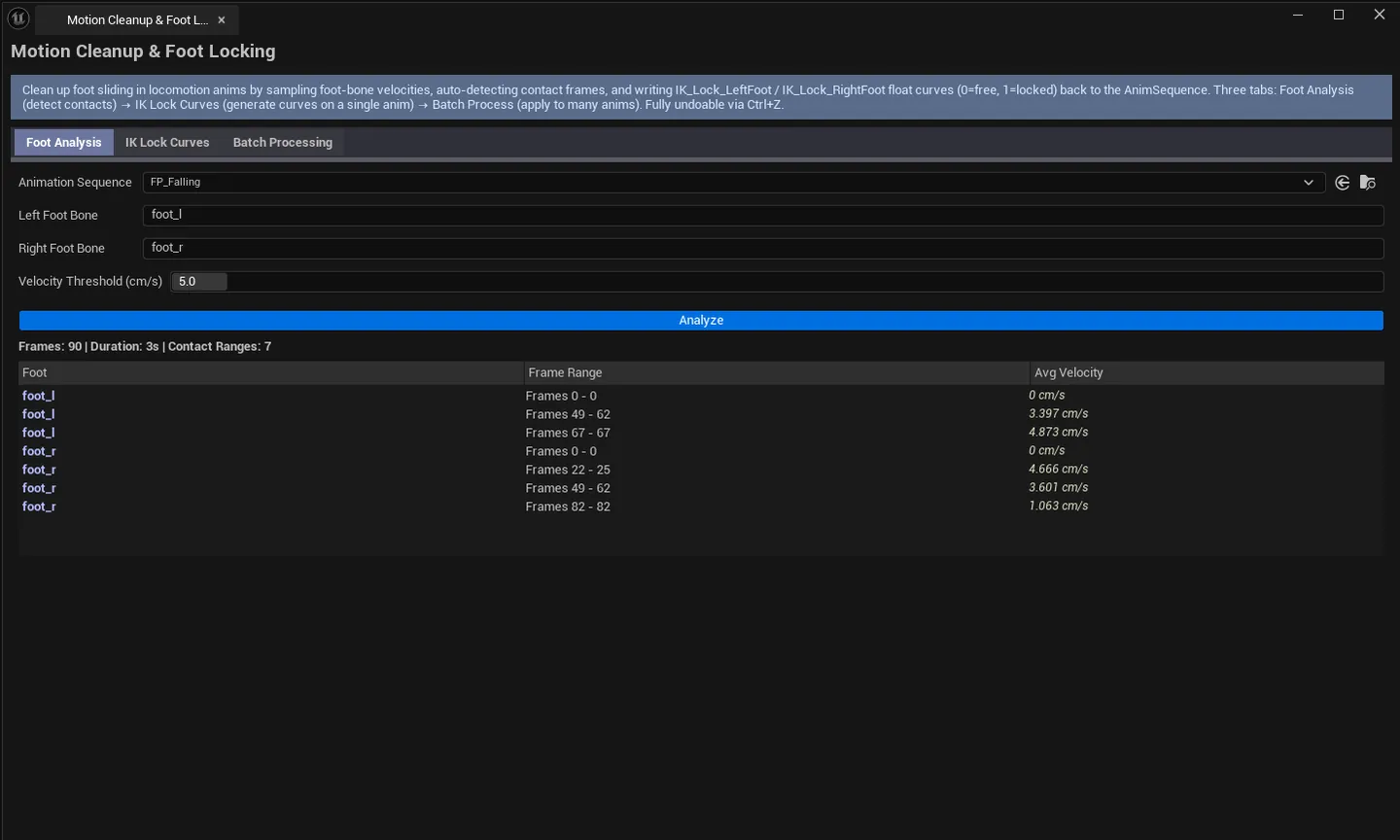
Workflow
Section titled “Workflow”- Drop an AnimSequence into the picker.
- Confirm the foot bone names match your skeleton (defaults are UE4/UE5 Mannequin).
- Tweak Velocity Threshold —
5.0 cm/sworks for most walk cycles, drop to1.0for slow idle clips. - Click Analyze.
Tab 2: IK Lock Curves
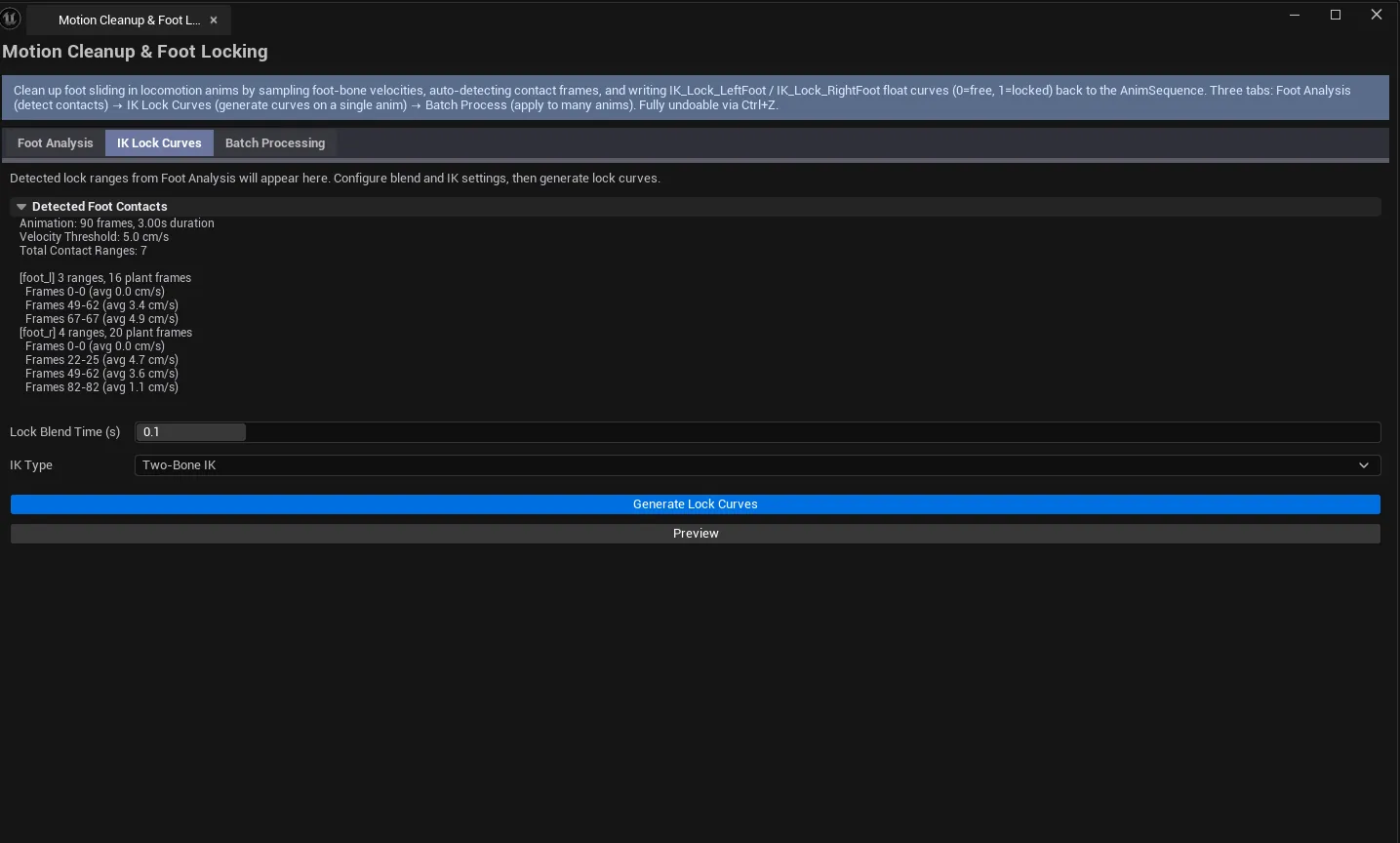
Section titled “Tab 2: IK Lock Curves”Generate IK lock curves on the clip analyzed in Tab 1.
Interface
Section titled “Interface”| Field | What it does | Default |
|---|---|---|
| Lock Blend Time | Blend time at the start/end of each lock range (seconds) | 0.1 |
| IK Type | Target IK system: Two-Bone IK, Pose Warping, or Full Body IK | Two-Bone IK |
| Preview Lock Curves button | Updates the preview text without writing to the asset | |
| Generate Lock Curves button | Writes the IK lock curves to the analyzed AnimSequence | |
| Preview block | Text summary of what will be generated |
IK type behavior
Section titled “IK type behavior”| Type | What it produces |
|---|---|
| Two-Bone IK | Standard IK_LockL / IK_LockR float curves clamped to [0, 1] |
| Pose Warping | Curves shaped for UE’s Pose Warping node consumer |
| Full Body IK | Curves shaped for FBIK consumer |
Workflow
Section titled “Workflow”- Switch to this tab after running Tab 1’s analysis.
- Pick the IK type that matches your AnimBP setup.
- Adjust Lock Blend Time for smoother transitions (
0.1–0.2is typical). - Click Preview Lock Curves to see what would be generated.
- Click Generate Lock Curves to write them to the AnimSequence.
Tab 3: Batch Processing
Section titled “Tab 3: Batch Processing”Run the analysis + lock-curve workflow across an entire folder.
Interface
Section titled “Interface”| Field | What it does | Default |
|---|---|---|
| Batch Scan Path | Folder of AnimSequences to process | /Game |
| Scan Folder button | Walks the folder, populates the list | |
| Process All button | Runs Foot Analysis + Generate Lock Curves on every included row | |
| Batch list | Per-clip row: asset name, frames, duration, include checkbox |
Workflow
Section titled “Workflow”- Set Batch Scan Path to the folder containing your locomotion clips.
- Click Scan Folder.
- Untick any clips you don’t want processed (e.g., upper-body-only animations).
- Click Process All — every included clip is analyzed and gets lock curves generated.
Settings reference
Section titled “Settings reference”Foot Analysis tab
Section titled “Foot Analysis tab”| Field | Default |
|---|---|
| Left Foot Bone | foot_l |
| Right Foot Bone | foot_r |
| Velocity Threshold (cm/s) | 5.0 |
IK Lock Curves tab
Section titled “IK Lock Curves tab”| Field | Default |
|---|---|
| Lock Blend Time (s) | 0.1 |
| IK Type | Two-Bone IK |
Batch tab
Section titled “Batch tab”| Field | Default |
|---|---|
| Batch Scan Path | /Game |
Settings are persisted to
[Project]/Saved/EQLabs/Settings/MotionCleanupFootLocking.json.
Output
Section titled “Output”- In-place modification. Generate Lock Curves writes IK lock curves to the AnimSequence’s curve track.
- Undo. Wrapped in
ScopedTransaction.Ctrl+Zreverts; batch is one undo step. - No source replacement. Original animation data is preserved; lock curves are added alongside.
Tips and gotchas
Section titled “Tips and gotchas”- Foot bone names matter. Non-standard skeletons (Mixamo, custom) won’t have
foot_l/foot_r. Update the bone fields before analyzing. - Velocity Threshold tuning. Too high and you’ll miss legitimate contacts; too low and slow idle clips look like everything is “in contact”. Start at
5.0, adjust based on first results. - Lock Blend Time of 0 makes IK pop. Keep at least
0.05–0.1for natural-looking transitions. - Batch Process is destructive in the sense that it adds curves to source assets. Re-running on already-processed clips will replace the previous curves. That’s usually the right behavior, but worth knowing.
- Save All afterward. Curve writes are in-memory until saved.
Related tools
Section titled “Related tools”- Animation Auditor — Curves tab can later strip the generated lock curves if you change your mind
- Skeleton Inspector & Rig Shortcuts — Skeleton Analysis tab tells you which naming convention your foot bones follow
Opens our feedback form in a new tab with the tool name pre-filled.