
No. 0381 TE TechEQLabs Pro
VAT Management Suite
Module: Tech · Category: TextureGenerators · Tool ID:
VATImportManagementSuite
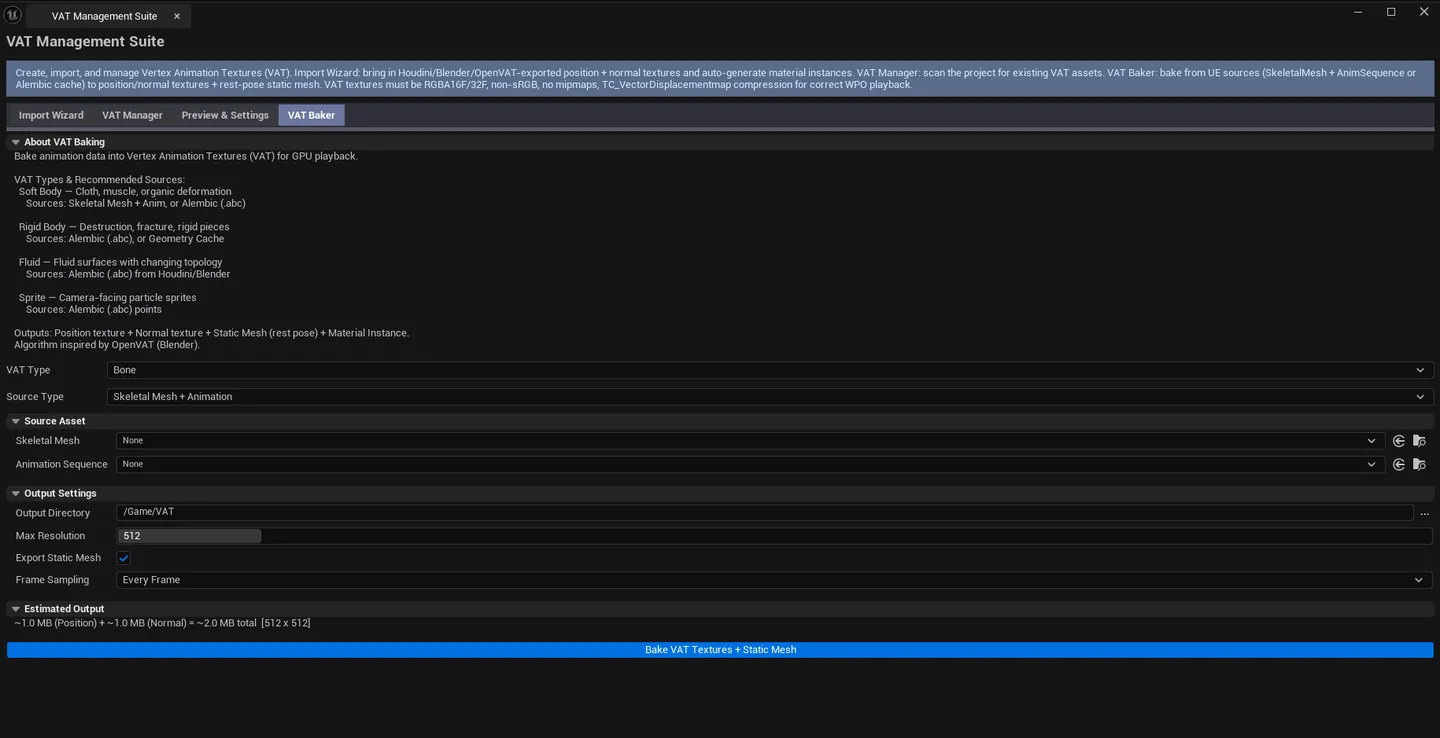
Four-tab Vertex Animation Texture toolkit. Import Wizard loads pre-baked VAT data from external tools (Houdini, Blender OpenVAT). VAT Manager scans the project for VAT assets. Preview & Settings previews playback. VAT Baker bakes from UE sources (SkeletalMesh + Anim, Alembic, Geometry Collection, Niagara cache) into VAT textures + a static mesh.
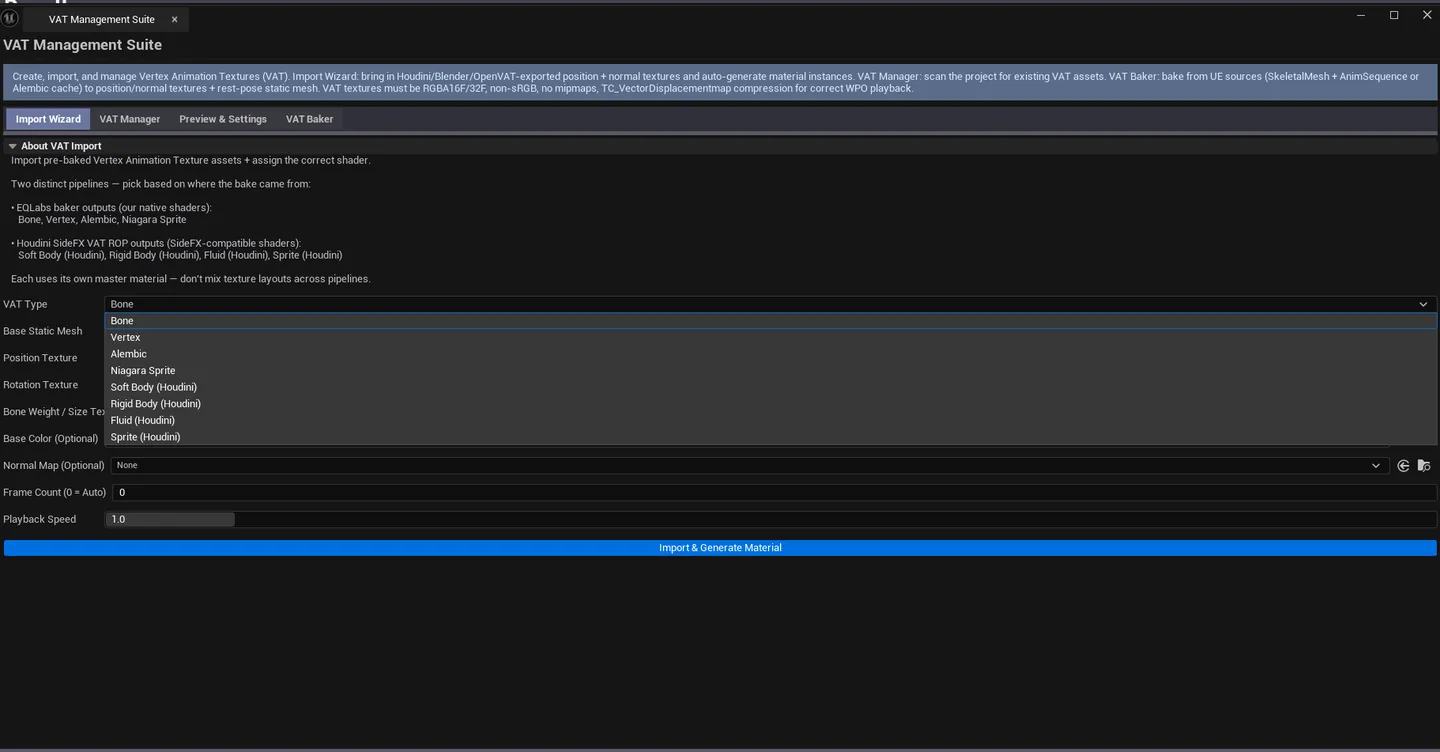
Six VAT types are supported: Bone, Vertex, Soft Body, Alembic, Fluid, Sprite. Each has expected source types and matching parent materials.
When to use it
Section titled “When to use it”- Baking expensive animations (cloth, destruction, fluid) into static meshes that play back via texture lookup
- Importing pre-baked VAT data from Houdini SideFX ROPs / Blender OpenVAT
- Managing a project’s VAT asset library
- Creating per-particle camera-facing sprites from Niagara
What it isn’t for
Section titled “What it isn’t for”- Don’t use this for runtime skeletal animation. VAT is for baked animation; runtime animation goes through AnimBP / IK Rig.
- Don’t expect this to handle complex retargeting. That’s the IK Retargeter’s job.
Opening the tool
Section titled “Opening the tool”- Open the EQLabs Hub and search for VAT (or browse to Tech → TextureGenerators).
- Click the tool card.
- Use the tab bar: Import Wizard / VAT Manager / Preview & Settings / VAT Baker.
VAT types
Section titled “VAT types”| Type | Source | Use case |
|---|---|---|
| Bone | Houdini Bone VAT ROP | Skeletal bone animation, LOD-independent |
| Vertex | Houdini Vertex VAT ROP | Direct per-vertex offset animation |
| Soft Body | SkeletalMesh + Anim, or Alembic | Cloth, deformation |
| Alembic | .abc (UGeometryCache) | Cloth, destruction, VFX with constant topology |
| Fluid | .abc | Fluid surfaces with changing topology |
| Sprite | Niagara cache, or Alembic points | Camera-facing particle sprites |
Tab 1: Import Wizard
Section titled “Tab 1: Import Wizard”Load pre-baked Houdini or Blender VAT data.
| Field | What it does |
|---|---|
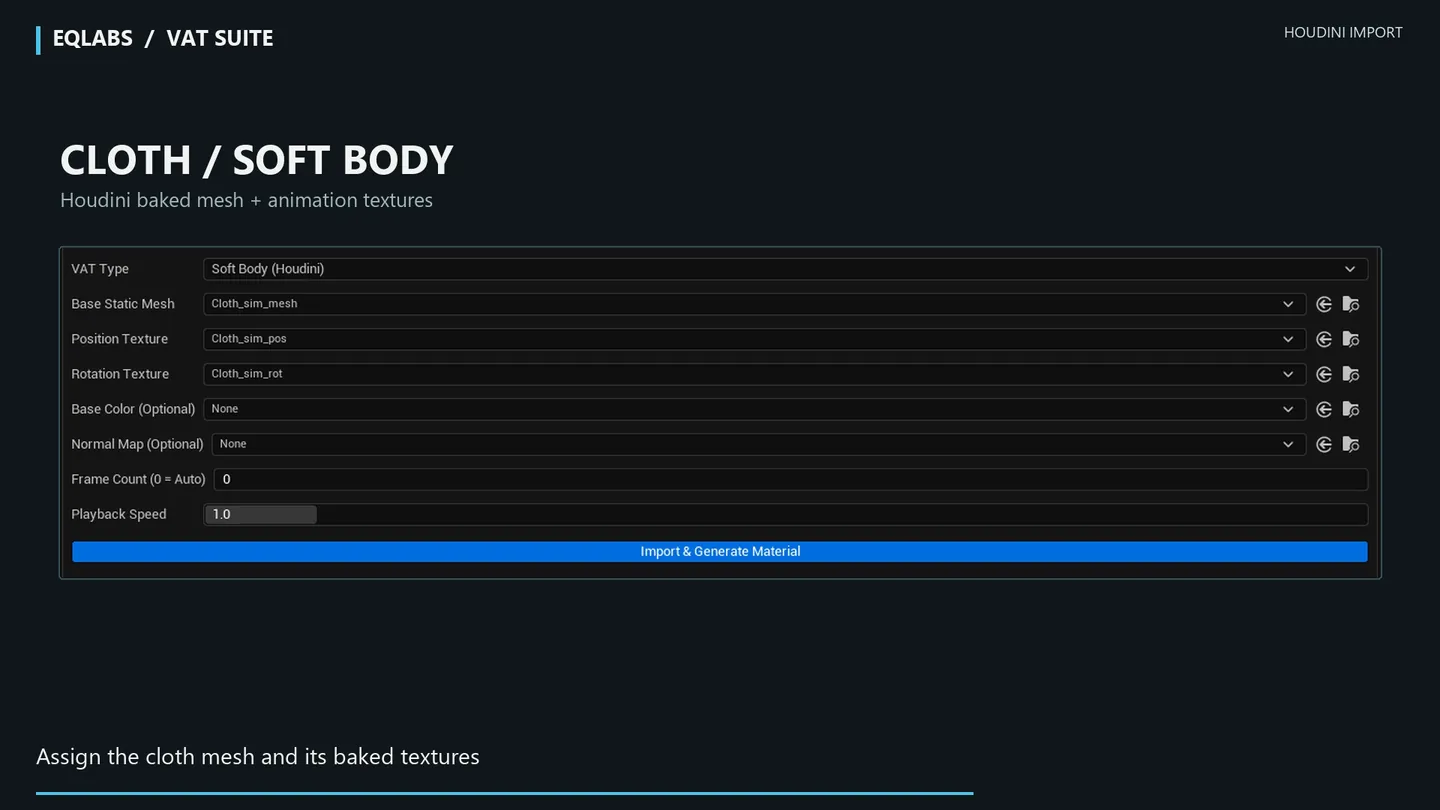
| Import VAT Type | Pick the type matching the Houdini ROP that produced the data |
| Base Mesh | Static mesh exported from the DCC alongside the textures |
| Position Texture | Position VAT texture |
| Normal Texture | Normal VAT texture (called “Rotation” in SideFX terms) |
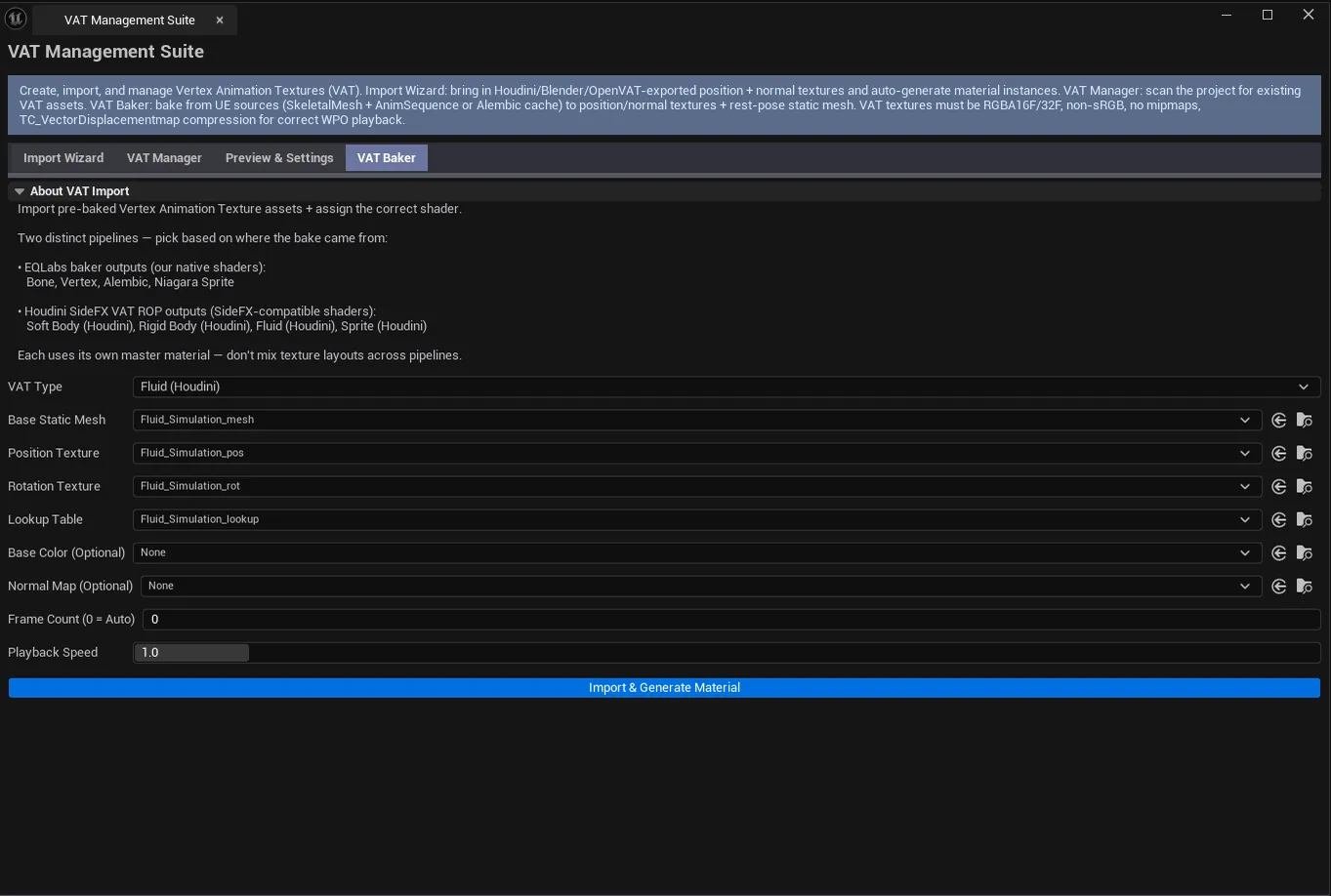
| Lookup Texture | Fluid-only — lookup indirection table |
| Bone Weight Texture | Bone-only — bone influence weights |
| Sprite Color Texture | Sprite-only — per-particle color |
| Base Color / Normal Map | Standard surface textures (NOT VAT rotation) |
| Frame Count | Auto-detect from mesh data, or override |
| Playback Speed | Material parameter |
| Import & Generate | Creates the VAT material instance + binds the textures |
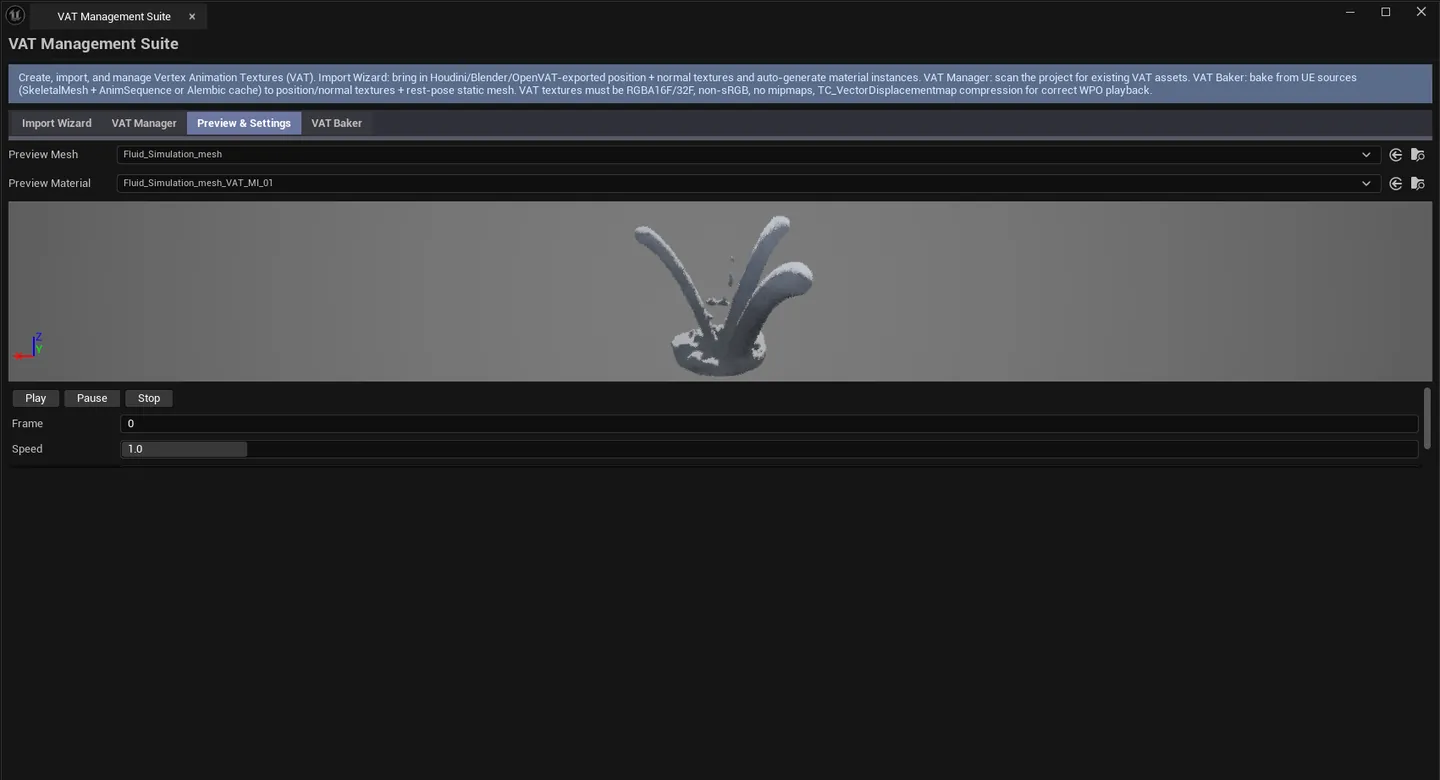
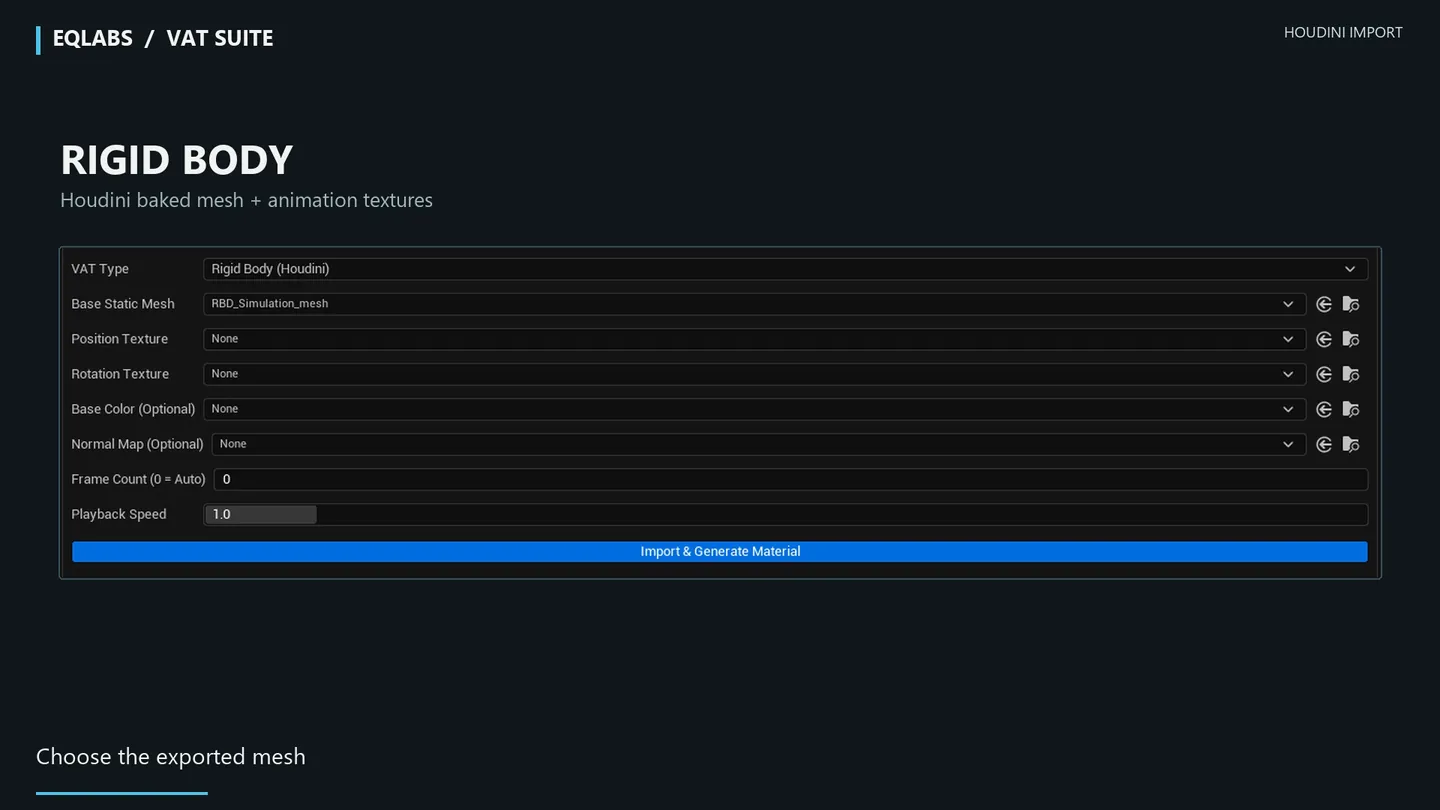
Example: importing Houdini exports
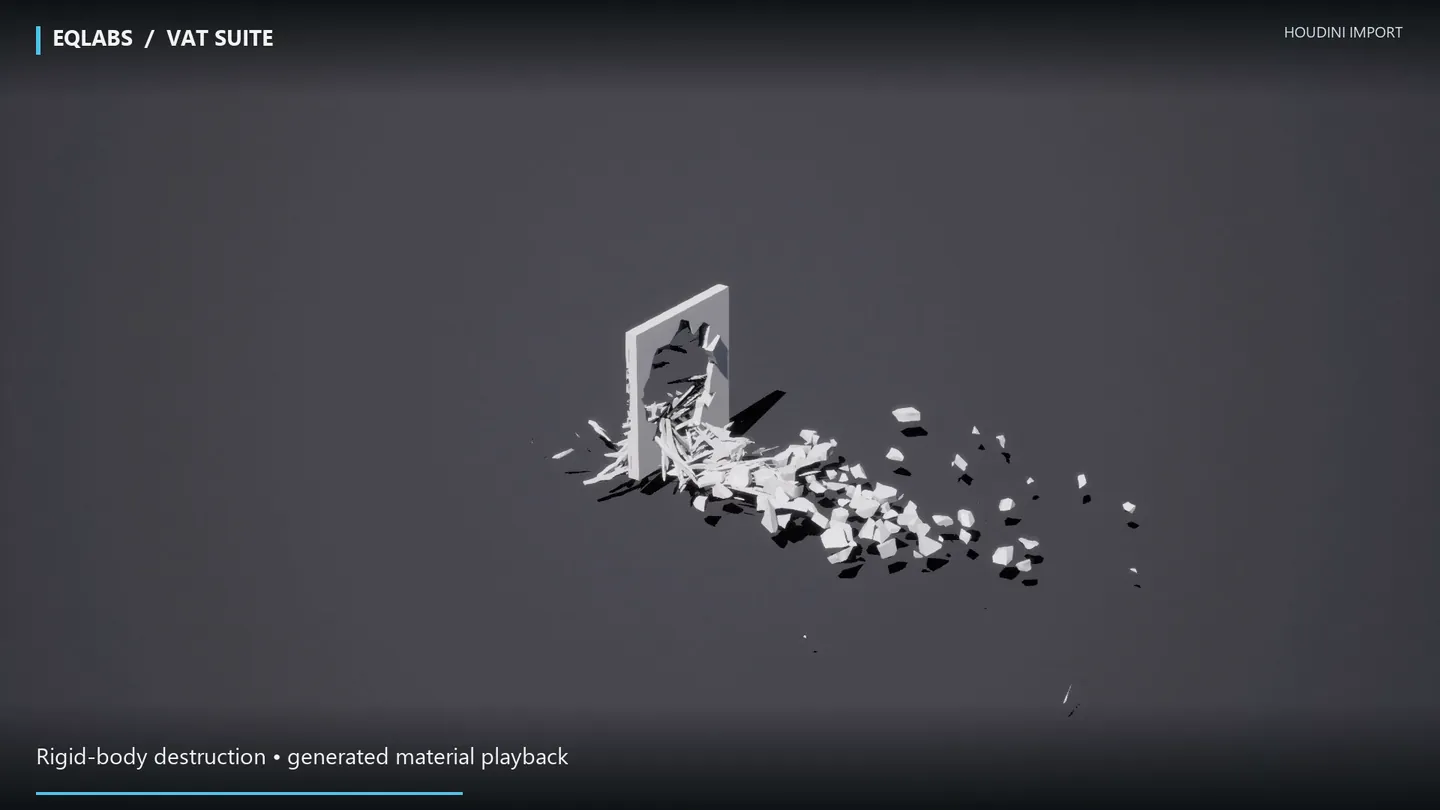
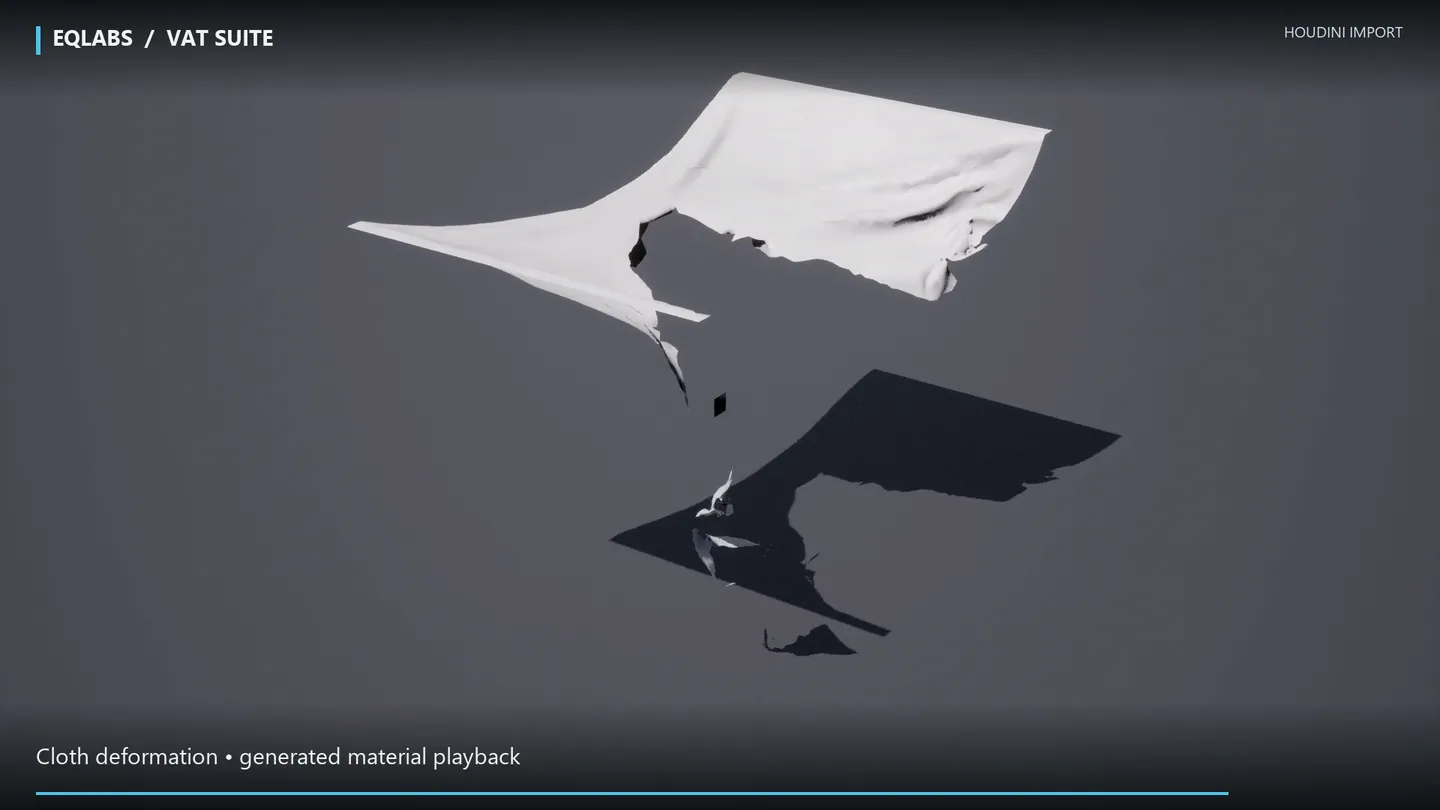
Section titled “Example: importing Houdini exports”The stills below import two example exports from Houdini. Set VAT Type, assign the base mesh and its baked textures, then click Import & Generate Material.
Tab 2: VAT Manager
Section titled “Tab 2: VAT Manager”Scan and browse VAT assets in the project.
| Action | What it does |
|---|---|
| Scan Project | Walks /Game for VAT assets |
| Scan Folder | Walks a specific folder |
| Open Asset | Opens the selected VAT |
| Regenerate Material | Re-creates the VAT material instance |
| VAT list | Per-asset row: name, path, VAT type, frame count |
Tab 3: Preview & Settings
Section titled “Tab 3: Preview & Settings”Live preview playback.
| Field | What it does |
|---|---|
| Preview Mesh / Material pickers | Drop a baked VAT mesh + material |
| Scrub Frame | Manual frame scrubber |
| Total Frames | Display |
| Playback Speed | Speed multiplier |
| Loop | Toggle |
| Play / Pause / Stop | Playback controls |
| Preview viewport | Embedded SVATPreviewViewport |
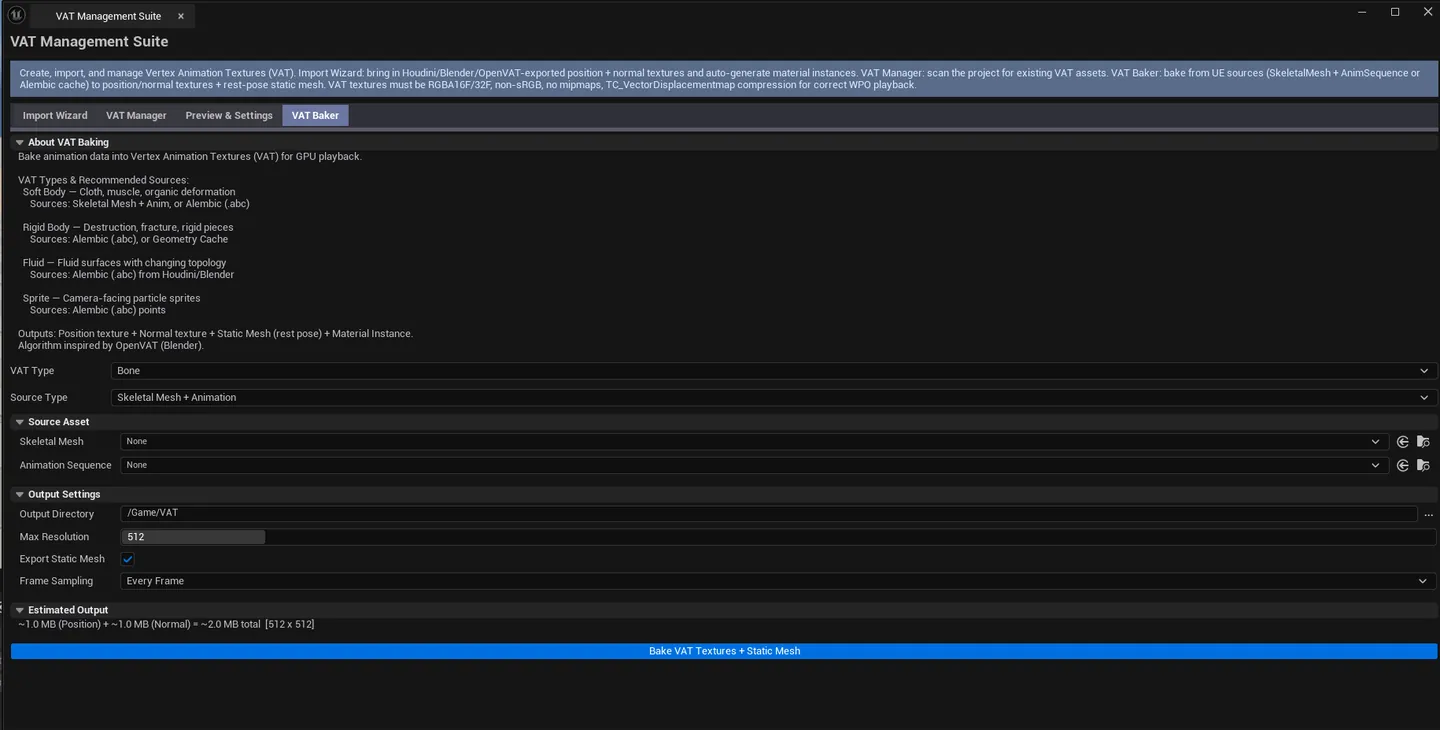
Tab 4: VAT Baker
Section titled “Tab 4: VAT Baker”Bake VAT from UE sources.
Source types per VAT type
Section titled “Source types per VAT type”| VAT Type | Available Sources |
|---|---|
| Bone | SkeletalMesh + Anim |
| Vertex | SkeletalMesh + Anim |
| Soft Body | SkeletalMesh + Anim, or Alembic |
| Alembic | Alembic (UGeometryCache) |
| Fluid | Alembic |
| Sprite | Niagara System (live capture) or pre-recorded SimCache |
Shared baker settings
Section titled “Shared baker settings”| Field | What it does | Default |
|---|---|---|
| Output Resolution | VAT texture size | 512 |
| Output Path | Where to save | (configurable) |
| Export Static Mesh | Bake rest-pose static mesh alongside | true |
| Frame Sampling combo | Per-VAT-type sampling mode |
Niagara sprite baker specifics
Section titled “Niagara sprite baker specifics”| Field | What it does | Default |
|---|---|---|
| Niagara System | Source — live capture | |
| Niagara SimCache | Optional pre-recorded override | |
| Emitter Index | Which emitter to bake | 0 |
| Frames | Total frames to capture | 120 |
| FPS | Capture frame rate | 30 |
Bake outputs
Section titled “Bake outputs”For each bake:
- Position texture. Per-frame vertex positions.
- Normal texture. Per-frame normals (or rotation for Bone VAT).
- Static mesh. Rest pose with VAT-specific UVs (UV1/UV2 for bone indices, etc.).
- Material instances. One per skeletal-mesh material slot, parented to the VAT master with parameters configured.
Workflow: Bone VAT from SkeletalMesh
Section titled “Workflow: Bone VAT from SkeletalMesh”- Switch to VAT Baker tab.
- Pick Bone type.
- Drop the SkeletalMesh + AnimSequence.
- Set Output Resolution and Output Path.
- Click Bake VAT Textures.
- New asset set appears in the Content Browser.
Settings reference
Section titled “Settings reference”Per-tab parameters persist to [Project]/Saved/EQLabs/Settings/VATImportManagementSuite.json.
Output
Section titled “Output”UTexture2Dassets. Position + Normal (+ Lookup / BoneWeight / SpriteColor as needed).UStaticMeshrest-pose mesh. With VAT-specific UV/VertexColor encoding.UMaterialInstanceConstant. One per source material slot, parented to the appropriate VAT master.- Skeleton sockets copied to the static mesh as static-mesh sockets
- Texture format. 16-bit half-float for high-precision encodes; 8-bit for low-precision.
Runtime support
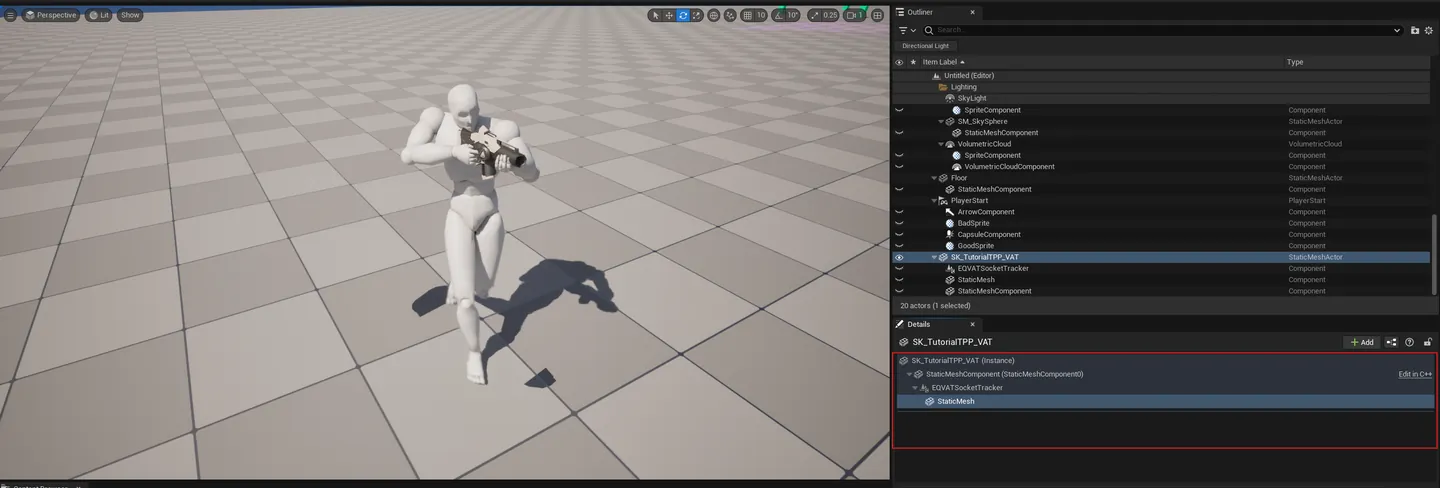
Section titled “Runtime support”The VAT Runtime module (EQLabsVATRuntime) ships a tracker component + Blueprint function library so gameplay can query baked bone / vertex positions at runtime. Use cases: spawning effects from baked-bone sockets, snapping actors to baked vertices, attaching props to bone-VAT animations.
Tips and gotchas
Section titled “Tips and gotchas”- VAT bakes a fixed-frame animation. Once baked, the VAT has the frame count you configured; re-bake to change.
- Bone VAT uses UV channels for bone indexing. UV1 / UV2 store bone indices; the static mesh has these auto-set by the baker.
- VAT materials must be parented to the right VAT master. The baker handles this, but if you author manually, use the matching master.
- Niagara live capture spawns a temp component, runs N frames, captures, destroys. Entirely in-editor, no PIE required.
- Algorithm inspired by OpenVAT (Blender open-source tool)
Full walkthrough
Section titled “Full walkthrough”Related tools
Section titled “Related tools”- Material Layer Studio — for the VAT master material parent chain
- Niagara Profiler — for Niagara performance analysis on Sprite VAT sources
Opens our feedback form in a new tab with the tool name pre-filled.