
No. 1105 MO ModelingEQLabs Pro
Modular Kit Auditor
Module: Modeling · Category: Assembly · Tool ID:
ModularBuildingTool
A level-wide audit for modular kit-built environments. Catalogs every static mesh actor by type, flags placement issues (off-grid, unsnapped rotation, floating, overlapping), and estimates draw-call savings if identical meshes were converted to Instanced Static Meshes. Includes one-click batch fixes for the snap and rotation issues — all undoable.
When to use it
Section titled “When to use it”- Final pass on a level built from a modular kit: catch every floating wall, unsnapped pillar, rotation that drifted to
89.9°instead of90° - Performance budgeting: see at a glance how many of “the same” mesh you placed and what ISM conversion would buy you
- Onboarding to an inherited level: get a manifest of every kit piece used and how often
- Pre-cook validation: placement issues that pass visually still bake into nav-mesh and lighting holes
What it isn’t for
Section titled “What it isn’t for”- Don’t use this for non-kit levels. Single hero meshes will all show as “1 placed” and clutter the report.
- Don’t use this to build kits. This is the audit side; placement happens in your level editor or a kit-spawning tool.
Opening the tool
Section titled “Opening the tool”- Open the EQLabs Hub and search for Modular Kit (or browse to Modeling → Assembly).
- Click the tool card to open the panel.
- Make sure the level you want to audit is open.
Interface tour
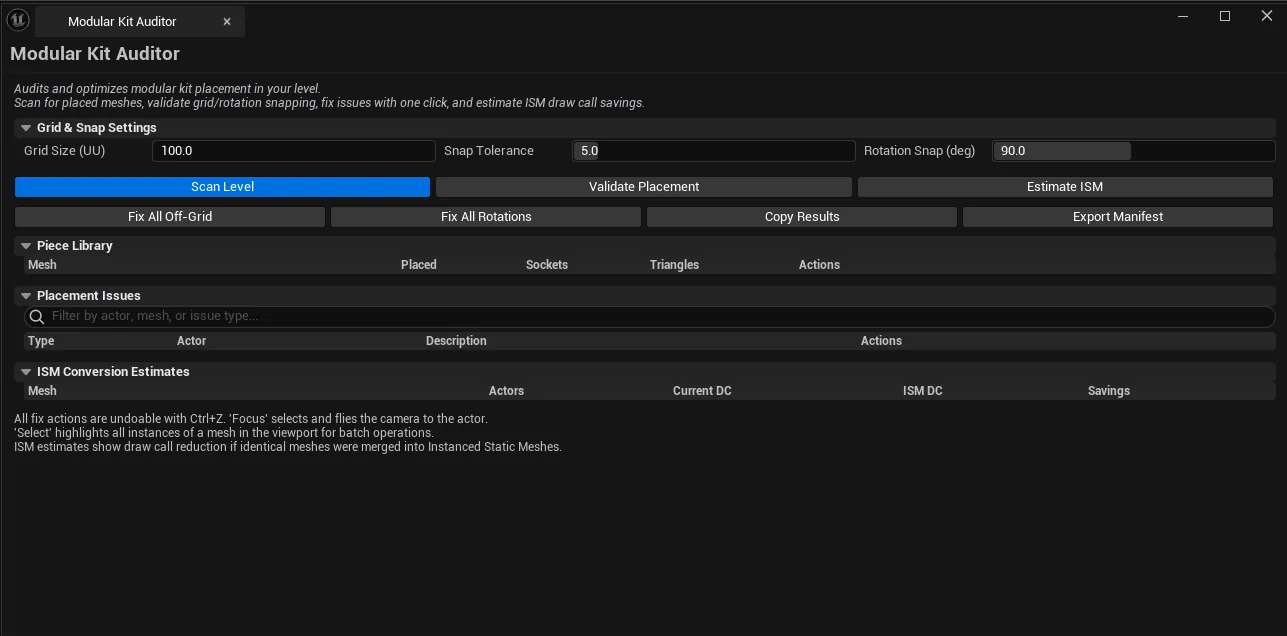
Section titled “Interface tour”A scroll panel with one configuration section, two button rows, and three result sections. Top to bottom:
1. Grid & Snap Settings
Section titled “1. Grid & Snap Settings”| Field | What it does | Default |
|---|---|---|
| Grid Size (UU) | Modular grid spacing in Unreal Units. Standard kits are 100 or 200. | 100 |
| Snap Tolerance | How far an actor’s position can drift before it’s flagged as off-grid (in UU). | 5 |
| Rotation Snap (deg) | Increment used to test rotation snap. 90 for square kits, 45 for octagonal, 15 for fine. | 90 |
2. Primary action buttons
Section titled “2. Primary action buttons”| Button | Behavior |
|---|---|
| Scan Level | Walks every static mesh actor in the level, groups by mesh, builds the Piece Library with placement counts. |
| Validate Placement | Runs the off-grid / unsnapped-rotation / floating / overlap checks against the current settings. |
| Estimate ISM | Computes draw-call reduction if every group of identical meshes were converted to Instanced Static Meshes. |
3. Batch fix buttons
Section titled “3. Batch fix buttons”| Button | Behavior |
|---|---|
| Fix All Off-Grid | Snaps every off-grid actor to the nearest grid point. Wrapped in a single transaction — Ctrl+Z undoes the lot. |
| Fix All Rotations | Snaps every actor to the nearest rotation increment. Same undoable batch. |
| Copy Results | Full audit (pieces + issues + ISM estimates) to clipboard as plain text. |
| Export Manifest | Saves the Piece Library as a JSON manifest for team docs or pipeline tooling. |
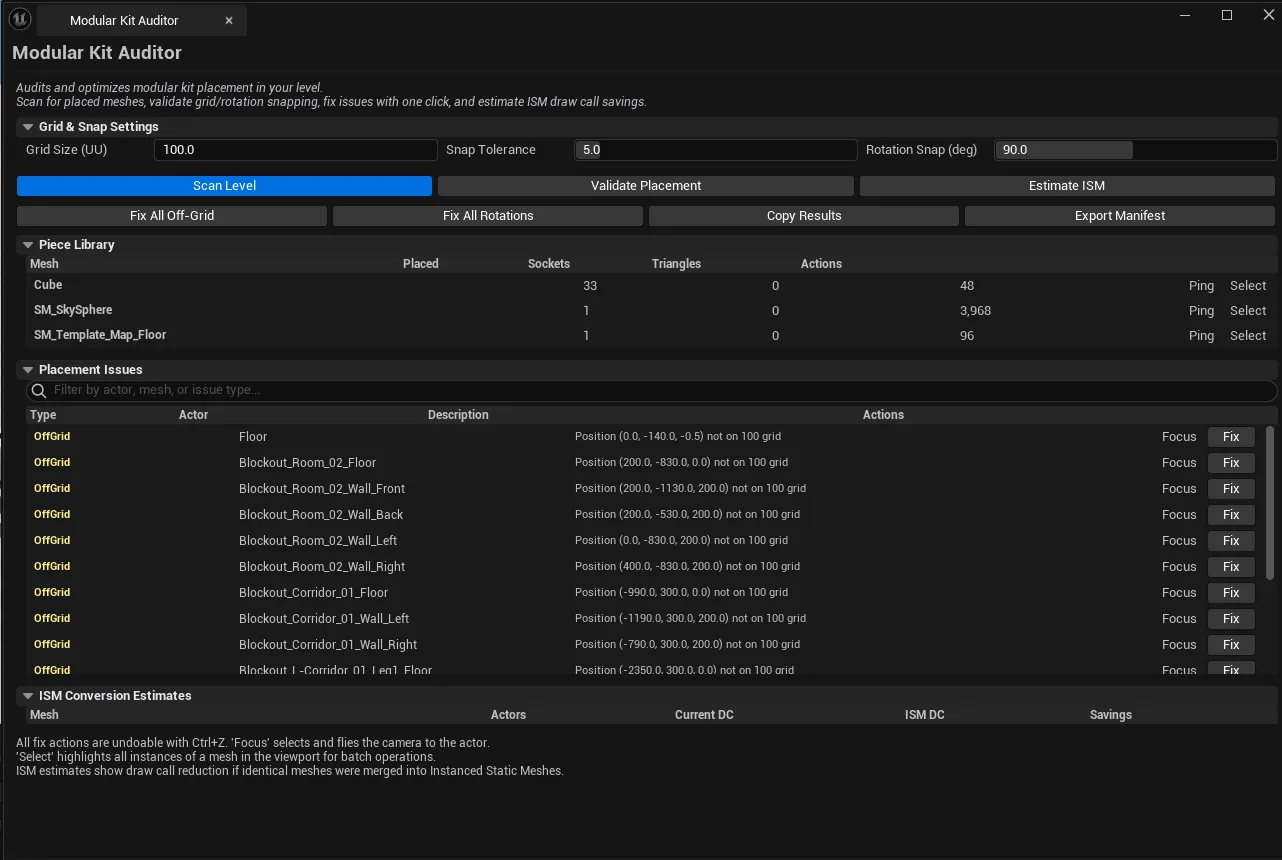
4. Piece Library
Section titled “4. Piece Library”A list of every unique mesh found in the level with placement counts, socket counts, and triangle count per piece.
| Column | What it shows |
|---|---|
| Mesh | Asset name |
| Placed | How many actors of this mesh exist |
| Sockets | Socket count on the source asset |
| Triangles | Tri count of the source mesh |
| Actions | Per-row actions (e.g., select-all-instances) |
Single-click pings the mesh in the Content Browser. Double-click opens the Static Mesh editor.
5. Placement Issues
Section titled “5. Placement Issues”A filterable list of every flagged actor in the level.
| Column | What it shows |
|---|---|
| Type | OffGrid / BadRotation / Floating / Overlap |
| Actor | Actor name |
| Description | Specific values — e.g., “off grid by 7.3 UU” |
| Actions | Per-row Focus / Fix actions |
Single-click selects the actor in the viewport. Double-click selects and flies the camera to it.
6. ISM Conversion Estimates
Section titled “6. ISM Conversion Estimates”Per-mesh draw-call accounting:
| Column | What it shows |
|---|---|
| Mesh | Asset name |
| Actors | How many separate actors exist |
| Current DC | Draw calls today |
| ISM DC | Draw calls if converted to Instanced Static Mesh |
| Savings | Difference (the win) |
Workflow
Section titled “Workflow”Step 1: Open your level
Section titled “Step 1: Open your level”The tool operates on the active editor world. Load the level you want to audit before scanning.
Step 2: Configure grid & snap
Section titled “Step 2: Configure grid & snap”Set Grid Size to match your kit. Most kits use 100 or 200. Rotation Snap at 90° is right for square kits.
Step 3: Scan the level
Section titled “Step 3: Scan the level”Click Scan Level. The Piece Library populates with every unique static mesh actor and how many times each is placed.
Step 4: Validate placement
Section titled “Step 4: Validate placement”Click Validate Placement. The Issues list populates. Use the search box to narrow by mesh name or issue type.
Step 5: Fix in batch (or review one by one)
Section titled “Step 5: Fix in batch (or review one by one)”Two paths:
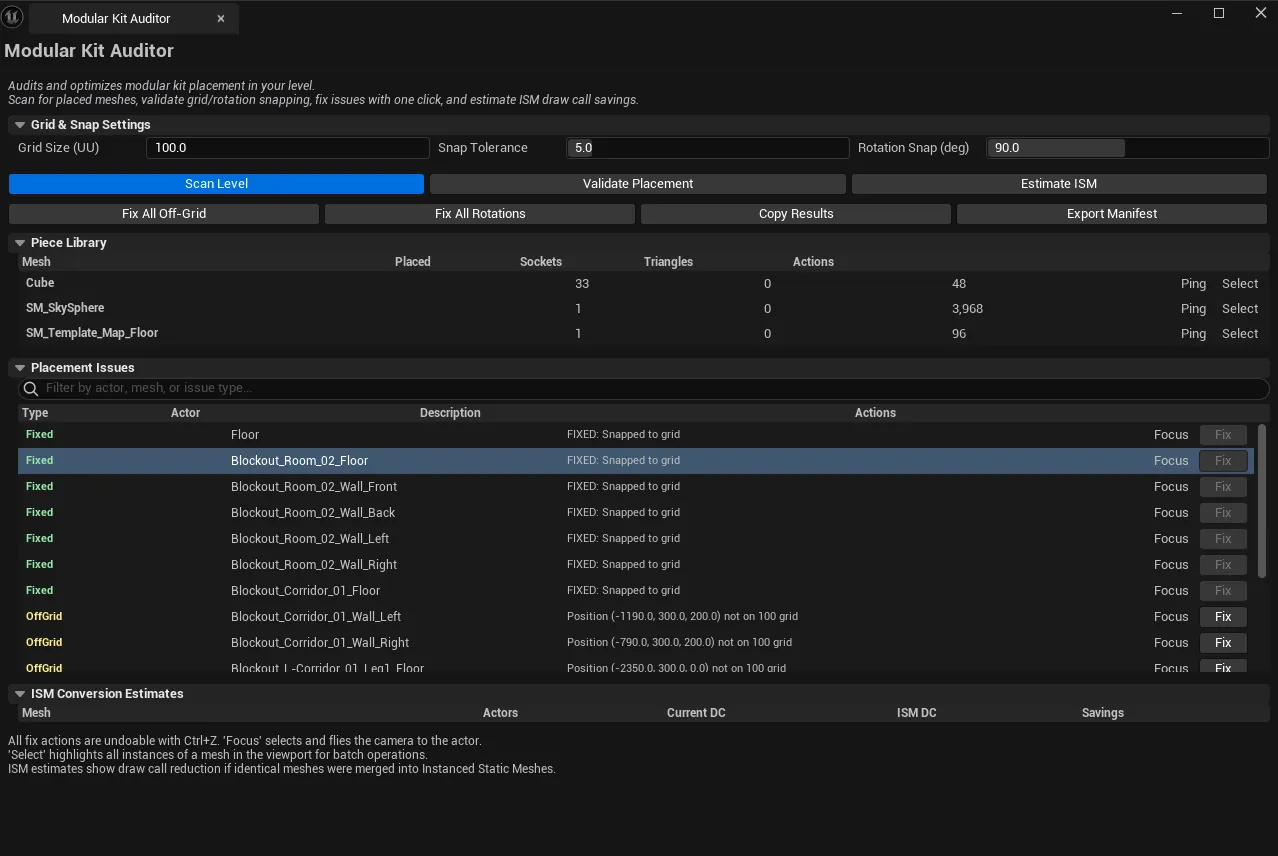
- Fast path: click Fix All Off-Grid and Fix All Rotations. Both are single transactions;
Ctrl+Zreverses if anything looks wrong. - Careful path: double-click an issue to fly the camera there, decide per-actor whether to fix.
Step 6: Estimate ISM savings
Section titled “Step 6: Estimate ISM savings”Click Estimate ISM. The third list populates with current vs. ISM draw calls. A high Savings column on a frequently-placed mesh is your highest-leverage optimization target.
Step 7: Export the manifest (optional)
Section titled “Step 7: Export the manifest (optional)”Click Export Manifest to save the kit catalog as JSON — useful for team docs, asset tracking, or feeding a custom build script.
Settings reference
Section titled “Settings reference”| Field | Range | Default |
|---|---|---|
| Grid Size (UU) | 1 – 10000 | 100 |
| Snap Tolerance (UU) | 0.1 – 50 | 5 |
| Rotation Snap (deg) | 1 – 180 | 90 |
Settings are persisted to
[Project]/Saved/EQLabs/Settings/ModularBuildingTool.json.
Output
Section titled “Output”- In-panel results. Piece Library, Issues, ISM Estimates (all cleared on each new scan).
- Level edits.
Fix All Off-GridandFix All Rotationsmutate actor transforms in-place. Mark dirty until Save. - Undo. Every fix is wrapped in a
ScopedTransaction.Ctrl+Zwalks back. Batch fixes are a single undo step. - Clipboard.
Copy Resultswrites the full audit as plain text. - JSON file.
Export Manifestwrites a kit manifest to disk (location depends on the platform’s file dialog default).
Tips and gotchas
Section titled “Tips and gotchas”- Run Scan before Validate. The Issues check needs the Piece Library populated first.
- Snap Tolerance is a budget, not a hard limit.
5 UUis fine for most kits; tighten to1 UUfor archviz precision, loosen to15+ UUfor organic placements. FloatingandOverlapissues need manual fixes. Auto-fix handles only off-grid translation and unsnapped rotation. Floating actors need a drop-to-surface, overlap needs human judgment.- ISM conversion is an estimate. It tells you the opportunity, not the recommendation. A 200-actor mesh with 200 draw calls today and ~1 draw call as ISM is a real win. A 5-actor mesh barely moves the needle.
- Single-click on a Piece Library row pings the mesh asset; double-click opens the Static Mesh editor. On Issues rows, single-click selects the actor in the viewport; double-click flies the camera to it.
Related tools
Section titled “Related tools”- World-Scale & Traversal Checker — gameplay-side validation: can the character actually walk this layout?
- Mesh Intelligence Dashboard — broader mesh analysis (stats, batching, pivots) outside the kit-placement context
- Level Analysis Suite (Design module) — actor inventory, map size, room metrics
Opens our feedback form in a new tab with the tool name pre-filled.