
No. 0151 TE TechEQLabs Pro
Material & Asset Browser
Module: Tech · Category: Workflow · Tool ID:
MaterialBrowser
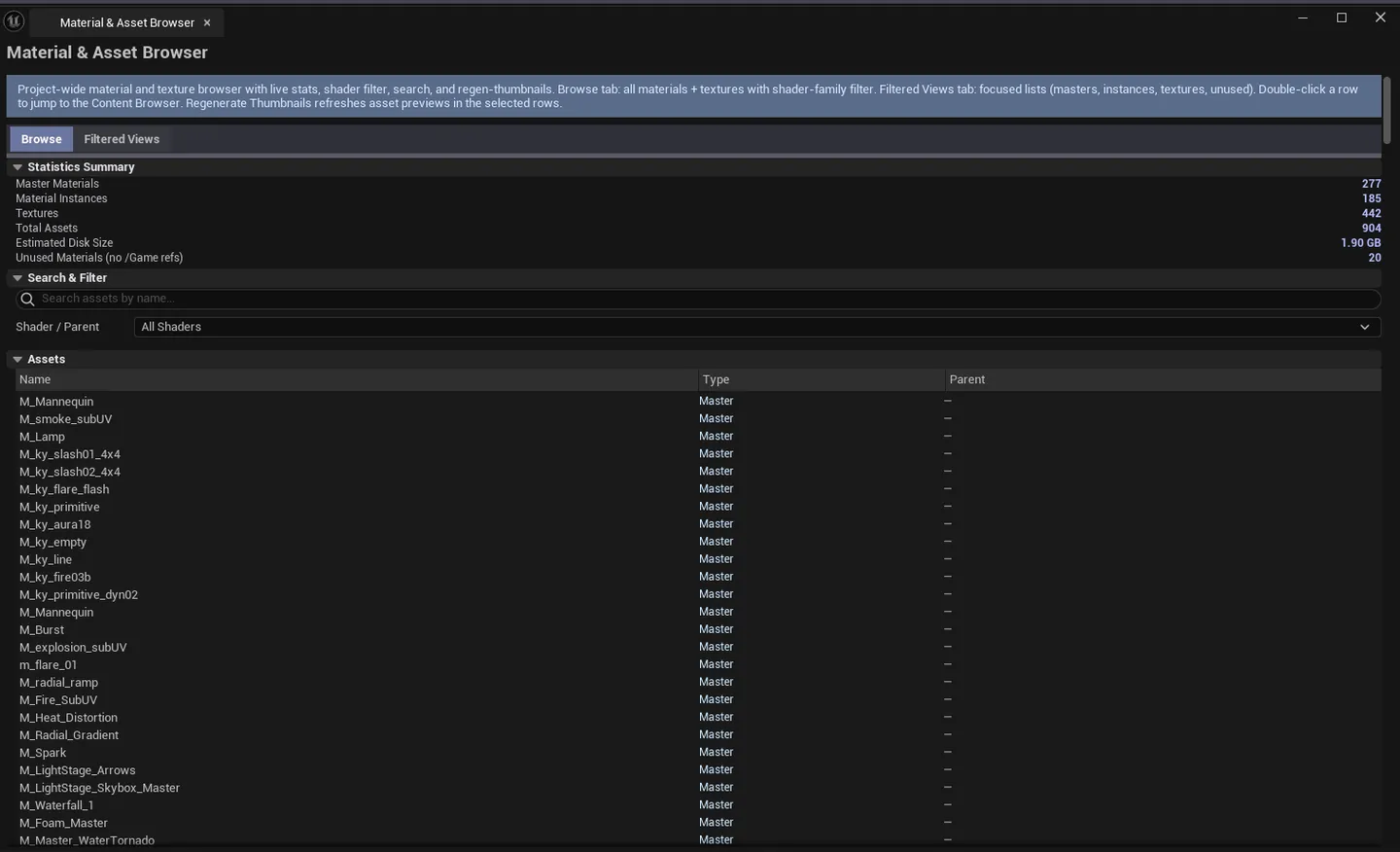
Two-tab material/texture browser with project-wide statistics. Browse lists all materials/textures with shader-name filter and search. Filtered Views narrows by asset type: All / Materials / Master Materials / Material Instances / Textures. Includes thumbnail regeneration, unused-material detection, and project-wide stat counts.
When to use it
Section titled “When to use it”- Quickly finding all instances of a specific master material
- Project-wide stats (total materials / MIs / textures / size)
- Detecting unused materials for cleanup
- Refreshing thumbnails on imported assets
What it isn’t for
Section titled “What it isn’t for”- Don’t use this for material editing. Opens UE’s Material editor on double-click; editing happens there.
- Don’t use this for batch material creation. See Batch Material Creator.
Opening the tool
Section titled “Opening the tool”- Open the EQLabs Hub and search for Material Browser (or browse to Tech → Workflow).
- Click the tool card.
- Use the tab bar: Browse or Filtered Views.
Tab 1: Browse
Section titled “Tab 1: Browse”| Section | What it does |
|---|---|
| Search | Filter by name |
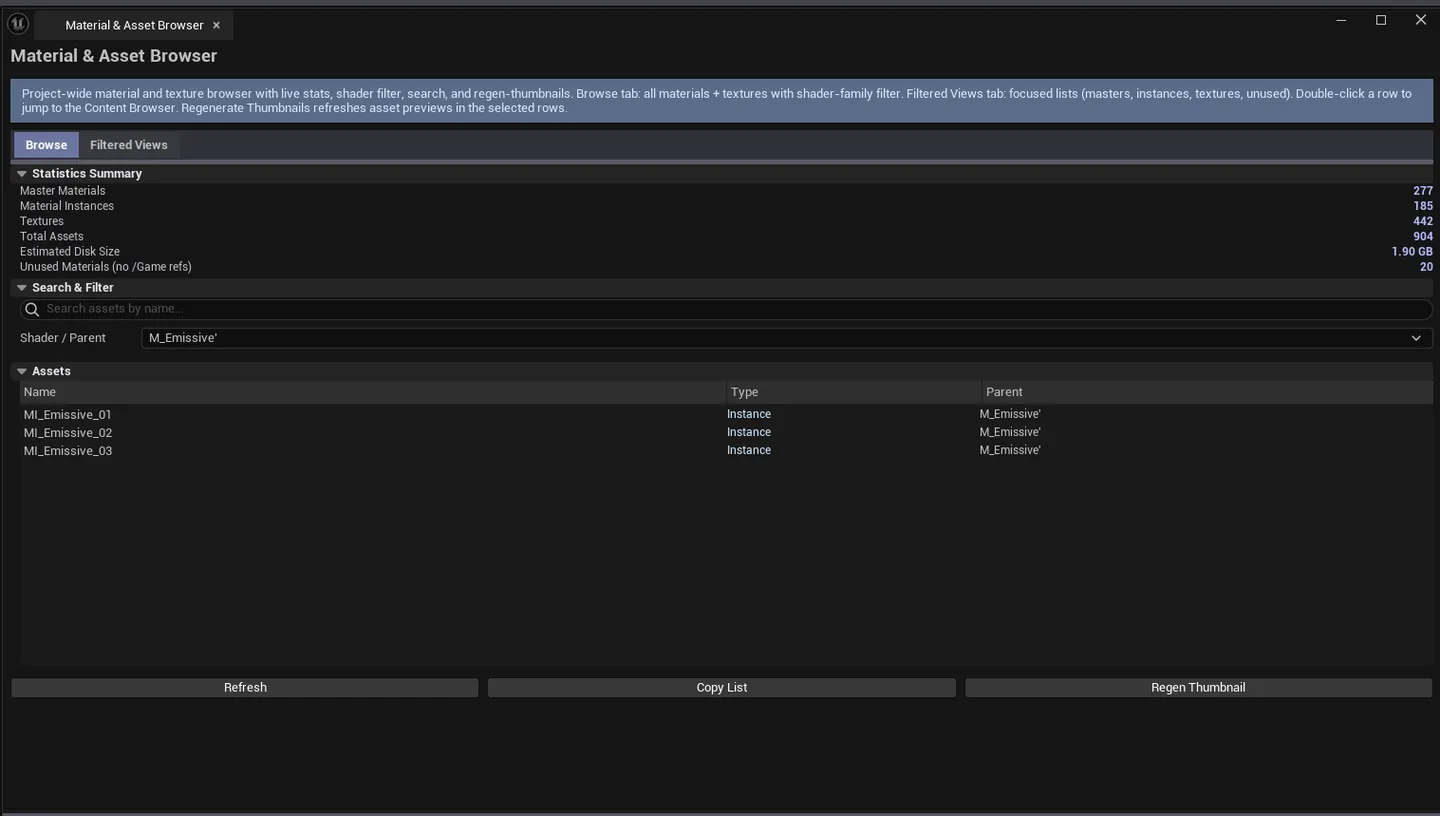
| Shader Filter combo | Filter by shading model |
| Refresh | Re-scan project |
| Copy Results | Plain-text dump |
| Results list | Per-asset row: name, shader name, master/MI/texture flags |
Single-click pings the asset; double-click opens its editor.
Tab 2: Filtered Views
Section titled “Tab 2: Filtered Views”Same list, narrower filter:
| Filter | Scope |
|---|---|
| All | Materials + MIs + Textures |
| Materials | All UMaterial |
| Master Materials | UMaterial with no parent |
| Material Instances | UMaterialInstance |
| Textures | UTexture2D |
Project statistics
Section titled “Project statistics”| Stat | What it shows |
|---|---|
| Total Materials | Master + child material count |
| Total MIs | Material instance count |
| Total Textures | Texture asset count |
| Total Size | Aggregate disk size |
| Unused Materials | Materials with zero references |
Thumbnail regeneration
Section titled “Thumbnail regeneration”Per-asset action — forces UE to re-render the thumbnail for the selected asset. Useful after parameter changes that didn’t trigger a thumbnail refresh.
Workflow
Section titled “Workflow”Find unused materials
Section titled “Find unused materials”- Switch to Filtered Views tab.
- Click “Detect Unused” (or watch the Unused Materials stat).
- Filter to Materials, sort by reference count.
Refresh stale thumbnails
Section titled “Refresh stale thumbnails”- In Browse tab, find the asset.
- Right-click row, choose Regenerate Thumbnail.
Settings reference
Section titled “Settings reference”| Field | Default |
|---|---|
| Search | empty |
| Shader Filter | All |
Settings file:
[Project]/Saved/EQLabs/Settings/MaterialBrowser.json
Output
Section titled “Output”- In-panel browse and stats.
- Clipboard. Copy Results.
- Thumbnail regeneration. Modifies asset metadata (saves on next Save All).
- No edits otherwise — read-only
Tips and gotchas
Section titled “Tips and gotchas”- Unused detection uses asset registry references. Blueprints that lazy-load by name won’t show up as references.
- Single-click pings; double-click opens the appropriate editor.
Related tools
Section titled “Related tools”- Material Layer Studio — for parent-chain debugging
- Material Instance Manager — for MI hierarchy + override tracking
- Material Replacer — for batch replacement
Opens our feedback form in a new tab with the tool name pre-filled.