
No. 1044 AN AnimationEQLabs Pro
Pose Library & Management Toolkit
Module: Animation · Category: PoseAsset · Tool ID:
PoseAssetBrowser
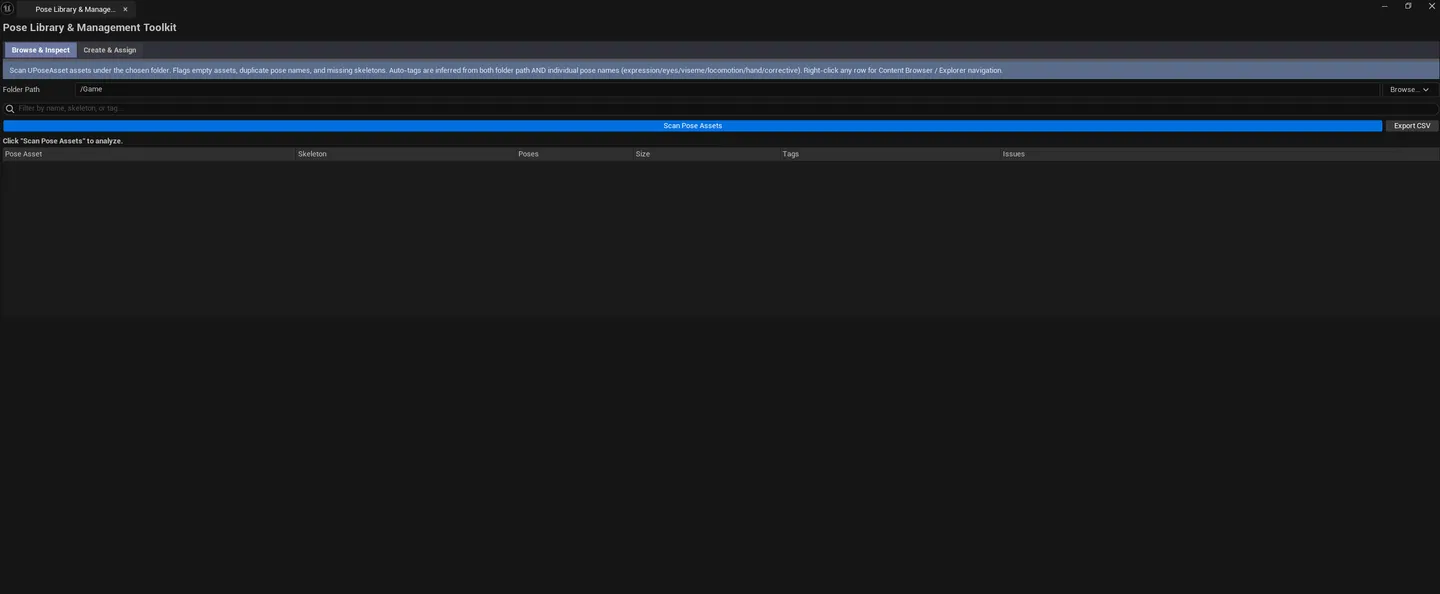
A two-tab toolkit for managing PoseAssets — facial poses, additive pose libraries, and any other pose-driven animation workflow. Browse & Inspect walks every PoseAsset in the project with search, audit, and tagging. Create & Assign opens UE’s native PoseAsset factory dialog and finds every PoseAsset that’s compatible with a given Skeleton.
When to use it
Section titled “When to use it”- Auditing facial-pose libraries: finding duplicates, oversize assets, broken references
- Onboarding to a project: getting a roster of every pose-based asset in one view
- Setting up a new MetaHuman or character: finding which existing poses can be assigned
- Tagging poses for downstream tooling (a custom AnimBP, a runtime selector, etc.)
What it isn’t for
Section titled “What it isn’t for”- Don’t use this to edit individual poses. Pose editing happens in UE’s PoseAsset editor.
- Don’t expect this to handle non-PoseAsset facial animation. It specifically targets
UPoseAsset.
Opening the tool
Section titled “Opening the tool”- Open the EQLabs Hub and search for Pose (or browse to Animation → PoseAsset).
- Click the tool card.
- Use the tab bar to switch between Browse & Inspect and Create & Assign.
Tab 1: Browse & Inspect
Section titled “Tab 1: Browse & Inspect”Project-wide PoseAsset roster.
Interface
Section titled “Interface”| Section | What it does |
|---|---|
| Scan Path | Folder to recursively scan. Default /Game. |
| Search box | Filter by asset name |
| Scan button | Walks every UPoseAsset under the scan path |
| Export CSV | Saves the result set to a CSV file |
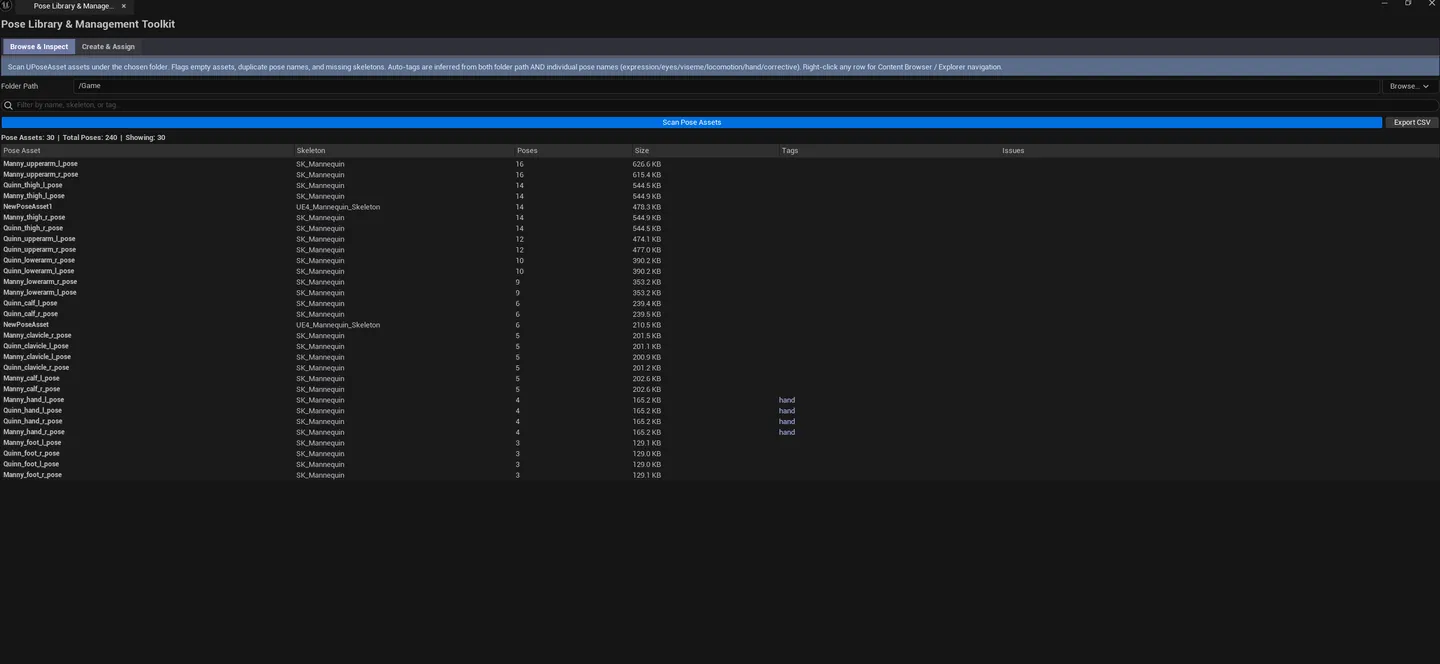
| Stats | Total PoseAssets, total poses across all assets |
| Results list | Per-asset row: name, skeleton, pose count, duplicate-name flag, file size, issue summary, severity, tags |
Severity coding
Section titled “Severity coding”| Severity | Meaning |
|---|---|
| OK | No detected issues |
| Warning | Duplicate pose names within an asset, suspicious size |
| Error | Broken skeleton reference, malformed asset |
Workflow
Section titled “Workflow”- Pick a scan path, click Scan.
- Walk the results — anything yellow or red gets a manual review.
- Use the search box to narrow to a specific naming convention or batch.
- Export CSV if you want to slice further in a spreadsheet.
Tab 2: Create & Assign
Section titled “Tab 2: Create & Assign”PoseAsset creation and skeleton compatibility checking.
Interface
Section titled “Interface”| Section | What it does |
|---|---|
| Skeleton picker | Drop a Skeleton asset to look up compatible PoseAssets |
| Find Compatible Poses button | Walks every PoseAsset and lists those built on the picked Skeleton |
| Create New PoseAsset button | Opens UE’s native PoseAsset factory dialog |
| Compatible Poses list | Per-asset row: name, skeleton, pose count, file size |
Workflow
Section titled “Workflow”Find compatible poses for a Skeleton
Section titled “Find compatible poses for a Skeleton”- Drop a Skeleton into the picker.
- Click Find Compatible Poses — every PoseAsset built on that Skeleton appears.
- Single-click pings the asset; double-click opens the PoseAsset editor.
Create a new PoseAsset
Section titled “Create a new PoseAsset”- Click Create New PoseAsset.
- UE’s native factory dialog opens — pick the source AnimSequence and Skeleton as usual.
- The new asset is created in the Content Browser.
Settings reference
Section titled “Settings reference”| Field | What it does | Default |
|---|---|---|
| Scan Path | Folder to scan in Browse tab | /Game |
| Search | Substring filter | empty |
Settings are persisted to
[Project]/Saved/EQLabs/Settings/PoseAssetBrowser.json.
Output
Section titled “Output”- In-panel lists. Cleared on each rescan.
- CSV export. Full Browse tab result set written via the platform’s save dialog.
- New assets. The Create button creates a real PoseAsset via UE’s factory; appears in Content Browser.
- No in-place edits. Auditing is read-only.
Tips and gotchas
Section titled “Tips and gotchas”- The Skeleton-compatibility check looks at hard references. A PoseAsset bound to a different Skeleton with an identical bone hierarchy still won’t show up here. Use UE’s IK Retargeter for cross-skeleton work.
- Duplicate pose names within a single PoseAsset are not always wrong. Sometimes intentional, but usually a sign of a bad import.
- File size signal works best for facial pose libraries. A face library with 200+ poses can grow to dozens of megabytes; the size column makes outliers obvious.
- Single-click pings the asset; double-click opens the PoseAsset editor.
Related tools
Section titled “Related tools”- Corrective Blendshape Authoring — when poses aren’t enough and you need vertex-delta morph targets
- Skeleton Inspector & Rig Shortcuts — analyze the Skeleton that drives this PoseAsset
Report an issue with this tool
Opens our feedback form in a new tab with the tool name pre-filled.