
Skeleton Inspector & Rig Shortcuts
Skeleton Inspector & Rig Shortcuts
Section titled “Skeleton Inspector & Rig Shortcuts”Module: Animation · Category: Rigging · Tool ID:
AutoRigRetargetWizard
A three-tab toolkit for working with skeletons and rigging assets. Skeleton Analysis loads any Skeleton, detects its naming convention (UE4 Mannequin / MetaHuman / Mixamo / Daz / Custom), and tags the role of each bone. Rig Shortcuts opens UE’s native factory dialogs for Control Rig BP, IK Rig Definition, and IK Retargeter, plus generates a Levenshtein-based bone-mapping reference you can copy into the IK Retargeter editor manually. Batch Skeleton Reassign duplicates animations and reassigns them to a new skeleton via ReplaceSkeleton() — for identical-hierarchy skeletons only (e.g., UE4 → UE5 Mannequin rebind). For different skeletons, use UE’s IK Retargeter.
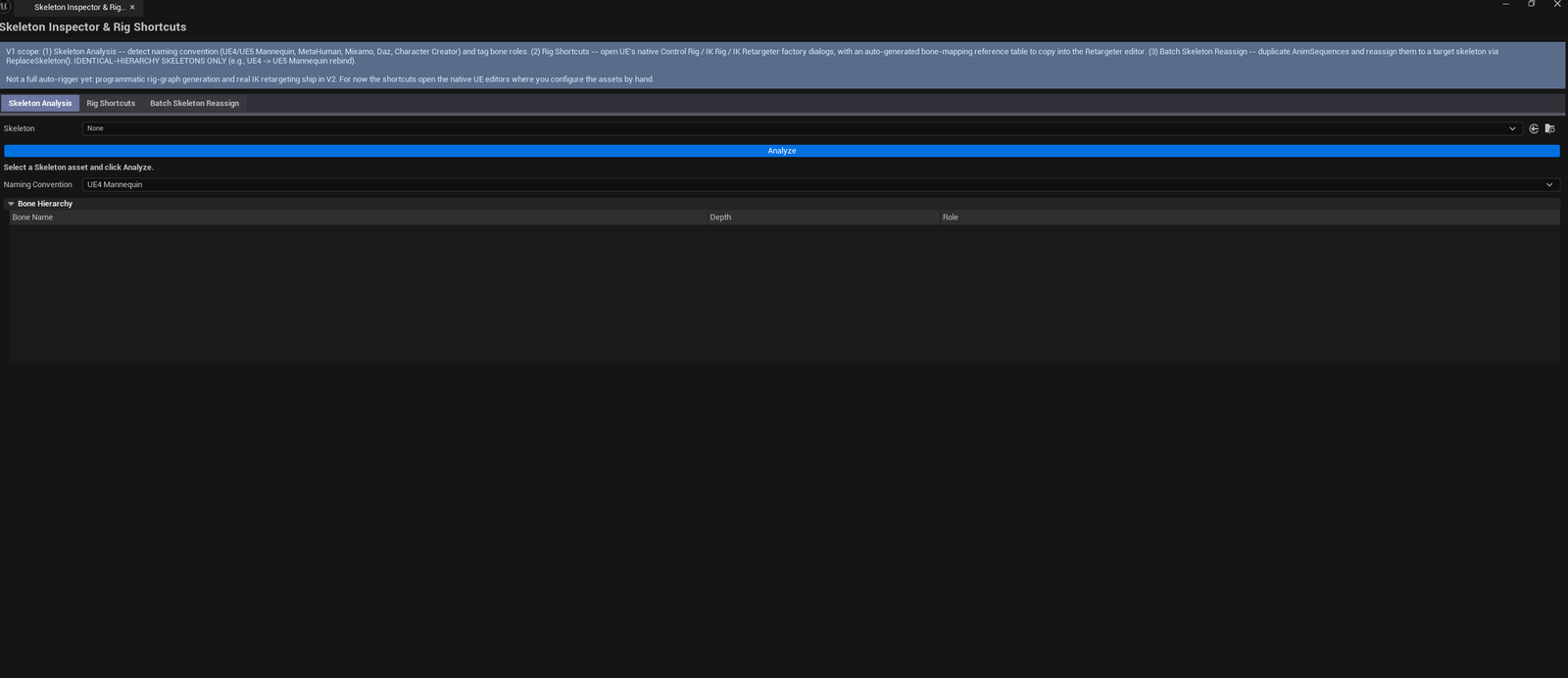
⚠️ V1 scope clarification: The tool ID
AutoRigRetargetWizardis preserved for Hub registration history. The display name is “Skeleton Inspector & Rig Shortcuts” and reflects what V1 actually does. Programmatic IK Rig population, IK Retargeter mapping configuration, real IK retarget batches, and Control Rig graph generation are planned for V2 — see “When not to use it” below.
When to use it
Section titled “When to use it”- Onboarding to a project — quickly identifying which naming convention a skeleton uses (UE4 / MetaHuman / Mixamo / Daz / Custom)
- Setting up a new IK Retargeter — generate the auto-mapped bone reference, copy into UE’s editor
- Performing a UE4 → UE5 Mannequin rebind (or any same-hierarchy skeleton swap) — Tab 3’s batch reassign is purpose-built for this
- Quickly opening the Control Rig BP / IK Rig / IK Retargeter factory dialogs without hunting through Content Browser menus
When not to use it
Section titled “When not to use it”- Don’t expect programmatic IK Retargeter setup — V1 generates a reference for manual entry; populating retarget chains via
UIKRigControllerand configuring mappings viaUIKRetargetControlleris V2 - Don’t use Tab 3 for cross-skeleton retargeting —
ReplaceSkeletononly works when the bone hierarchies match exactly. For different skeletons, use UE’s IK Retargeter - Don’t expect Control Rig graph generation — V1 opens the factory dialog; building rig graphs via
URigHierarchyControlleris V2
Opening the tool
Section titled “Opening the tool”- Open the EQLabs Hub and search for
SkeletonorRig(or browse to Animation → Rigging) - Click the tool card
- Use the tab bar to pick Skeleton Analysis, Rig Shortcuts, or Batch Skeleton Reassign
Tab 1 — Skeleton Analysis
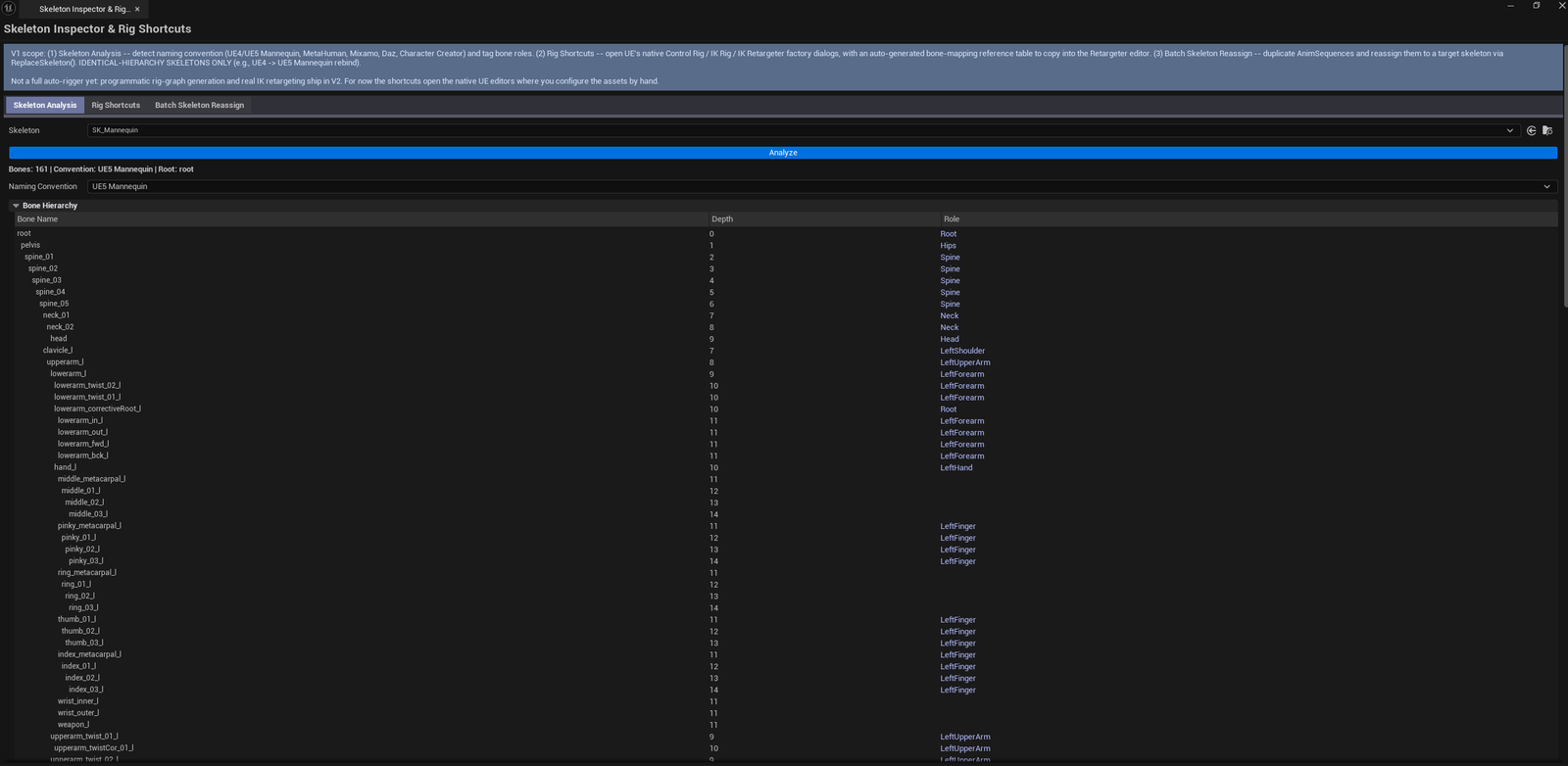
Section titled “Tab 1 — Skeleton Analysis”Load any Skeleton, detect convention, walk the bone tree.
Interface
Section titled “Interface”| Section | What it does |
|---|---|
| Skeleton picker | Drop a Skeleton asset |
| Analyze Skeleton button | Walks the bones and tags each with a role |
| Analysis Results block | Detected convention, bone count, root bone name |
| Bone tree list | Per-bone row: bone name, depth, detected role (Root / Spine / Head / LeftHand / RightFoot / etc.) |
Detected conventions
Section titled “Detected conventions”| Convention | Detection signal |
|---|---|
| UE4 Mannequin | Bone names like pelvis, spine_01, clavicle_l, thigh_l, foot_l |
| MetaHuman | MetaHuman-specific bone names |
| Mixamo | mixamorig: prefix |
| Daz | Daz-specific naming |
| Custom | Doesn’t match any of the above |
Tab 2 — Rig Shortcuts
Section titled “Tab 2 — Rig Shortcuts”Open UE’s factory dialogs and generate a bone-mapping reference.
Interface
Section titled “Interface”| Section | What it does |
|---|---|
| Source Skeleton picker | The skeleton you’re retargeting from |
| Target Skeleton picker | The skeleton you’re retargeting to |
| Auto-mapped bone pairs list | Levenshtein-based bone name matching, source → target |
| Build Control Rig button | Opens UE’s Control Rig Blueprint factory dialog |
| Create IK Rig button | Opens UE’s IK Rig Definition factory dialog |
| Create IK Retargeter button | Opens UE’s IK Retargeter factory dialog |
Auto-mapping behavior
Section titled “Auto-mapping behavior”For each bone on the source skeleton, computes Levenshtein distance against every target skeleton bone. Best match becomes the suggested mapping. This is a reference only — V1 cannot programmatically configure the IK Retargeter editor’s chains, so you copy the mappings into the editor by hand.
Workflow
Section titled “Workflow”- Drop source and target skeletons into the pickers
- The mapping list auto-populates (read-only reference)
- Click Create IK Retargeter — UE’s factory dialog opens with sensible defaults
- In the IK Retargeter editor, manually enter the mapping pairs the tool surfaced
Tab 3 — Batch Skeleton Reassign
Section titled “Tab 3 — Batch Skeleton Reassign”Duplicate AnimSequences and reassign them to a new skeleton.
⚠️ Identical-hierarchy skeletons only. This is
ReplaceSkeleton(), not IK retargeting. Safe for UE4 ↔ UE5 Mannequin and similar bone-by-bone identical rebinds. For different skeletons, use UE’s IK Retargeter.
Interface
Section titled “Interface”| Field | What it does | Default |
|---|---|---|
| Source Skeleton picker | Skeleton the source animations are bound to | (empty) |
| Target Skeleton picker | Skeleton to rebind to | (empty) |
| Batch Source Folder | Folder of AnimSequences to process | /Game |
| Batch Output Folder | Where reassigned copies are written | /Game/Reassigned |
| Scan Animations button | Walks the source folder, populates the list | |
| Reassign All button | Duplicates each anim and calls ReplaceSkeleton() on the copy | |
| Batch list | Per-clip row: asset name, frames, duration | |
| Summary block | Count and stats of the planned operation |
Workflow
Section titled “Workflow”- Drop source + target skeletons into the pickers
- Set the source folder (and output folder if different from default)
- Click Scan Animations
- Review the list — confirm the count matches expectations
- Click Reassign All
Settings reference
Section titled “Settings reference”Skeleton Analysis
Section titled “Skeleton Analysis”| Field | Default |
|---|---|
| Skeleton path | (empty) |
Rig Shortcuts
Section titled “Rig Shortcuts”| Field | Default |
|---|---|
| Source / Target Skeleton paths | (empty) |
Batch Reassign
Section titled “Batch Reassign”| Field | Default |
|---|---|
| Batch Source Folder | /Game |
| Batch Output Folder | /Game/Reassigned |
Settings are persisted to
[Project]/Saved/EQLabs/Settings/AutoRigRetargetWizard.json.
Output
Section titled “Output”- Skeleton Analysis — read-only display
- Rig Shortcuts — opens UE’s factory dialogs; new assets are created via the dialog (not programmatically by this tool)
- Batch Reassign — duplicates AnimSequences and writes them to the output folder;
ReplaceSkeleton()is called on each copy - No source asset edits — Tab 3 always operates on duplicates; originals are untouched
Tips & gotchas
Section titled “Tips & gotchas”- Tab 3’s
ReplaceSkeletonis the right choice for UE4 → UE5 rebinds — the bone hierarchies match exactly, so a programmatic rebind is safe and fast - For different skeletons (e.g., UE4 Mannequin → MetaHuman), use UE’s IK Retargeter instead — the bone hierarchies don’t match, and a
ReplaceSkeletonwould corrupt the animation - The bone-mapping reference uses Levenshtein distance — fine for similar conventions, less reliable when source and target use different naming styles entirely. Treat as a starting point, not a finished mapping
- The detected convention is a heuristic — if the tool says “Custom” but you know the skeleton is a modified Mannequin, that’s just because some bones were renamed. Doesn’t break anything; the role tags still work
- V2 will replace this with real programmatic retargeting — until then, the manual-mapping workflow is the supported path
Related tools
Section titled “Related tools”- Control Rig Inspector — analyze Control Rigs that consume this skeleton
- Control Rig Dependency Navigator — deeper rig graph analysis
- Pose Library & Management Toolkit — find PoseAssets compatible with the analyzed skeleton
Opens our feedback form in a new tab with the tool name pre-filled.