
No. 0883 DE DesignEQLabs Pro
Post-Process Volume Inspector
Module: Design · Category: LevelDesign · Tool ID:
PostProcessVolumeInspector
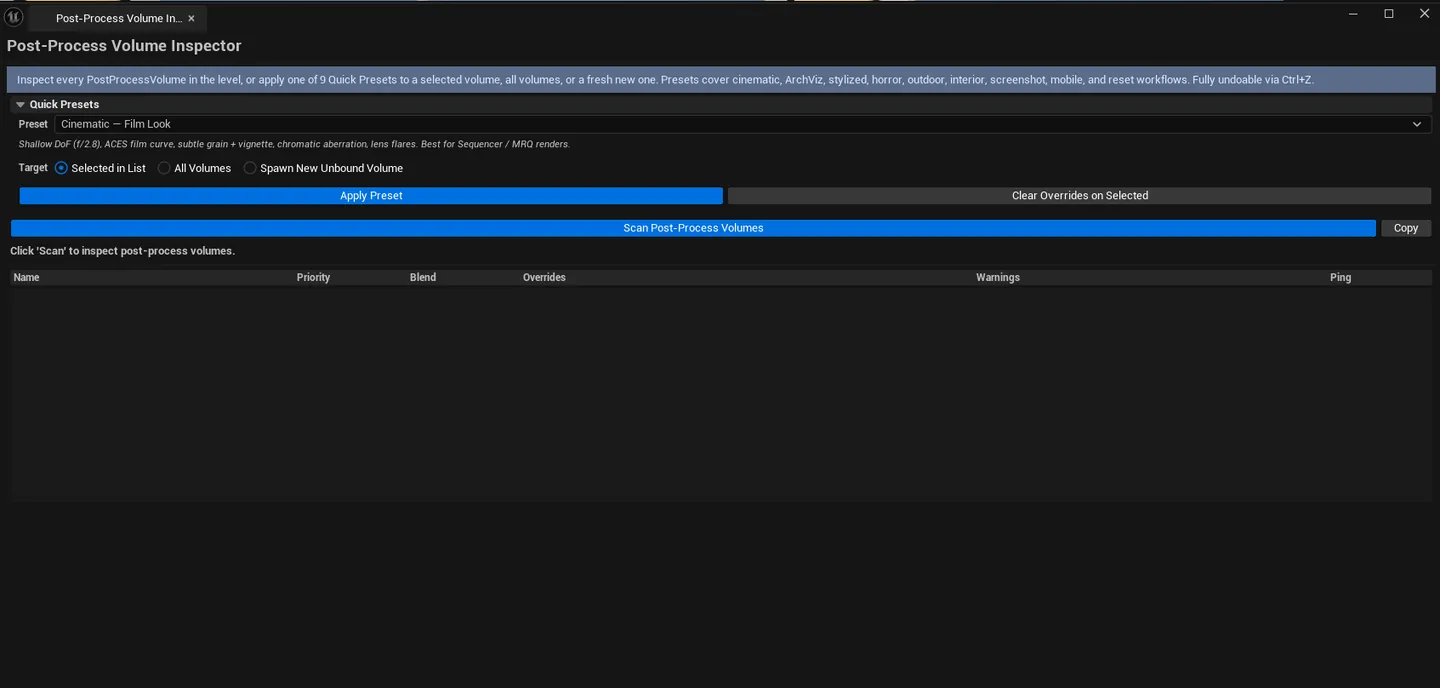
Scans every Post-Process Volume in the active level and reports priority, blend weight, unbound flag, bounds, active overrides, and warnings. Applies Quick Presets (cinematic, archviz, stylized, horror, mobile, etc.) that set the right bOverride_* flags + values on FPostProcessSettings with full undo support.
When to use it
Section titled “When to use it”- Auditing a level’s post-process setup: finding which volumes have which overrides active
- Applying a tested preset to one or all volumes
- Pre-shipping check: making sure no volume has 50 unintended overrides
- Quick “give me a cinematic look” via preset
What it isn’t for
Section titled “What it isn’t for”- Don’t use this for runtime PP changes. These are editor-side overrides.
- Don’t expect this to author custom PP material chains. For that, use UE’s PP editor.
Opening the tool
Section titled “Opening the tool”- Open the EQLabs Hub and search for Post Process or
PP(or browse to Design → LevelDesign). - Click the tool card.
- Click Scan.
Interface tour
Section titled “Interface tour”| Section | What it does |
|---|---|
| Scan | Walks every APostProcessVolume in the active level |
| Copy | Plain-text dump of visible results |
| Preset combo | Pick a Quick Preset to apply |
| Apply Target combo | Selected in List / All Volumes / New Volume |
| Apply Preset | Applies the preset to the chosen target |
| Clear Overrides | Resets every override on the chosen target |
| Volumes list | Per-volume row: name, priority, blend weight, unbound flag, bounds extent, active overrides, warnings |
Quick Presets
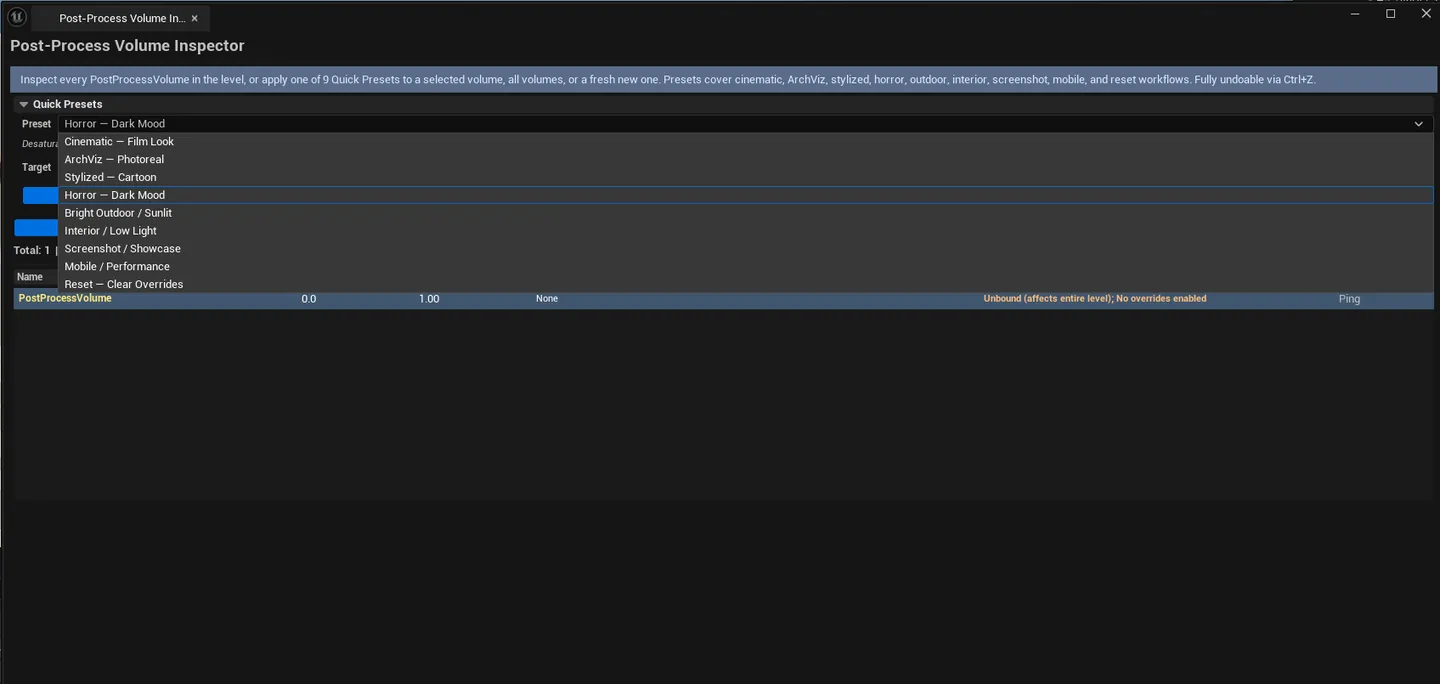
Section titled “Quick Presets”| Preset | Tuned for |
|---|---|
| Cinematic | Heavy bloom, lens flares, motion blur, color grade |
| Archviz | Photoreal, neutral color, accurate lighting |
| Stylized | Saturated, contrast push, vignette |
| Horror | Heavy vignette, desaturated, chromatic aberration |
| Mobile | Performance-optimized — minimal effects |
| Neutral | Default state, clears all overrides |
| (More) | Project-specific presets can be added |
Workflow
Section titled “Workflow”Audit + apply preset
Section titled “Audit + apply preset”- Click Scan.
- Read the active-overrides column to see which volumes are active.
- Pick a preset, set Apply Target (typically “Selected in List”), select the target volume.
- Click Apply Preset.
Reset a volume
Section titled “Reset a volume”- Select the volume in the list.
- Set Apply Target to “Selected in List”.
- Click Clear Overrides.
Bulk apply a project-wide look
Section titled “Bulk apply a project-wide look”- Pick a preset (e.g., Cinematic).
- Set Apply Target to “All Volumes”.
- Click Apply Preset.
Settings reference
Section titled “Settings reference”| Field | Default |
|---|---|
| Selected Preset | (first preset) |
| Apply Target | Selected in List |
Settings file:
[Project]/Saved/EQLabs/Settings/PostProcessVolumeInspector.json
Output
Section titled “Output”- In-panel volumes list
- PP volume modifications. Apply Preset / Clear Overrides modify volume settings in-place.
- Undo. Wrapped in
ScopedTransaction.Ctrl+Zreverses.
Tips and gotchas
Section titled “Tips and gotchas”bOverride_*flags matter. A value can be set but the override flag off, in which case the volume doesn’t apply. Presets set both.- Unbound volumes apply globally. Surprising if you didn’t author them. The Inspector flags them.
- Apply to “New Volume” spawns a fresh
APostProcessVolumeactor with the preset; useful for layered grading - LUT preset slot is separate. See LUT Color Grading Baker.
Related tools
Section titled “Related tools”- LUT Color Grading Baker — generate LUTs that PP volumes consume
- Lighting Scenario Auditor — lighting-side audit complementing PP
Report an issue with this tool
Opens our feedback form in a new tab with the tool name pre-filled.