
No. 0341 TE TechEQLabs Pro
Texture Channel Packer
Module: Tech · Category: TextureGenerators · Tool ID:
TextureChannelPacker
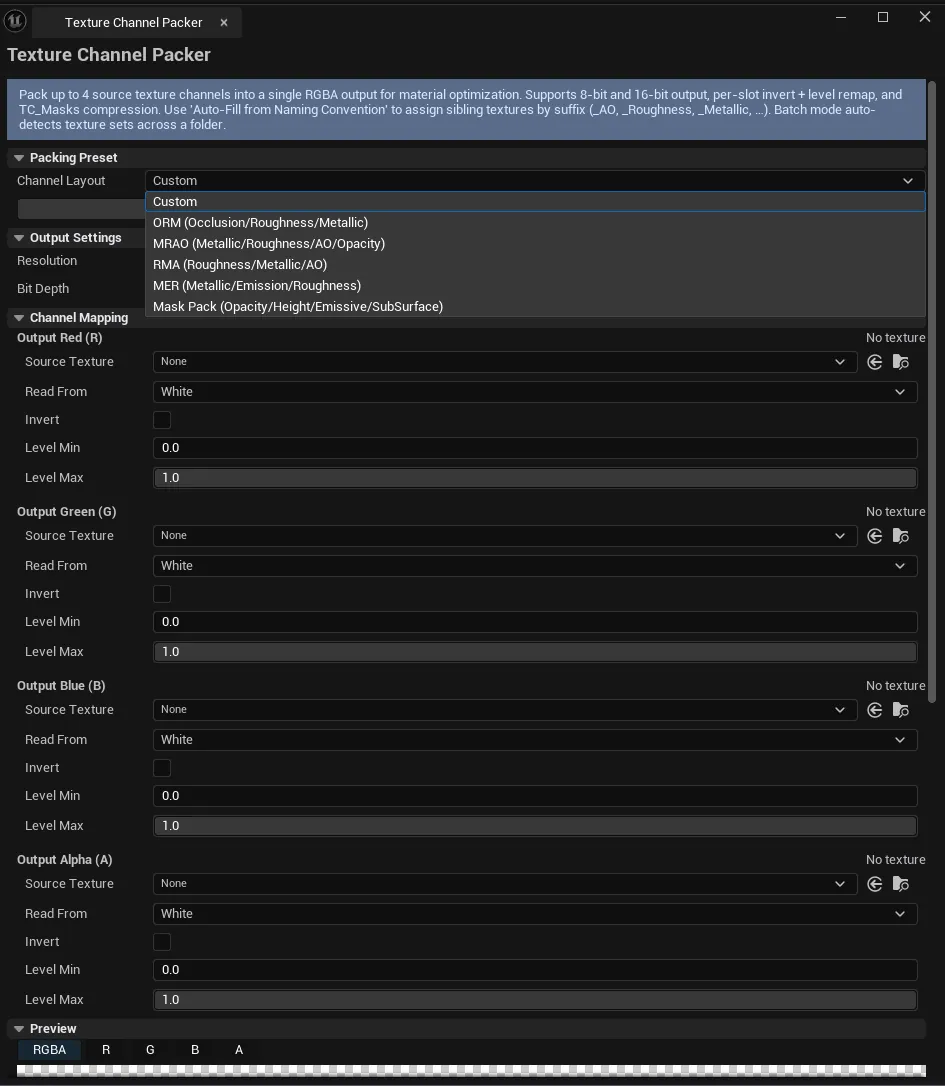
Pack 4 source textures’ channels into a single RGBA output. Each output channel (R / G / B / A) gets its own source texture + source channel selection (R/G/B/A/White/Black) + invert toggle + level remap. Includes packing presets (ORM, MRA, RMA, etc.), 8-bit or 16-bit output, batch folder mode, preset save/load to JSON, and auto-detect for <basename>_Roughness / _Metallic / _AO texture sets.
When to use it
Section titled “When to use it”- ORM packing: Occlusion / Roughness / Metallic in one RGB texture for memory + sample-count savings
- Custom mask packing: packing 4 mask textures into a single RGBA
- Preparing texture sets for a parent material that expects packed inputs
- Batch processing a folder of texture sets
What it isn’t for
Section titled “What it isn’t for”- Don’t expect this to unpack. See Texture Sheet Splitter for atlas splitting (different operation).
Opening the tool
Section titled “Opening the tool”- Open the EQLabs Hub and search for Channel Packer (or browse to Tech → TextureGenerators).
- Click the tool card.
Interface tour
Section titled “Interface tour”Channel slots (4)
Section titled “Channel slots (4)”For each of R / G / B / A output channels:
| Field | What it does |
|---|---|
| Source Texture picker | The texture to sample from |
| Source Channel combo | Red / Green / Blue / Alpha / White / Black |
| Invert toggle | 1 - value |
| Level Min / Max | Remap the source range |
Output config
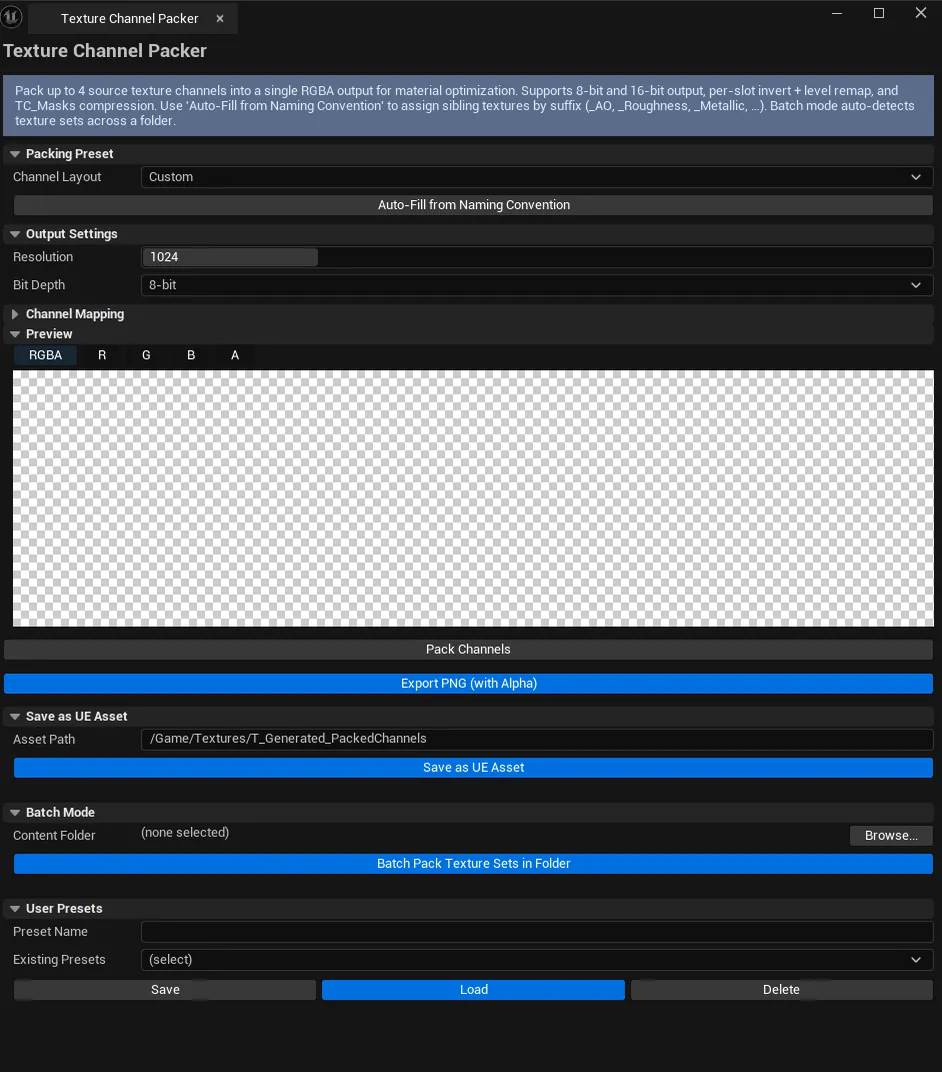
Section titled “Output config”| Field | What it does | Default |
|---|---|---|
| Output Resolution | Final texture size | 1024 |
| Bit Depth | 8 / 16 | 8 |
| Save Asset Path | Output asset path | /Game/Textures/T_Generated_PackedChannels |
Packing presets
Section titled “Packing presets”Built-in presets covering common conventions: ORM (Occlusion/Roughness/Metallic in RGB), MRA, RMA, etc. Click a preset to fill the channel slots automatically.
Preview
Section titled “Preview”Live preview with isolation modes: RGBA / Solo R / Solo G / Solo B / Solo A.
Batch mode
Section titled “Batch mode”| Field | What it does |
|---|---|
| Batch Folder Path | Folder with texture sets to process |
| Batch Output Suffix | Suffix appended to output filenames |
| Run Batch | Walks the folder, packs every texture set |
Auto-detect texture set
Section titled “Auto-detect texture set”When the source for one slot is set, Auto-Detect Texture Set scans the same folder for <basename>_Roughness, _Metallic, _AO, etc., and auto-fills the other slots.
Preset save/load
Section titled “Preset save/load”Configure your packing setup, click Save Preset with a name. Reload via Load Preset. JSON files persist across sessions.
Workflow
Section titled “Workflow”ORM pack
Section titled “ORM pack”- Drop the AO texture into channel R, source channel R.
- Drop the Roughness texture into channel G, source channel R.
- Drop the Metallic texture into channel B, source channel R.
- Channel A: Source = Black (or set as needed).
- Or: pick ORM preset to fill these in one click.
- Click Pack + Save as UE Asset.
Batch process a folder
Section titled “Batch process a folder”- Set up the channel slots (or load a preset).
- Set Batch Folder Path.
- Click Run Batch — every detected texture set gets packed and saved.
Settings reference
Section titled “Settings reference”Settings + presets persist to [Project]/Saved/EQLabs/.
Output
Section titled “Output”UTexture2Dasset. Via Save as UE Asset.- PNG file. Via Export.
- Bit depth. 8-bit (
BGRA8) or 16-bit (HDR-friendly). - Batch run writes one packed texture per detected source set
Tips and gotchas
Section titled “Tips and gotchas”- ORM is the de-facto PBR packing convention. Occlusion / Roughness / Metallic in RGB, A free for any mask.
- Bit depth matters for normal maps. For normal-channel packing, use 16-bit to avoid quantization artifacts.
- Auto-detect uses naming conventions. Assumes
_Roughness,_Rough,_R;_Metallic,_Metal,_M; etc. - Solo Preview modes are useful for verifying each channel ended up where you intended
Related tools
Section titled “Related tools”- Smart Mask & Texture Processor — for height-to-normal and normal blending (not channel packing)
- Texture Sheet Splitter — opposite domain (atlas → individual textures)
- Texture Validation & Color Mgmt — validate the packed output’s settings
Opens our feedback form in a new tab with the tool name pre-filled.