
No. 0833 DE DesignEQLabs Pro
OTIO-Sequencer Bridge
Module: Design · Category: Cinematic · Tool ID:
OTIOSequencerBridge
Three-tab bridge between OpenTimelineIO (OTIO) — the industry-standard editorial timeline format — and UE Level Sequencer. Sequences scans LevelSequence assets with stats. OTIO Export/Import exports sequences to OTIO JSON or imports/parses OTIO files. Shot Breakdown analyzes camera cuts with a marketing render checklist.
When to use it
Section titled “When to use it”- Editorial round-trip: exporting UE sequences to Premiere/DaVinci/Avid via OTIO, then importing the editorial cut back
- Marketing render planning: shot breakdown with checklist (audio? long enough? camera assigned?)
- Cinematic auditing: getting a stat overview of all LevelSequence assets
What it isn’t for
Section titled “What it isn’t for”- Don’t expect this to render via OTIO. It bridges editorial data, not pixel-level renders.
- Don’t expect this to author shots. That lives in Sequencer.
Opening the tool
Section titled “Opening the tool”- Open the EQLabs Hub and search for OTIO or
Sequencer Bridge(or browse to Design → Cinematic). - Click the tool card.
- Use the tab bar: Sequences, OTIO Export/Import, Shot Breakdown.
Tab 1: Sequences
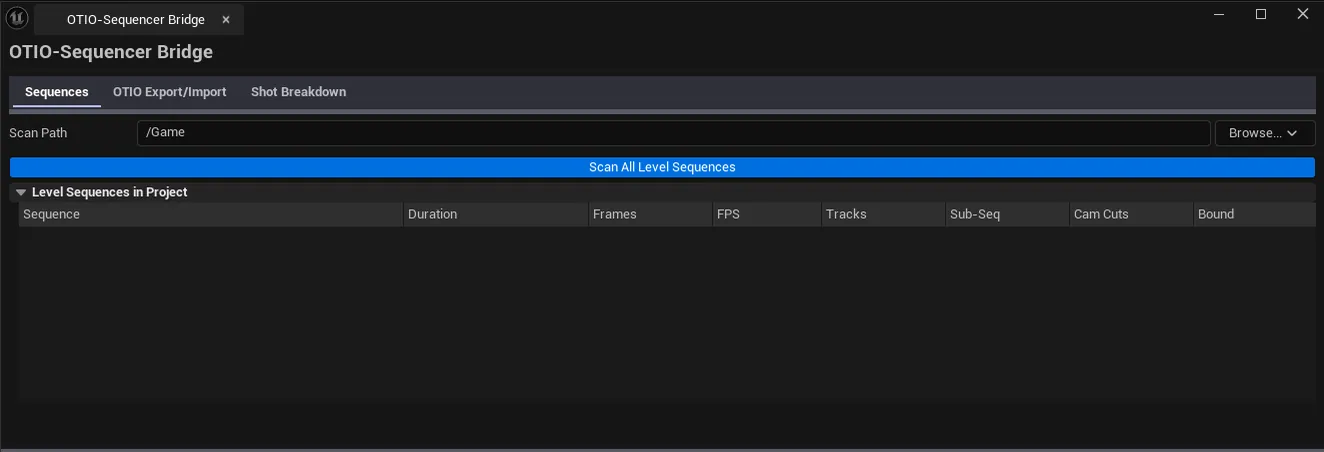
Section titled “Tab 1: Sequences”Scan LevelSequence assets with stats.
| Section | What it does | Default |
|---|---|---|
| Scan Path | Folder to scan | /Game |
| Scan Sequences | Walks every ULevelSequence | |
| Sequences list | Per-sequence row: name, duration (seconds), duration (frames), frame rate, track count, sub-sequence count, camera-cut count, bound actors |
Single-click a sequence to select it (drives the Shot Breakdown tab).
Tab 2: OTIO Export/Import
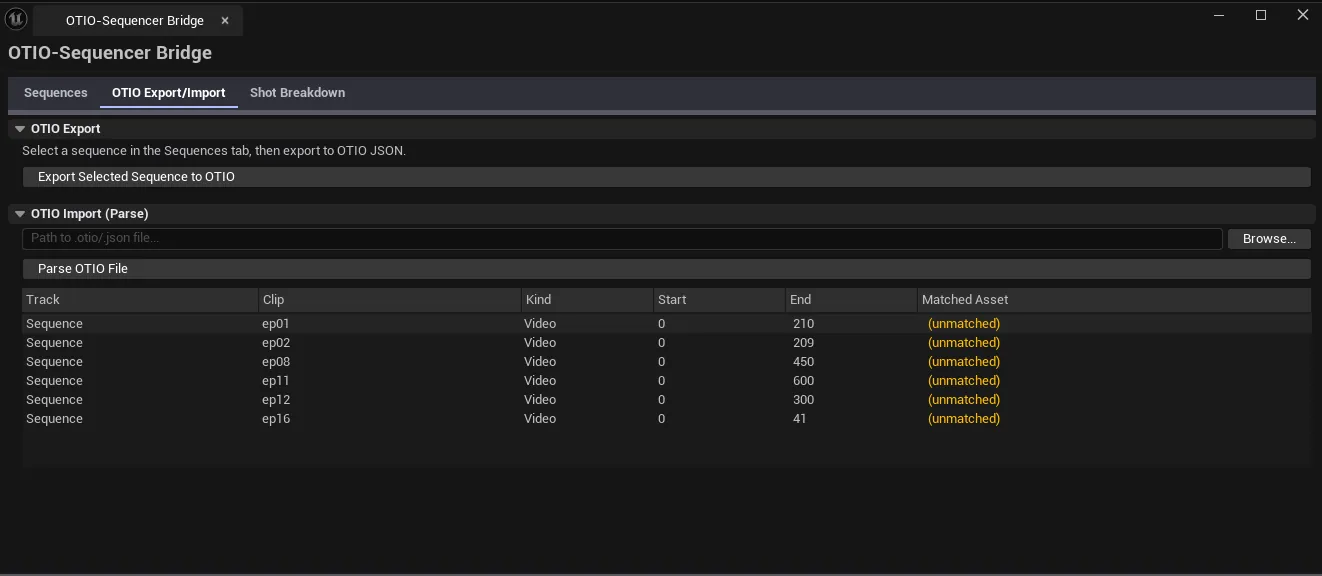
Section titled “Tab 2: OTIO Export/Import”Round-trip with editorial software.
| Section | What it does |
|---|---|
| Export File Path | Output OTIO JSON path |
| Export OTIO | Exports the selected sequence to OTIO JSON |
| Import File Path | Input OTIO JSON path |
| Browse Import File | Pick an OTIO file |
| Import OTIO | Parses the file and lists the clips |
| Imported Clips list | Per-clip row: track name, clip name, kind (Video/Audio), start/end frames, matched UE asset path |
The exporter writes a standards-conforming OTIO JSON. The importer parses OTIO JSON and tries to match each clip to a UE LevelSequence asset by name.
Tab 3: Shot Breakdown
Section titled “Tab 3: Shot Breakdown”Camera-cut analysis with marketing render checklist.
| Section | What it does |
|---|---|
| Analyze Shots | Walks the selected sequence’s camera cuts |
| Shots list | Per-shot row: shot name, start/end frames, duration, camera name, focal length, issues |
| Marketing checklist | Per-shot checks: has audio, length >= minimum, camera assigned, total shot count adequate |
| Export CSV | Saves the breakdown |
Workflow
Section titled “Workflow”Round-trip with editorial
Section titled “Round-trip with editorial”- Set Scan Path, click Scan Sequences.
- Select a sequence.
- Switch to OTIO Export/Import tab.
- Click Export OTIO — JSON file written.
- Hand to editorial; they edit; receive the result.
- Click Browse Import File, pick the result, click Import OTIO.
- Compare imported clips against current LevelSequence.
Marketing pre-render
Section titled “Marketing pre-render”- Select a sequence on the Sequences tab.
- Switch to Shot Breakdown.
- Click Analyze Shots.
- Walk the issues column for each shot.
- Export CSV for the producer.
Settings reference
Section titled “Settings reference”| Field | What it does | Default |
|---|---|---|
| Scan Path | Folder for sequences scan | /Game |
| Export / Import file paths | OTIO JSON paths | (empty) |
Settings file:
[Project]/Saved/EQLabs/Settings/OTIOSequencerBridge.json
Output
Section titled “Output”- OTIO JSON file. Via Export OTIO.
- Imported clip list in-panel. Via Import OTIO (read-only display).
- CSV export. Shot Breakdown.
- No edits to LevelSequence assets. Read-only.
Tips and gotchas
Section titled “Tips and gotchas”- OTIO clip-to-asset matching is name-based. If your editorial software renames clips, matching breaks.
- Frame rates must align. Export OTIO at the project’s master frame rate to avoid drift.
- Marketing checklist is heuristic. Flags low-shot-count or missing audio; doesn’t guarantee shippable.
Related tools
Section titled “Related tools”- Sequencer Shot Validator — for asset-side LevelSequence validation
- Camera Sequencer Enhancement — author shots that consume this OTIO data
Opens our feedback form in a new tab with the tool name pre-filled.