
No. 0251 TE TechEQLabs Pro
Quest Readiness Scanner
Module: Tech · Category: QA · Tool ID:
QuestReadinessScanner
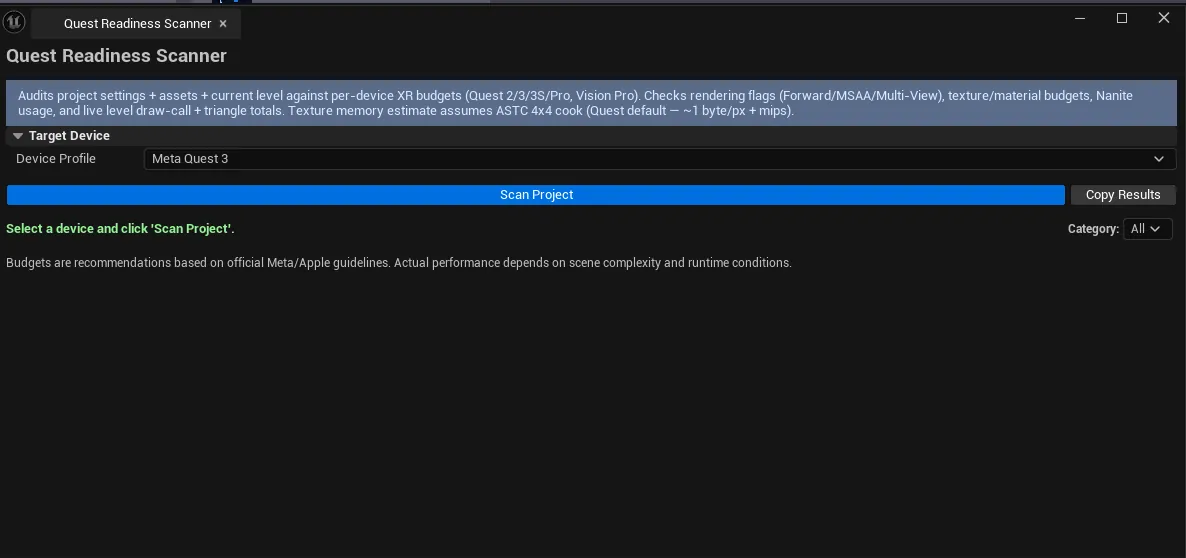
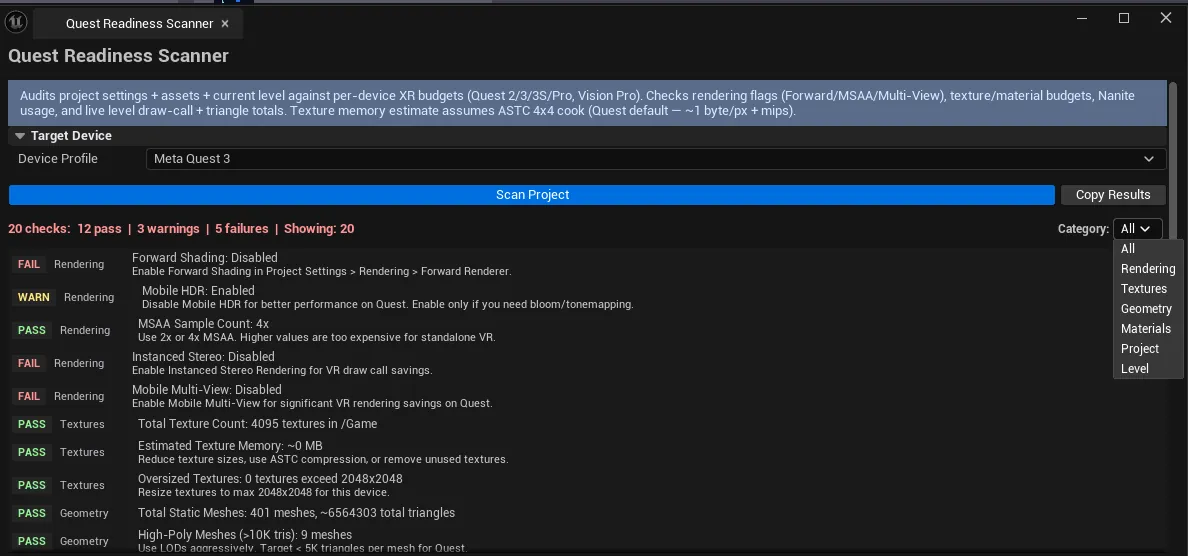
Scans project settings, asset stats, and map data against per-device XR budgets. Supports Quest 2 / Quest 3 / Quest 3S / Quest Pro / Apple Vision Pro. Checks rendering settings (Forward vs Deferred, Mobile HDR, MSAA), texture stats (resolution, memory, format), geometry (draw calls, triangle count, Nanite), materials (instruction limits, sampler limits), project settings (Vulkan/OpenXR, Fixed Foveated Rendering, App Space Warp), and per-level budget. Each check has a fix recommendation.
When to use it
Section titled “When to use it”- Building for Quest / Vision Pro: confirming the project meets device budgets
- Pre-cook XR audit
- Investigating “why is the build too big / too slow on Quest?”
- Choosing between Quest 2 / 3 / Pro target: see what changes per device
What it isn’t for
Section titled “What it isn’t for”- Don’t use this for non-XR projects. Checks are XR-specific.
- Don’t expect runtime XR perf. Asset/setting-side checks only.
Opening the tool
Section titled “Opening the tool”- Open the EQLabs Hub and search for Quest or
XR(or browse to Tech → QA). - Click the tool card.
- Pick a device, click Scan.
Interface tour
Section titled “Interface tour”| Field | What it does | Default |
|---|---|---|
| Device combo | Quest 2 / Quest 3 / Quest 3S / Quest Pro / Vision Pro | Quest 3 |
| Category Filter combo | Filter results by category | All |
| Scan | Runs all checks for the selected device | |
| Copy Results | Plain-text dump | |
| Stats | Pass / Warn / Fail counts | |
| Results list | Per-check: category, name, current value, required value, fix recommendation, severity |
Device budgets
Section titled “Device budgets”Each device has its own FXRDeviceBudget:
- Max draw calls (per frame)
- Max triangles (per eye)
- Max texture memory (MB)
- Max texture resolution
- Max material instructions
- Max texture samplers
- Required forward shading flag
- Required Vulkan flag
Check categories
Section titled “Check categories”| Category | What it covers |
|---|---|
| Rendering | Forward vs Deferred, Mobile HDR, MSAA, Mobile Shading Model |
| Textures | Resolution, total memory, format compliance |
| Geometry | Draw call estimate, triangle budget, Nanite (disabled on Quest) |
| Materials | Instruction count limits, texture sampler limits |
| Project Settings | Vulkan/OpenXR enabled, Fixed Foveated Rendering, App Space Warp |
| Level Budget | Per-level draw call + triangle totals |
Workflow
Section titled “Workflow”- Pick the target device (your weakest target).
- Click Scan.
- Sort by severity — Fail first, then Warning.
- Walk the recommendations — each Fail has a concrete fix.
- Re-scan after applying fixes.

Settings reference
Section titled “Settings reference”| Field | Default |
|---|---|
| Device | Quest 3 |
| Category Filter | All |
Settings file:
[Project]/Saved/EQLabs/Settings/QuestReadinessScanner.json
Output
Section titled “Output”- In-panel results list
- Clipboard. Copy Results.
- No edits. Read-only audit.
Tips and gotchas
Section titled “Tips and gotchas”- Quest 2 is the strictest standalone target. Start there if you’re targeting all Quest devices.
- Vision Pro budgets differ from Quest. Designed around Apple’s XR runtime, not Meta’s.
- Nanite is unsupported on Quest. Flagged automatically.
- App Space Warp can dramatically reduce CPU/GPU cost. Flagged if not enabled.
Related tools
Section titled “Related tools”- Project Doctor Suite — Android Compliance Wizard for non-XR Android
- Rendering Systems Auditor — runtime rendering tuning
Opens our feedback form in a new tab with the tool name pre-filled.