
No. 0462 AR ArtEQLabs Pro
Flow Map Studio
Module: Art · Category: TextureArt · Tool ID:
FlowMapStudio
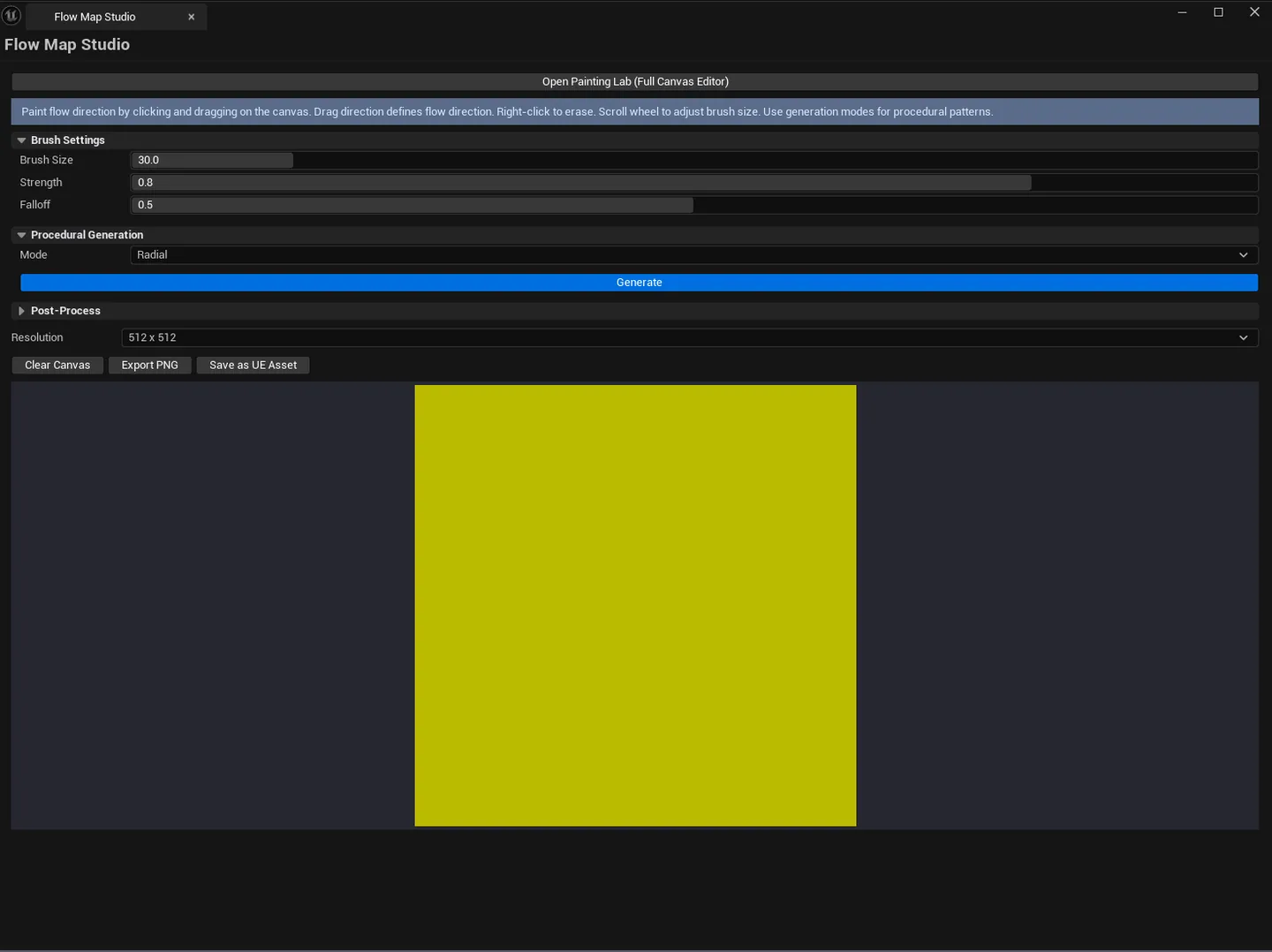
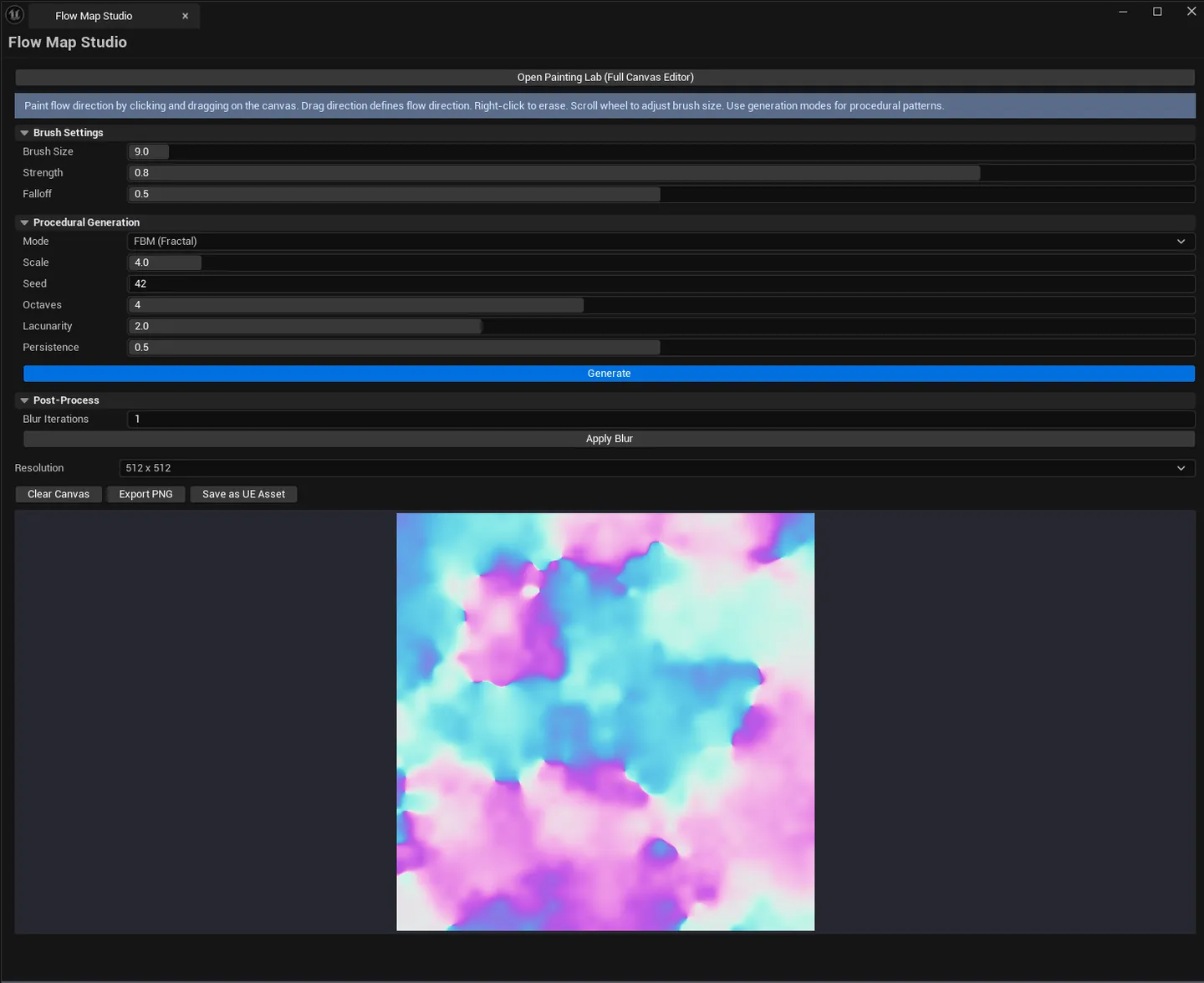
An interactive flow map authoring tool with a paintable 2D canvas. Click-and-drag to paint directional flow strokes, scroll to resize the brush, see live color-coded flow preview (R = X, G = Y), generate procedural flow patterns (radial, directional, vortex, four noise types, curl, three Worley variants, domain-warped FBM), and export as PNG or UE texture.
When to use it
Section titled “When to use it”- Authoring water/wind/lava flow maps for animated material UVs
- Generating procedural flow patterns to feed Niagara or material functions
- Quick flow-map fixes without leaving UE for an external tool
- Building stylized distortion maps for VFX
What it isn’t for
Section titled “What it isn’t for”- Don’t expect 3D-aware painting. This is 2D canvas only. For 3D-projected flow painting, you’d need a dedicated DCC.
Opening the tool
Section titled “Opening the tool”- Open the EQLabs Hub and search for Flow Map (or browse to Art → TextureArt).
- Click the tool card.
- Paint on the canvas with click-and-drag, or use the procedural generation modes.
Interface tour
Section titled “Interface tour”| Section | What it does | Default |
|---|---|---|
| Canvas resolution combo | Output texture size | 512×512 |
| Canvas widget | Paintable 2D canvas; mouse wheel resizes brush | |
| Brush Size | Brush radius in canvas pixels | 30.0 |
| Brush Strength | Stroke deposit strength (0–1) | 0.8 |
| Brush Falloff | Soft-edge curve (0=hard, 1=soft) | 0.5 |
| Erase Mode | Paints neutral (128, 128) when on | false |
| Generate Mode combo | Procedural pattern type (Radial / Directional / Vortex / Perlin / Simplex / FBM / Curl / Worley F1 / Worley F2 / Worley F1F2 / DomainWarpedFBM) | Radial |
| Generate Angle | Angle parameter for Directional mode | 0.0 |
| Noise Scale / Seed / Octaves / Lacunarity / Persistence | Noise generation parameters | sensible defaults |
| Generate | Runs the procedural mode | |
| Blur Iterations | Smoothing passes | 1 |
| Blur Flow Map | Apply Gaussian blur | |
| Show Arrows | Toggle arrow overlay visualization | true |
| Clear | Reset canvas to neutral | |
| Import Reference | Loads a reference texture as background guide | |
| Export PNG / Export UE Asset | Save the flow map |
Painting behavior
Section titled “Painting behavior”- Click and drag. Drag direction defines the flow direction at each painted pixel.
- Mouse wheel. Resizes brush in real-time (no modifier needed).
- Erase Mode on. Paints neutral
(128, 128)(no flow) instead of directional values.
Workflow
Section titled “Workflow”Painting from scratch
Section titled “Painting from scratch”- Set canvas resolution (
512is fine for most flow maps). - Set brush size (or use mouse wheel to resize on the fly).
- Click and drag — drag direction defines flow direction.
- Use Erase Mode to clear individual regions.
- Apply Blur for smoother transitions.
- Export PNG or UE Asset.
Generating procedurally
Section titled “Generating procedurally”- Pick a generation mode.
- Tune mode-specific parameters.
- Click Generate — the canvas fills with the procedural pattern.
- Optionally paint over the result to customize.
- Export.
Hybrid (procedural + paint)
Section titled “Hybrid (procedural + paint)”Generate a base pattern (e.g., Radial outward flow), then paint over specific regions to customize. Best of both worlds.
Settings reference
Section titled “Settings reference”| Field | Range | Default |
|---|---|---|
| Canvas Width / Height | 256 – 4096 | 512 |
| Brush Size | 1 – 200 | 30 |
| Brush Strength | 0 – 1 | 0.8 |
| Brush Falloff | 0 – 1 | 0.5 |
| Generate Mode | enum | Radial |
| Noise Scale | 0.1 – 32 | 4.0 |
| Noise Octaves | 1 – 8 | 4 |
| Noise Lacunarity | 1 – 4 | 2.0 |
| Noise Persistence | 0 – 1 | 0.5 |
| Blur Iterations | 0 – 10 | 1 |
Settings are persisted to
[Project]/Saved/EQLabs/Settings/FlowMapStudio.json.
Output
Section titled “Output”- PNG file. Via Export PNG (saved to disk via OS dialog).
UTexture2DUAsset. Via Export UE Asset (saved to Content Browser at the configured asset path).- Color encoding. R = X direction, G = Y direction, neutral =
(128, 128)(no flow). B = strength.
Tips and gotchas
Section titled “Tips and gotchas”- Flow direction is encoded in R/G channels. Most material setups expect this; if you need a different encoding, post-process the result.
- Mouse wheel resizes the brush. No modifier key needed.
- Erase Mode paints neutral, not transparent. For actual transparency, you’d need a separate alpha pass.
- Apply Blur to soften painted strokes. Typically 1–2 iterations for clean results.
- Domain-warped FBM is the most “natural” procedural mode. Looks like real water flow.
- Reference texture import is just a background guide. Doesn’t affect output.
Related tools
Section titled “Related tools”- Smart Mask & Texture Processor — for non-flow texture processing
- Texture Authoring Suite — seamless texture and variation generation
- Niagara Profiler — analyze Niagara systems that consume flow maps
Report an issue with this tool
Opens our feedback form in a new tab with the tool name pre-filled.