
No. 0522 AR ArtEQLabs Pro
Landscape Layer Debugger
Module: Art · Category: EnvironmentArt · Tool ID:
LandscapeLayerDebugger
Walks every ALandscapeProxy in the level and surfaces paint layer health: layers exceeding per-component blend limits, unused layers wasting weight-map slots, components missing material assignments. Each issue can be navigated to (the underlying landscape and component get pinged), and unused layers can be removed in place.
When to use it
Section titled “When to use it”- Performance pass on a heavily-painted landscape: weight maps cost shader slots, every unused layer is overhead
- Pre-cook check: confirming all painted layers have material assignments
- Inheriting a landscape and wanting to see how many layers were authored vs. actually used
- Finding the source of “shader compile time blew up” issues: usually a landscape with too many active layers
What it isn’t for
Section titled “What it isn’t for”- Don’t use this for landscape mesh / heightmap analysis. It’s paint-layer-specific.
- Don’t expect this to author layers. Paint layer authoring lives in UE’s Landscape mode.
Opening the tool
Section titled “Opening the tool”- Open the EQLabs Hub and search for Landscape (or browse to Art → EnvironmentArt).
- Click the tool card.
- Make sure a level with landscape is loaded.
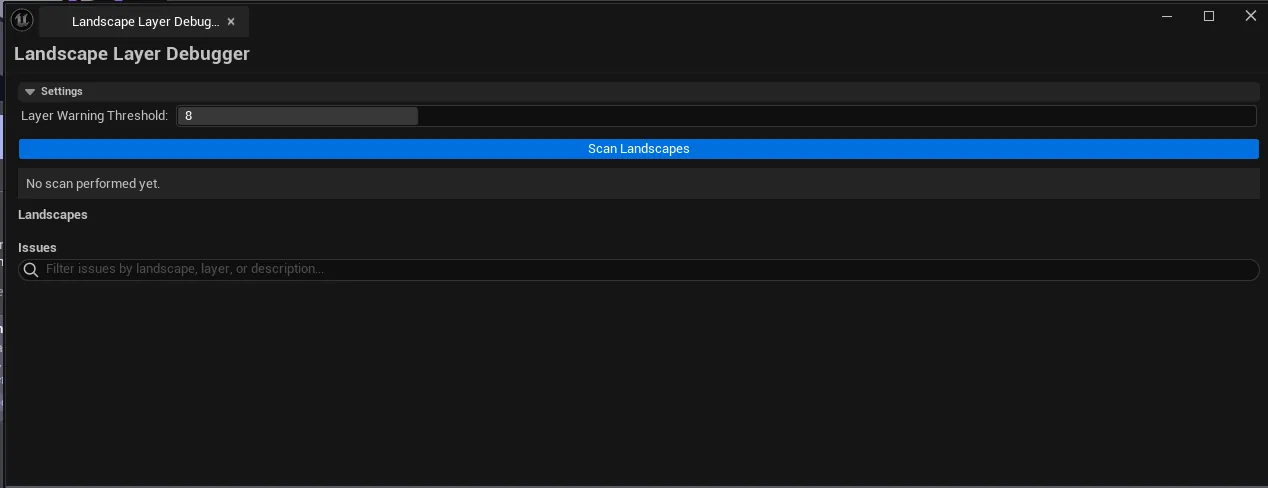
- Click Scan Landscapes.
Interface tour
Section titled “Interface tour”The panel is split into two list views:
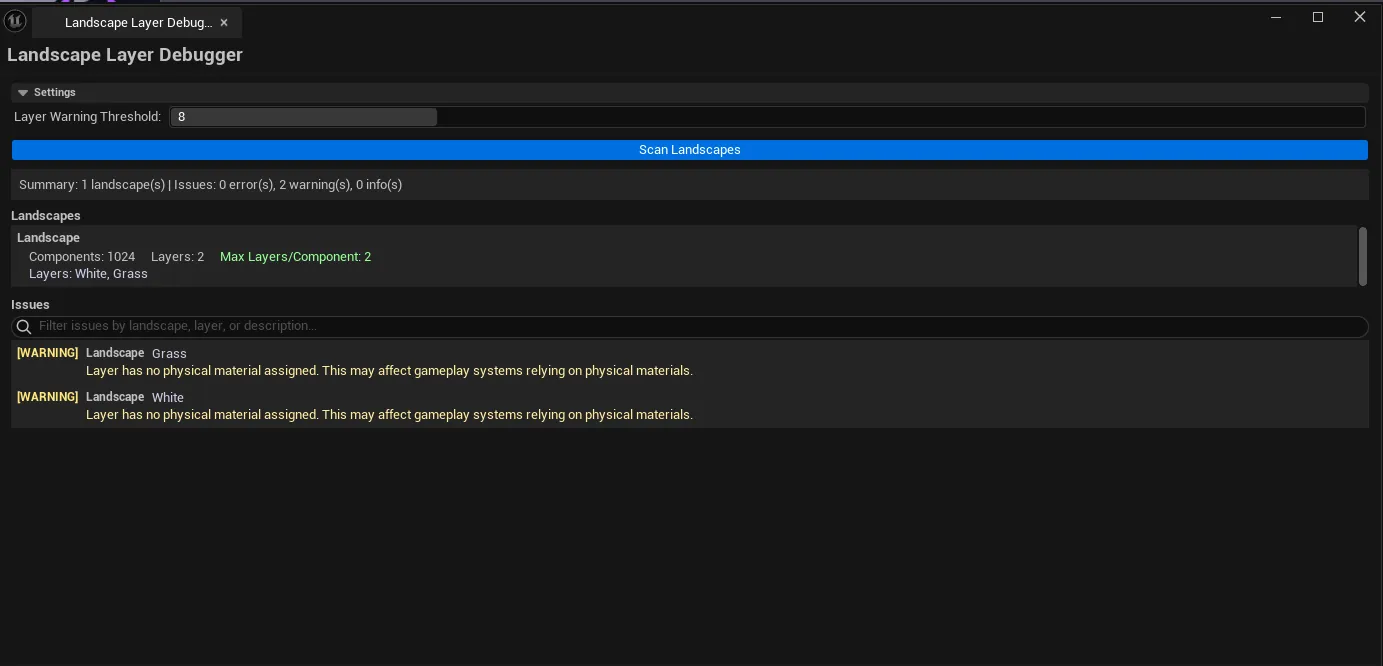
Landscapes list (left)
Section titled “Landscapes list (left)”| Column | What it shows |
|---|---|
| Name | Landscape actor name |
| Components | Component count |
| Layers | Total paint layer count |
| Max Layers/Component | Highest layer count on any single component |
| Layer Names | Comma-joined list of paint layer names |
| Material Assignments | Material(s) assigned to the landscape |
Issues list (right)
Section titled “Issues list (right)”| Column | What it shows |
|---|---|
| Landscape | Which landscape the issue belongs to |
| Layer | Specific layer name (when issue is layer-specific) |
| Issue | Description of the problem |
| Severity | Error / Warning / Info |
| Actions | Per-row action — typically Remove Unused Layer for unused-layer rows |
What gets flagged
Section titled “What gets flagged”| Severity | Issue |
|---|---|
| Error | Component exceeds the per-component layer blend limit (typically 8) |
| Warning | Layer is painted but assignment to material is broken or missing |
| Info | Layer exists but is never actually painted on any component (unused) |
Workflow
Section titled “Workflow”Step 1: Scan
Section titled “Step 1: Scan”Click Scan Landscapes. Both lists populate.
Step 2: Walk Errors first
Section titled “Step 2: Walk Errors first”Per-component layer-limit Error rows are the most likely shader-compile issue. Each one tells you which component on which landscape has too many layers.
Step 3: Remove unused layers
Section titled “Step 3: Remove unused layers”Info-severity rows for unused layers can be removed in place via the per-row action button. Removing them frees weight-map slots immediately.
Step 4: Re-scan
Section titled “Step 4: Re-scan”Confirm the issue list shrinks. Save the level.
Settings reference
Section titled “Settings reference”| Field | What it does | Default |
|---|---|---|
| Max Layer Warning Threshold | Per-component layer count that triggers a Warning | 8 |
Settings are persisted to
[Project]/Saved/EQLabs/Settings/LandscapeLayerDebugger.json.
Output
Section titled “Output”- Two in-panel lists. Landscapes and issues, cleared on each rescan.
- Layer removal.
Remove Unused Layermodifies the landscape directly. Marked dirty until Save. - Undo. Wrapped in
ScopedTransaction, reversible withCtrl+Z.
Tips and gotchas
Section titled “Tips and gotchas”- Per-component layer limits are platform-dependent. Most platforms cap at 8 active layers per component. Mobile typically caps at 4. Check your project settings if unsure.
- An “unused” layer might be intentional. Sometimes layers are kept around as authoring placeholders or for future paint passes. The tool flags them; you decide whether to remove.
- Material assignment Warnings are usually broken references. Fix them in the Landscape’s material slot, not in this tool.
- Single-click pings the landscape; double-click opens the landscape’s actor properties for further inspection.
Related tools
Section titled “Related tools”- Foliage Placement Analyzer — the foliage-side counterpart for environment art performance
- Material Layer Studio. For the material side of landscape layer authoring.
Opens our feedback form in a new tab with the tool name pre-filled.