
No. 0793 DE DesignEQLabs Pro
Measurement & Annotation Tool
Module: Design · Category: LevelDesign · Tool ID:
MeasurementAnnotationTool
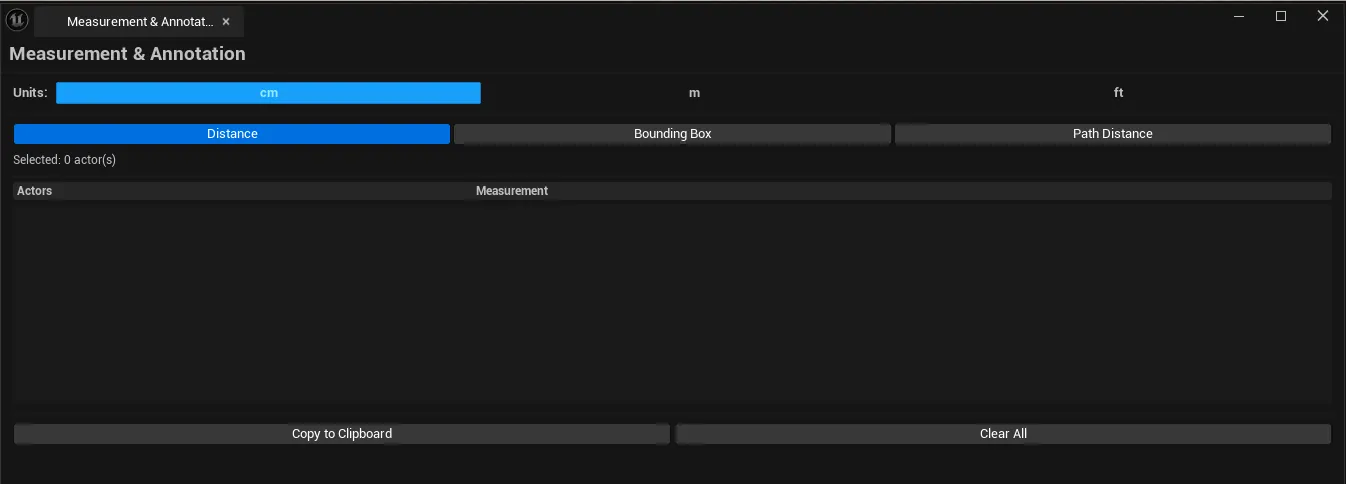
Measures distances between selected actors, bounding box dimensions of selected actors, and path distances along multi-actor selections. Displays results in centimeters, meters, or feet — copy to clipboard or clear results in one click.
When to use it
Section titled “When to use it”- Verifying gameplay distances: “is this gap really jumpable?”
- Confirming character-scale geometry (door heights, corridor widths)
- Reporting measurements to designers / writers via clipboard
- Cross-referencing reference images (with Reference Image Overlay)
What it isn’t for
Section titled “What it isn’t for”- Don’t use this for navigation analysis. See World-Scale & Traversal Checker.
Opening the tool
Section titled “Opening the tool”- Open the EQLabs Hub and search for Measure (or browse to Design → LevelDesign).
- Click the tool card.
- Select actors in the level.
- Click a measurement button.
Interface tour
Section titled “Interface tour”| Action | What it does |
|---|---|
| Measure Distance | Distance between two selected actors (or actor pivots) |
| Measure Bounding Box | Dimensions of selected actor(s) bounds |
| Measure Path Distance | Total distance walking through every selected actor in selection order |
| Display Unit combo | Centimeters / Meters / Feet |
| Copy Results | Clipboard dump of the visible results |
| Clear Results | Empties the results list |
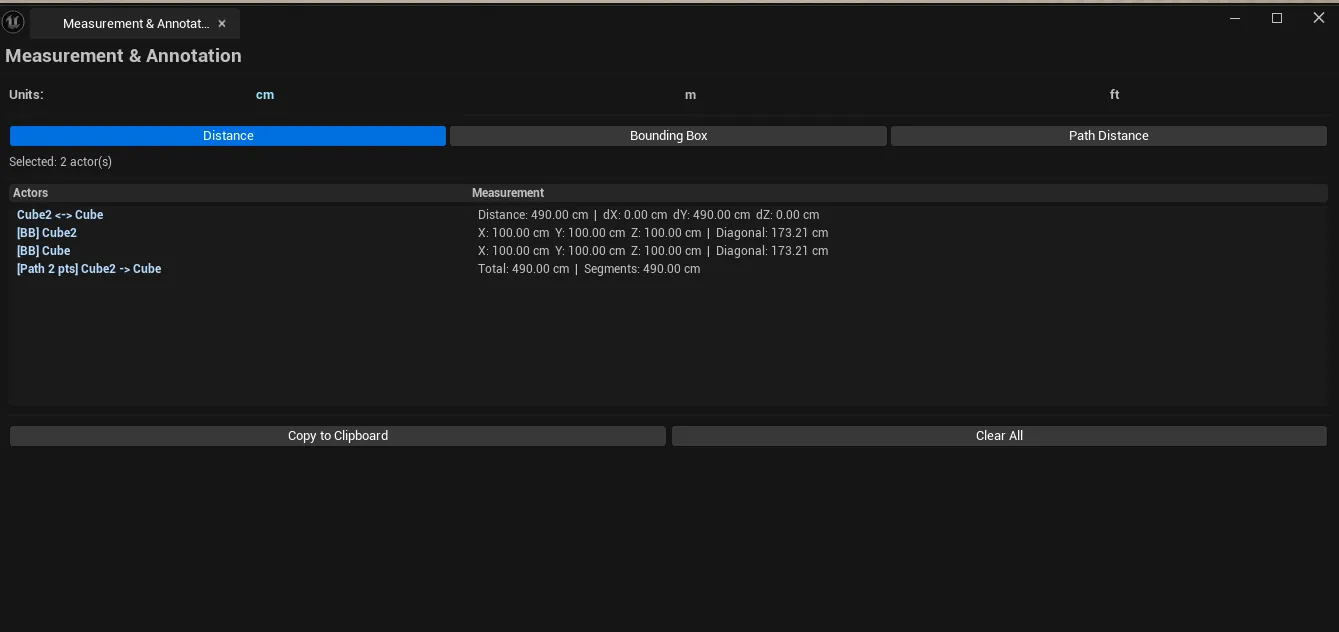
| Results list | Per-row: label, value (formatted with unit suffix) |
Measurement types
Section titled “Measurement types”| Type | What it measures | Selection requirement |
|---|---|---|
| Distance | Pivot-to-pivot distance | Exactly 2 actors |
| Bounding Box | XYZ dimensions of bounds | 1+ actors |
| Path Distance | Sum of pivot-to-pivot distances along the selection | 2+ actors in order |
Workflow
Section titled “Workflow”Distance between two actors
Section titled “Distance between two actors”- Select two actors in the viewport.
- Click Measure Distance.
- Read the value in the results list.
Bounding box
Section titled “Bounding box”- Select one or more actors.
- Click Measure Bounding Box.
- Result shows X × Y × Z dimensions.
Path distance
Section titled “Path distance”- Select actors in the order you want to traverse.
- Click Measure Path Distance.
- Result is the sum of pivot-to-pivot distances.
Switching units
Section titled “Switching units”Change the Display Unit combo to convert all displayed measurements. The underlying values are stored in cm and converted on display.
Settings reference
Section titled “Settings reference”| Field | Default |
|---|---|
| Display Unit | Centimeters |
Settings file:
[Project]/Saved/EQLabs/Settings/MeasurementAnnotationTool.json
Output
Section titled “Output”- In-panel results list. Clear via Clear Results.
- Clipboard. Copy Results writes plain text.
- No level edits. Measurement is read-only.
Tips and gotchas
Section titled “Tips and gotchas”- Distance is pivot-to-pivot. If your actors have weird pivots, the measurement reflects that, not visible-edge-to-edge.
- Path distance is selection-order-dependent. UE doesn’t always preserve selection order; use a single click + shift-click to control order.
- Feet display uses imperial conversion.
30.48 cmper foot.
Related tools
Section titled “Related tools”- World-Scale & Traversal Checker — character-budget validation
- Reference Image Overlay — measure relative to a reference
Report an issue with this tool
Opens our feedback form in a new tab with the tool name pre-filled.