
No. 0111 TE TechEQLabs Pro
Gradient Ramp Generator
Module: Tech · Category: TextureGenerators · Tool ID:
GradientRampGenerator
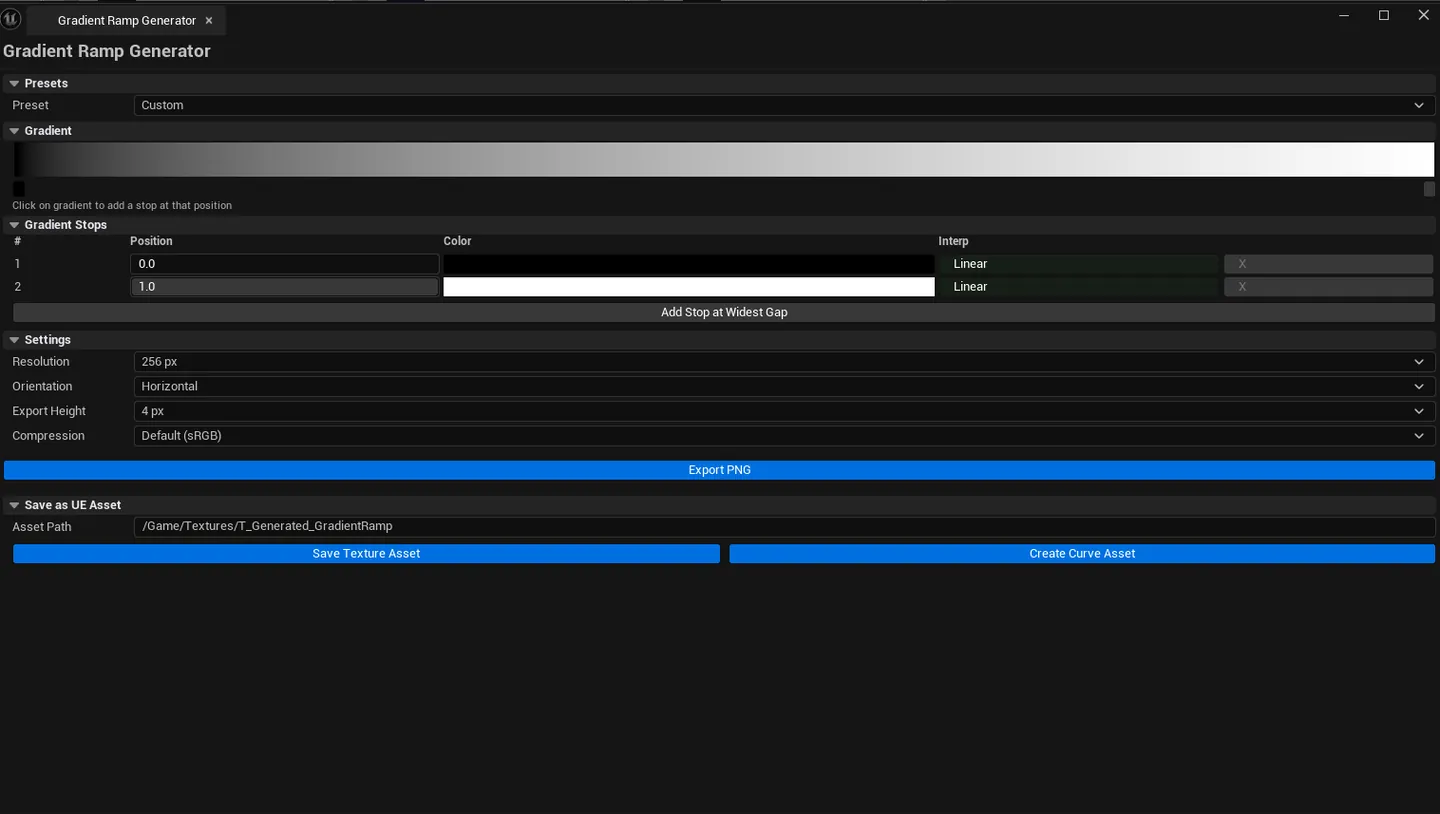
Builds gradient ramp textures with custom color stops, per-stop interpolation (Linear or Step), and four orientations (Horizontal / Vertical / Radial / Angular). Drives toon-shading lookups, color grading ramps, time-of-day curves, and any ramp-based material effect. Exports as PNG or UTexture2D UAsset, and can also create a UCurveLinearColor asset.
When to use it
Section titled “When to use it”- Authoring toon / cel shading ramps that drive material lookup
- Time-of-day color ramps for sky / lighting drivers
- Color-grading LUTs for stylized post-processing
- Any material that needs a parameterizable color gradient
What it isn’t for
Section titled “What it isn’t for”- Don’t use this for full-LUT generation. See LUT Color Grading Baker.
- Don’t expect 3D gradients. Outputs are 2D (or 1D × height).
Opening the tool
Section titled “Opening the tool”- Open the EQLabs Hub and search for Gradient (or browse to Tech → TextureGenerators).
- Click the tool card.
- Add stops, configure orientation, click Generate.
Interface tour
Section titled “Interface tour”| Section | What it does | Default |
|---|---|---|
| Resolution | Output texture width | 256 |
| Export Height | Texture height in pixels | 4 |
| Compression combo | Output texture compression | (default) |
| Orientation combo | Horizontal / Vertical / Radial / Angular | Horizontal |
| Preset combo | Quick-pick built-in gradients (Toon, Sunset, etc.) | |
| Marker row | Draggable stops on a horizontal bar — click to add a stop | |
| Stop list | Per-stop row: time, color, interpolation (Linear / Step), remove | |
| Add Stop | Adds a new stop | |
| Save Asset Path | Output asset path | /Game/Textures/T_Generated_GradientRamp |
| Generate / Update Preview | Bakes the gradient | |
| Export PNG | Saves to disk | |
| Save as UE Asset | Creates a UTexture2D | |
| Create Curve Asset | Creates a UCurveLinearColor from the same stops |
Per-stop interpolation
Section titled “Per-stop interpolation”| Mode | What it does |
|---|---|
| Linear | Smooth interpolation to the next stop |
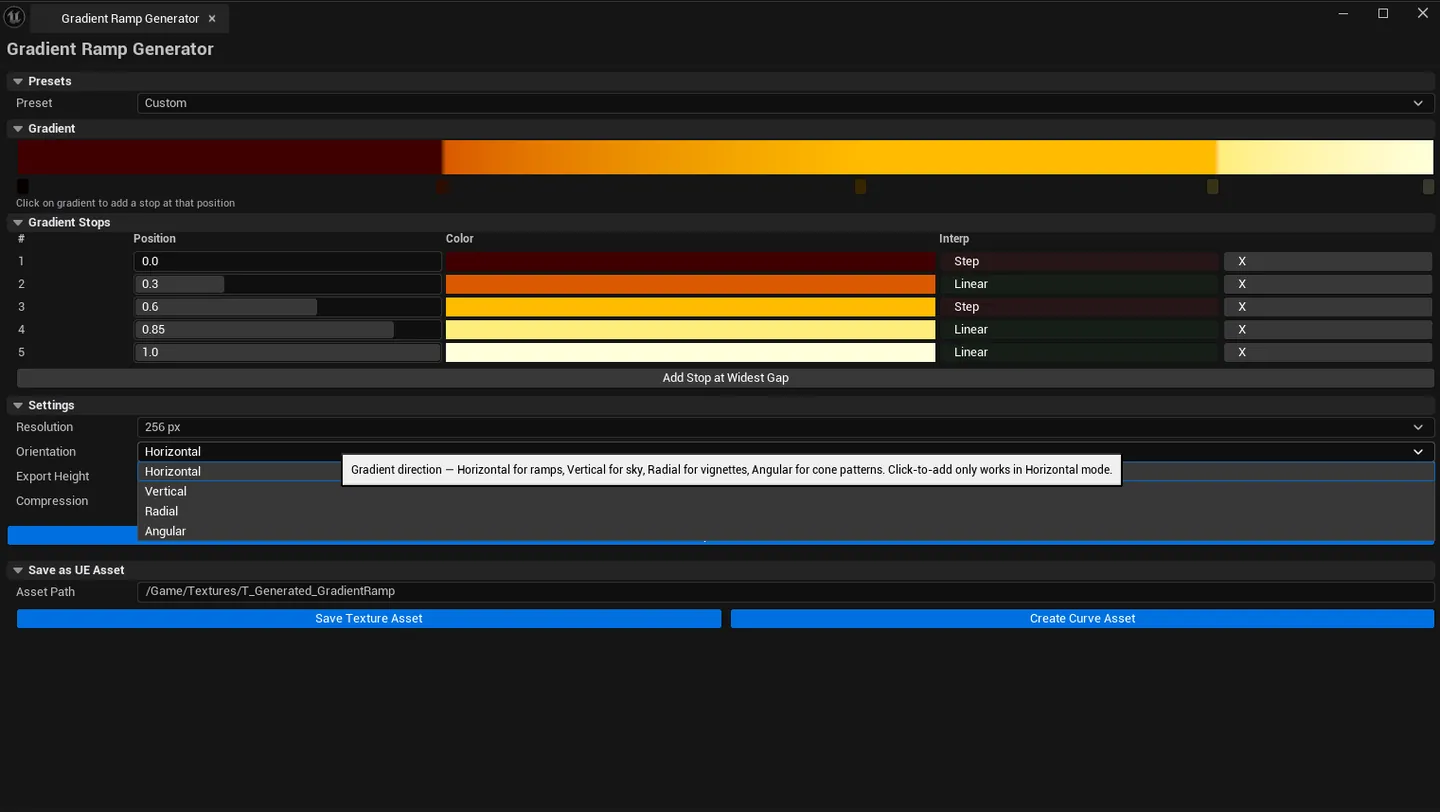
| Step | Hard cut (no interpolation) — stays at the stop’s color until the next stop |
Orientations
Section titled “Orientations”| Orientation | What it produces |
|---|---|
| Horizontal | Gradient runs left-to-right |
| Vertical | Top-to-bottom |
| Radial | Center to edge |
| Angular | Clockwise rotation around center |
Workflow
Section titled “Workflow”Toon shading ramp
Section titled “Toon shading ramp”- Pick Toon preset (or start from default).
- Add stops at
0.0,0.3,0.7,1.0. - Set the
0.3and0.7stops to Step interpolation (hard cuts). - Pick the colors for shadow / mid / light / specular.
- Save as UE Asset — the ramp is ready for a material to sample.
Sunset / time-of-day curve
Section titled “Sunset / time-of-day curve”- Add 5 stops representing the colors over time.
- Keep all stops on Linear interpolation.
- Create Curve Asset — drives a Blueprint or Niagara color over time.
Settings reference
Section titled “Settings reference”Settings persist via the standard tool framework to [Project]/Saved/EQLabs/Settings/GradientRampGenerator.json.
Output
Section titled “Output”UTexture2Dasset. Via Save as UE Asset.- PNG file. Via Export PNG.
UCurveLinearColorasset. Via Create Curve Asset.- Linear / sRGB pixel encoding controlled by texture target type
Tips and gotchas
Section titled “Tips and gotchas”- Step interpolation is the toon-shading killer feature. UE’s default linear ramps don’t give the hard banding most cel shaders want.
- Marker row is click-to-add. Clicking on the bar inserts a stop at that position.
- Export Height of 4 is enough for most ramps; raise for visual “stripe” effects
- Curve Asset and Texture Asset can be created from the same stops. Useful when one shader path uses curves and another uses sampled textures.
Related tools
Section titled “Related tools”- Noise Texture Generator — for procedural noise textures (different domain)
- LUT Color Grading Baker — for 3D color-grading LUTs
Report an issue with this tool
Opens our feedback form in a new tab with the tool name pre-filled.